- copilot
 Introduction: Copilot
- Key Capabilities
- Launch Copilot
- Record Test Steps
- Copilot Debug Toolbar
- Browser Profile for Copilot
- manage test steps
- Add Test Steps
- Edit and Update Steps
- Delete Test Steps
- Reorder Test Steps
- Bulk Actions
- FAQs on Testsigma Copilot
- troubleshooting for copilot
- Unable to Login to Testsigma Terminal?
- Unable to Download the Terminal Files?
- Unable to Extract the Terminal Files?
- Unable to Start the Terminal Due to Port Unavailability?
- Unable to Start the Agent?
- Unable to Auto-Register Your Device Using Testsigma Terminal?
- Unable to Download the Packages Required to Start the Agent?
- Unable to Update the Packages Required to Start the Agent?
- Unable to Reestablish Connection to Agent?
Launch Copilot
In Testsigma, you can launch Copilot directly from a test case to work with your test steps in a single workspace. You can set a debug point to pause execution at a specific step and choose the step from which the execution should begin. This article discusses how to launch Copilot from within a test case.
Prerequisites
Before you begin, ensure that:
- You have created a test case.
- You have installed and configured the Testsigma Terminal.
Steps to Launch Copilot
- From the left navigation bar, go to Create Tests > Test Cases.
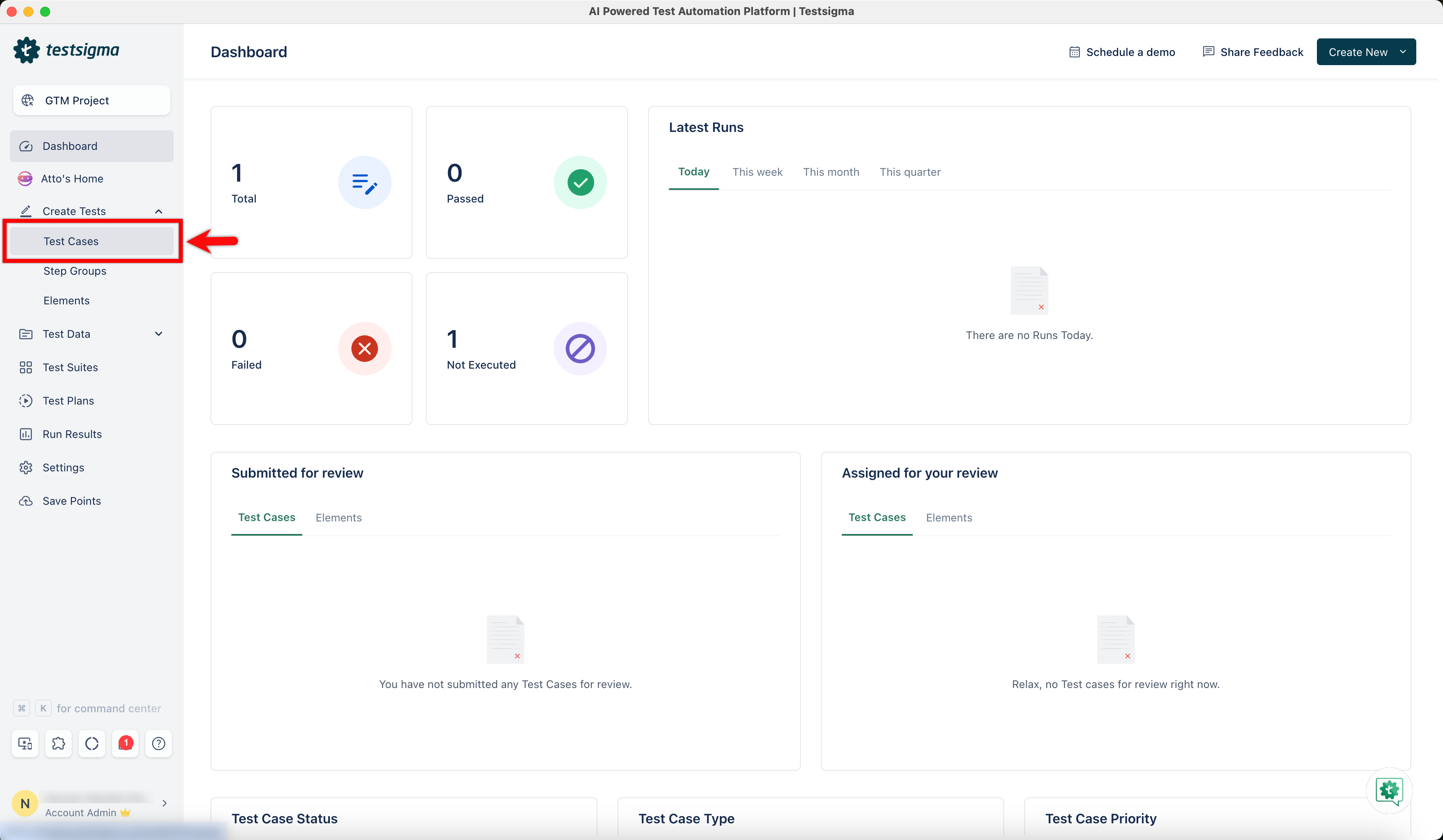
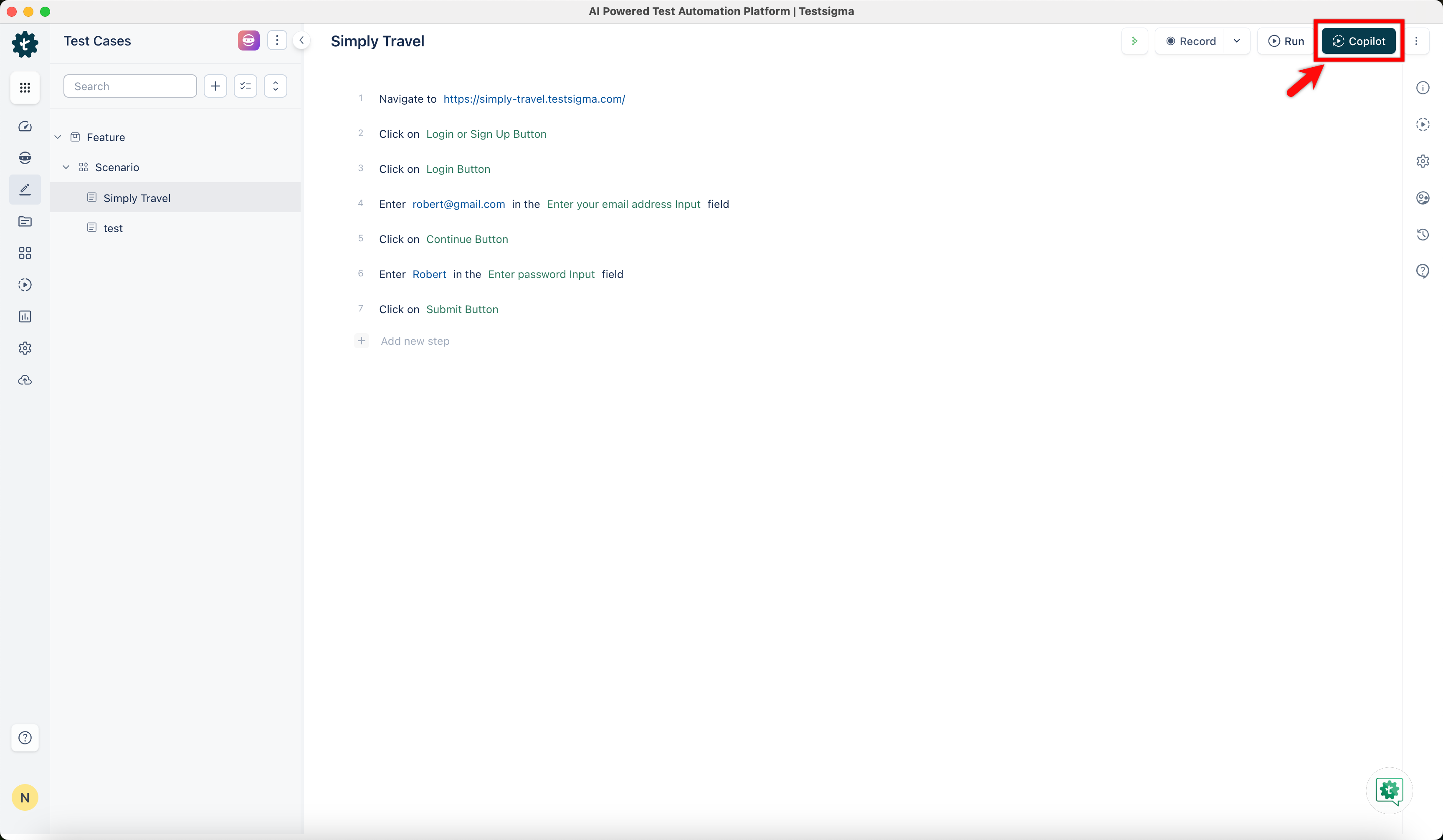
- Open an existing test case or create a new one.
- In the test case details page, click Copilot in the Action Panel.
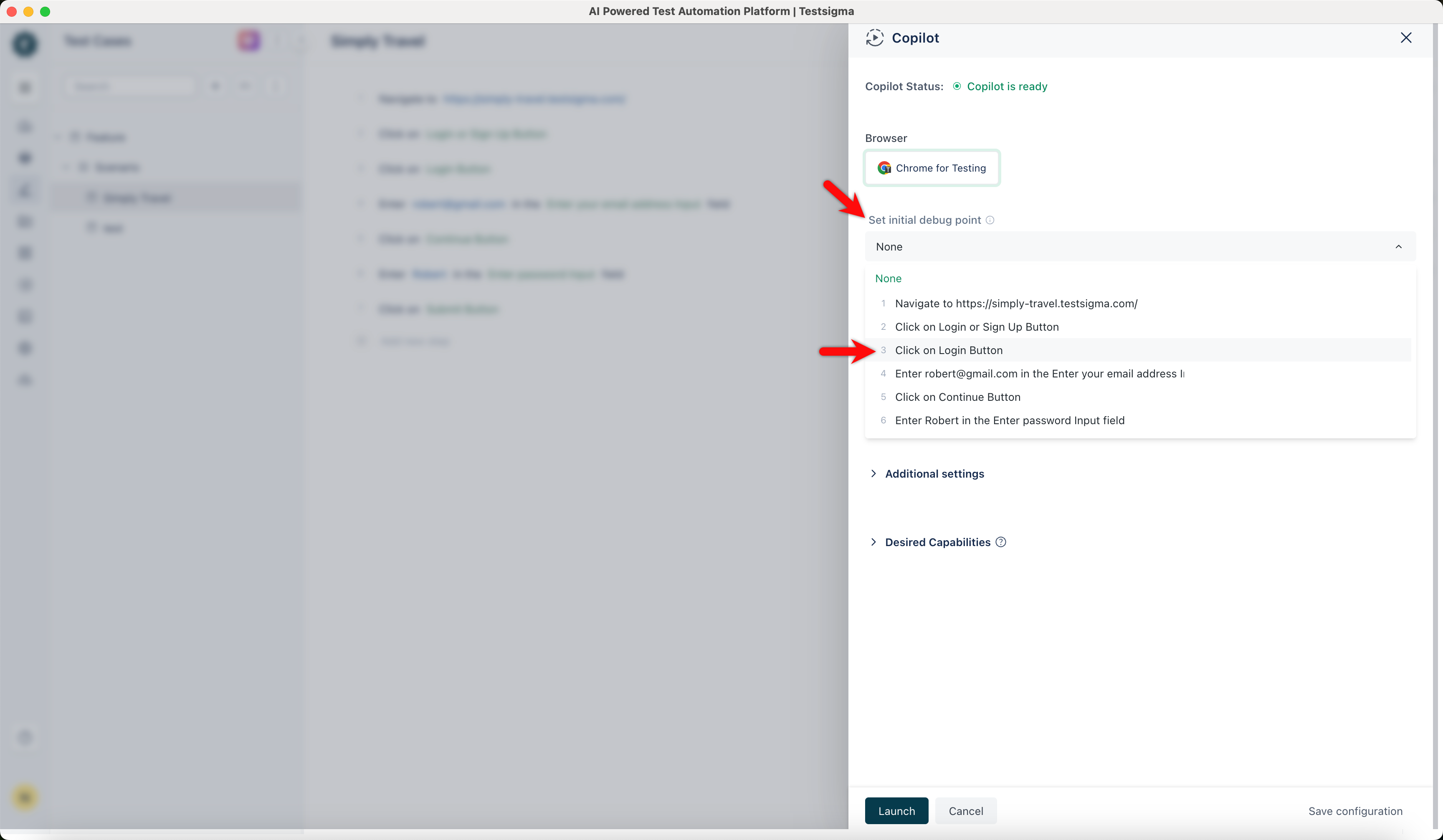
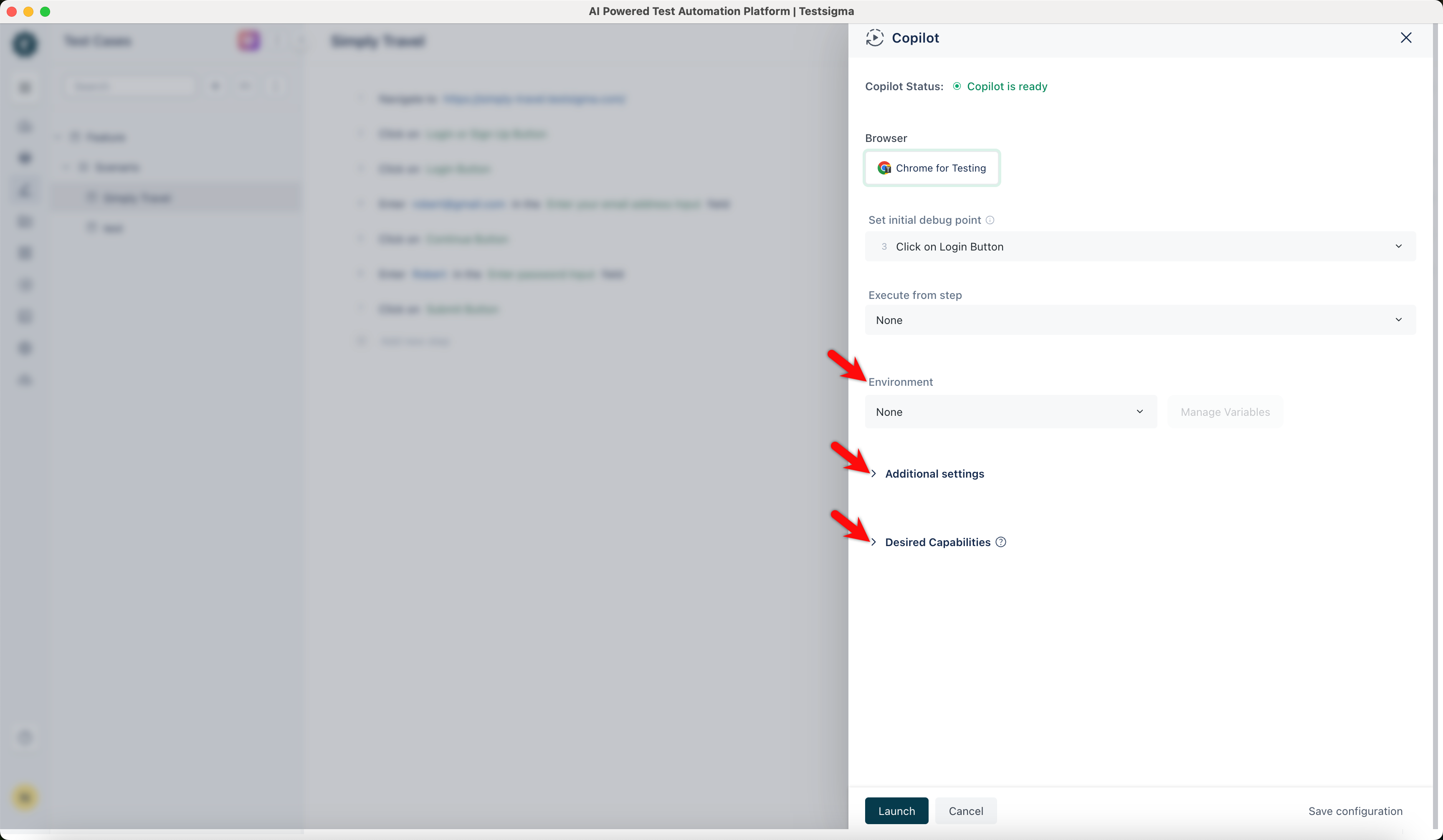
- In the Copilot overlay, click the dropdown in the Set Initial Debug Point field and select the step at which you want execution to pause automatically.
- If needed, click the dropdown in the Execute from Step field and select the step from which you want execution to begin, skipping all prior steps.
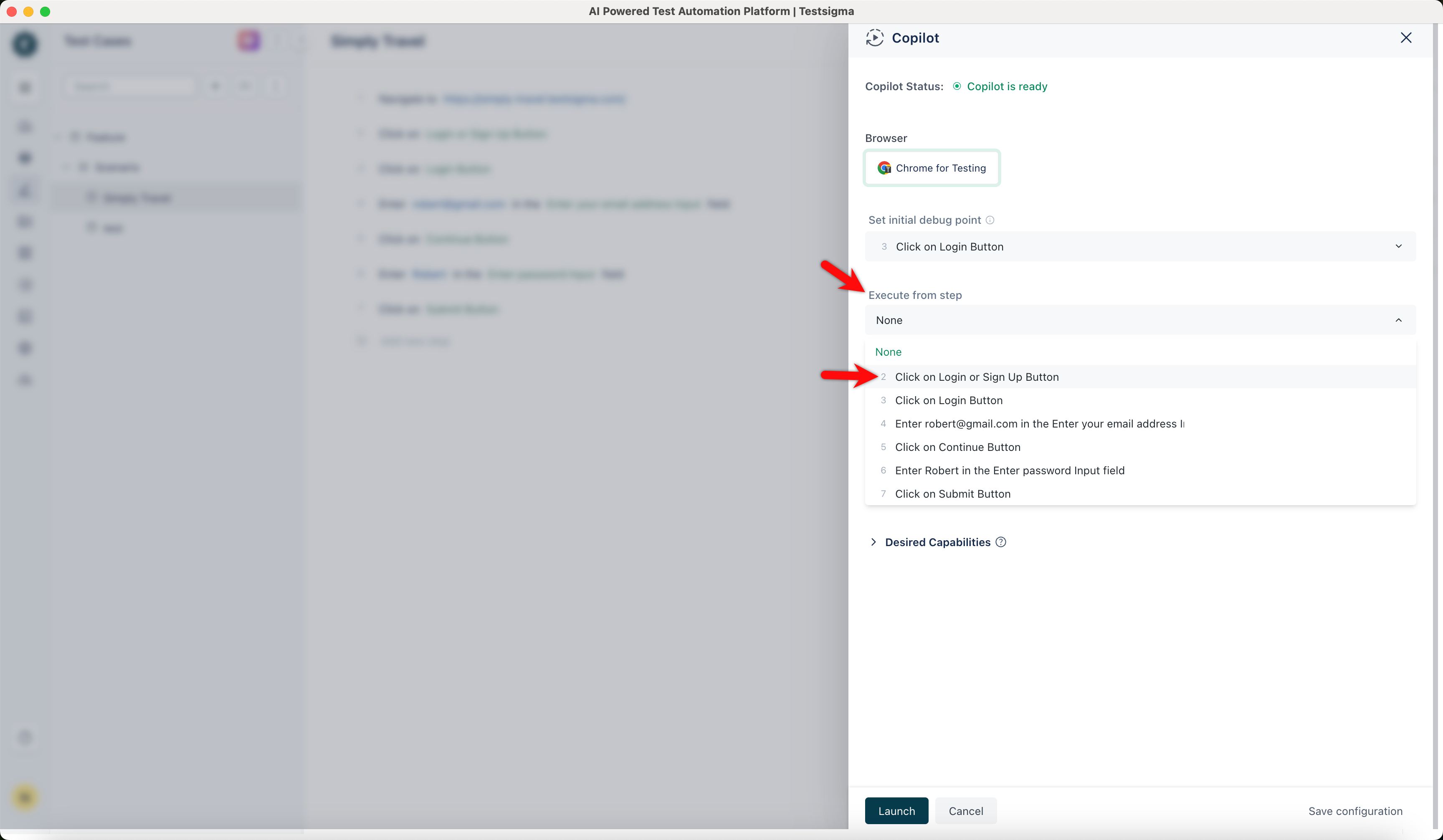
NOTE:
Make sure your application under test is on the screen that corresponds to the selected step before using this option.
- Configure Environment, Additional Settings, and Desired Capabilities, if needed.
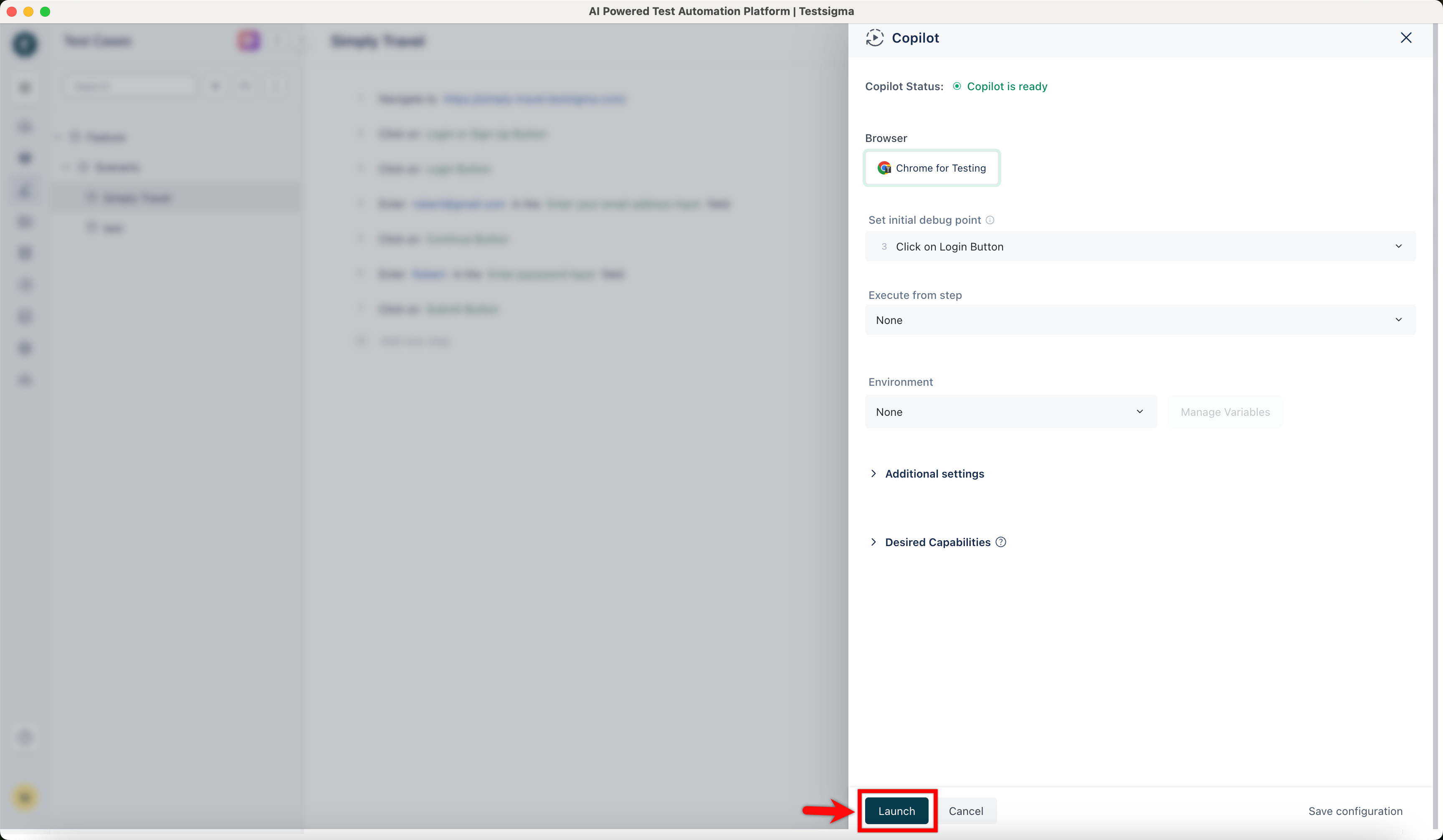
- Click Launch and wait for Copilot to start a session.

Want to contribute or report missing content?