- copilot
 Introduction: Copilot
- Key Capabilities
- Launch Copilot
- Record Test Steps
- Copilot Debug Toolbar
- Browser Profile for Copilot
- manage test steps
- Add Test Steps
- Edit and Update Steps
- Delete Test Steps
- Reorder Test Steps
- Bulk Actions
- FAQs on Testsigma Copilot
- troubleshooting for copilot
- Unable to Login to Testsigma Terminal?
- Unable to Download the Terminal Files?
- Unable to Extract the Terminal Files?
- Unable to Start the Terminal Due to Port Unavailability?
- Unable to Start the Agent?
- Unable to Auto-Register Your Device Using Testsigma Terminal?
- Unable to Download the Packages Required to Start the Agent?
- Unable to Update the Packages Required to Start the Agent?
- Unable to Reestablish Connection to Agent?
Bulk Actions
Use Copilot to perform actions on multiple test steps at once. Instead of managing steps individually, you can select multiple steps and apply an action to all of them in a single operation using the floating action bar. This article discusses performing bulk actions on test steps using Copilot.
Prerequisites
Before you begin, ensure that:
- You have created a test case.
- You have installed and configured the Testsigma Terminal.
- You have referred to the documentation on Launch Copilot.
Steps to Perform Bulk Actions
- In the Copilot overlay, hover over a step. A checkbox appears in place of the step number.
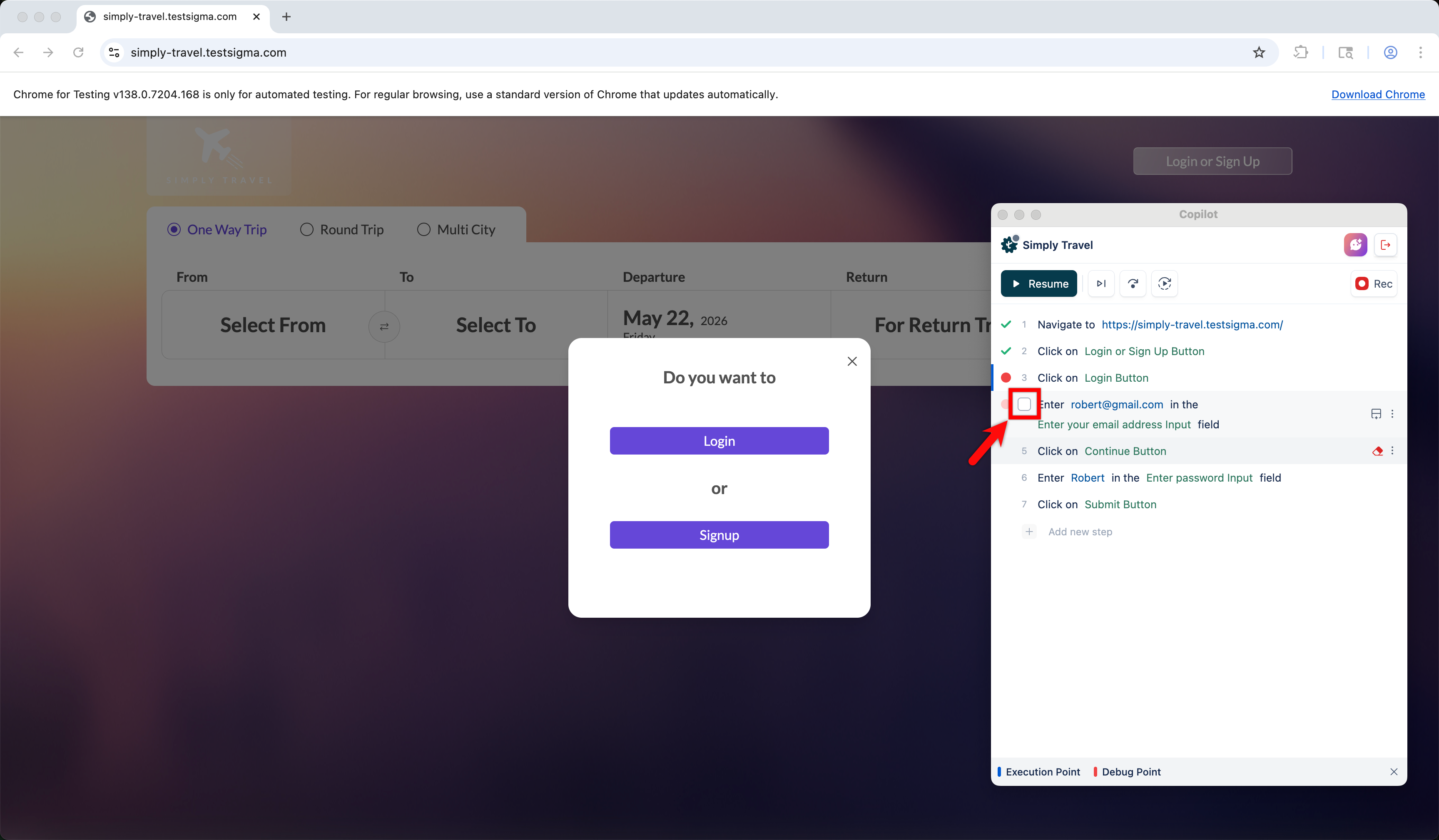
- Click the checkbox to select the step. The floating action bar appears at the bottom of the panel.
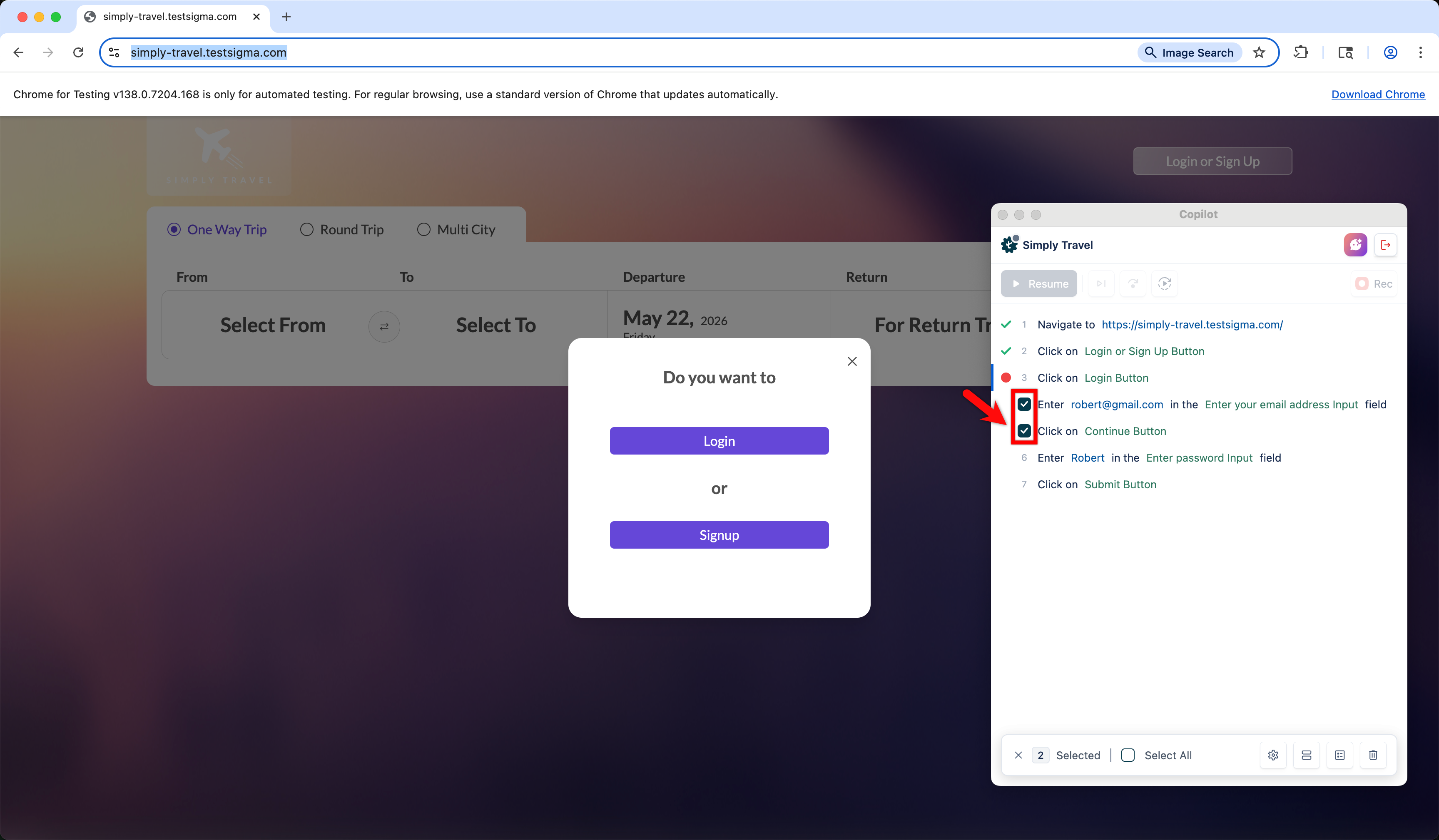
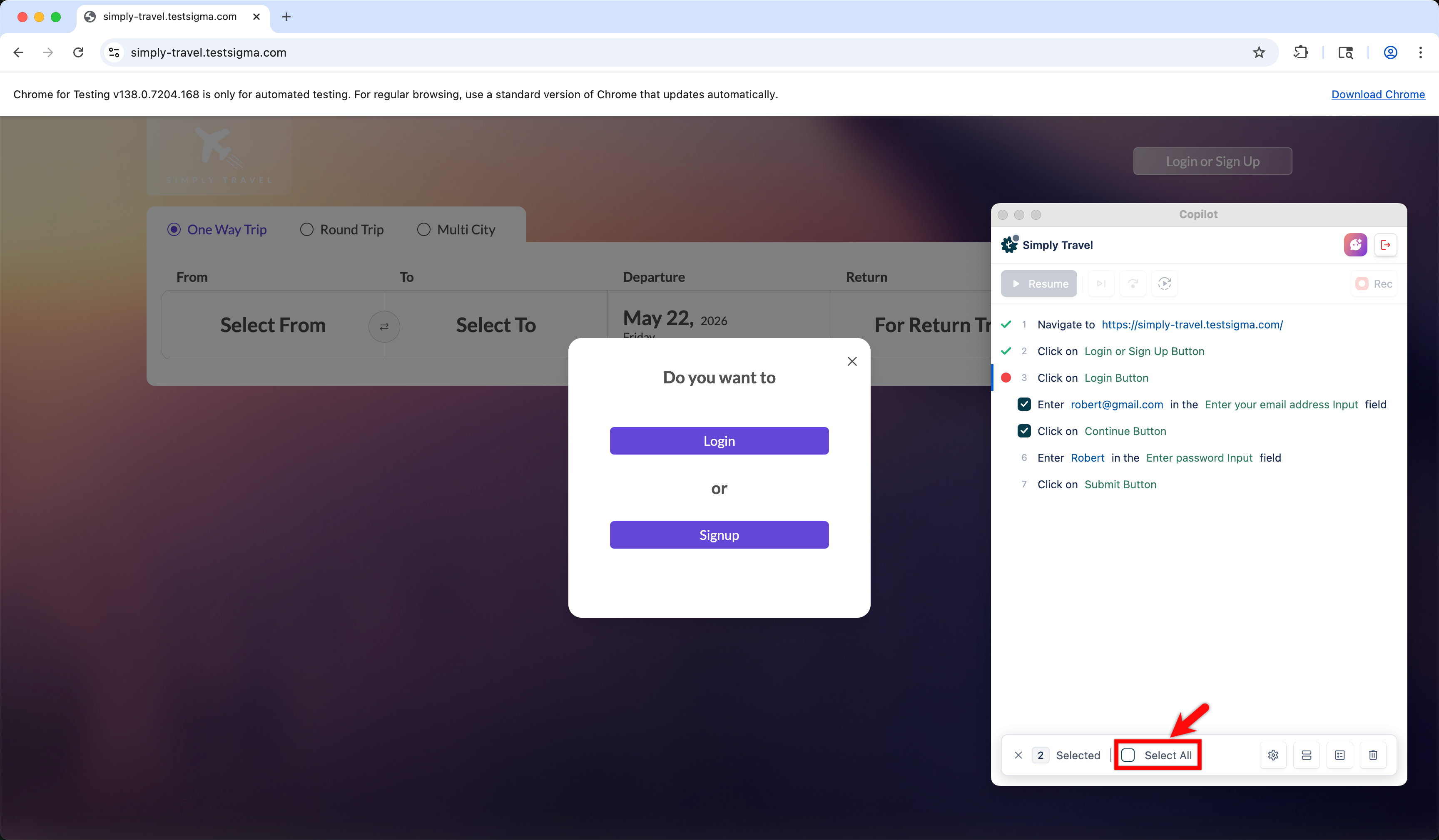
- Continue selecting additional steps by clicking their checkboxes. To select all steps at once, click Select All in the action bar.
-
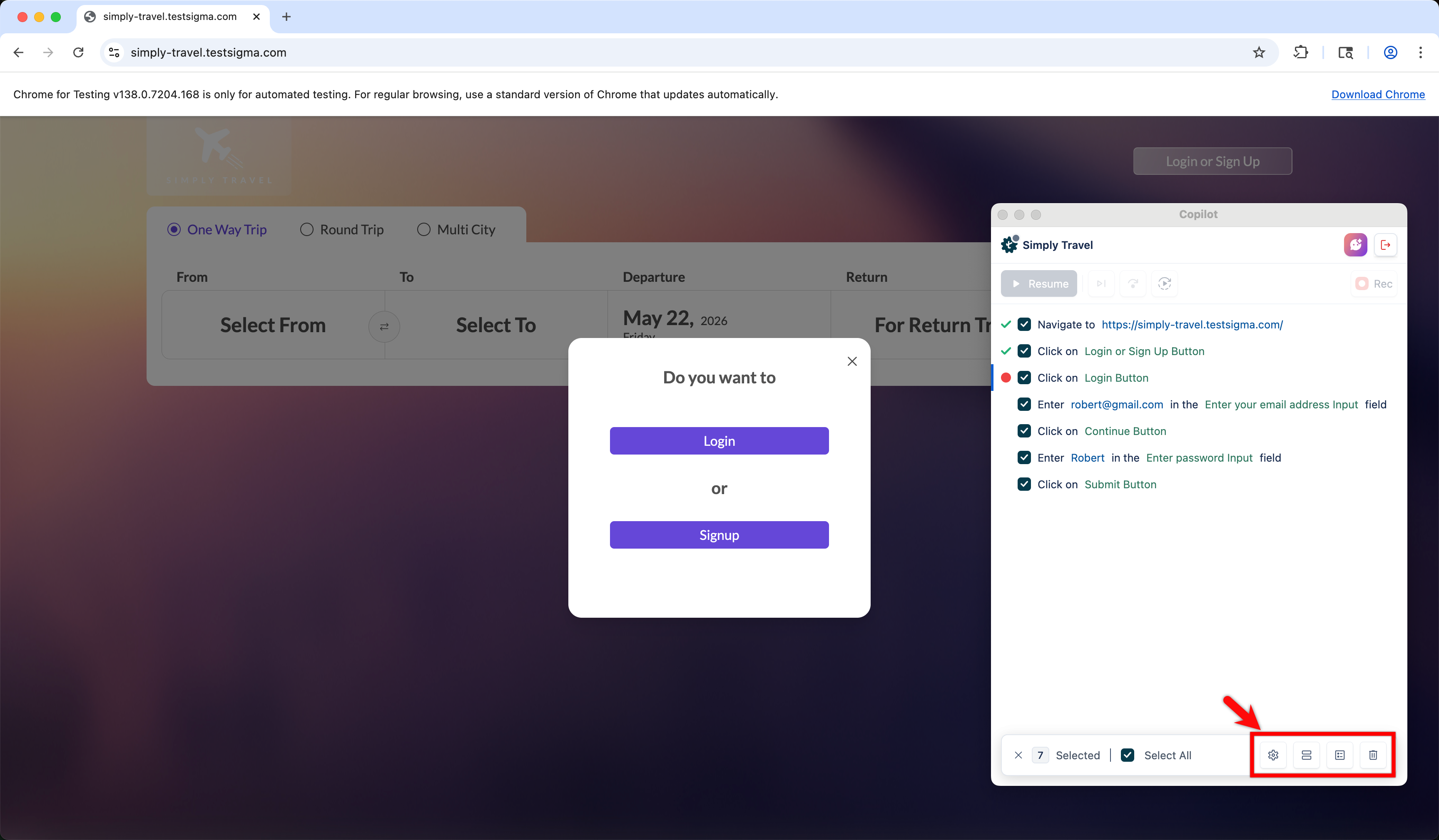
Once you have selected the steps, use the icons in the floating action bar to apply an action:
- Step Settings — Apply shared settings, such as timeouts, screenshot behavior, and other configurations, across all selected steps at once.
- Create Step Block — Group the selected steps into a reusable step block that can be referenced across test cases.
- Create Step Group — Combine the selected steps into a step group to organize and reuse them within your test suite.
- Delete — Permanently remove all selected steps from the test case. This action cannot be undone.

Want to contribute or report missing content?