- copilot
 Introduction: Copilot
- Key Capabilities
- Launch Copilot
- Record Test Steps
- Copilot Debug Toolbar
- Browser Profile for Copilot
- manage test steps
- Add Test Steps
- Edit and Update Steps
- Delete Test Steps
- Reorder Test Steps
- Bulk Actions
- FAQs on Testsigma Copilot
- troubleshooting for copilot
- Unable to Login to Testsigma Terminal?
- Unable to Download the Terminal Files?
- Unable to Extract the Terminal Files?
- Unable to Start the Terminal Due to Port Unavailability?
- Unable to Start the Agent?
- Unable to Auto-Register Your Device Using Testsigma Terminal?
- Unable to Download the Packages Required to Start the Agent?
- Unable to Update the Packages Required to Start the Agent?
- Unable to Reestablish Connection to Agent?
Delete Test Steps
Use Copilot to delete test steps you no longer need. You can delete a single step directly from the step row or select multiple steps and delete them at once. This article discusses deleting test steps using Copilot.
Prerequisites
Before you begin, ensure that:
- You have created a test case.
- You have installed and configured the Testsigma Terminal.
- You have referred to the documentation on Launch Copilot.
Steps to Delete a Test Steps
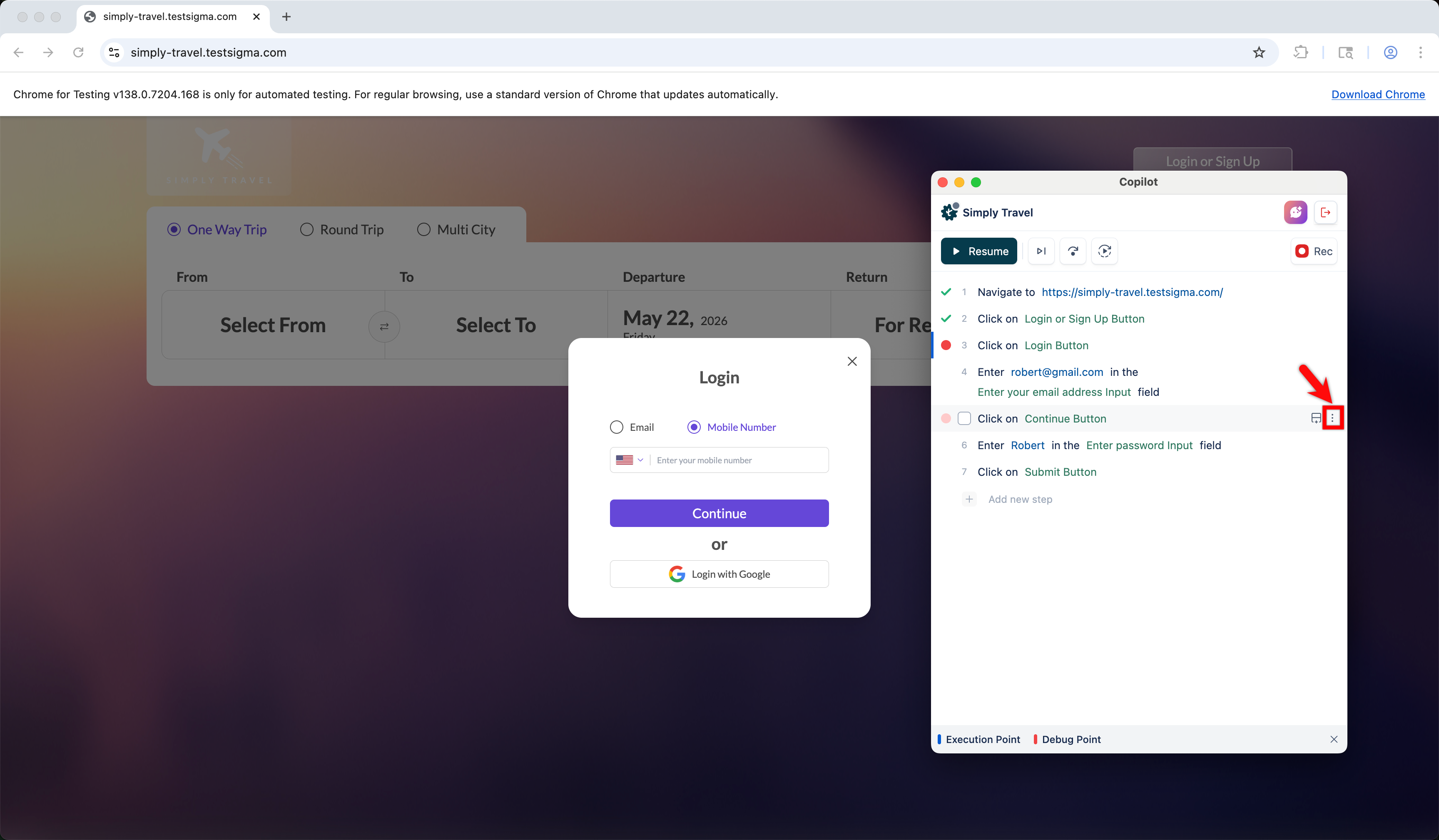
- In the Copilot dialog, hover over the step you want to delete and click the ellipsis icon on the right side of the step.
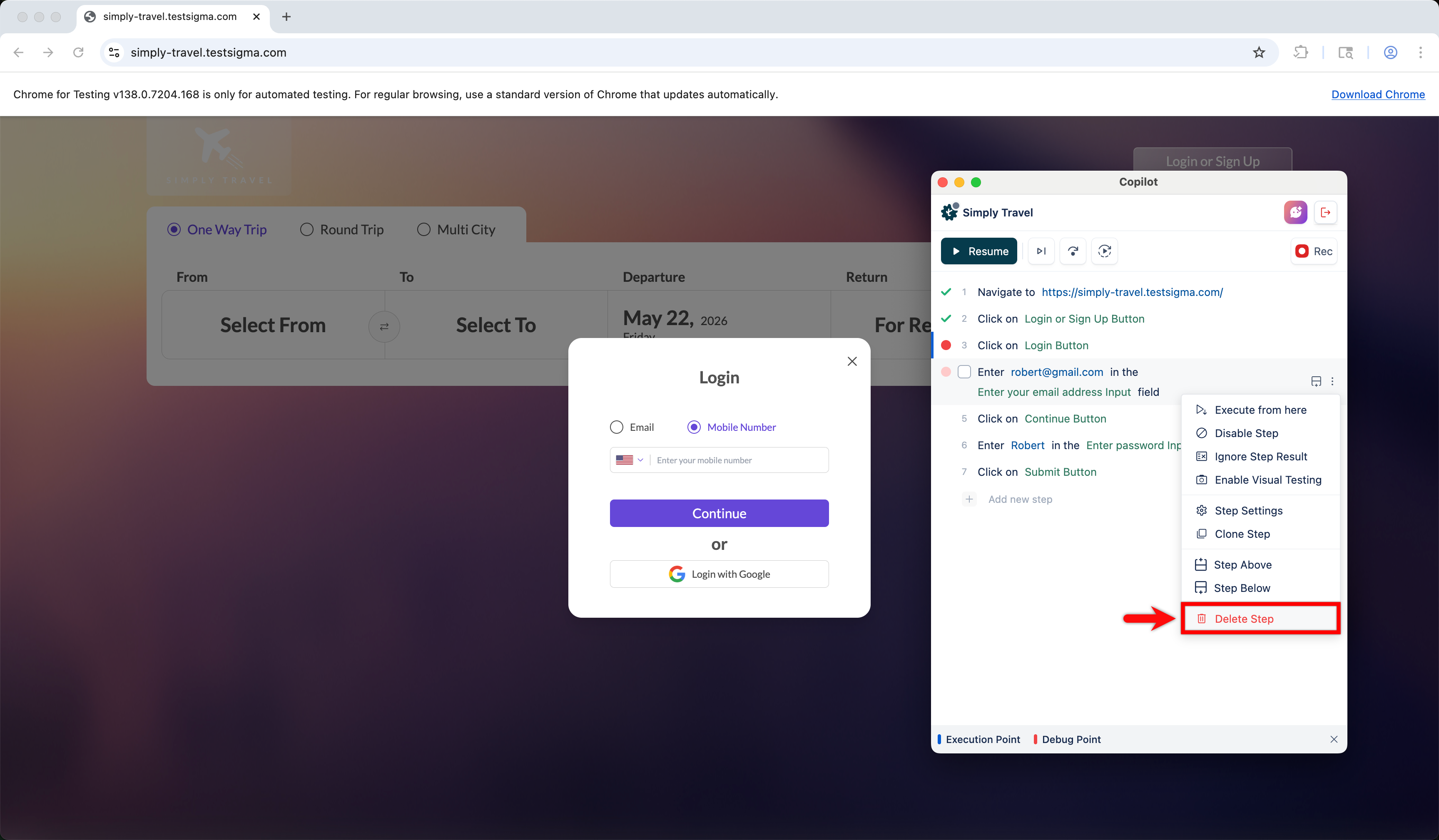
- Click Delete Step.
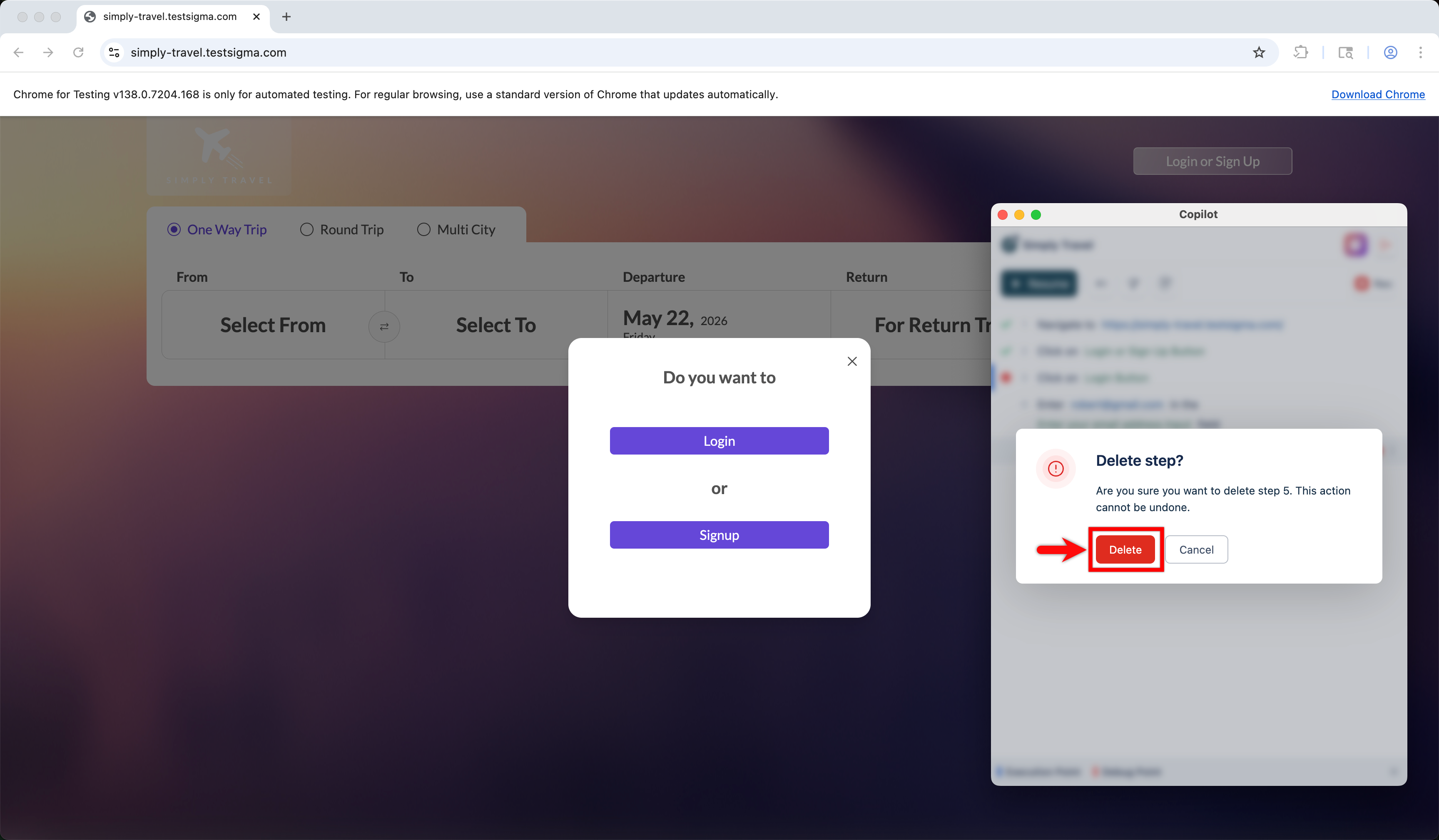
- In the Delete step? dialog, click Delete to remove the step from the test case permanently.
Steps to Delete Multiple Steps
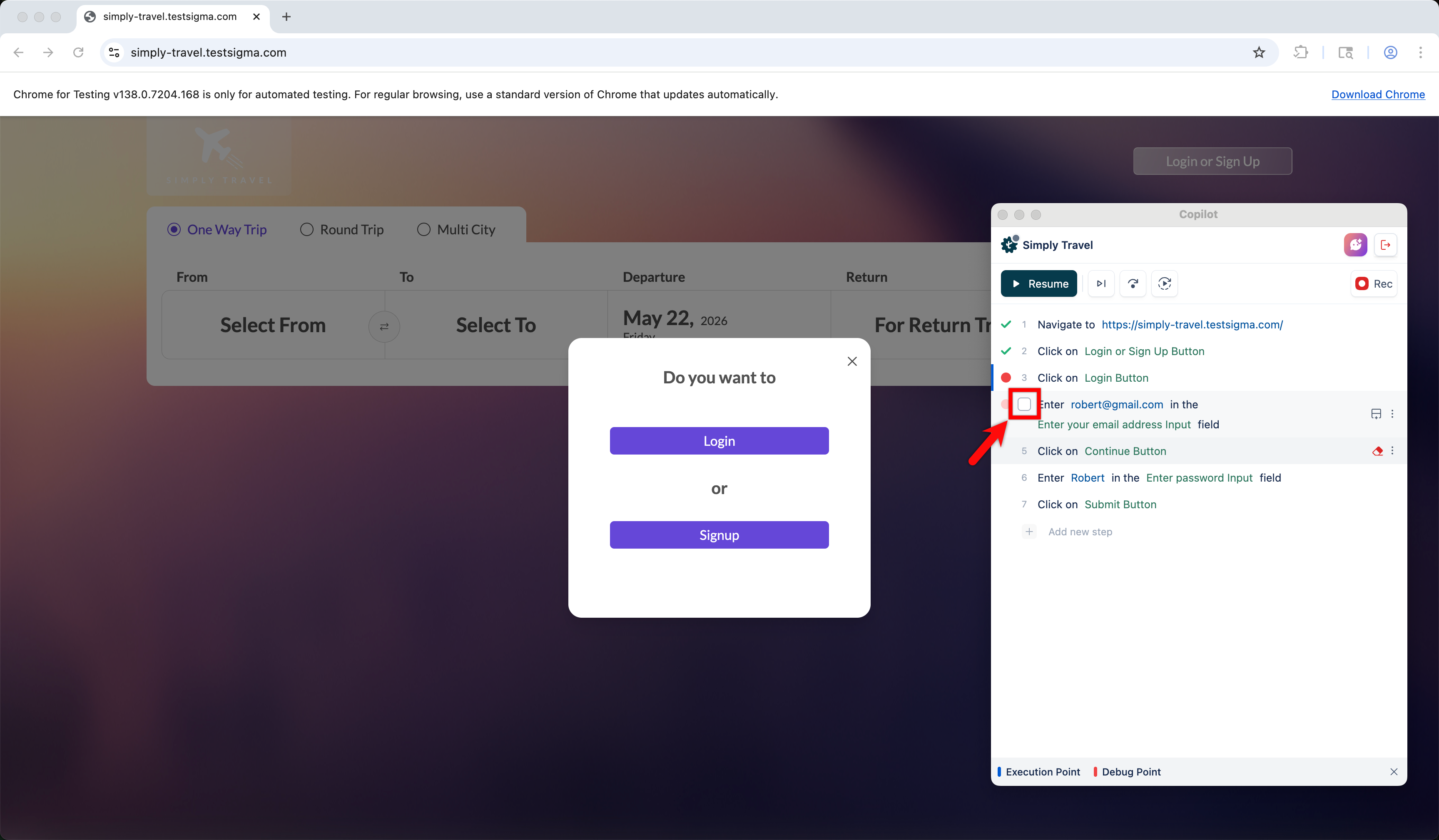
- In the Copilot overlay, hover over a step you want to delete and click the checkbox to select the step. A floating action bar appears at the bottom of the panel.
- Continue selecting additional steps by clicking their checkboxes. You can also click Select All in the action bar to select all steps at once.
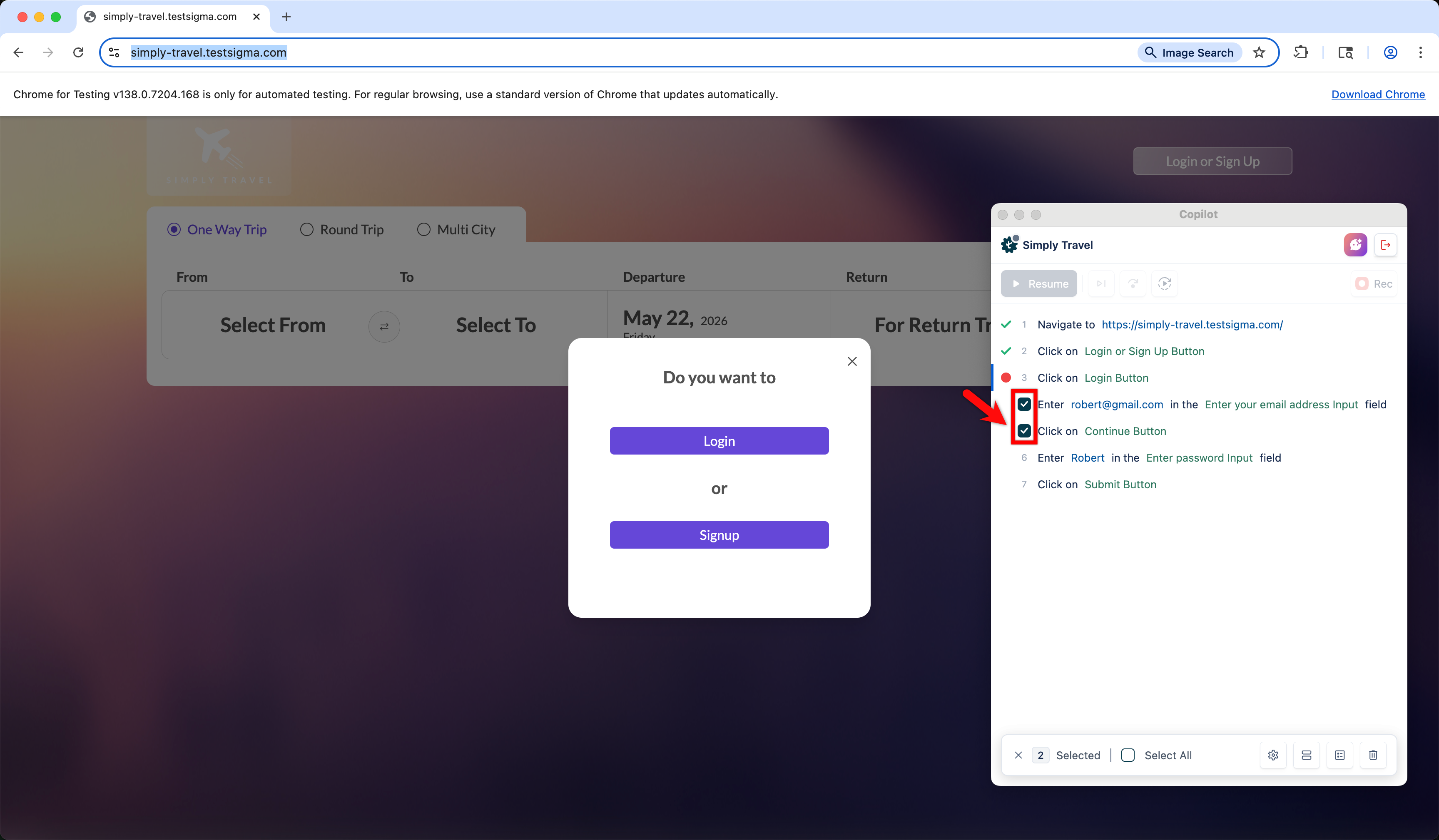
- Once you have selected all the steps you want to delete, click the Delete icon in the floating action bar.
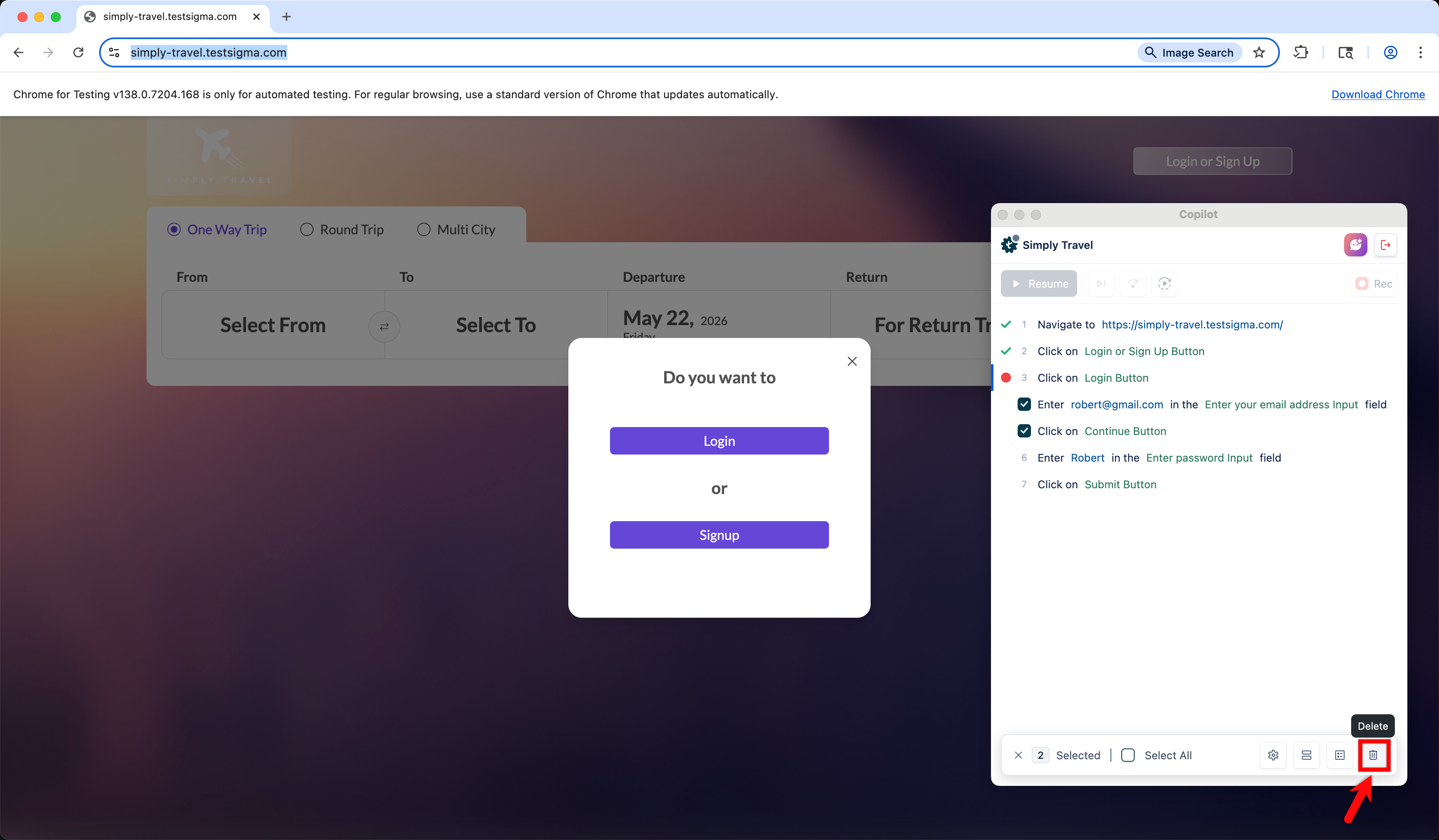
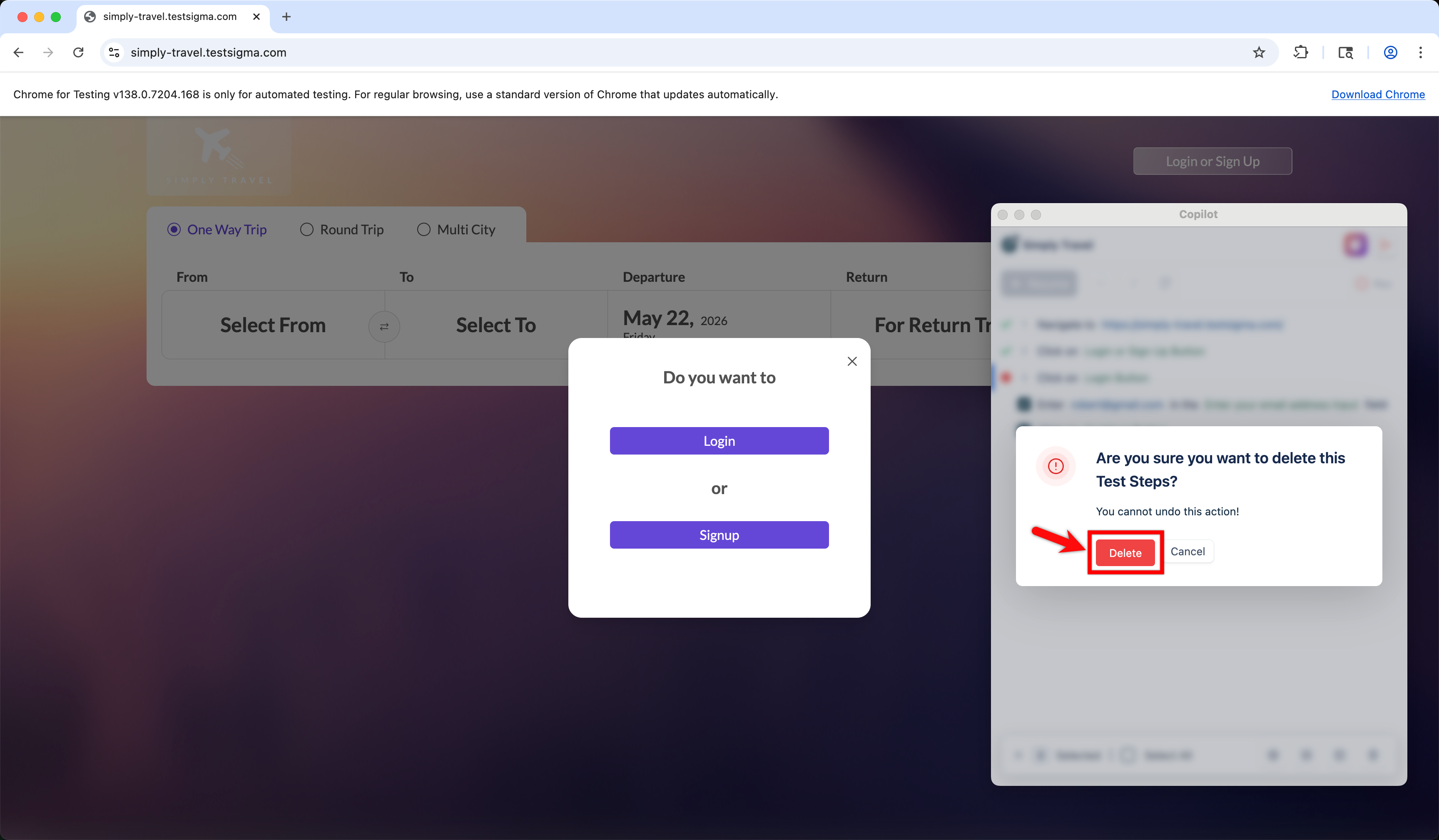
- A dialog box appears. Click Delete to delete the selected steps from the test case permanently.

Want to contribute or report missing content?