- configuration
 API Keys
- User Settings
- Security
- Configure Organization Settings
- Two-Factor Authentication (2FA)
- Configure Password Policy
- Setting Up Google SSO Login
- Setting Up Okta SSO Login (SAML)
- Setting Up Azure SSO Login (SAML)
- iOS Settings
- Create WDA File
- SMTP Configuration
- Manage Access
Configure Password Policy
Password Policy allows organization administrators to configure password-related security controls for user accounts. These settings manage session behavior, limit failed login attempts, and enforce periodic password changes across the organization. This article discusses configuring the password policy settings in Testsigma.
Prerequisites
Before you begin, ensure that you have an active Testsigma account.
Configure Password Policy
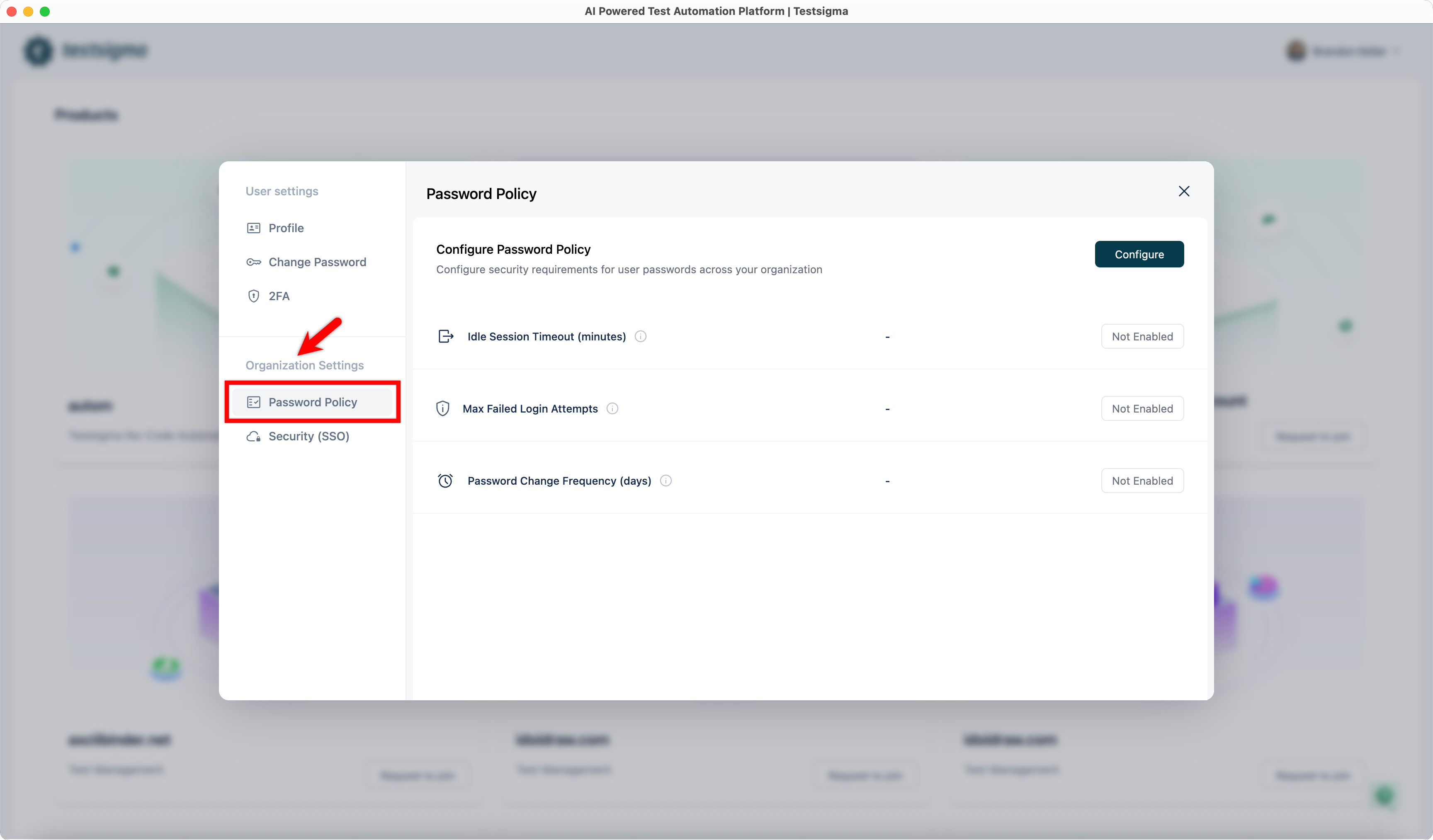
- Click the User Profile menu in the bottom-left corner.
- Under Organization Settings, select Password Policy.
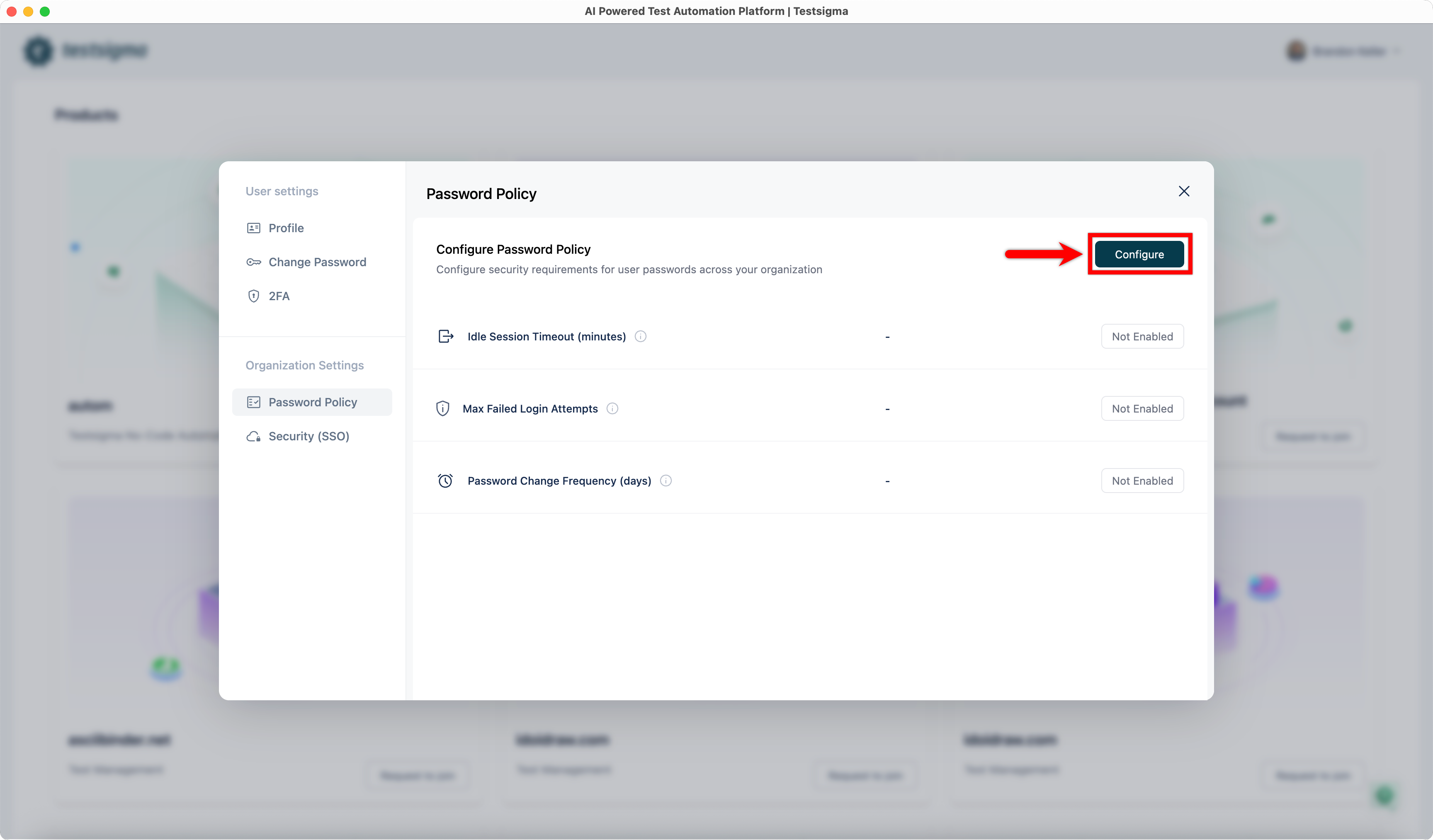
- Click Configure. This will open the Configure Password Policy dialog.
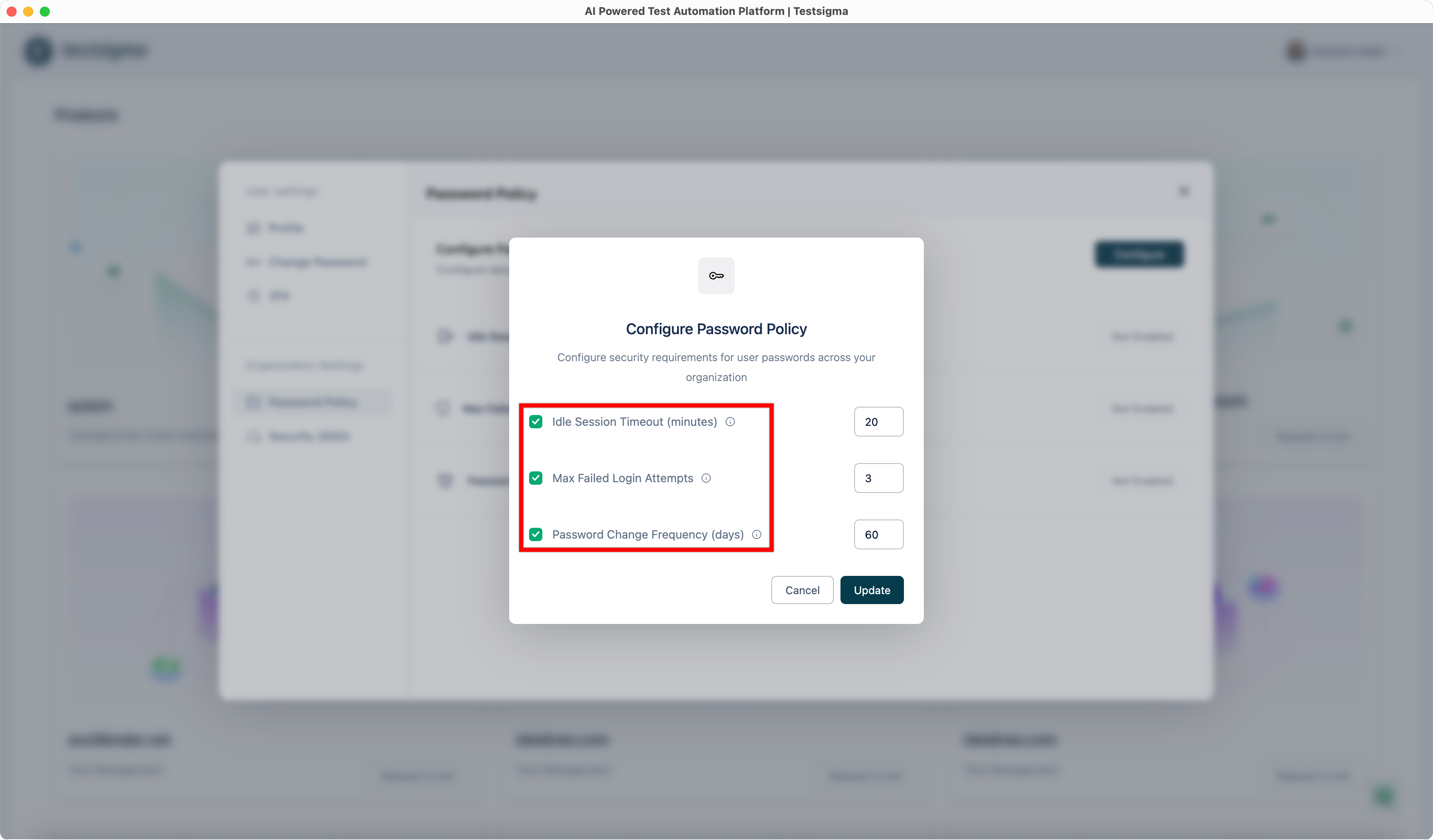
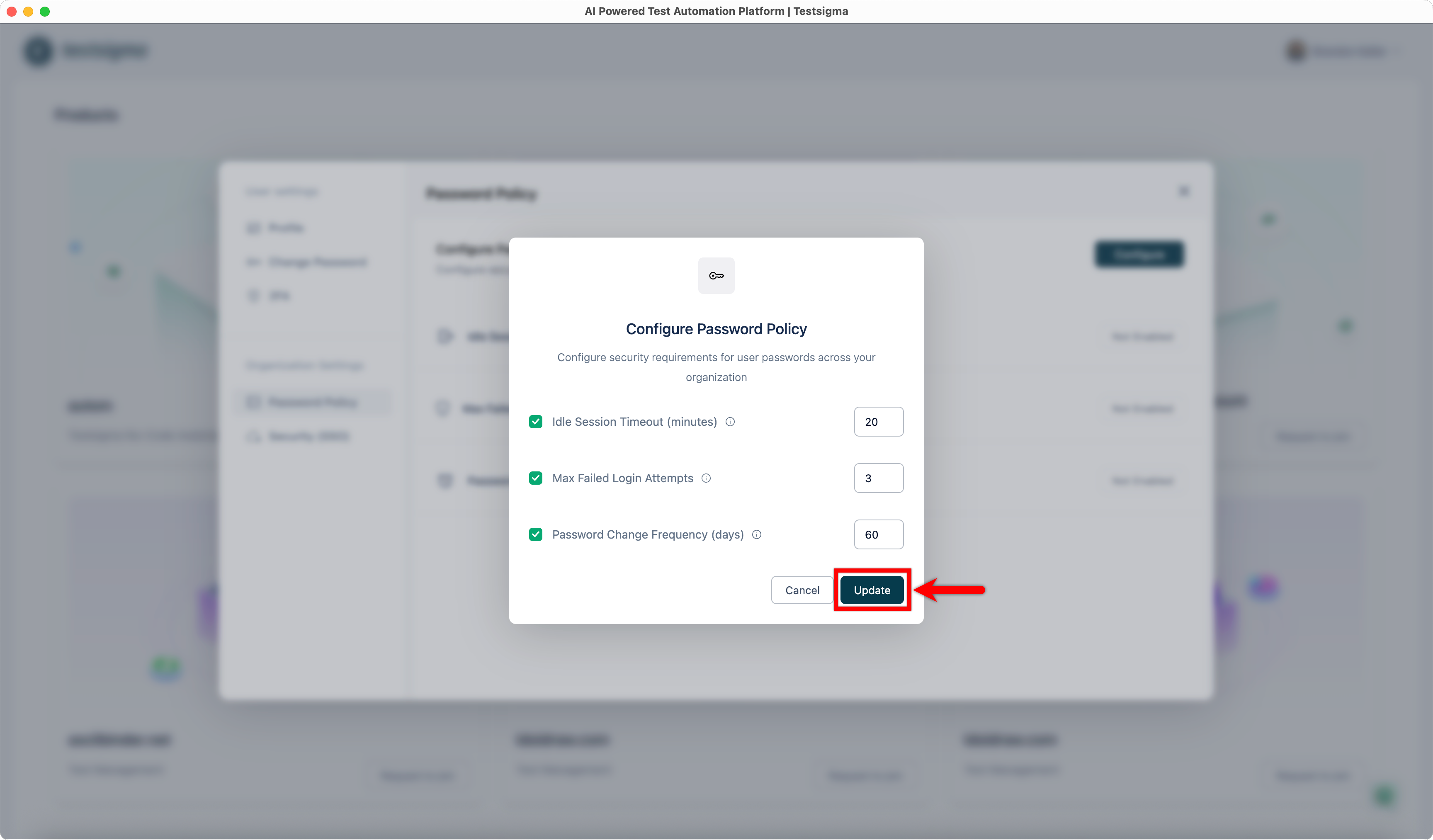
- In the Configure Password Policy dialog, select each setting you want to enable.
-
For each selected setting, enter the required value in the corresponding field:
- Idle Session Timeout (minutes): Enter the number of minutes after which inactive users are automatically signed out.
- Max Failed Login Attempts: Enter the maximum number of consecutive failed login attempts allowed before the account is locked.
- Password Change Frequency (days): Enter how often users must change their passwords.
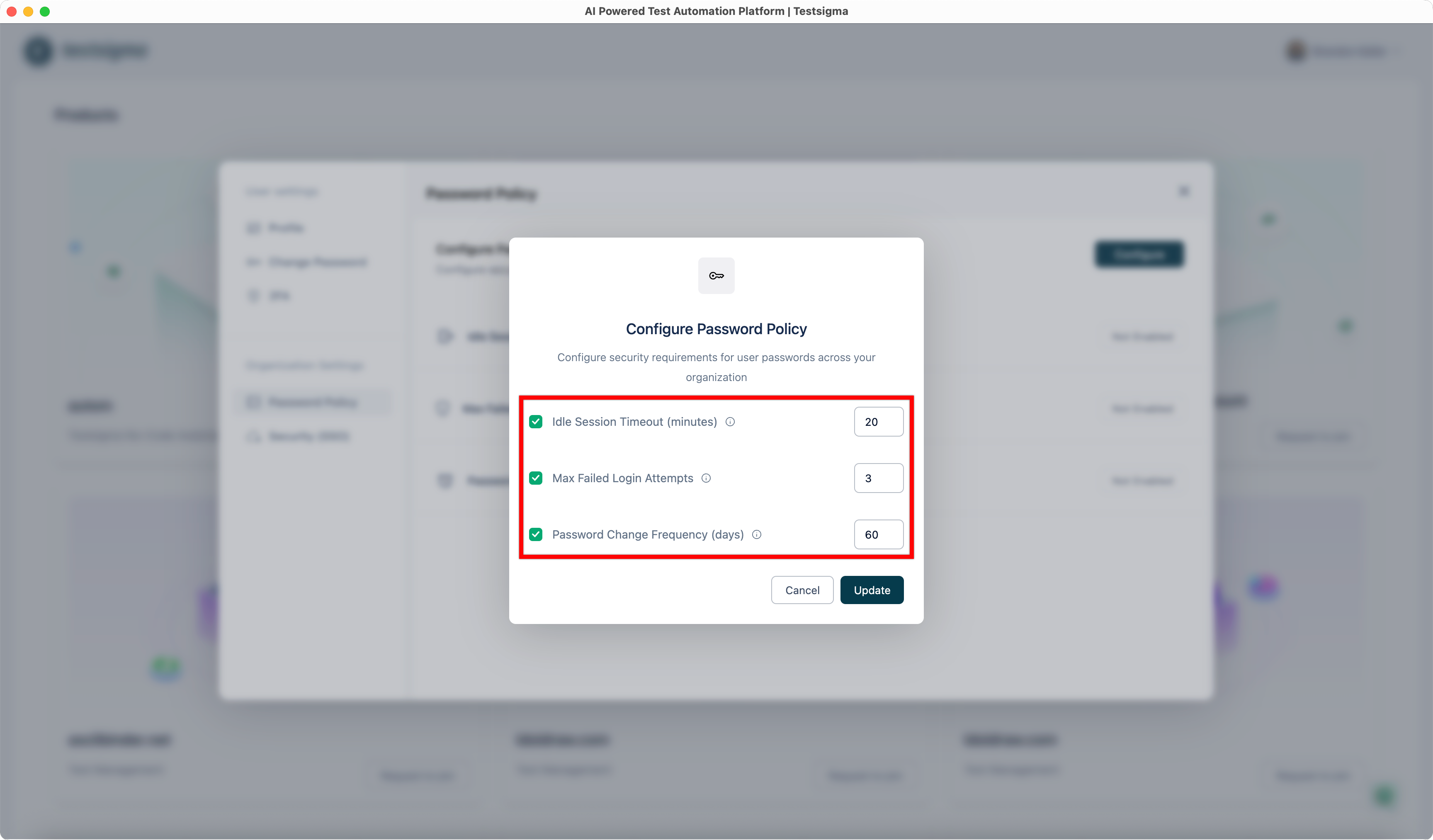
- Click Update to save your changes.

Want to contribute or report missing content?