- configuration
 API Keys
- User Settings
- Security
- Configure Organization Settings
- Two-Factor Authentication (2FA)
- Configure Password Policy
- Setting Up Google SSO Login
- Setting Up Okta SSO Login (SAML)
- Setting Up Azure SSO Login (SAML)
- iOS Settings
- Create WDA File
- SMTP Configuration
- Manage Access
Configure User Settings
You can configure user-level settings such as updating your profile information, changing your password, and enabling Two-Factor Authentication (2FA) to add an extra layer of security to your account. This article discusses configuring User Settings in Testsigma.
Prerequisites
Before you begin, ensure that you have an active Testsigma account.
User Settings
- Click the User Profile menu in the bottom-left corner.
-
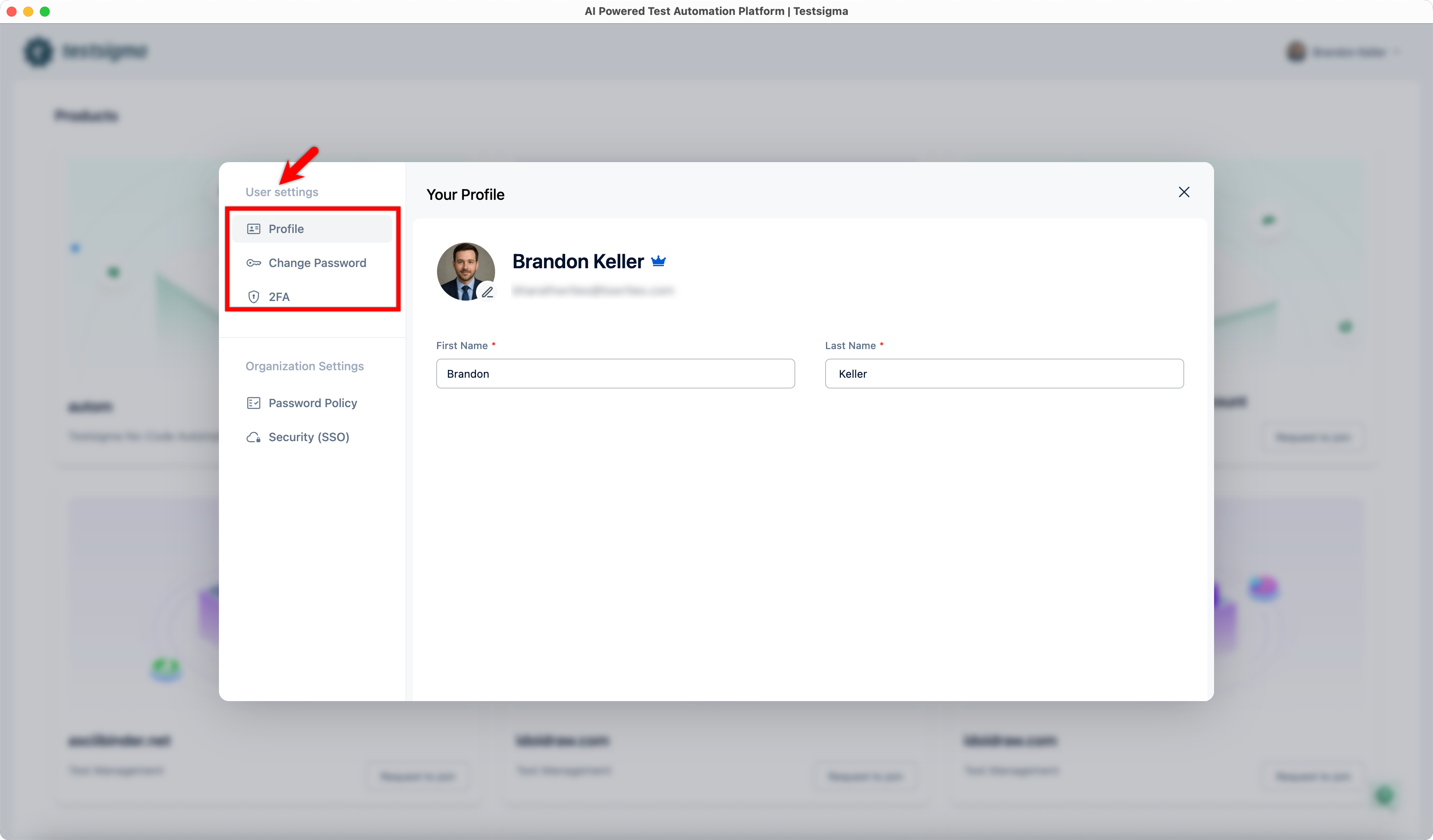
Under User Settings, you can update the following:
- Profile
- Change Password
- Two-Factor Authentication (2FA)
Profile
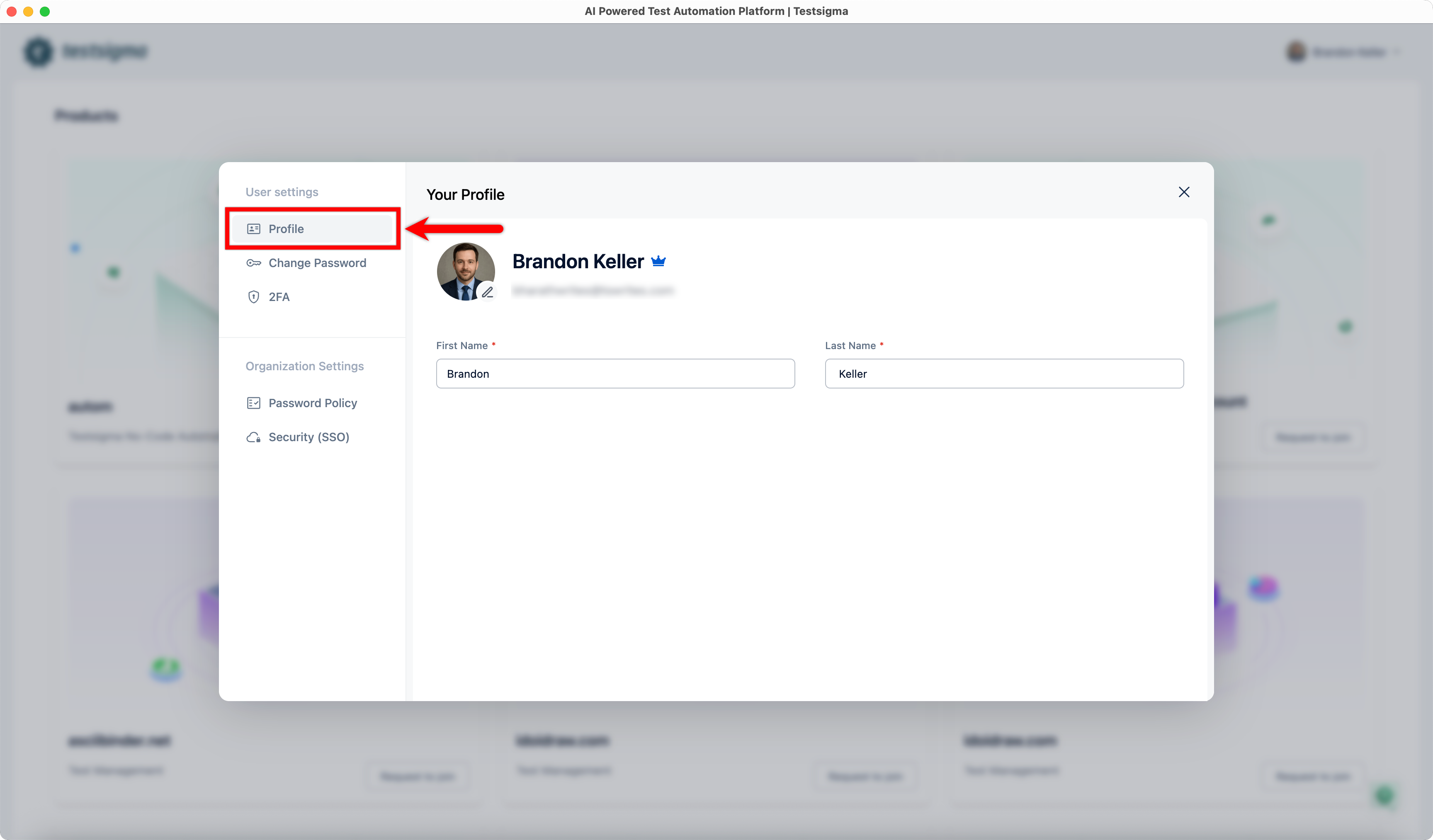
- Select Profile under User Settings.
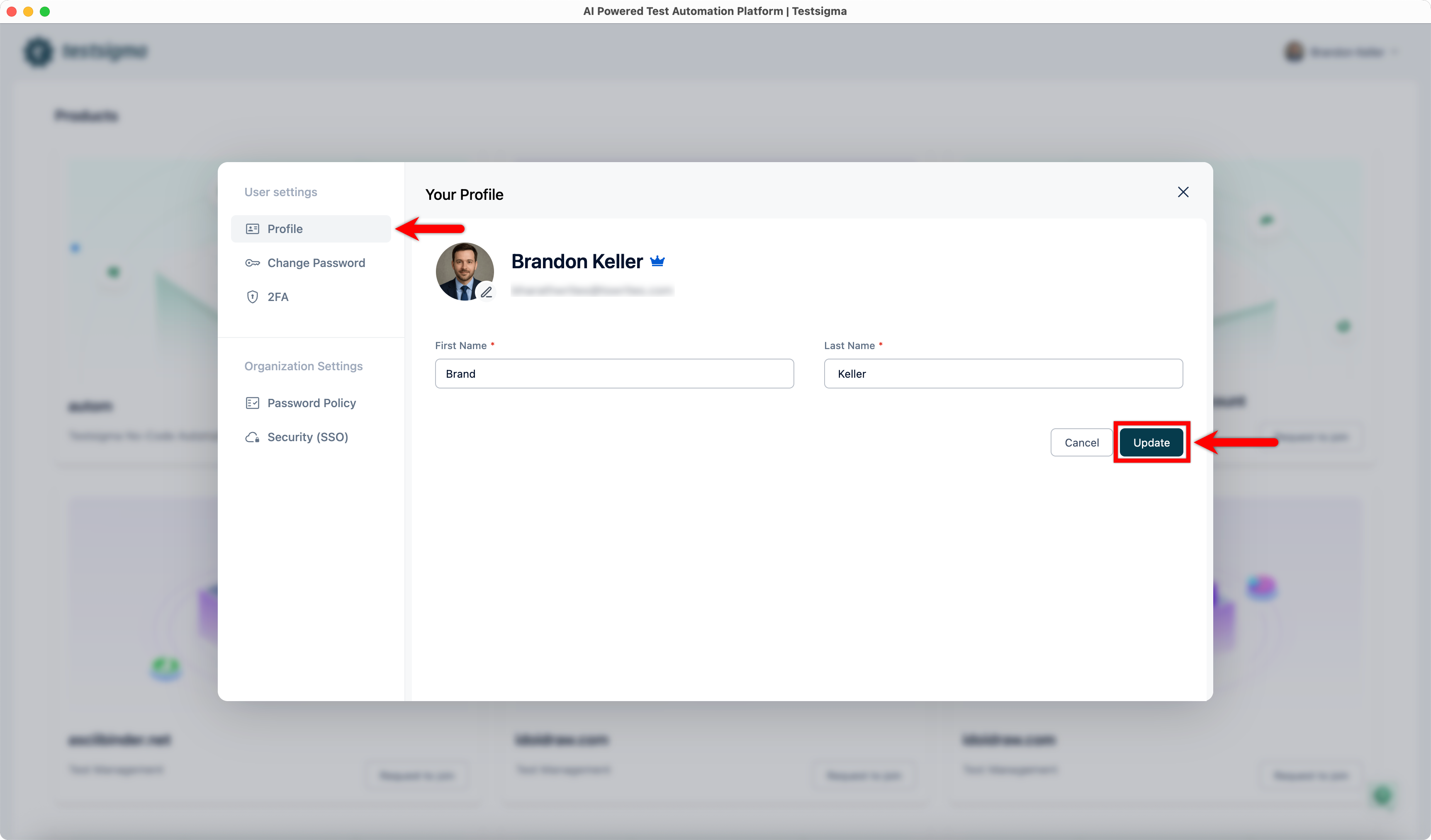
- Edit the First Name and Last Name fields.
- Click Update to save the changes.
Change Password
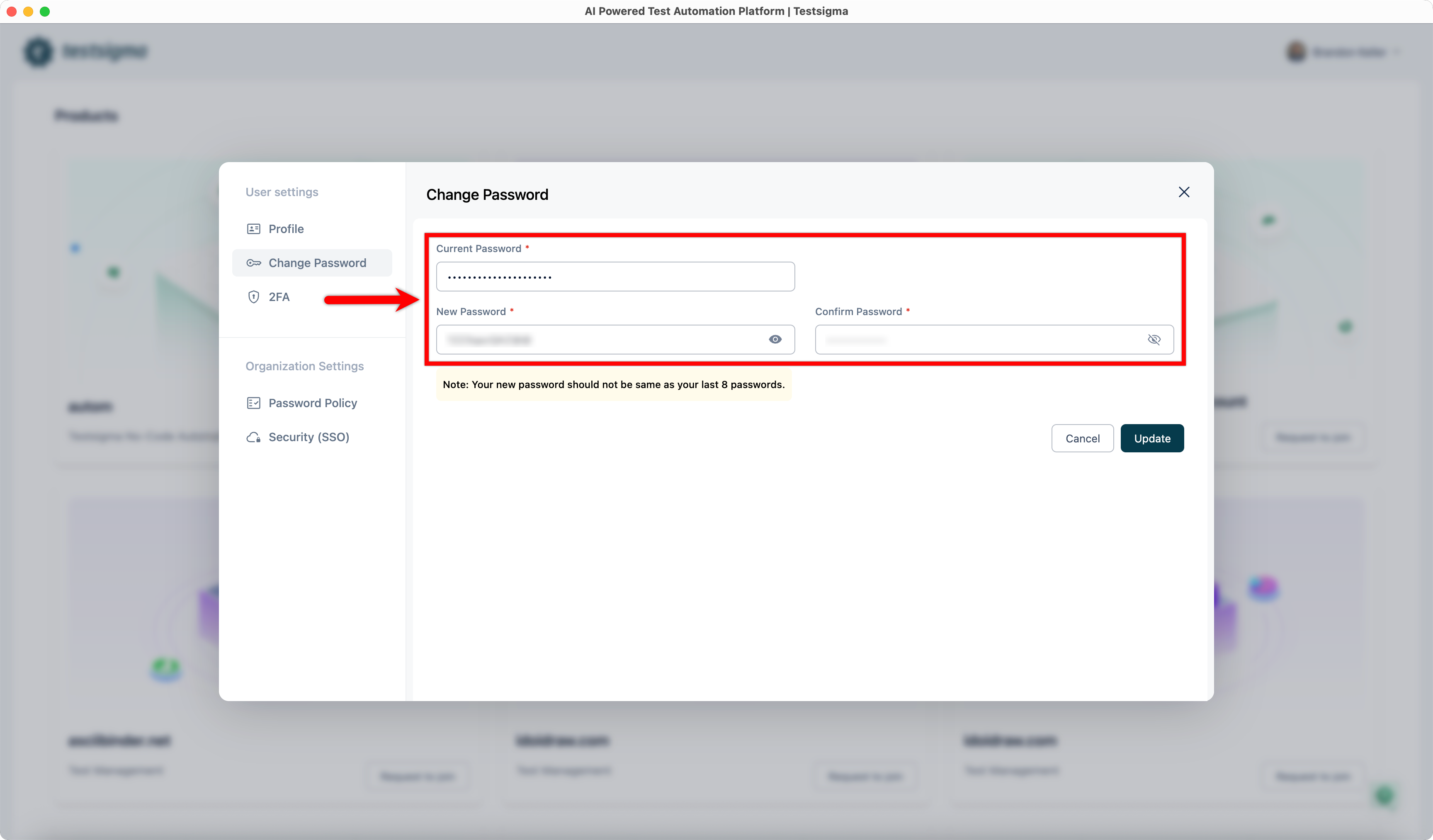
- Select Change Password under User Settings.
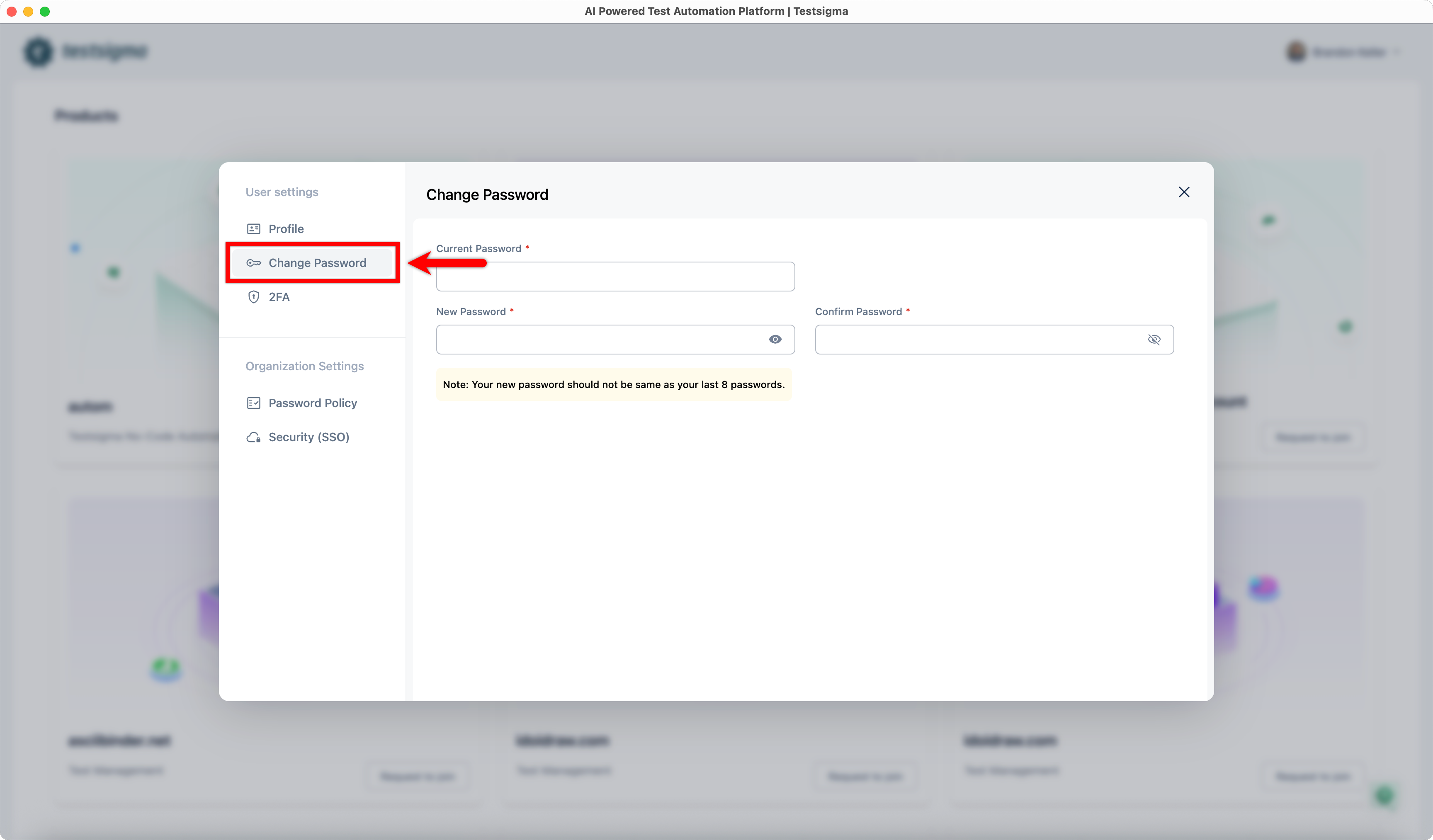
- Enter your Current Password, New Password, and Confirm Password.
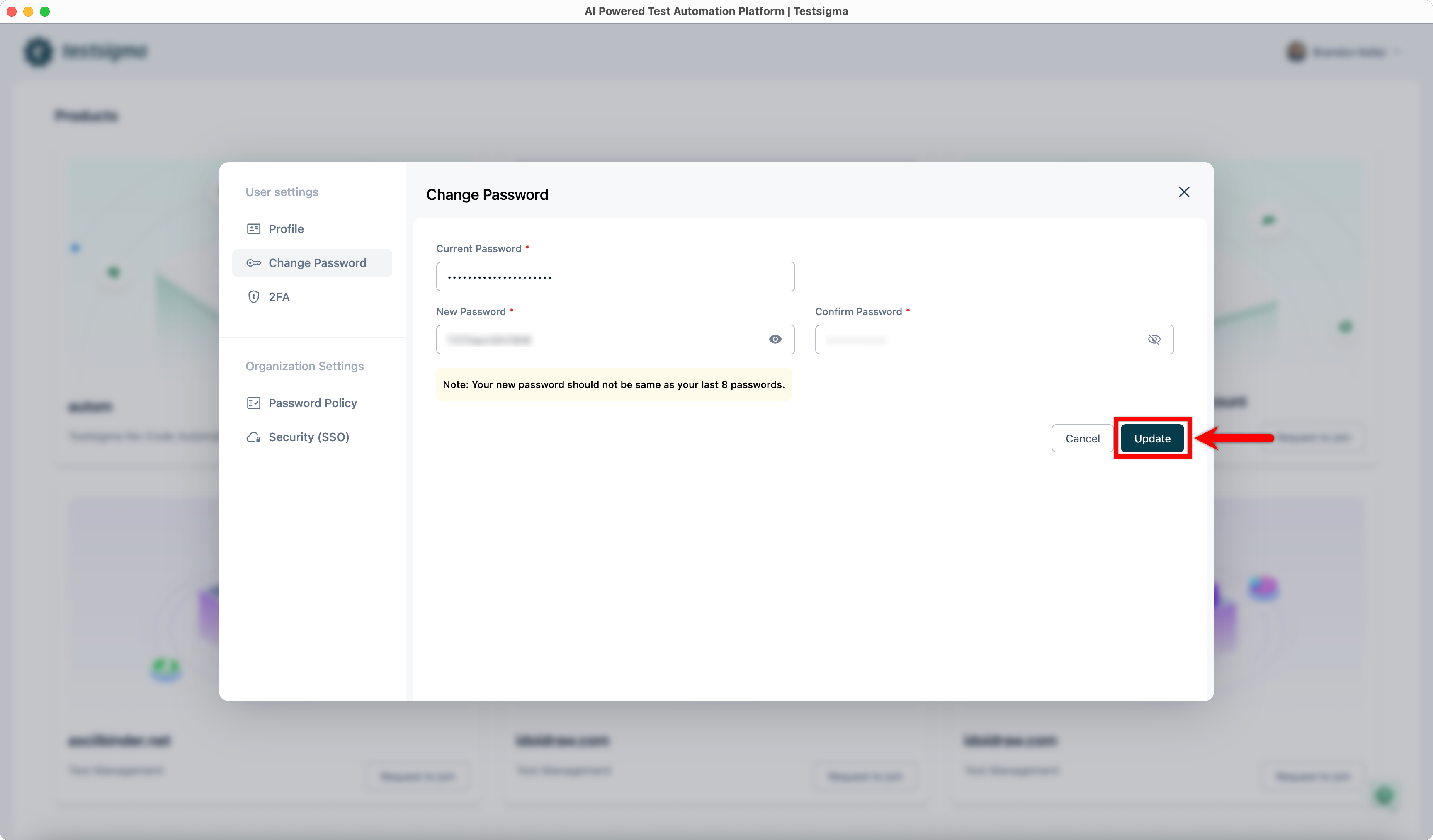
- Click Update.
Two-Factor Authentication (2FA)
You can enable 2FA to add an extra layer of security to your account.
For more details, see Two-Factor Authentication (2FA) in Testsigma.

Want to contribute or report missing content?