- web apps
 Why Install Chrome Extension?
- Steps to Test Locally Hosted Apps
- How to Turnoff Onboading Tutorial?
- Non-Text Keys in Test Cases
- Basic Authentication for Web
- Why Bypass CAPTCHA?
- Test Case Failures Due to Link Text Capture Issues
- Why Is a Single Video for All Test Cases in a Test Plan Unavailable in Some Cases?
- How to Handle Browser-Related Permission Issues?
- Why Can’t Selenium ChromeDriver Interact With 3DS Authentication Pages?
- What Should I Do If My Browser Blocks Local Network Access?
- Why Am I Getting an Error While Registering the Agent?
- Why Does the Try Again Error Appear While Installing the Testsigma Agent in a Proxy Environment?
- How to Enable IE Mode in Microsoft Edge?
- mobile apps
- Apple Pay Automation with Testsigma
- How do I Enhance the Execution Speed for Mobile Native Apps?
- Why am I Facing Permission Error During Local Test Execution?
- How to Resolve App Launch Issues?
- Why does the iOS App Close Right After Opening in Testsigma?
- How to Execute Android/iOS Tests in Emulators/Simulators?
- Why Does Scroll to Element Fail in Mobile Native Apps and How Do I Fix It??
- FAQs on Unified Mobile
- general
- Why am I Unable to Download the XLS File from the Edge Browser?
- How to Handle Browser-Related Pop-Up Issues?
- How to Handle Text-Based CAPTCHA in Testsigma?
- Why does Test Execution Fail with the Error No Route to Host?
- Why do Errors Occur When I Try to Download Files from The Exports Page?
- How to Test Flutter Apps Using Accessibility Mode?
- How to Add Multiple Runtime Variables in Data Generator Functions?
- How to Insert Test Data in RAW Body for POST API?
- What is Chrome for Testing and How Does it Work?
- How Can I Set Up Authenticator-Based Authentication in Testsigma?
- How to Update an Excel File in Testsigma Uploads?
- What Causes Longer Automation Test Execution Times in a Test Plan?
- How Do I Retrieve the OTP When it’s Embedded within HTML Tags?
- How to Configure the OracleDB Add-on in Testsigma?
- FAQs on Classic & Modern Engines
How to Enable IE Mode in Microsoft Edge?
IE mode in Microsoft Edge lets you run legacy web applications that require Internet Explorer 11 directly within the Edge browser. Use the ts.ieMode capability in Testsigma to launch Edge in IE mode and automate tests against apps that depend on the IE rendering engine. This article discusses how to add a desired capability to launch Edge in IE mode in Testsigma.
Prerequisites
Before you start creating an addon, ensure that:
- You have a Testsigma account with access to Test Plans and Test Machines.
- The test machine running the Edge browser is on Windows and has registry access.
- Internet Explorer 11 is present on the machine (required by Edge for IE mode rendering)
Steps to Configure Registry Settings for IE Mode
IE mode may hang if Protected Mode settings are inconsistent across Windows security zones. Before running tests, align the Protected Mode setting across all zones using the Windows Registry Editor.
- Press Win + R, type regedit, and press Enter to open the Registry Editor.
-
Navigate to each of the following registry paths:
HKEY_CURRENT_USER\Software\Microsoft\Windows\CurrentVersion\Internet Settings\Zones\1HKEY_CURRENT_USER\Software\Microsoft\Windows\CurrentVersion\Internet Settings\Zones\2HKEY_CURRENT_USER\Software\Microsoft\Windows\CurrentVersion\Internet Settings\Zones\3HKEY_CURRENT_USER\Software\Microsoft\Windows\CurrentVersion\Internet Settings\Zones\4
- For each zone, right-click in the right pane and select New > DWORD (32-bit) Value.
- Name the new value 2500.
-
Double-click 2500 and set its value:
- Enter 3 to disable Protected Mode (recommended - set all four zones to 3)
- Enter 0 to enable Protected Mode
Setting all zones to the same value (3) prevents the hang caused by mismatched Protected Mode settings across zones.
Steps to Add the IE Mode Desired Capability
- Create a new Test Plan and navigate to the Add Test Suites & Link Machine Profiles tab.
- Click Add Test Suites and add the required test suites.
- Once you have added test suites, click Link Test Machine.
- In the Select test machine profiles overlay, click Add Machine.
- In the Add test machine/device profile overlay, enter a name for the machine and configure the required options.
-
Scroll to the Desired Capabilities section and add the following capability:
Key Data Type Value ts.ieMode Boolean true 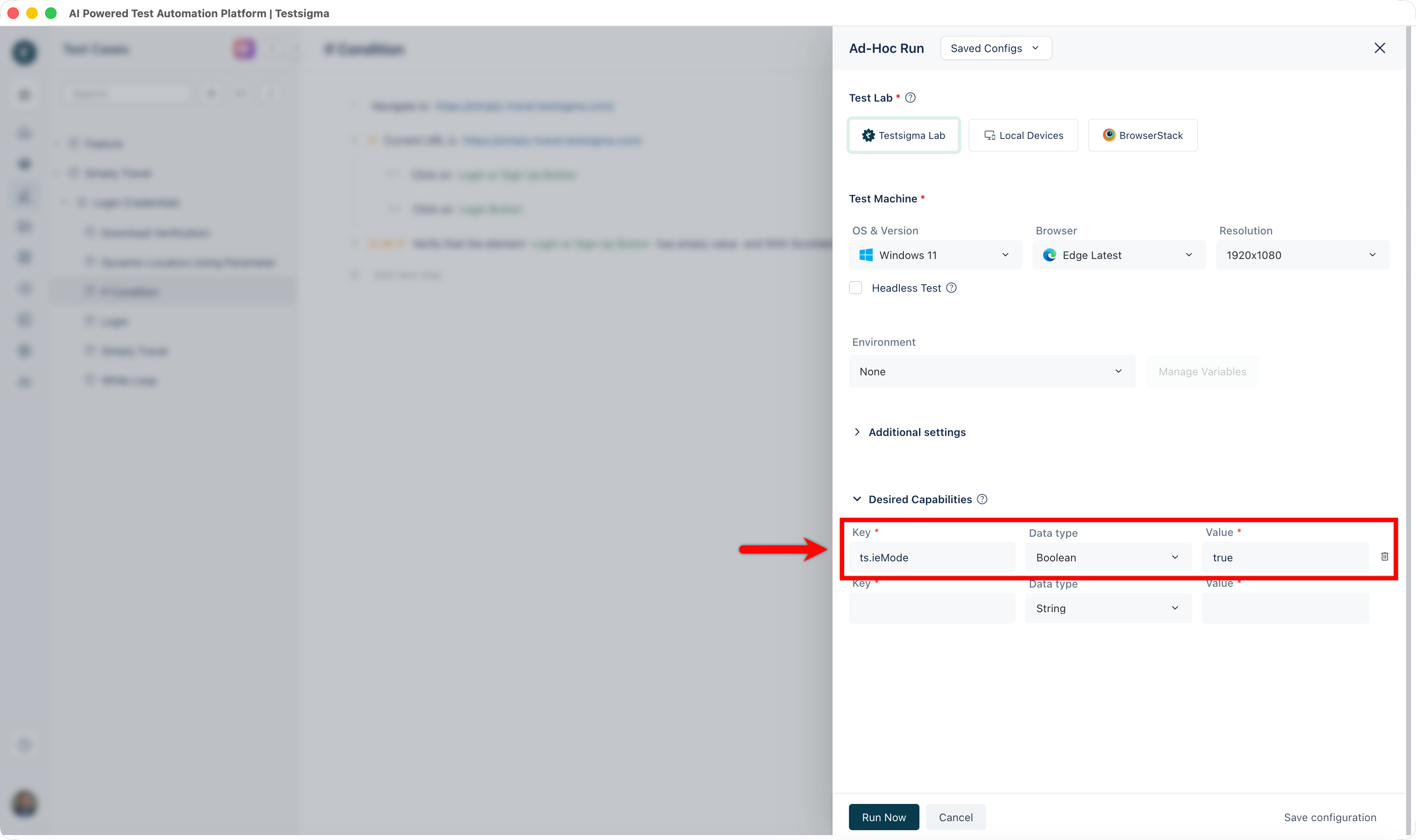
- Click Create Profile to save the configuration.
The ts.ieMode capability is specific to Microsoft Edge. Ensure Edge is selected as your browser in the test machine settings.
Run Your Tests
Once the registry is configured and the desired capability is added, trigger your test plan as usual. Edge will launch in IE mode, using the Trident (IE11) rendering engine for the application under test.
If tests still hang after configuring the registry, verify that all four zone keys (Zones\1 through Zones\4) have the 2500 DWORD set to 3. Missing even one zone can cause inconsistent behavior.

Want to contribute or report missing content?