- runs
 Ad-hoc Run
- Test Plan Executions
- Dry Runs on Local Devices
- Run Tests on Private Grid
- Run Tests on Vendor Platforms
- Run Test Plans on Local Devices
- Test Locally Hosted Applications
- Flutter Integration Driver Testing on Testsigma
- Debug Test Case Failures
- Parallel and Allowed queues
Use Mock Servers in Test Executions
Use configured mock servers during test executions to return simulated API responses instead of calling actual backend services. Mock servers are supported in dry runs, test plan executions, and local executions. This article discusses configuring mock servers for test executions in Testsigma.
Prerequisites
Before you begin, ensure that:
- You have configured mock servers
- You know how to execute tests
Configure Mock Server in Dry Runs
- From the left navigation bar, go to Create Tests > Test Cases.
- Expand a feature and scenario, then open or create a test case.
- Click Run in the Action Panel.
-
In the Ad-Hoc Run overlay:
- Configure Test Lab, Machine, and Environment as required
- Expand Additional Settings and select a mock server from the Mock Server dropdown
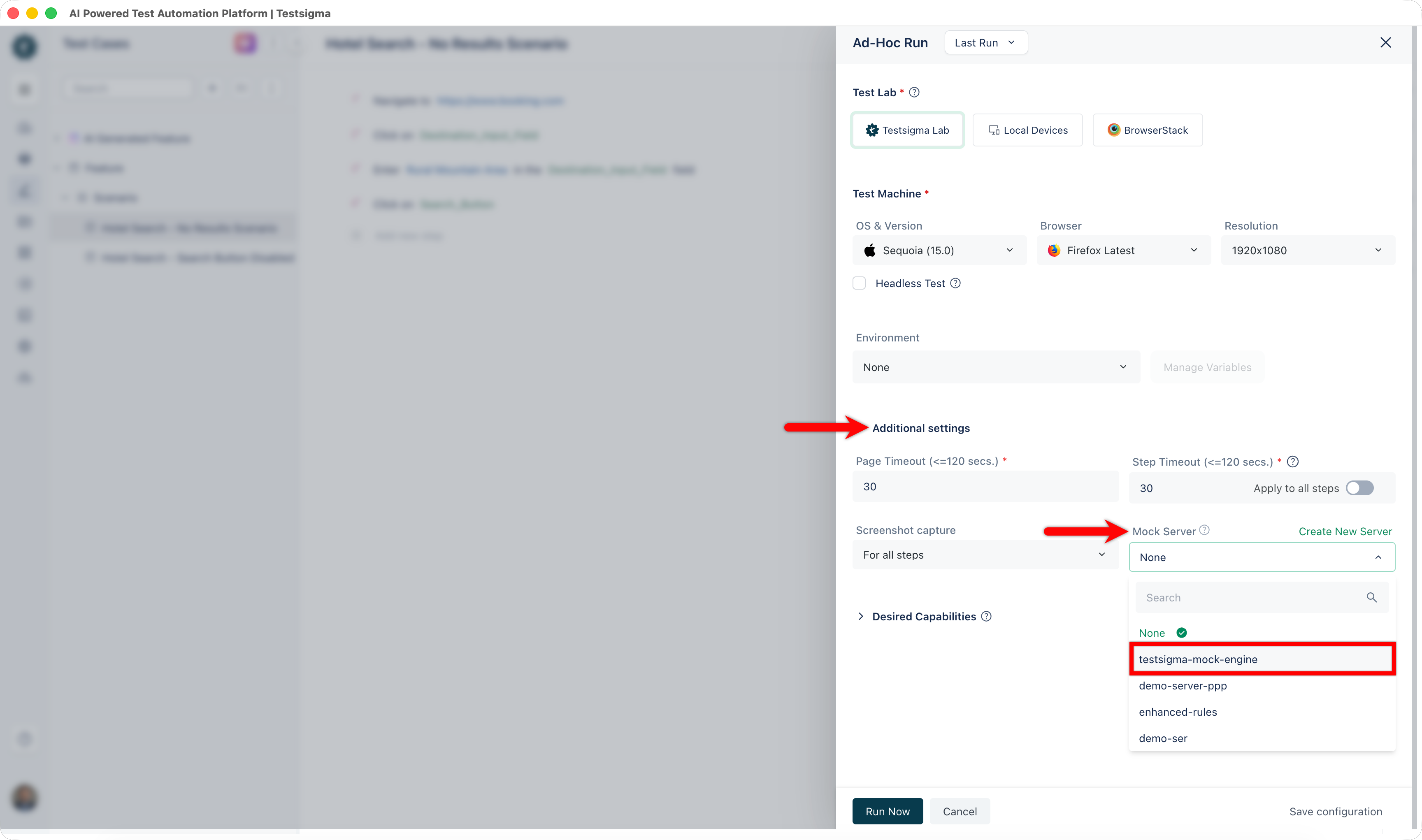
-
Click Run Now.
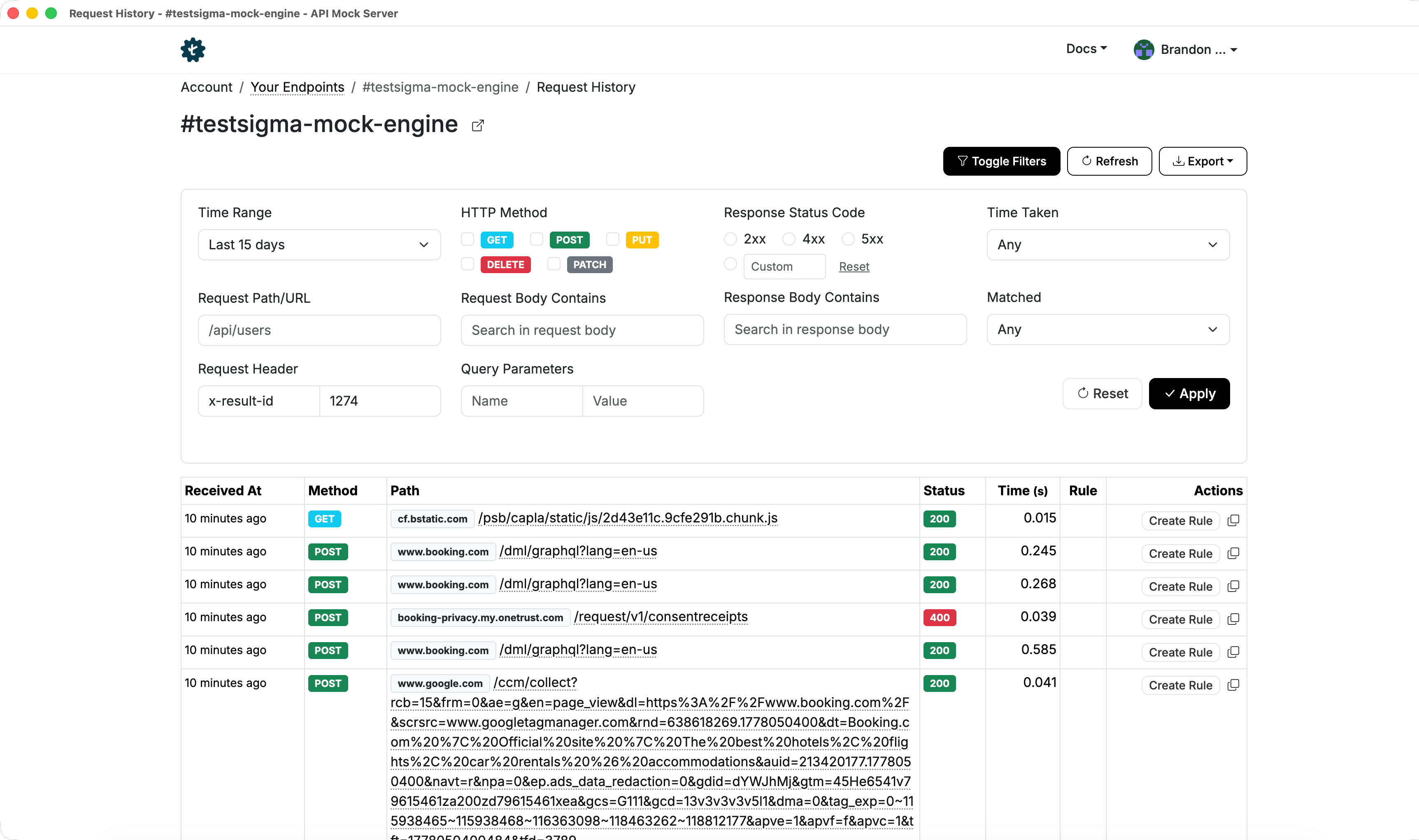
NOTE:During execution, you can open the configured endpoint in the Mock Server application to review API calls in real time.
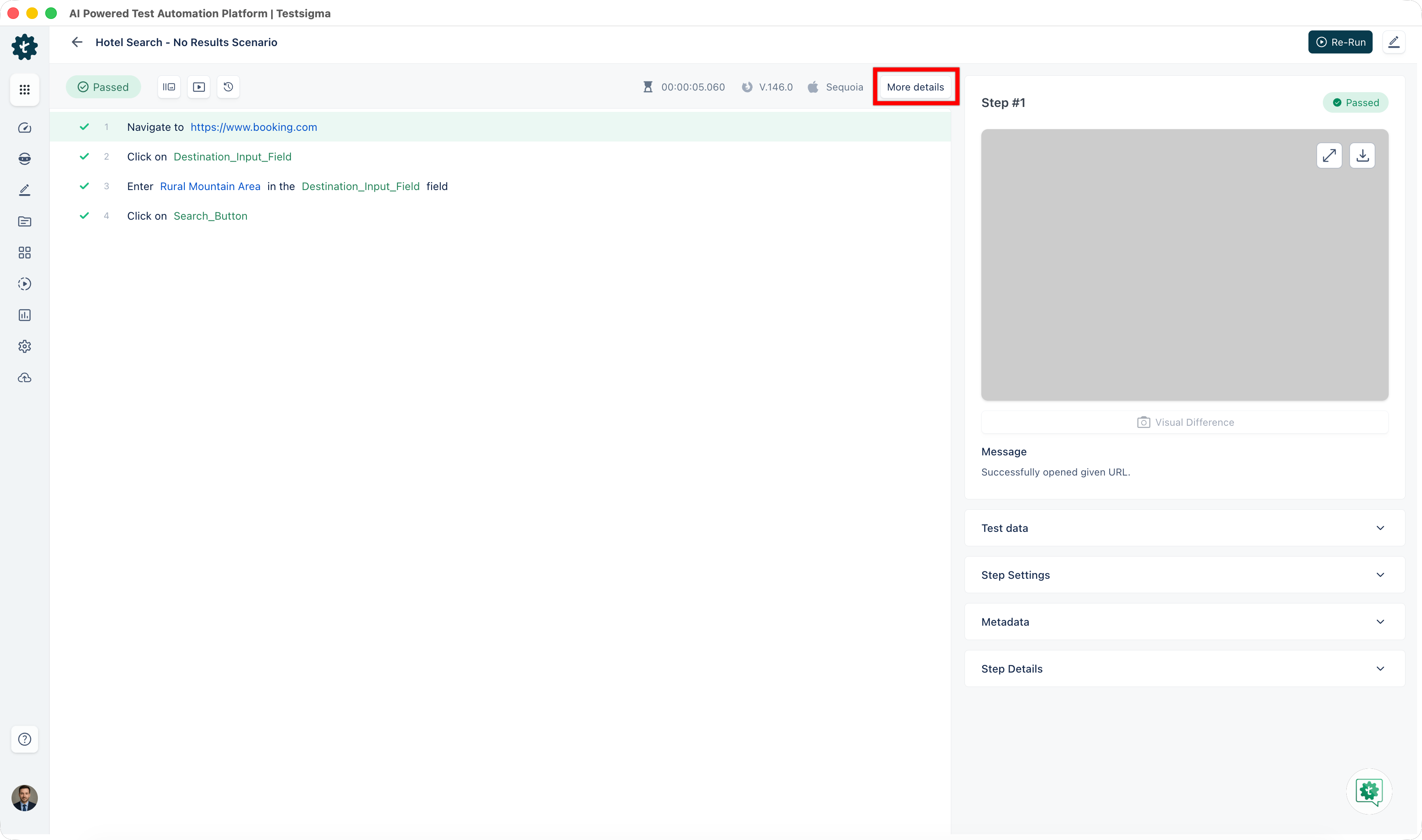
- After execution is complete, go to the results page and click More Details.
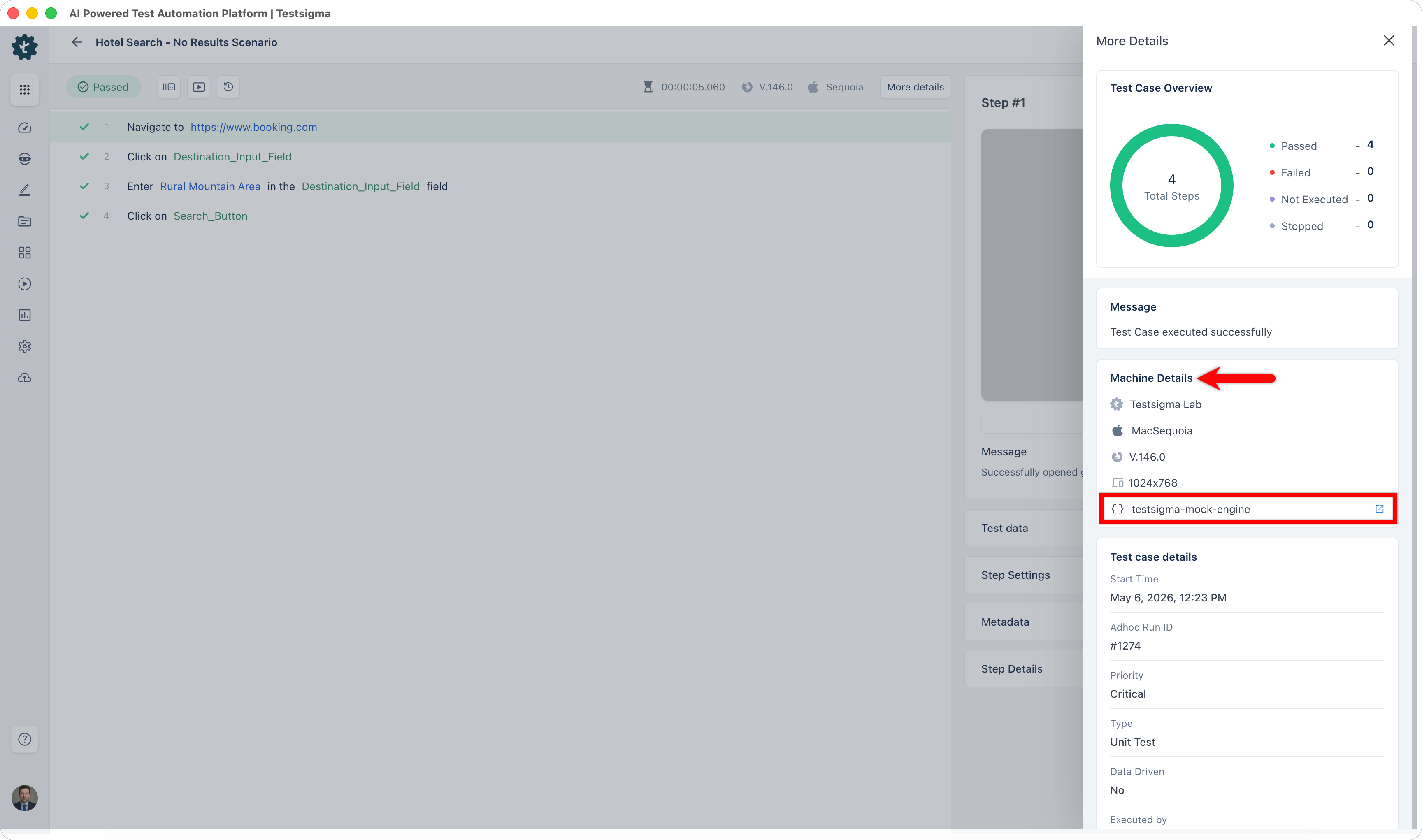
- In the More Details overlay, go to Machine Details and select the mock server used.
- Review the mocked rules in the Mock Server History section.
Configure Mock Server in Test Plans
- From the left navigation bar, go to Test Plans.
- Open or create a test plan.
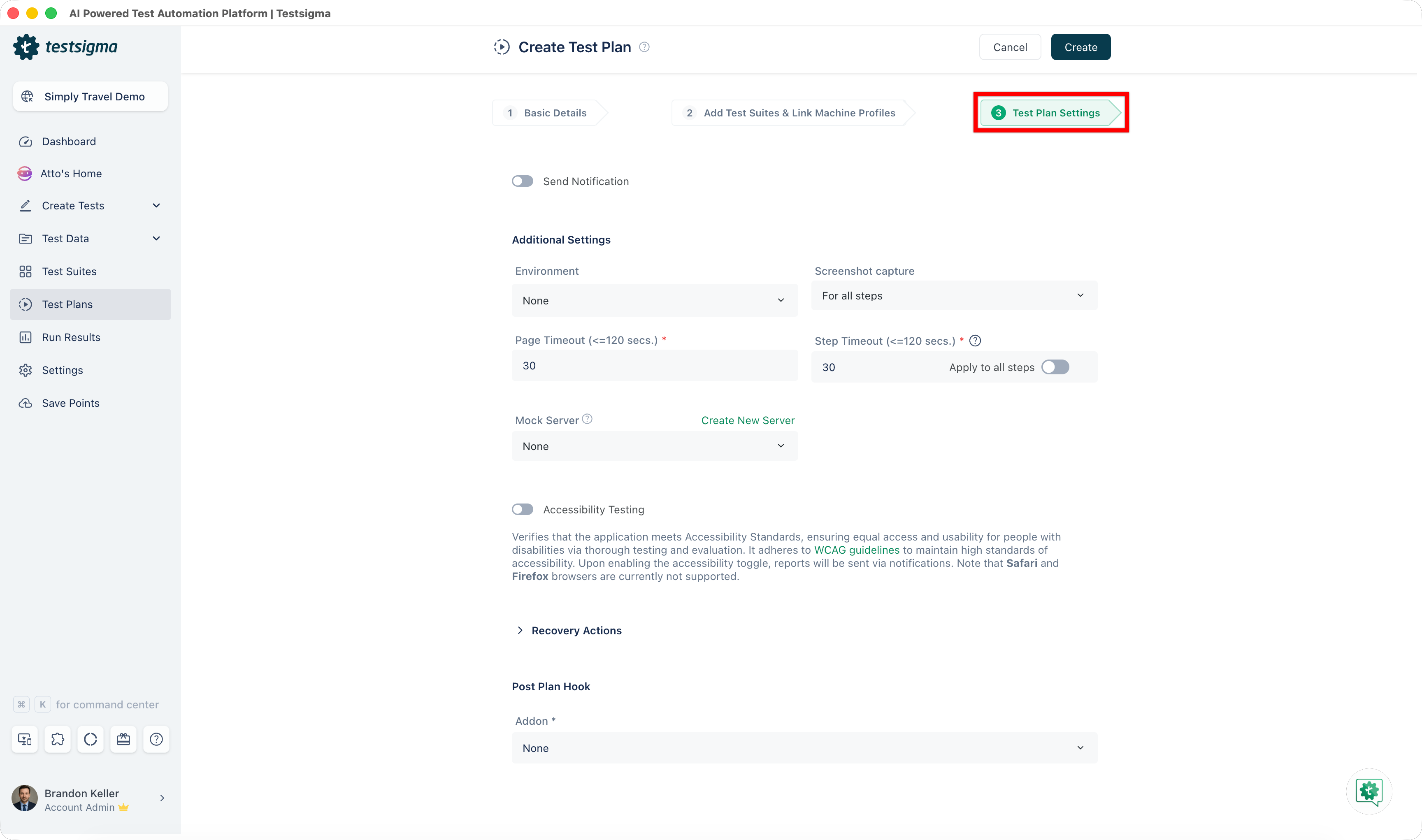
- Go to Test Plan Settings.
-
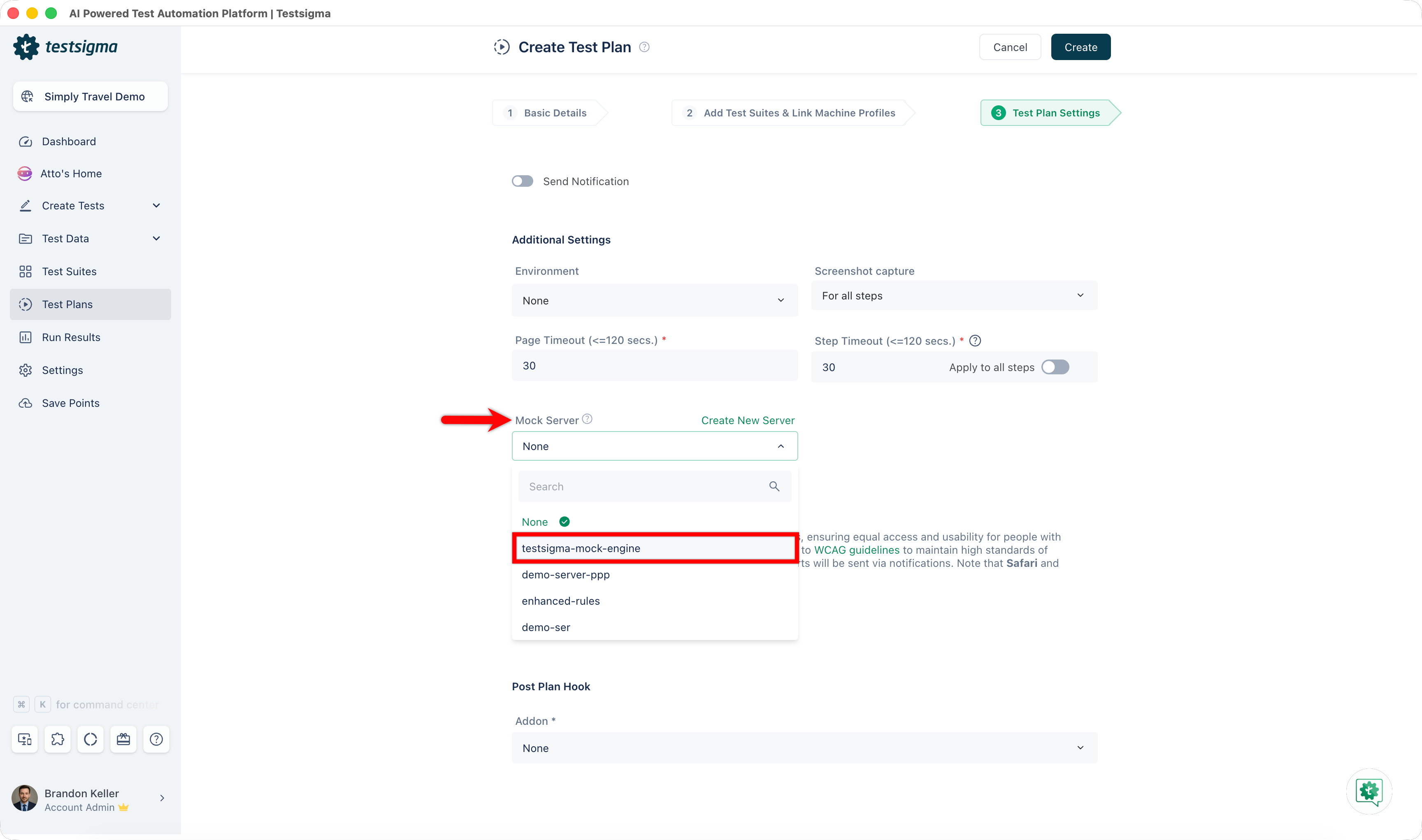
In Additional Settings:
- Select a mock server from the Mock Server dropdown
- Click Update or Create
- Click Run Now.
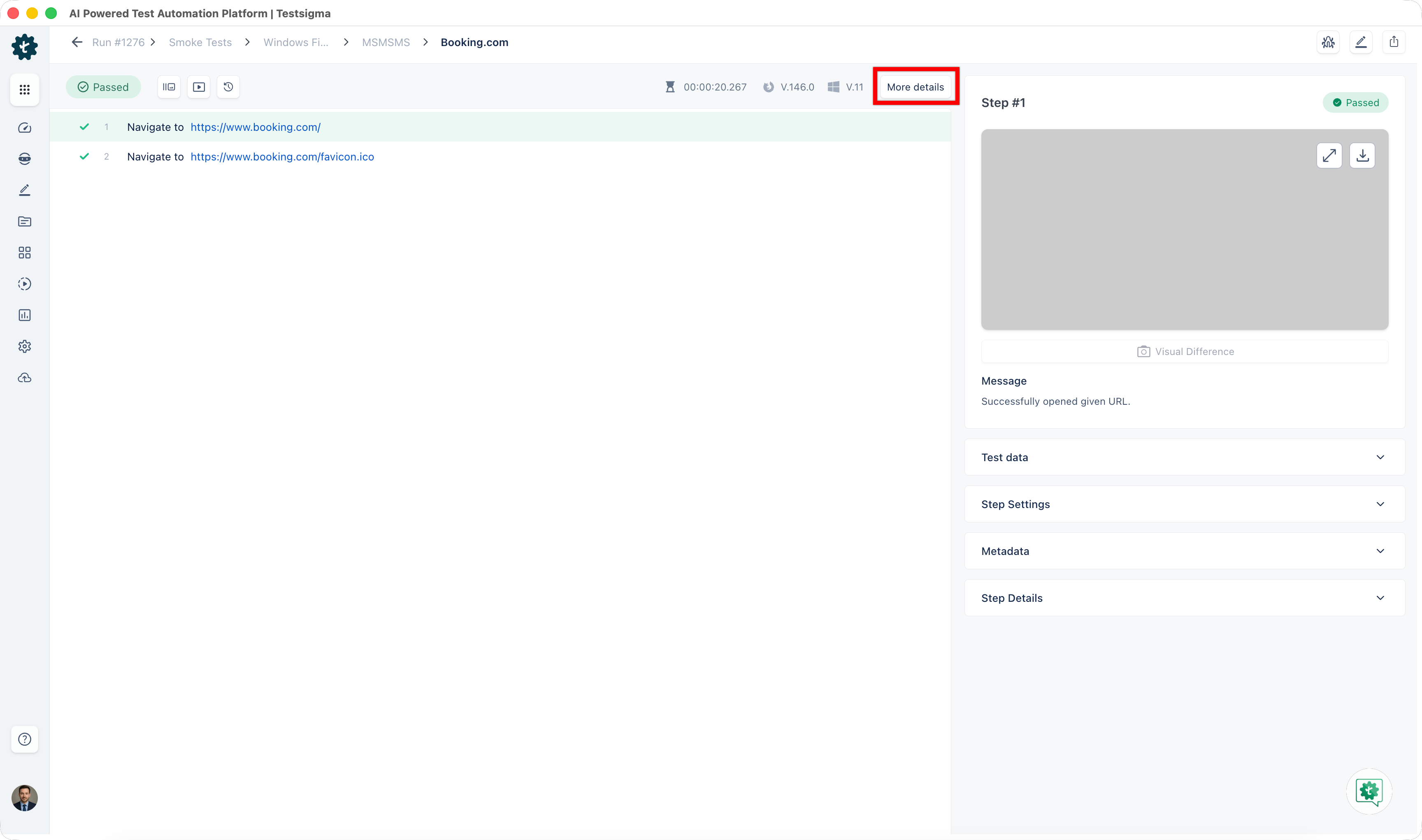
- After execution is complete, go to the test case results page and click More Details.
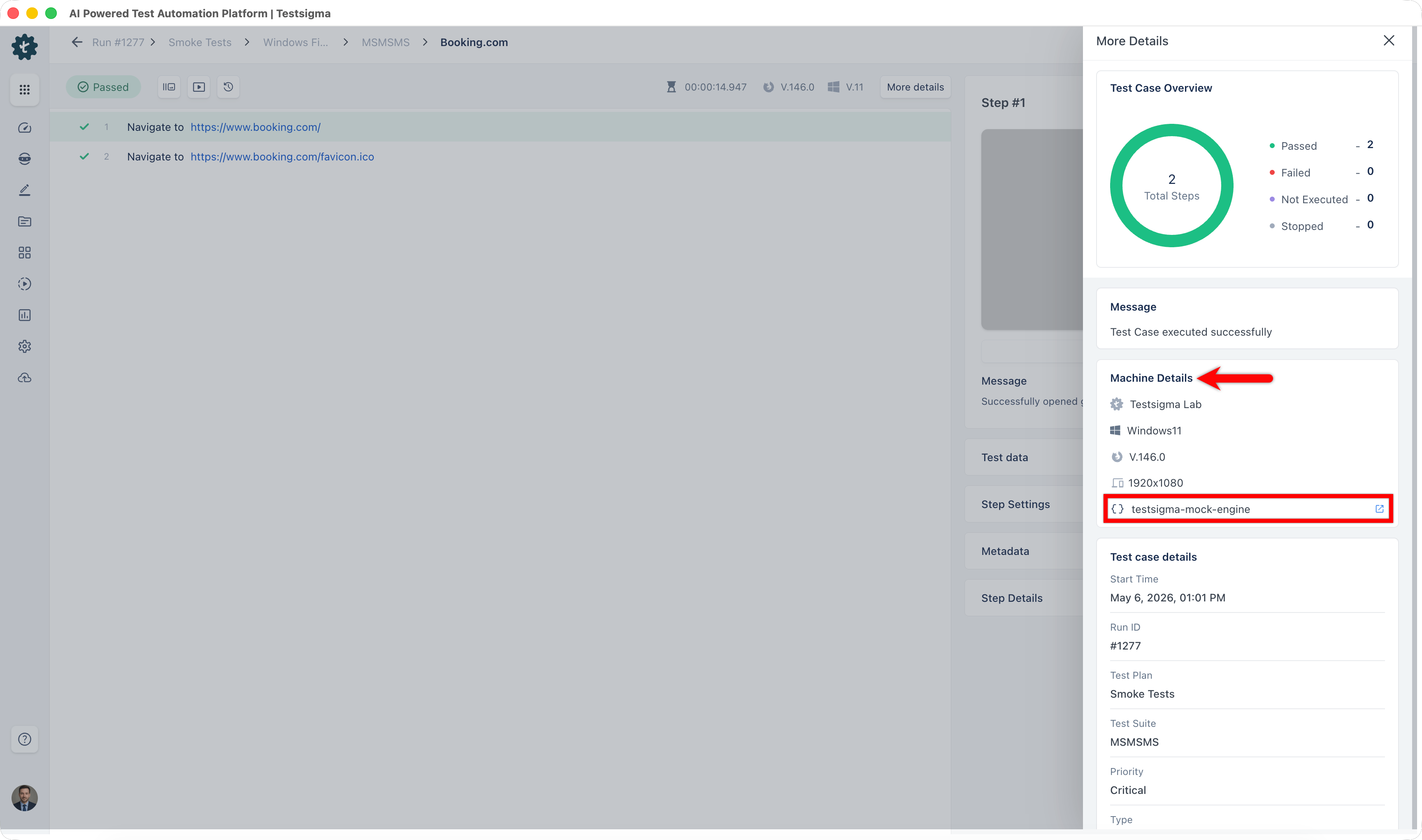
- In the More Details overlay, go to Machine Details and select the mock server used.
- Review the mocked rules in the Mock Server History section.
Add Mock Rules
- After execution, go to the test case results page and click More Details.
- In the More Details overlay, go to Machine Details and select the mock server used.
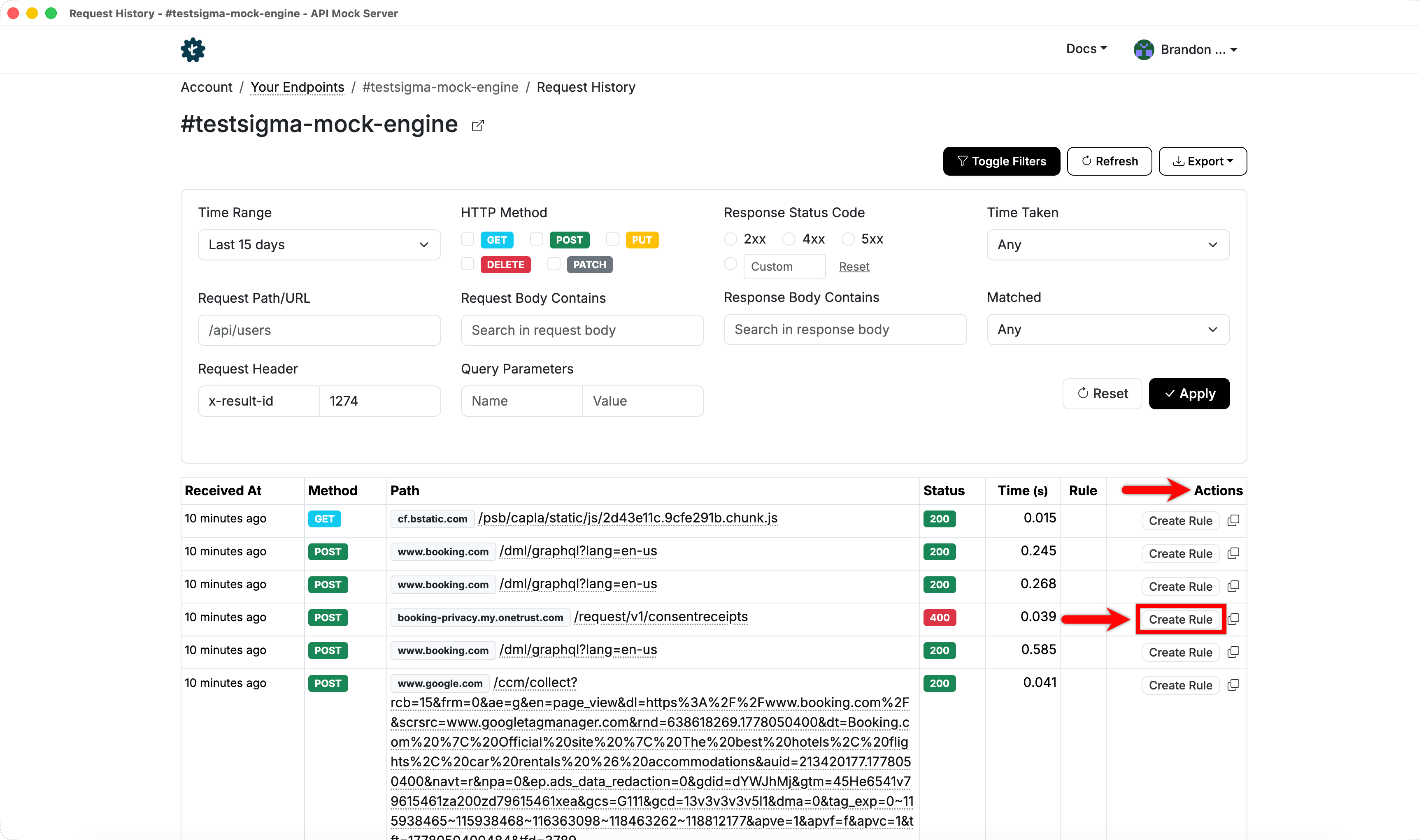
- In the API Results table, click Create Rule in the Action column for the API call you want to mock.
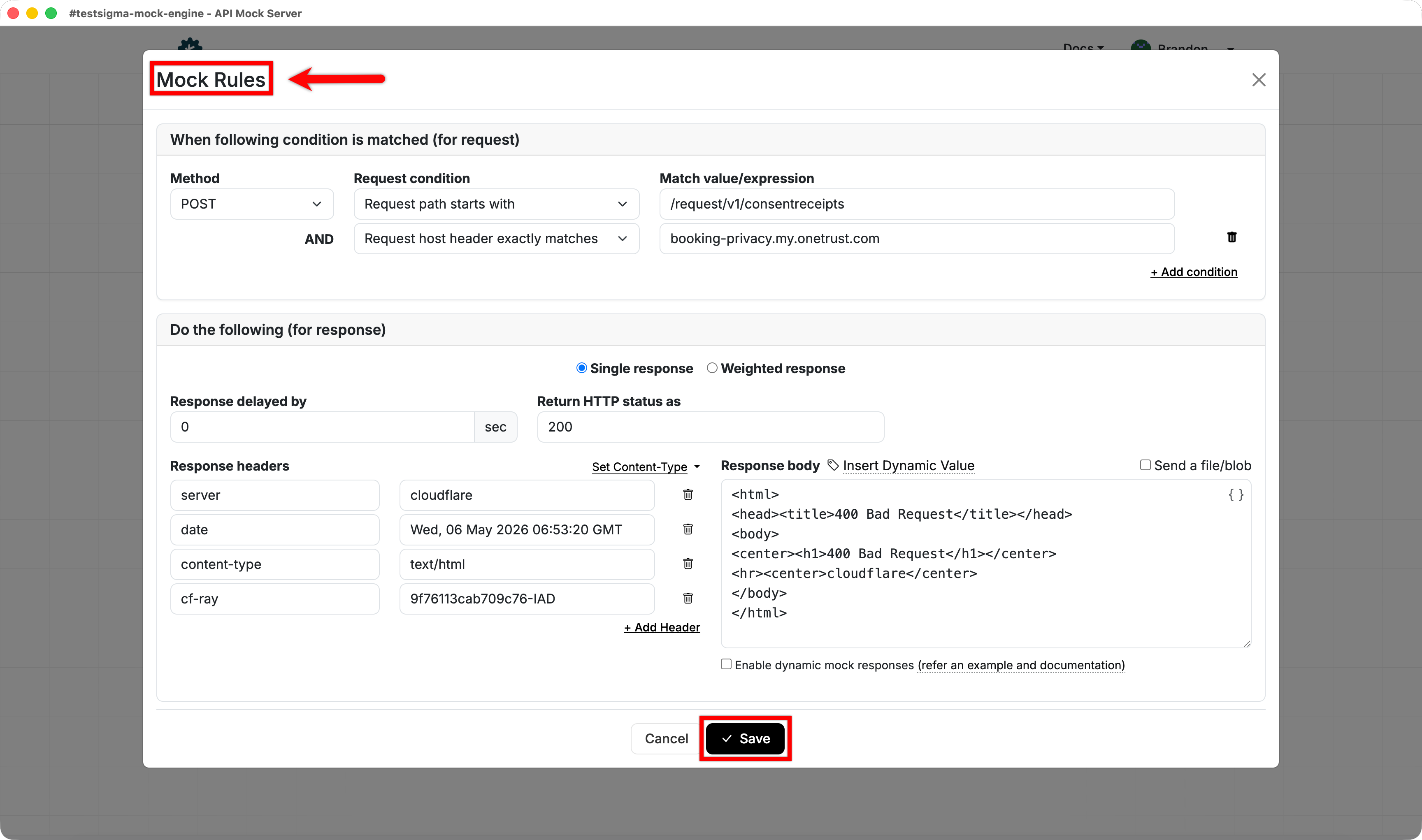
- In the Mock Rules dialog, update the rule details and click Save.
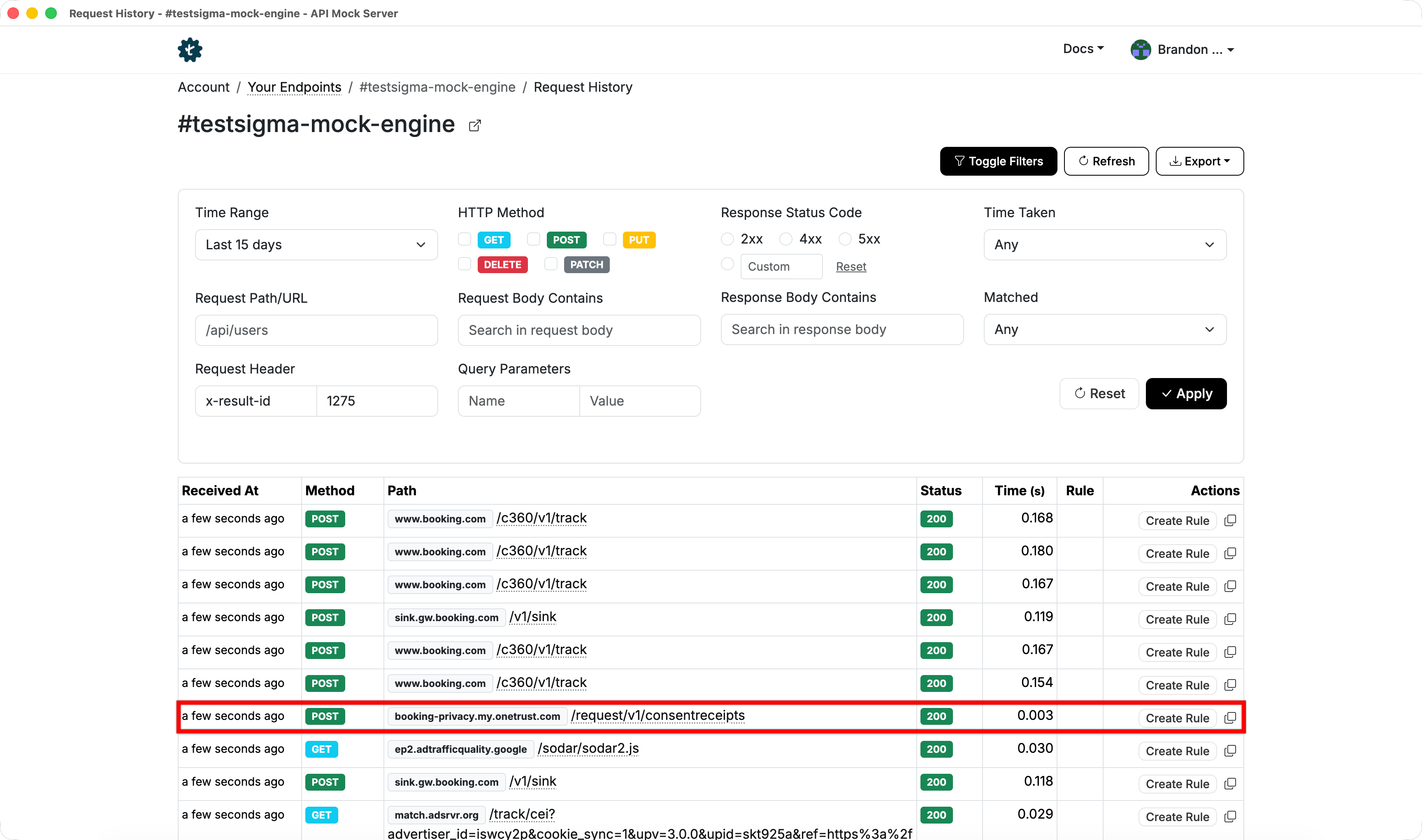
- On the next execution, the mock server returns the configured responses for matching API calls.
To learn how to define request matching and configure responses, see Mock Rules and API Routes.

Want to contribute or report missing content?