- runs
 Ad-hoc Run
- Test Plan Executions
- Dry Runs on Local Devices
- Run Tests on Private Grid
- Run Tests on Vendor Platforms
- Run Test Plans on Local Devices
- Test Locally Hosted Applications
- Flutter Integration Driver Testing on Testsigma
- Debug Test Case Failures
- Parallel and Allowed queues
Flutter Integration Driver Testing on Testsigma
The Flutter Integration Driver is a tool that automates end-to-end testing of Flutter apps by interacting directly with widgets, which are the building blocks of the user interface, using keys, text, or widget types. It ensures reliable, maintainable, and accurate tests, improves coverage of complex user flows, and guarantees consistent behavior across devices and screen sizes.
This article discusses how to prepare the app with Flutter integration driver, how to create elements using Flutter properties, and how to execute tests using Flutter Integration.
Prepare the App with Flutter Integration Driver
- Open the pubspec.yaml file. Add the following under dev_dependencies:
dev_dependencies:
appium_flutter_server: 0.0.33You can get the latest version from pub.dev.
- Create a directory called integration_test in the root of your Flutter project.
- Create a file called appium_test.dart in the integration_test directory.
- Add the following code to the appium_test.dart file:
import 'package:appium_flutter_server/appium_flutter_server.dart';
import 'package:appium_testing_app/main.dart';

void main() {
  initializeTest(app: const MyApp());
}If you need to configure prerequisites before loading the app, use:
import 'package:appium_testing_app/main.dart'; as app;
void main() {
 initializeTest(
   callback: (WidgetTester tester) async {
      // Perform any prerequisite steps or intialise any dependencies required by the app
      // and make sure to pump the app widget using below statement.
      await tester.pumpWidget(const app.MyApp());
   },
 );
}-
Build the app.
-
For Android:
flutter build apk --debug --target=integration_test/appium_test.dart -
For iOS Simulator (Debug):
flutter build ios integration_test/appium_test.dart --simulator -
For iOS Real Device (Release):
flutter build ipa --release integration_test/appium_test.dart -
For macOS:
flutter build macos --release integration_test/appium_test.dart
-
-
Verify that the app is running.
-
For Android:
-
Run the following command:
adb logcat | grep flutter - Open the application on the device or emulator manually.
-
Verify the logs in the console. Example output:
06-17 17:02:13.246 32697 32743 I flutter : The Dart VM service is listening on http://127.0.0.1:33339/E2REX61NaiI=/
06-17 17:02:13.584 32697 32735 I flutter : 00:00 +0: appium flutter server
06-17 17:02:14.814 32697 32735 I flutter : shelfRun HTTP service running on port 9000
06-17 17:02:14.814 32697 32735 I flutter : [APPIUM FLUTTER]  Appium flutter server is listening on port 9000
06-17 17:02:14.866 32697 32735 I flutter : [APPIUM FLUTTER]  New Request [GET] http://127.0.0.1:10000/status
06-17 17:02:14.869 32697 32735 I flutter : [APPIUM FLUTTER]  response {message: Flutter driver is ready to accept new connections, appInfo: {appName: appium_testing_app, buildNumber: 1, packageName: com.example.appium_testing_app, version: 1.0.0, buildSignature: F2C7CEC8F907AB830B7802C2178515D1FD4BEBA154E981FB61FFC8EC9A8F8195}}
-
-
For iOS Simulator:
xcrun simctl spawn booted log stream | grep flutter -
For iOS Real Device:
- Check xcode device logs.
- Open the application on the device or emulator manually.
-
Verify the logs in the console. Example output:
06-17 17:02:13.246 32697 32743 I flutter : The Dart VM service is listening on http://127.0.0.1:33339/E2REX61NaiI=/
06-17 17:02:13.584 32697 32735 I flutter : 00:00 +0: appium flutter server
06-17 17:02:14.814 32697 32735 I flutter : shelfRun HTTP service running on port 9000
06-17 17:02:14.814 32697 32735 I flutter : [APPIUM FLUTTER]  Appium flutter server is listening on port 9000
06-17 17:02:14.866 32697 32735 I flutter : [APPIUM FLUTTER]  New Request [GET] http://127.0.0.1:10000/status
06-17
-
Steps to Create Elements Using Flutter Properties
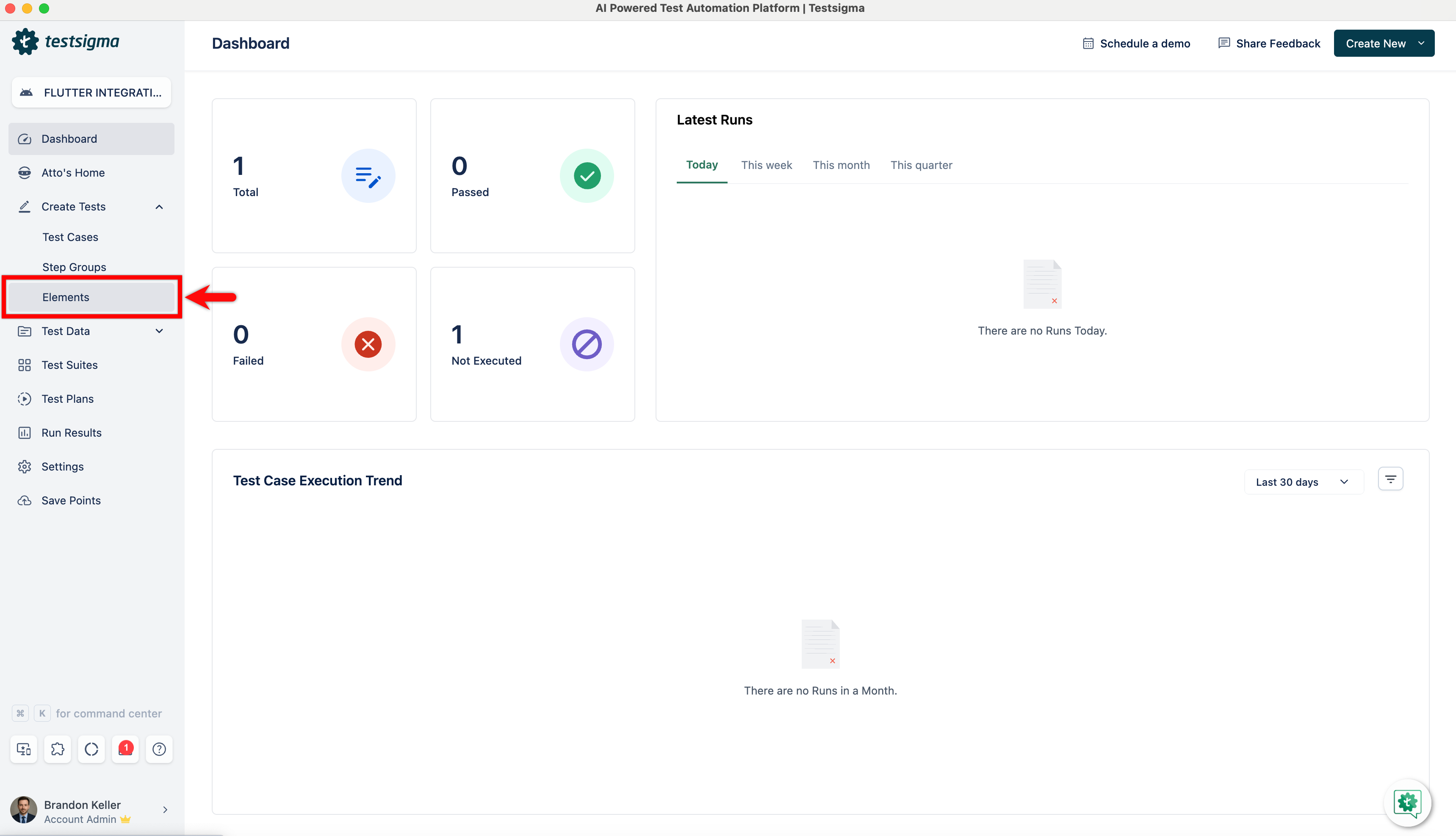
- Navigate to Create Tests > Elements.
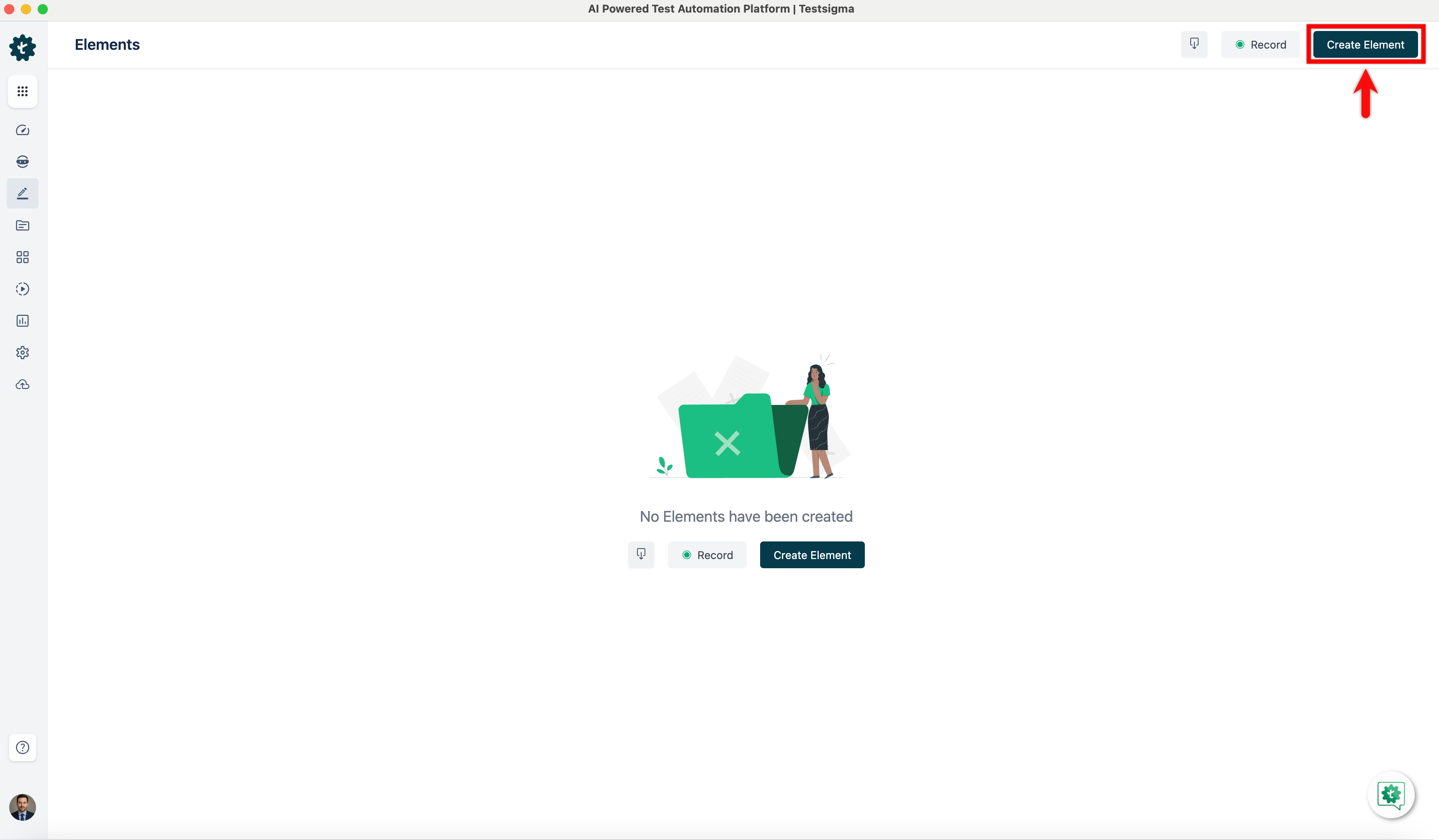
- Create on Create Element.
-
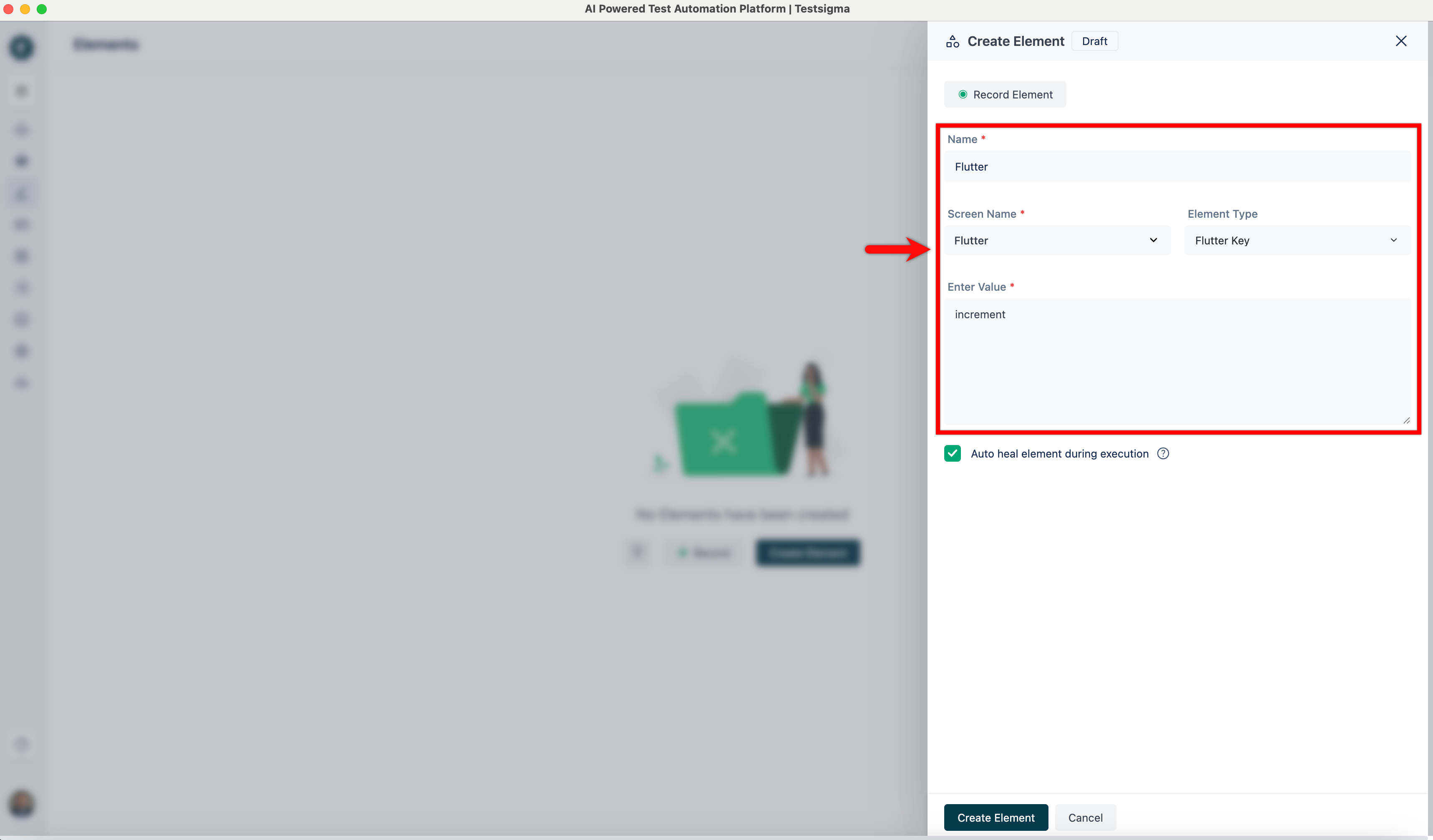
On the Create Element overlay, you'll see the following fields:
- Name: Enter the name you want to give your element.
- Screen Name: Mention the screen that your element resides on.
- Element Type: Expand the drop-down and select a Flutter type.
- Enter Value: Enter the value corresponding to the Element Type you selected.
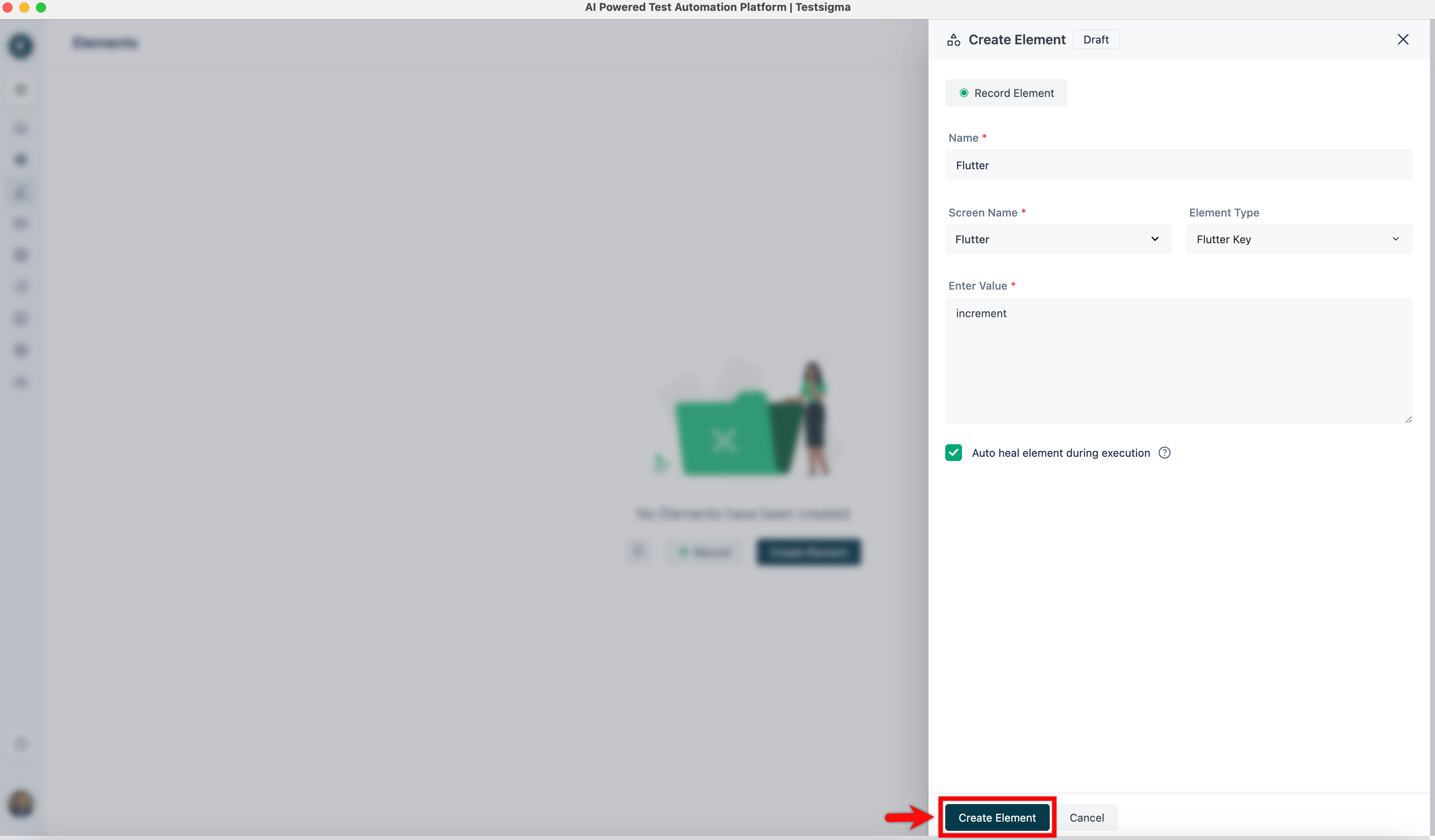
- Once you have added all the details, click on Create Element.
- The element will be saved in the elements list.
Steps to Execute Tests Using Flutter Integration
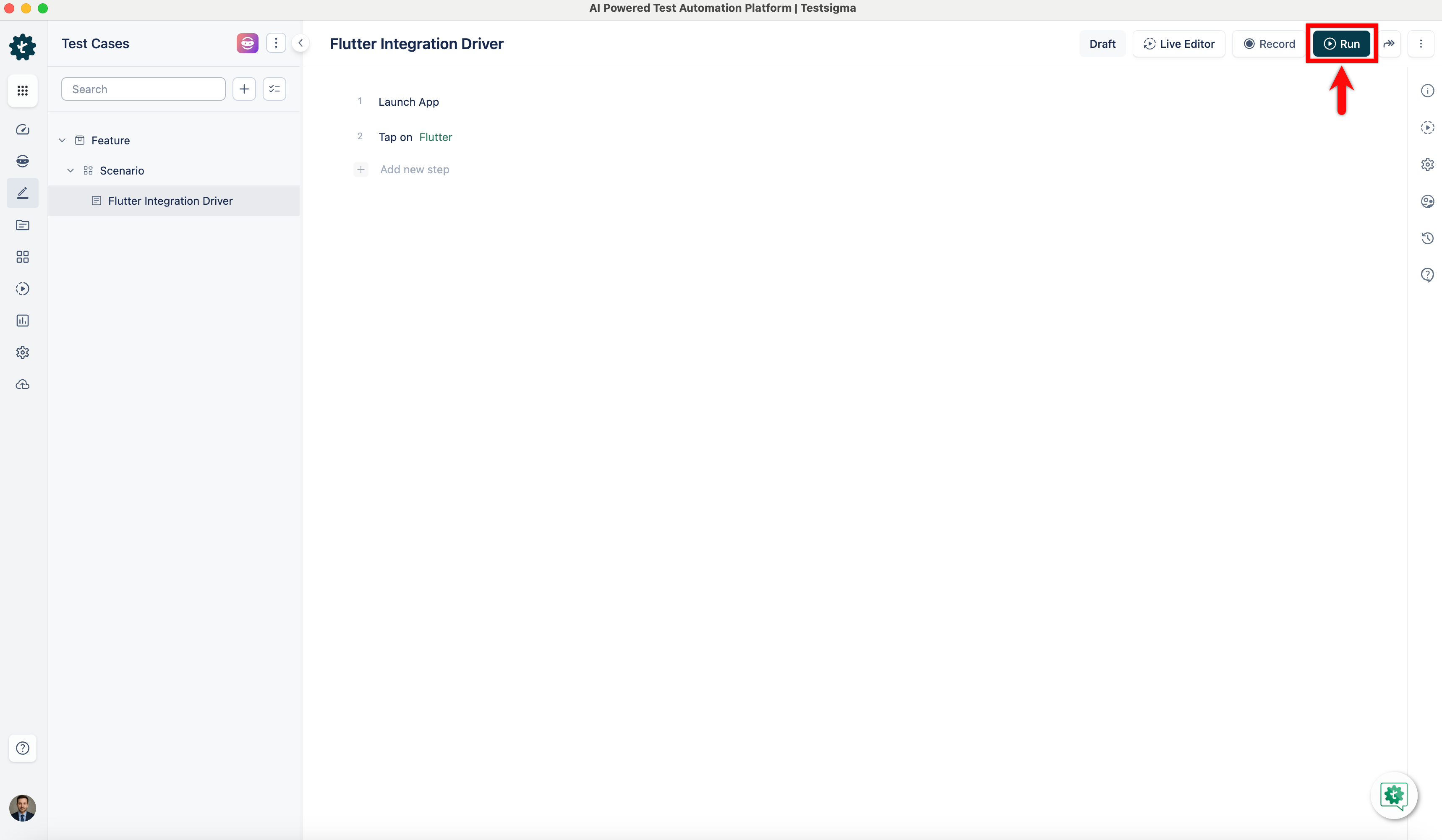
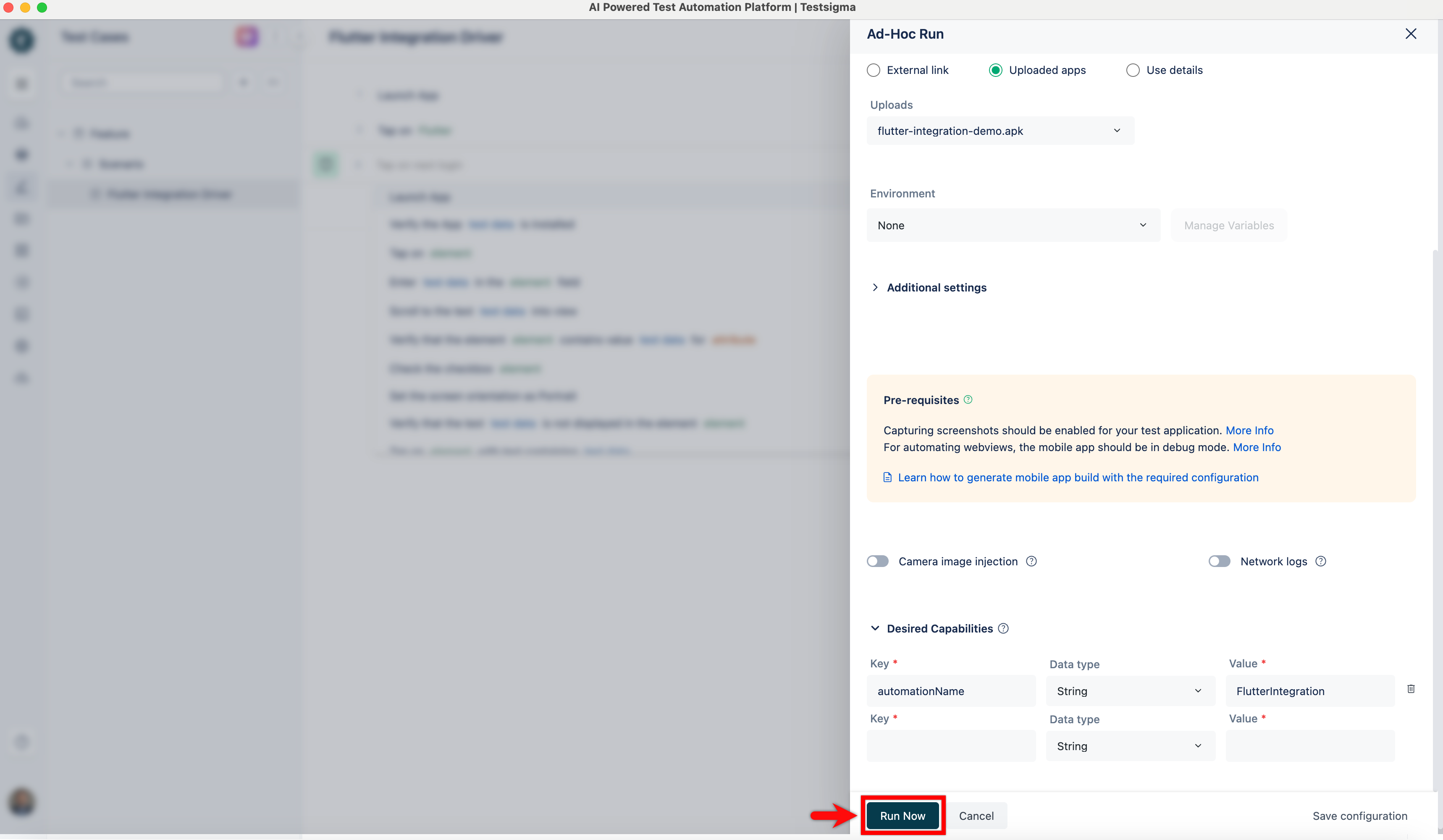
- In the Test Case Details page, click Run.
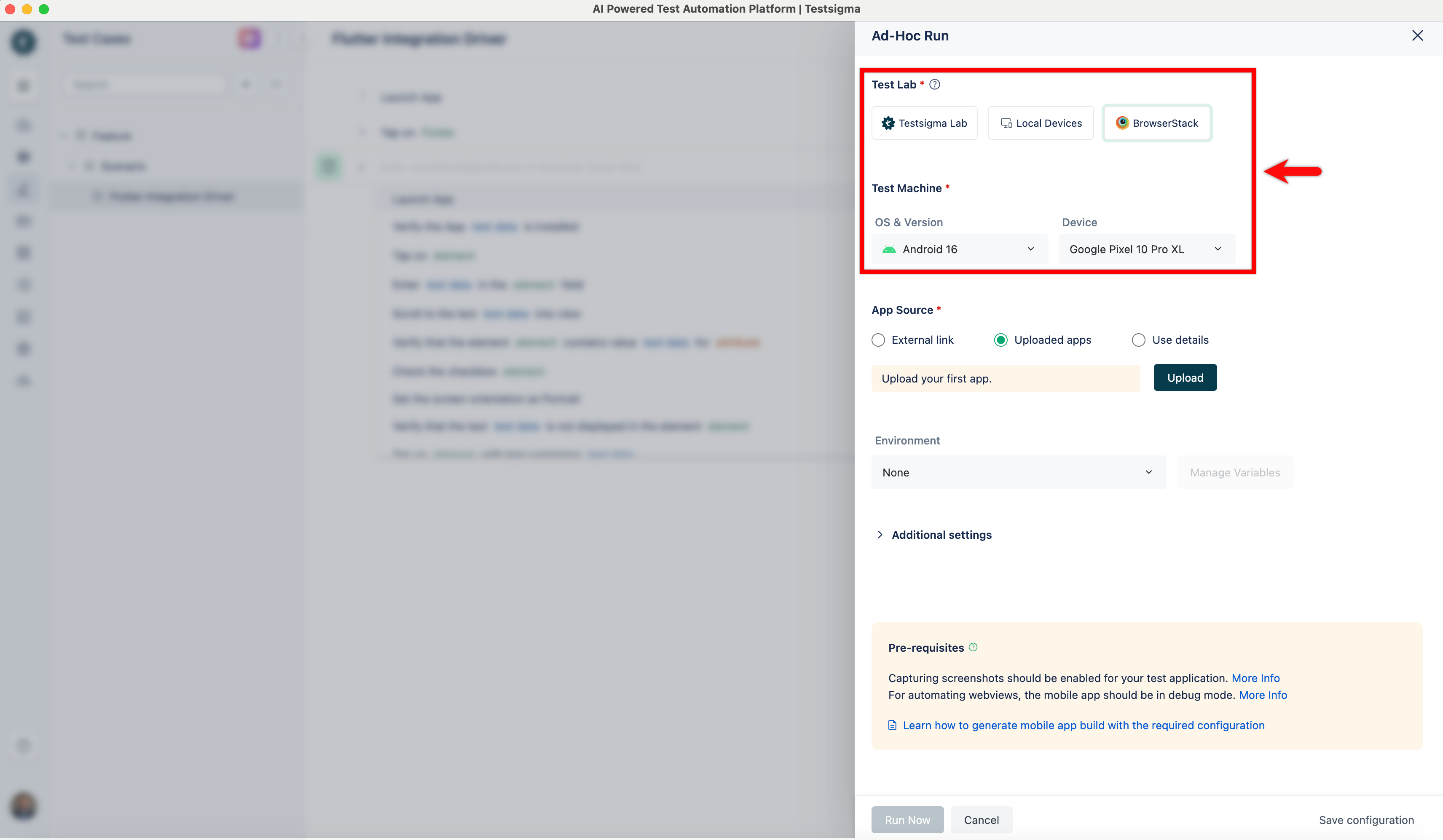
- In the Ad-Hoc Run overlay, select the required Test Lab and Test Machine.
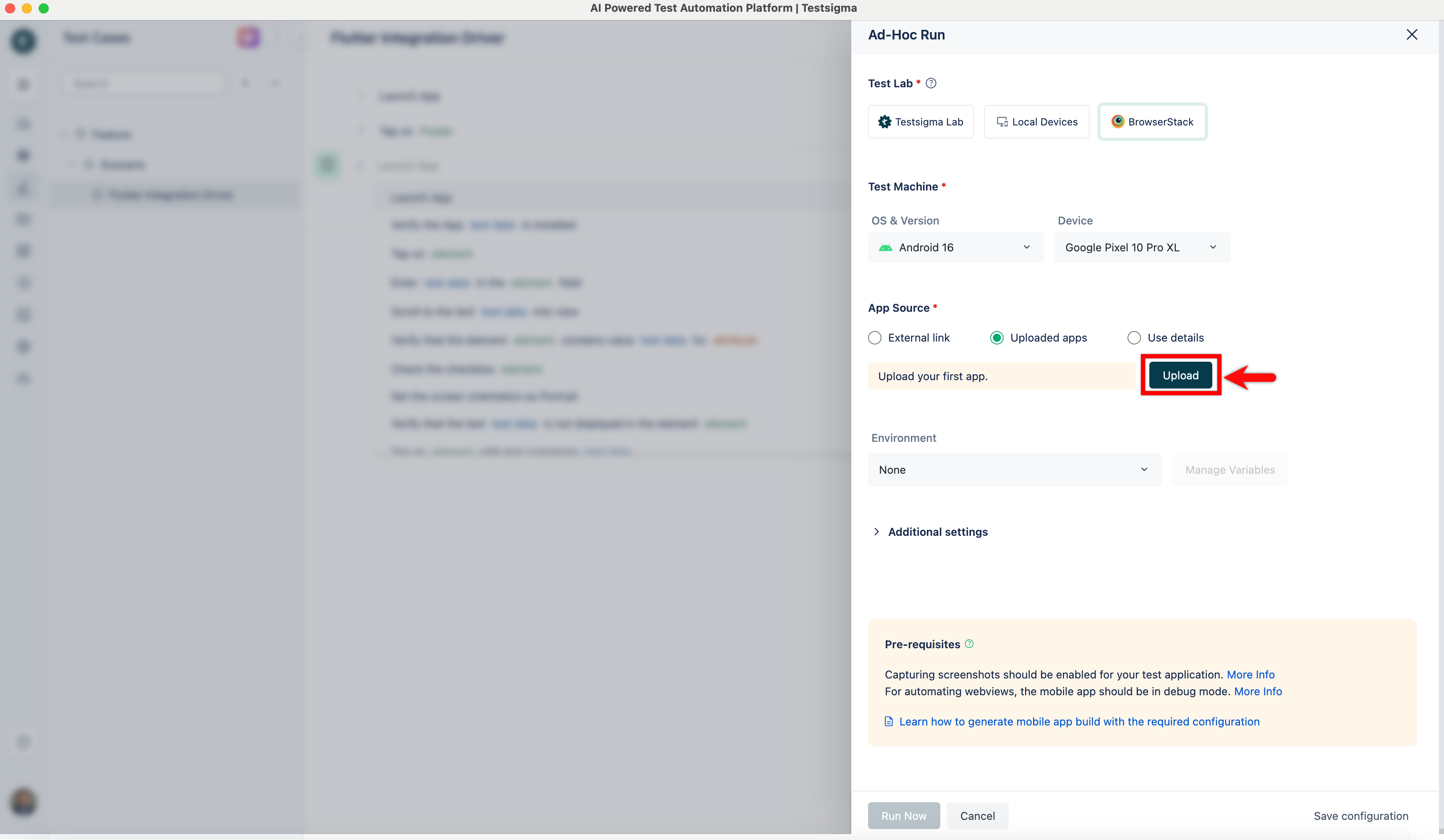
- Under App Source, click Upload and upload the required file.
-
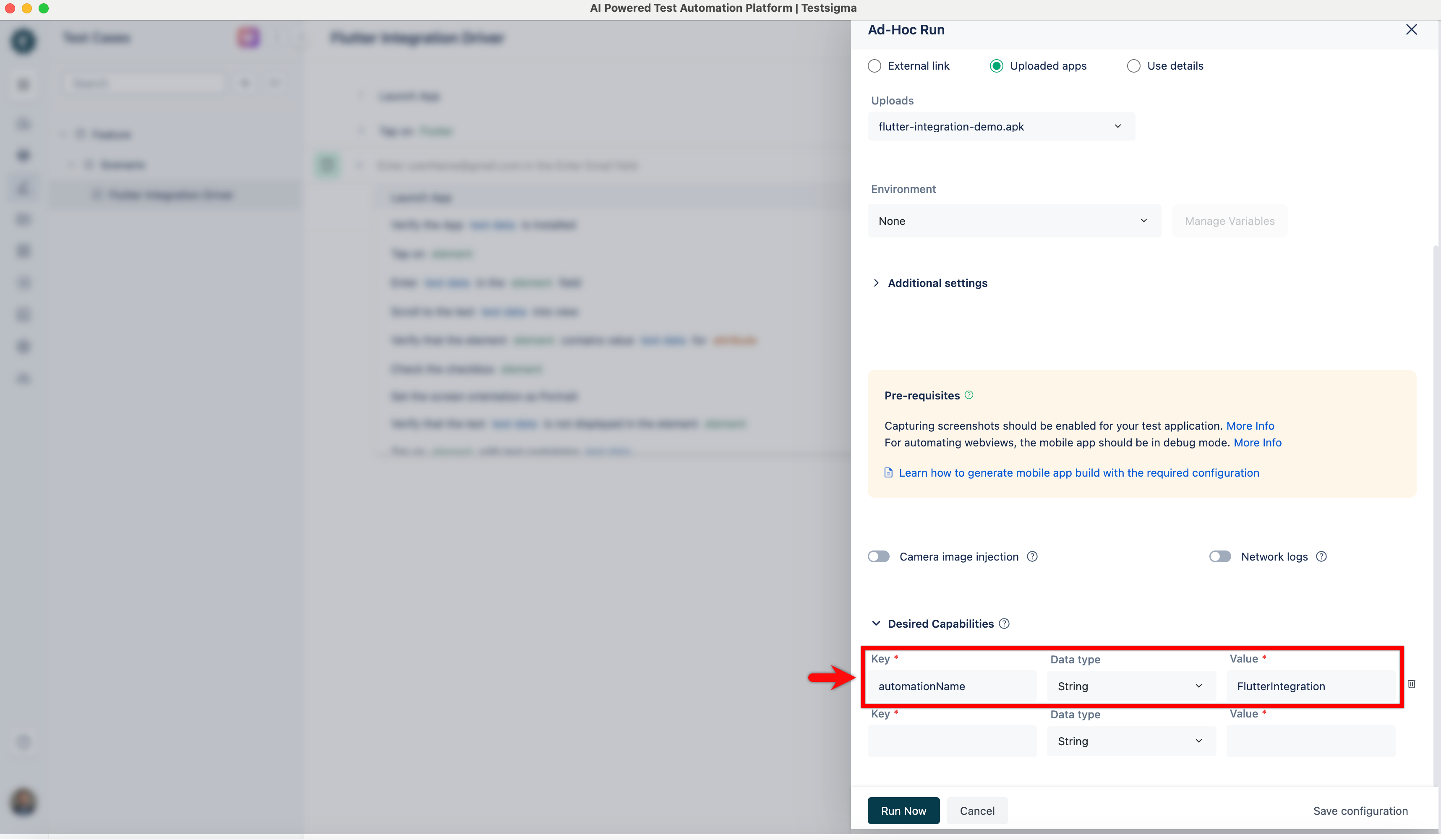
Expand Desired Capabilities and enter the following:
Key Data type Value automationName String FlutterIntegration
- Click Run Now.

Want to contribute or report missing content?