- web apps
 Why Install Chrome Extension?
- Steps to Test Locally Hosted Apps
- How to Turnoff Onboading Tutorial?
- Non-Text Keys in Test Cases
- Basic Authentication for Web
- Why Bypass CAPTCHA?
- Test Case Failures Due to Link Text Capture Issues
- Why Is a Single Video for All Test Cases in a Test Plan Unavailable in Some Cases?
- How to Handle Browser-Related Permission Issues?
- Why Can’t Selenium ChromeDriver Interact With 3DS Authentication Pages?
- How Do I Fix the Try Again Error When Opening the Testsigma Desktop App?
- Why Am I Getting an Error While Registering the Agent?
- Why Does the Try Again Error Appear While Installing the Testsigma Agent in a Proxy Environment?
- mobile apps
- Apple Pay Automation with Testsigma
- How do I Enhance the Execution Speed for Mobile Native Apps?
- Why am I Facing Permission Error During Local Test Execution?
- How to Resolve App Launch Issues?
- Why does the iOS App Close Right After Opening in Testsigma?
- How to Execute Android/iOS Tests in Emulators/Simulators?
- general
- Why am I Unable to Download the XLS File from the Edge Browser?
- How to Handle Browser-Related Pop-Up Issues?
- How to Handle Text-Based CAPTCHA in Testsigma?
- Why does Test Execution Fail with the Error No Route to Host?
- Why do Errors Occur When I Try to Download Files from The Exports Page?
- How to Test Flutter Apps Using Accessibility Mode?
- How to Add Multiple Runtime Variables in Data Generator Functions?
- How to Insert Test Data in RAW Body for POST API?
- What is Chrome for Testing and How Does it Work?
- How Can I Set Up Authenticator-Based Authentication in Testsigma?
- How to Update an Excel File in Testsigma Uploads?
- What Causes Longer Automation Test Execution Times in a Test Plan?
- How Do I Retrieve the OTP When it’s Embedded within HTML Tags?
- How to Configure the OracleDB Add-on in Testsigma?
How Do I Fix the Try Again Error When Opening the Testsigma Desktop App?
When you click Open the desktop app from the Testsigma web application, the desktop app may fail to launch and display a Try again error message in Chrome browser versions 139 and later.
This issue can occur due to Chrome browser permission restrictions. After a browser version update, the permissions required to open the desktop application (such as pop-ups or local network access) may be blocked, causing Chrome to prevent the request.
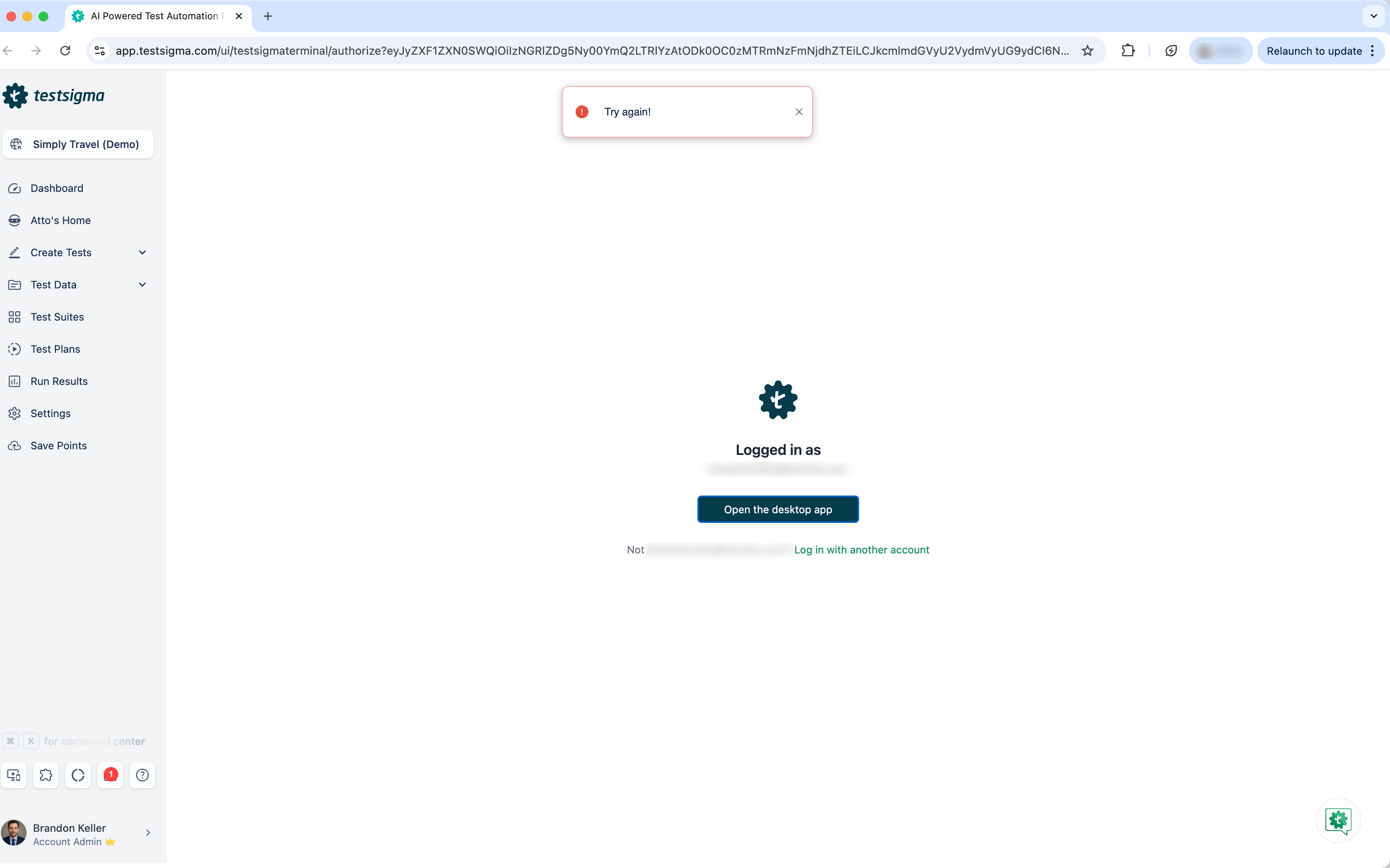
This article discusses how to resolve the permission issue.
Steps to Resolve the Permission Issue
- In Chrome, click the Site Information icon in the address bar.
-
Ensure the following permissions are set to Allow:
- Pop-ups and redirects
- Local network access
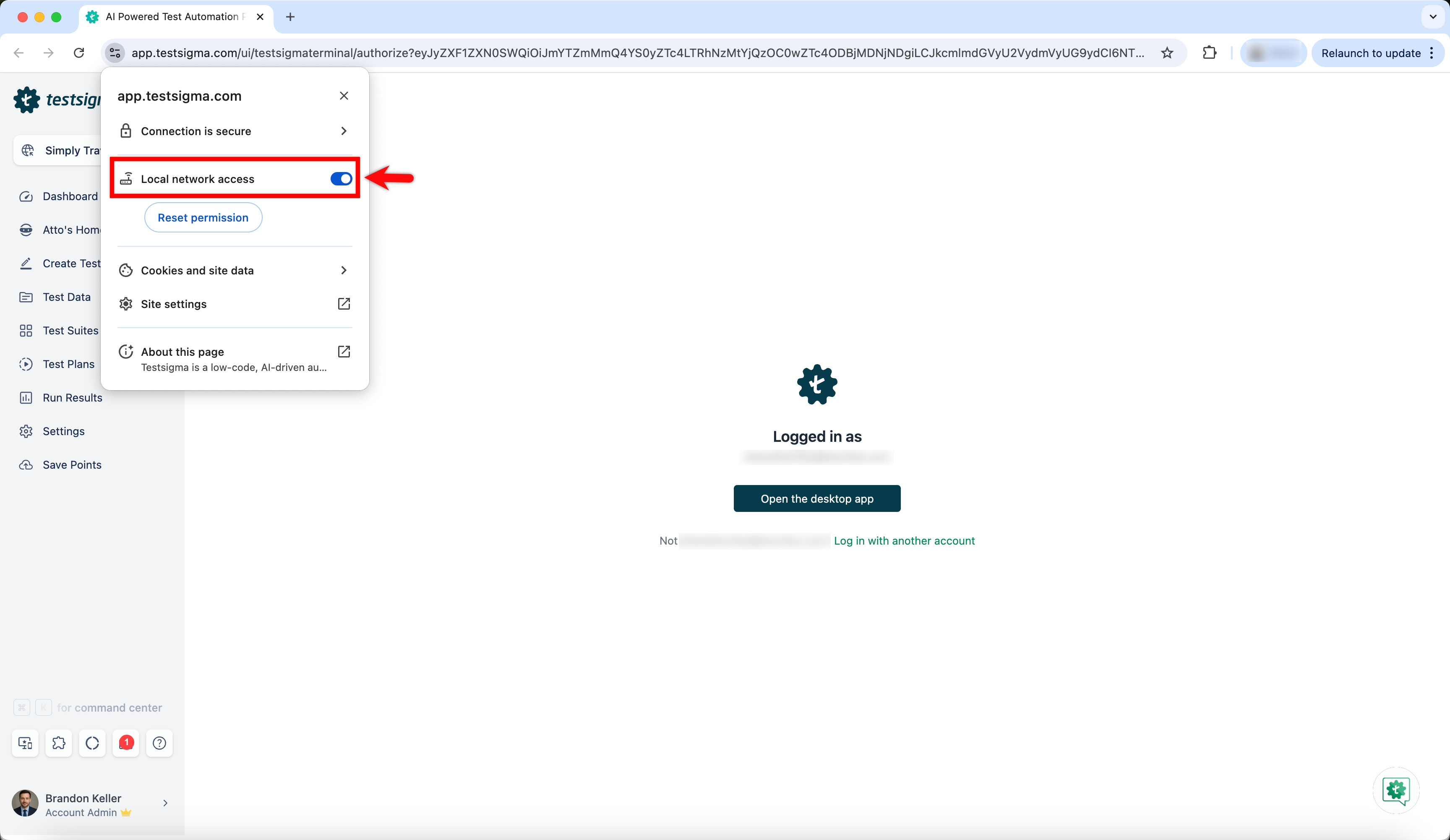
- If these permissions were previously denied, click Reset permissions.
- Refresh the page.
- Click Open the desktop app again in Testsigma.
- When Chrome displays the permission prompt, click Allow or Open to proceed with launching the desktop application.

Want to contribute or report missing content?