- auto healing
 Introduction: Auto-Healing
- Enable the Auto-Healing Feature
- AI-Enabled Auto-Healing for Web Applications
- AI-Enabled Auto-Healing for Salesforce Applications
- AI-Enabled Auto-Healing for Mobile Applications
- Auto-healing for AI-Generated Test Cases
- Using Auto-Healing in Copilot Test Execution
- Auto-Healing Insights
Auto-healing for AI-Generated Test Cases
If you generate test cases using Atto and automate them without learning the live app, Atto creates elements with dummy locators. With the Gen AI auto-healing feature enabled, these dummy locators are automatically detected and updated during execution. This article discusses how auto-healing identifies and updates element locators while executing test cases generated by the Generator Agent.
Prerequisites
Before you begin, ensure that:
- You have enabled the Generative AI feature. If you don’t have access to this feature, please contact Support via chat for assistance.
- You have referred to the documentation on enabling the auto-healing feature.
- You have referred to the documentation on generating test cases using Atto.
Steps to Execute the Generated Test Cases
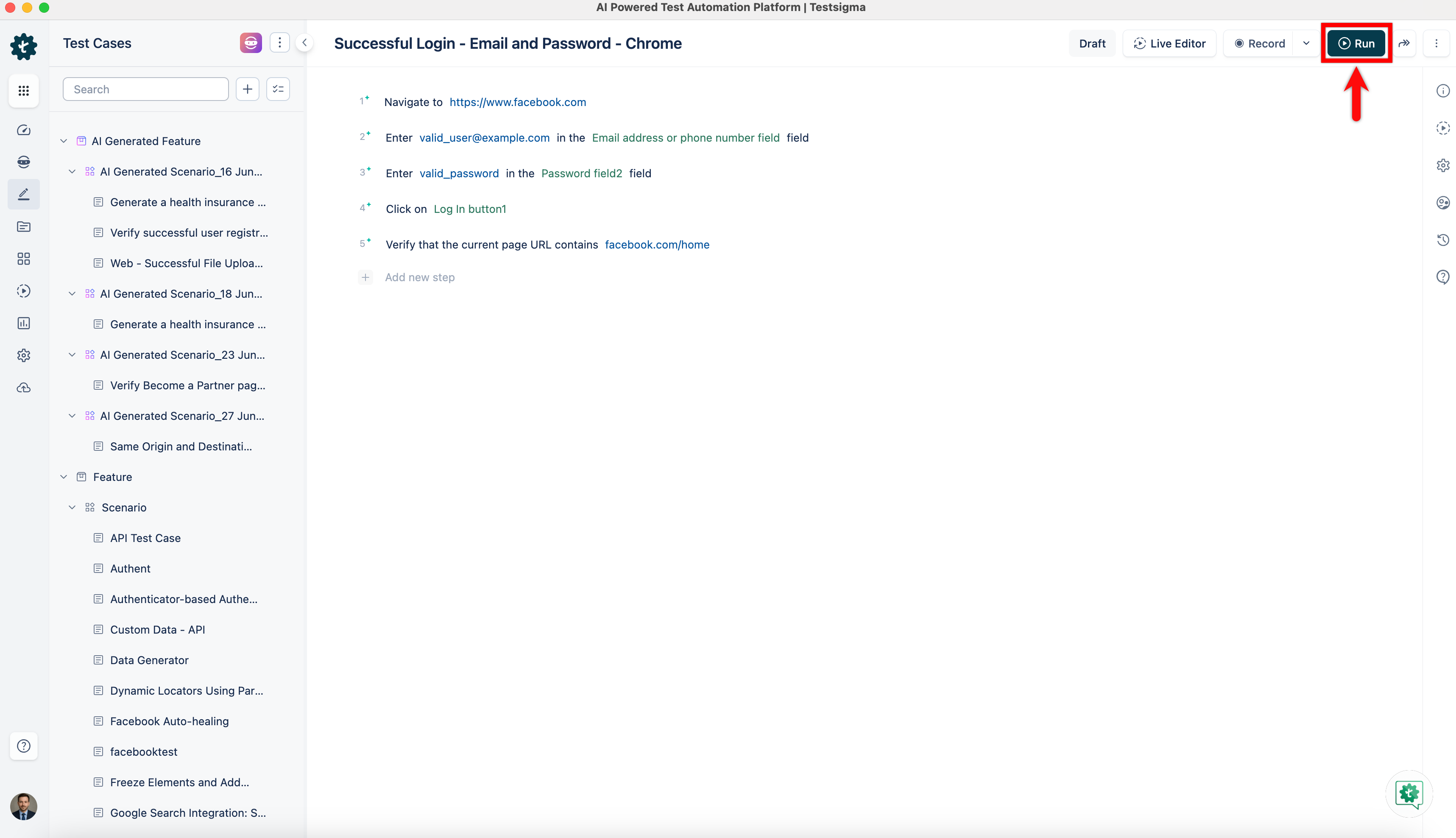
- Once the test case has been added to the selected scenario, click Run.
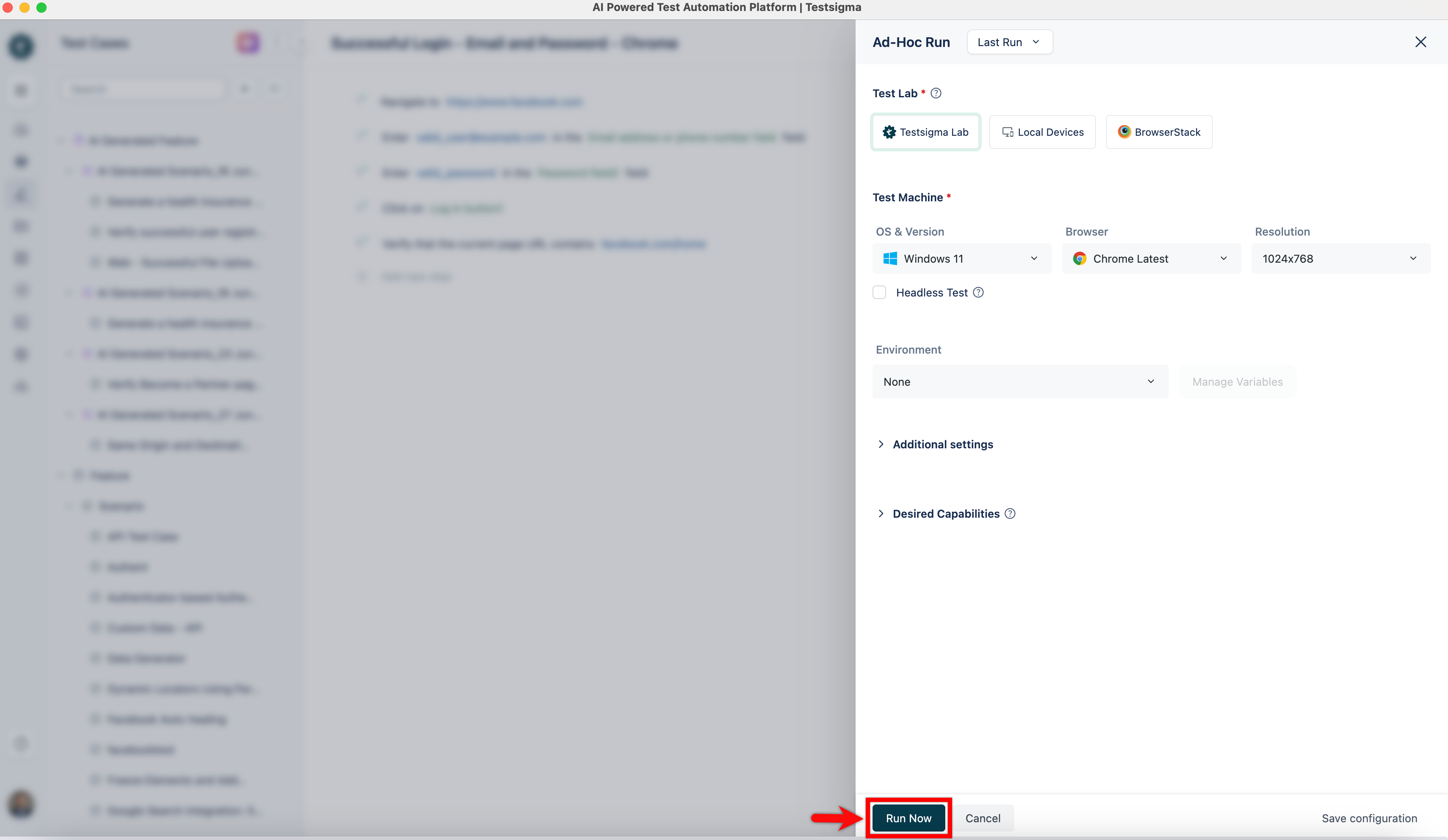
- On the Ad-Hoc Run overlay, configure the required options and click Run Now.
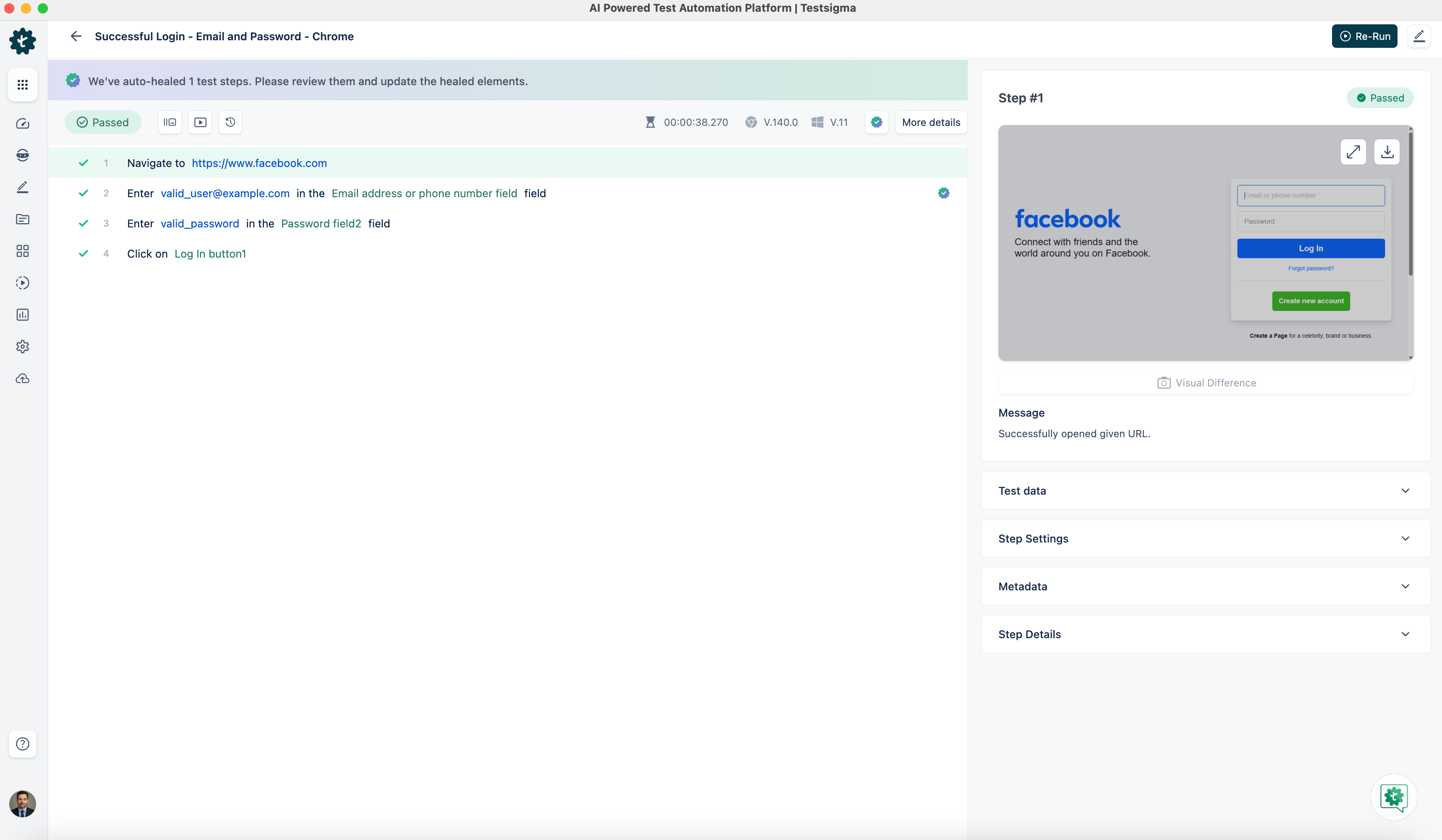
- During execution, Testsigma’s auto-healing detects that the Email address or phone number element uses a dummy locator and automatically heals it by identifying the correct element.
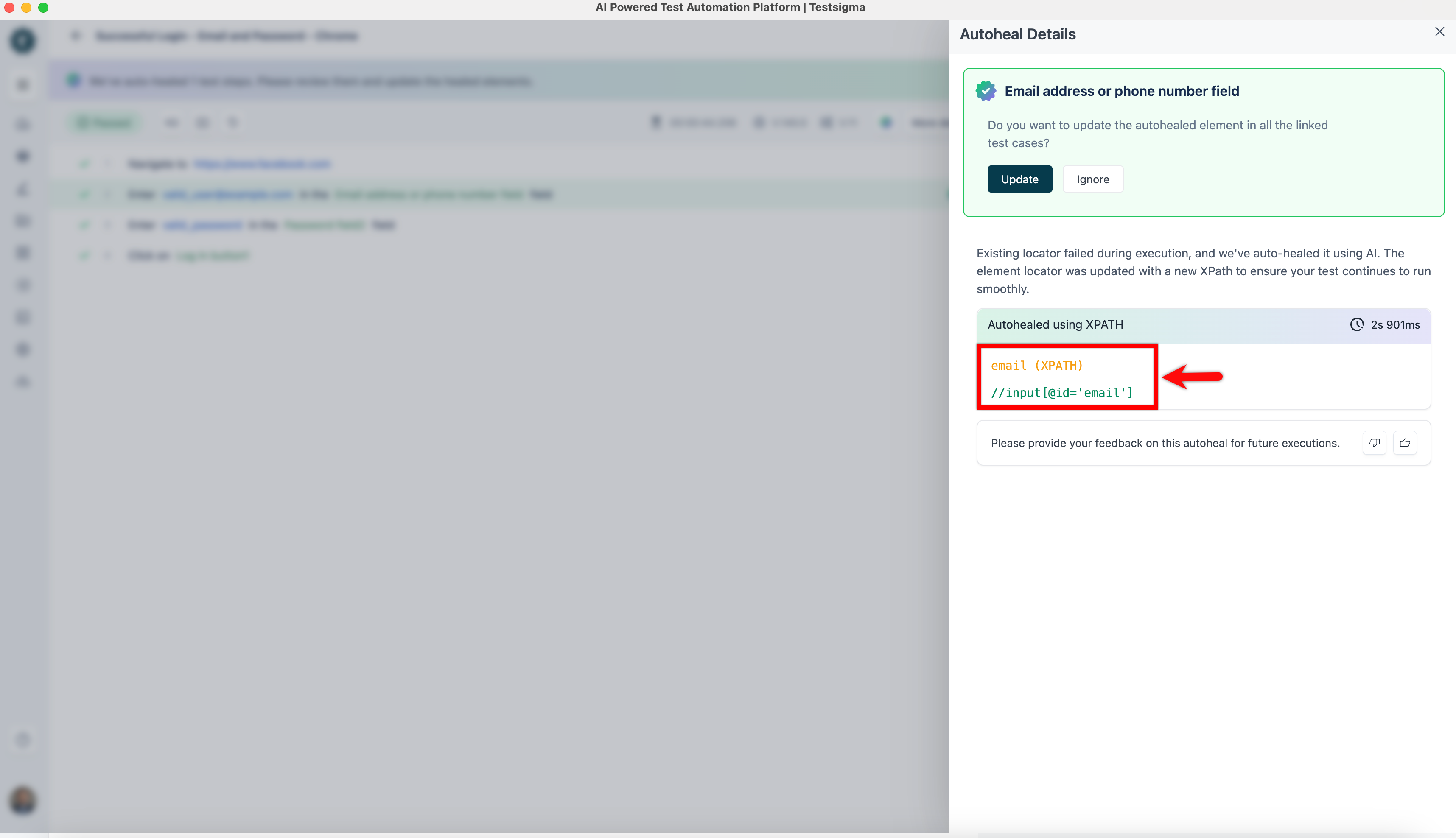
- When Gen AI Auto-Healing is enabled, Testsigma updates the locator to //input[@id='email'] and continues the execution seamlessly.
Auto-Healing Insights
Once the test execution is complete, please refer to the documentation on Auto-Healing Insights to view the auto-healing results and learn how to update the element locator.

Want to contribute or report missing content?