
Analyzer Agent in Testsigma
The Analyzer Agent analyzes a failed test step and returns the error type, the root cause, the visual evidence captured during execution, and a set of suggestions. Apply a suggestion to update the step, or report the failure to your bug tracking tool, without leaving the results page.
Prerequisites
Before you begin, ensure that:
- At least one test plan or dry run has been executed.
- The run contains a failed test step.
Steps to Analyze Step Failures
- From the left navigation bar, click Run Results.
- Select the run that contains failed test steps.
-
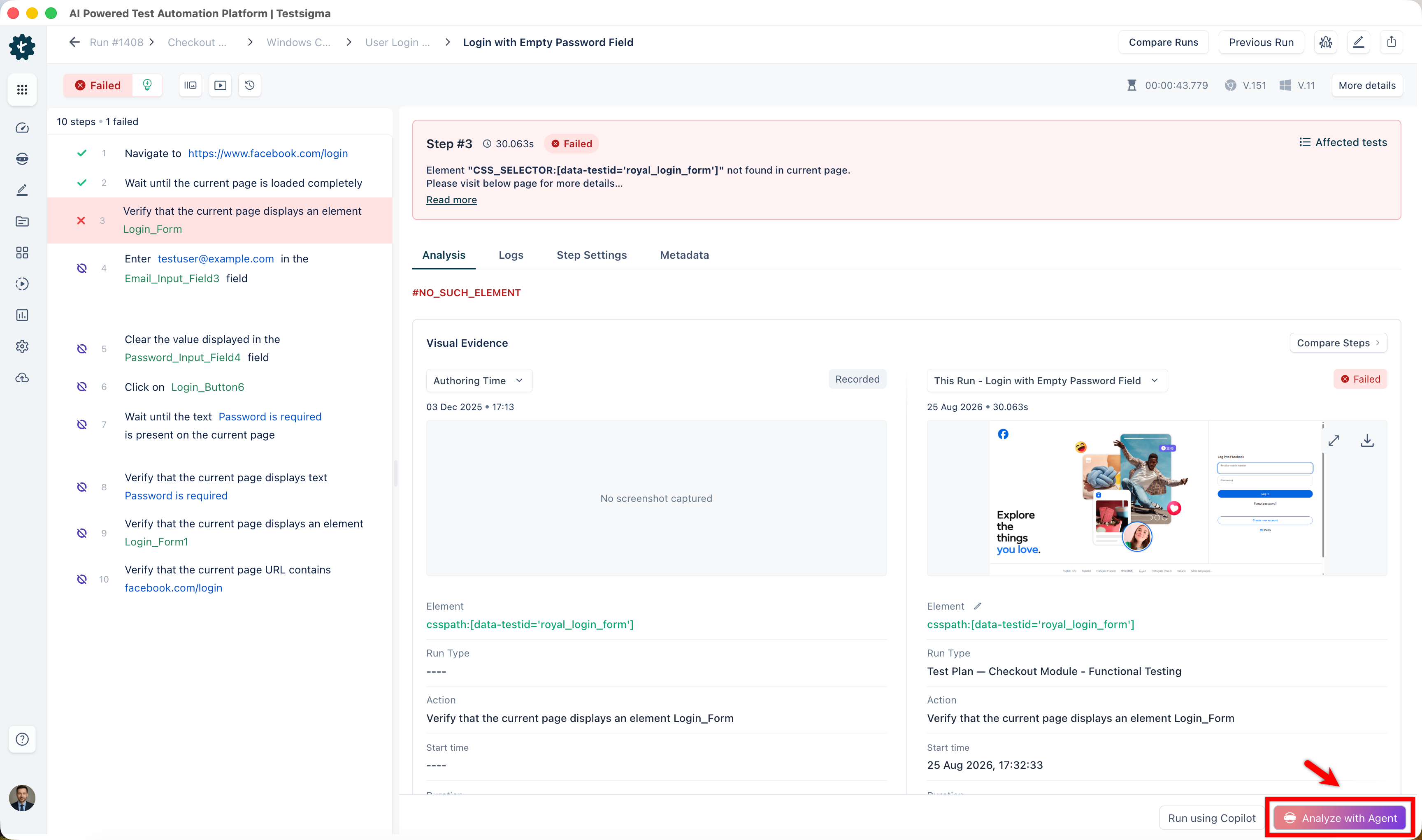
Open the test case with failures and select the failed test step.
The step header shows the error message. Click Read more to see the full message. The Analysis tab shows the error code, such as #NOSUCHELEMENT, along with the Visual Evidence section.
- Click Analyze with Agent in the action bar at the bottom of the page.
-
Review the analysis, which displays:
- Error Type: The category of failure identified during execution, such as ELEMENTNOTFOUND.
- Root Cause: An explanation of why the step failed, based on the error message and the captured evidence.
- Visual Evidence: The screenshot captured at the time of execution. Click Expand Images to view it at full size, or the download icon to save it.
- Suggestions: A numbered list of ways to resolve the failure.
To ask a follow-up question about the failure, enter it in Debug with Atto and click Analyze.
Additional Information: Responses are generated by Atto AI. Review the analysis before acting on it. Use the feedback icons or Give Feedback to tell us how useful it was.
Apply Fix Using Analyzer Agent
-
In the Suggestions list, select the suggestion you want to apply.
NOTE:You can select only one suggestion at a time.
-
Click Apply Fix.
Atto generates the fix and returns an Update Test Step card explaining what it found, followed by the current version of the step and the proposed version.
- Compare the two versions of the step.
- Click Update Step to apply the change.
- Rerun the test to validate the fix.
Report a Bug Using Analyzer Agent
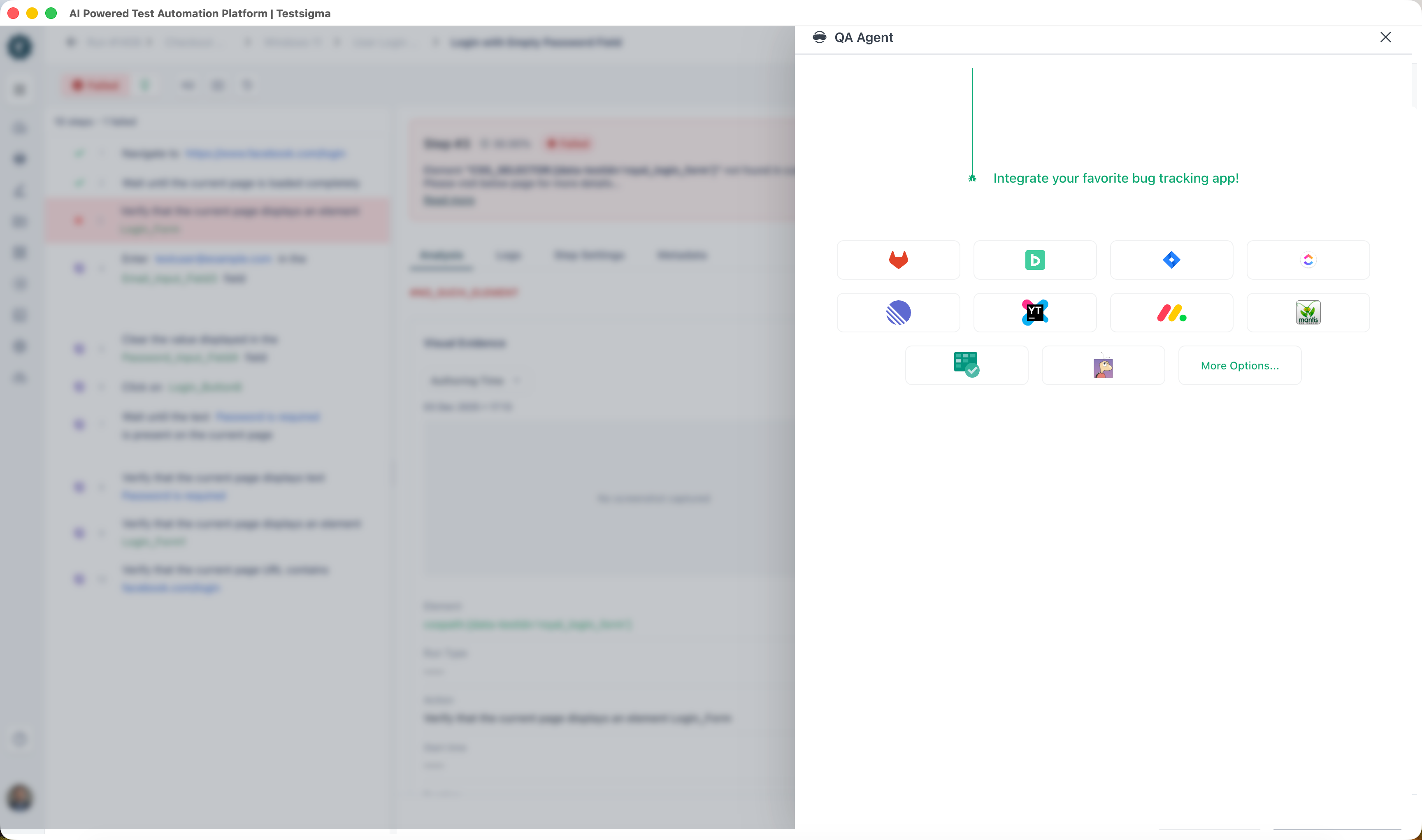
- In the Analyzer with Atto panel, click Report Bug. The QA Agent panel opens.
- Select your bug tracking tool from the dropdown at the top right.
-
Do one of the following:
- To raise a new issue, open the Create New tab, review the prefilled details, and click Report Bug.
- To attach the failure to an issue that already exists, open the Link To Issue tab, search for the issue, and click Link To Ticket.
The fields displayed vary based on the selected bug tracking tool.
Additional Information: If the tool returns no projects, check that the credentials configured for it have access to the projects you expect. For Jira, the panel reads "For given JIRA Credentials, the projects list is empty. Please make sure it has the right access to required projects on JIRA".

Want to contribute or report missing content?