 Introduction: Copilot
- Editing a Test Case Using Copilot
- FAQs on Testsigma Copilot
- troubleshooting for copilot
- Unable to Login to Testsigma Terminal?
- Unable to Download the Terminal Files?
- Unable to Extract the Terminal Files?
- Unable to Start the Terminal Due to Port Unavailability?
- Unable to Start the Agent?
- Unable to Auto-Register Your Device Using Testsigma Terminal?
- Unable to Download the Packages Required to Start the Agent?
- Unable to Update the Packages Required to Start the Agent?
- Unable to Reestablish Connection to Agent?
FAQs on Testsigma Copilot
1. Can I run the old Java agent and Testsigma Terminal on the same machine?
Answer: No, only one active agent can run at a time. Testsigma Terminal automatically detects an existing Java agent and uses it for Copilot and test executions.
2. What installation formats are available for Testsigma Terminal?
Answer: Testsigma Terminal is available in the following formats:
- .dmg (macOS)
- .msi (Windows)
- .zip and .tar.gz (Alternative formats, but availability may be restricted by enterprise security policies)
3. Will my existing agent be upgraded when I install Testsigma Terminal?
Answer: Testsigma Terminal detects and integrates with the existing agent. If an update is available, the agent is upgraded automatically.
4. Can the old Java agent be converted into the new Testsigma Terminal Java agent?
Answer: During installation, the old agent is detected, upgraded, and converted into the new Testsigma Terminal Java agent.
5. If my old Java agent was registered but inactive, will Testsigma Terminal reuse its name?
Answer: If Testsigma Terminal does not detect the inactive agent, it installs a new one, requiring re-registration.
6. What happens if the old Java agent becomes active again?
Answer: The old Java agent cannot become active while Testsigma Terminal is running, as only one agent can be active at a time.
7. Which agent is used for remote executions or ad-hoc runs?
Answer: Testsigma Terminal integrates with the existing agent, which is used for remote executions, ad-hoc runs, and Copilot.
8. How does the Testsigma Terminal Java agent register with Testsigma?
Answer: The registration process remains unchanged. For more information on setting up Testsigma Agent locally, refer to the documentation on setting Up Testsigma Agent locally.
9. Can I start, stop, or restart the Agent from the Testsigma application?
Answer: Not yet. Currently, the agent can only be managed via the Testsigma Terminal desktop application.
Managing Testsigma Terminal
- Stop: Click Quit Session.
- Start: Launch Testsigma Terminal from your applications.
- Restart: Stop and restart Testsigma Terminal.
Managing the Agent
-
Start: The agent starts automatically when Testsigma Terminal launches.
-
To start manually:
- Navigate to the Agent Location.
- Open Terminal/Command Prompt.
- Run:
sh Start.sh
-
-
Stop: The agent runs in the background.
-
To stop manually:
- Navigate to the Agent Location.
- Open Terminal/Command Prompt.
- Run:
sh Stop.sh
-
- Restart: Relaunch Testsigma Terminal or click the Restart button on the Copilot homepage.
10. Can I manually start or stop the Agent?
Answer: Yes, but it is not recommended. The agent runs in the background, and stopping it may impact Testsigma Terminal’s functionality.
11. How can I collect logs from Testsigma Terminal?
Answer: Logs are stored locally and can be accessed via Logs button on Testsigma Terminal home screen.
Manual Log Path:
Disk > Users > user_folder > Library > Application Support > Testsigma > Testsigma Terminal > Logs > .log file
To access Library folder in the above path, you need to unhide hidden folders in your user_folder.
Shortcut to View Hidden Files:
- Mac: Press Command (⌘) + Shift + . in Finder.
- Windows: Press Windows + R, type
control folders, go to View, and select Show hidden files, folders, and drives.
12. If the old agent is running, will I be prompted before installing Testsigma Terminal?
Answer: Yes. Testsigma Terminal detects existing agents and prompts you to either use the existing agent or install a new one.
13. Where are the Java agent files stored on my machine?
Answer: Java agent files are stored in the path below:
Disk > Users > user_folder > Library > Application Support > Testsigma > Agent > Logs
To access Library folder in the above path, you need to unhide hidden folders in your user_folder.
Shortcut to View Hidden Files:
- Mac: Press Command (⌘) + Shift + . in Finder.
- Windows: Press Windows + R, type
control folders, go to View, and select Show hidden files, folders, and drives.
14. Why is the Testsigma Terminal not launching on Linux (.appimage file not opening)?
Answer: The issue occurs because Linux users receive the Testsigma Terminal in .appimage format, which requires all necessary dependencies to be available on the system. If dependencies are missing, the .appimage may not launch the installer.
Workaround: Please install the missing dependencies shown in the error screen and try again.
15. What should I do if I see a port error during Testsigma Terminal installation?
Answer: You may see an error screen during the download of a new Terminal if all required ports are in use. This usually occurs when processes from a previous installation are still running. This article discusses resolving port-in-use errors when installing the Terminal.
Steps to Resolve for macOS:
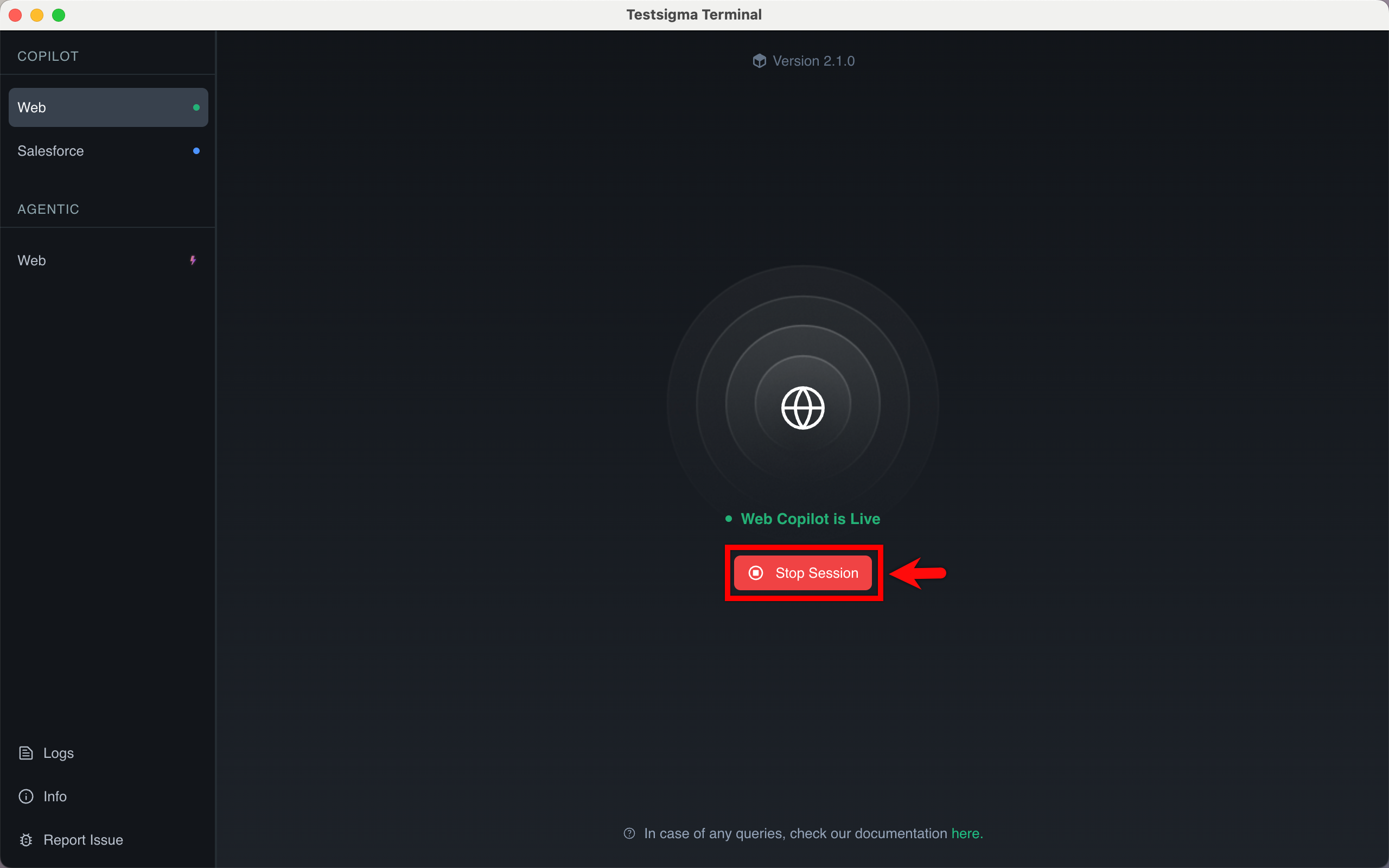
- Click Quit Session if it is open.
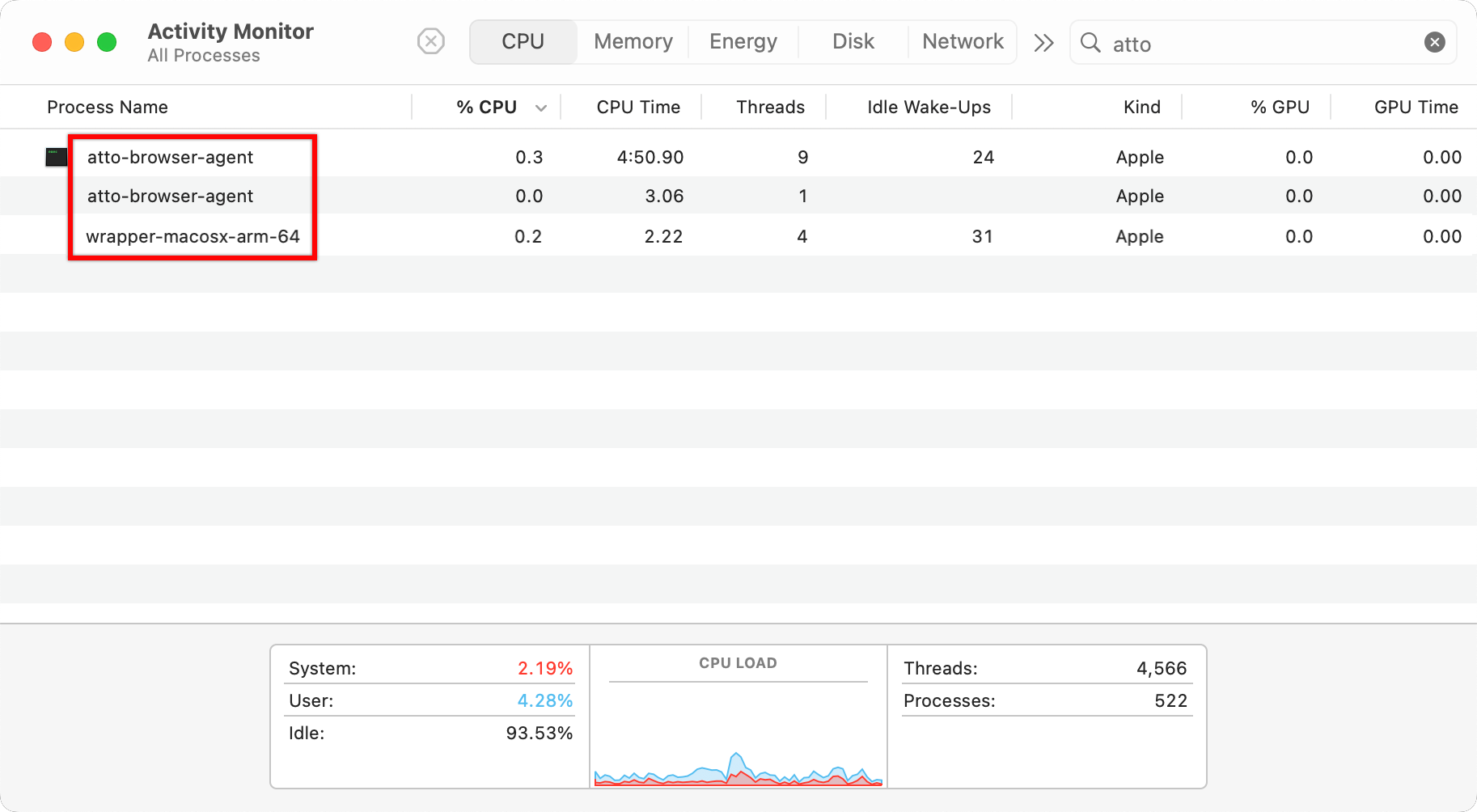
- Open Activity Monitor and end any wrapper or atto processes.
- Go to your Users folder and show hidden files by pressing Command+Shift+..
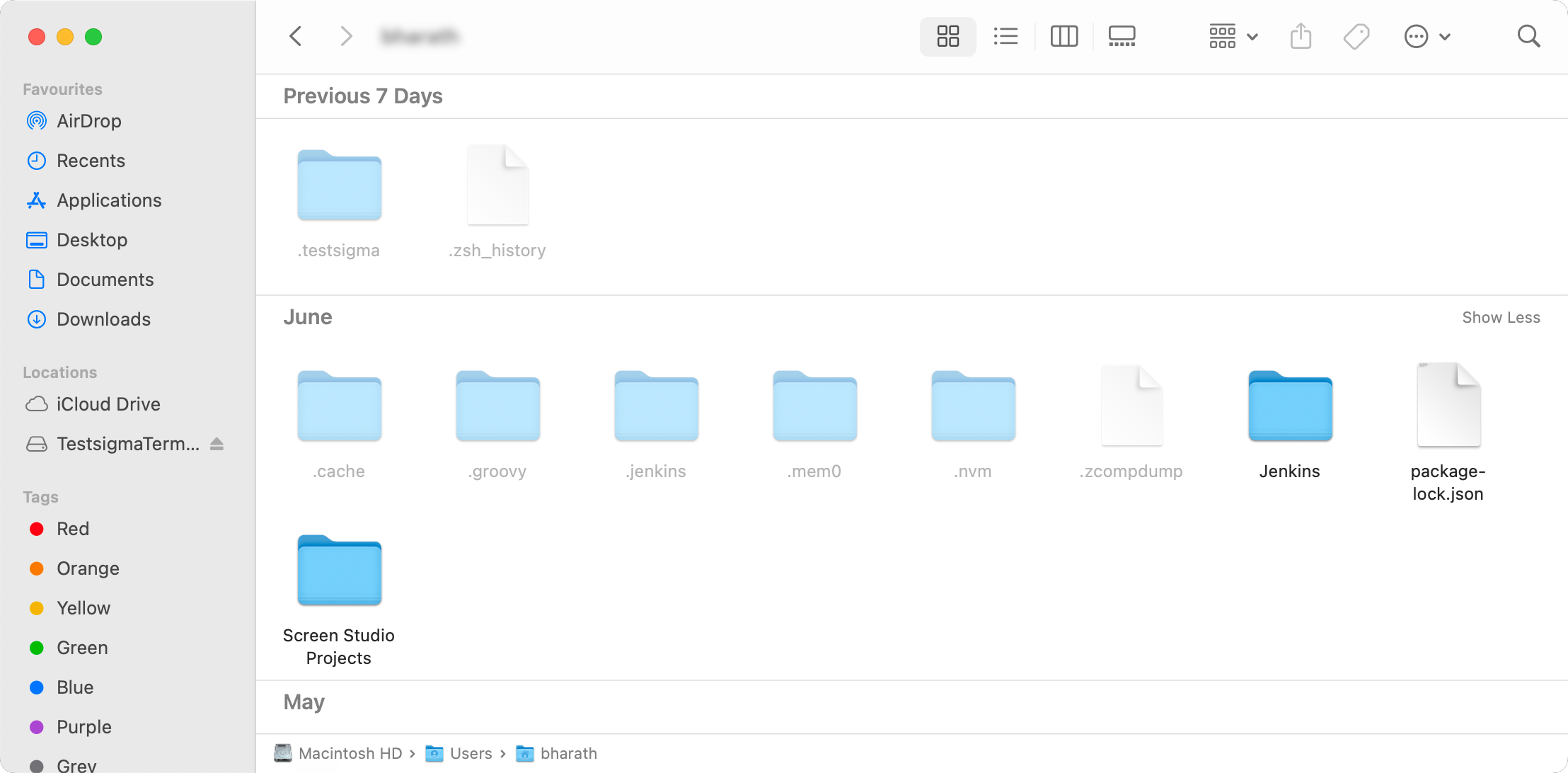
For Windows: In File Explorer, go to View and select Hidden items. For Linux: Press Ctrl + H.
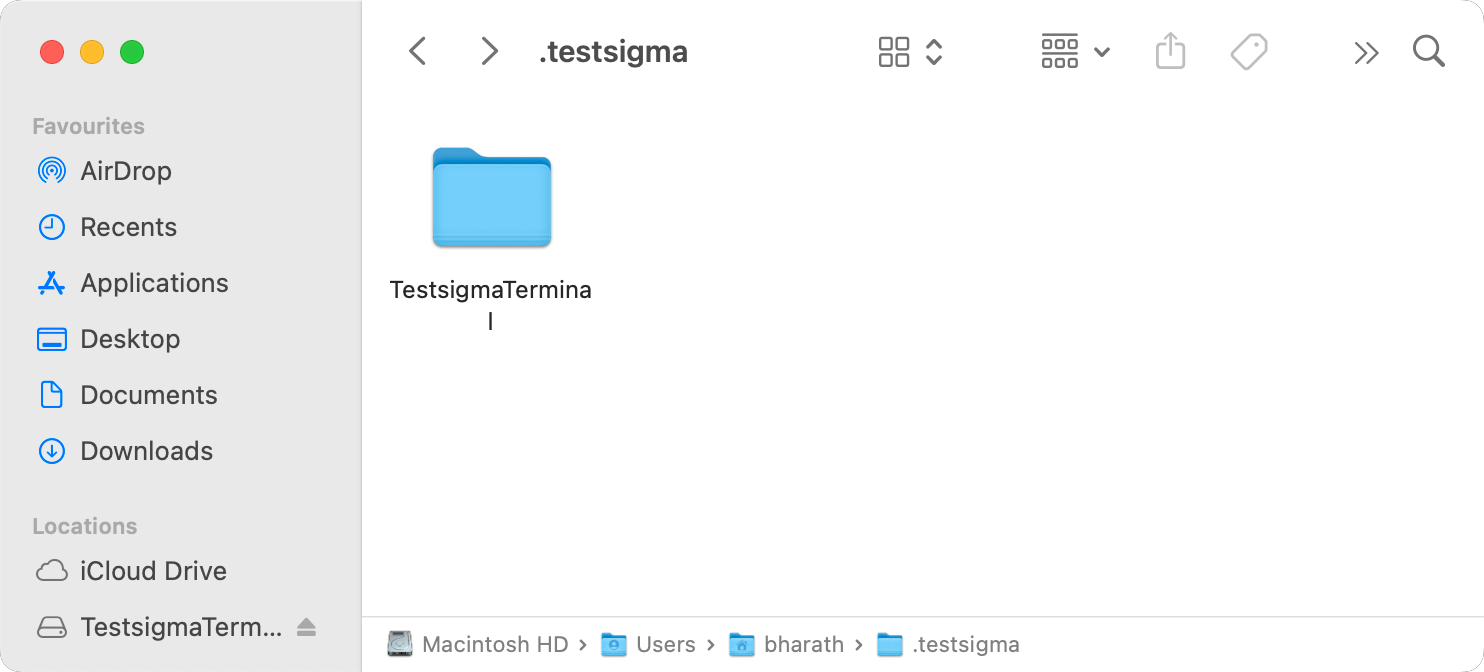
- Delete all subfolders inside /Users/<username>/.testsigma/.
- Delete all subfolders inside /Users/<username>/Library/Application Support/Testsigma/.
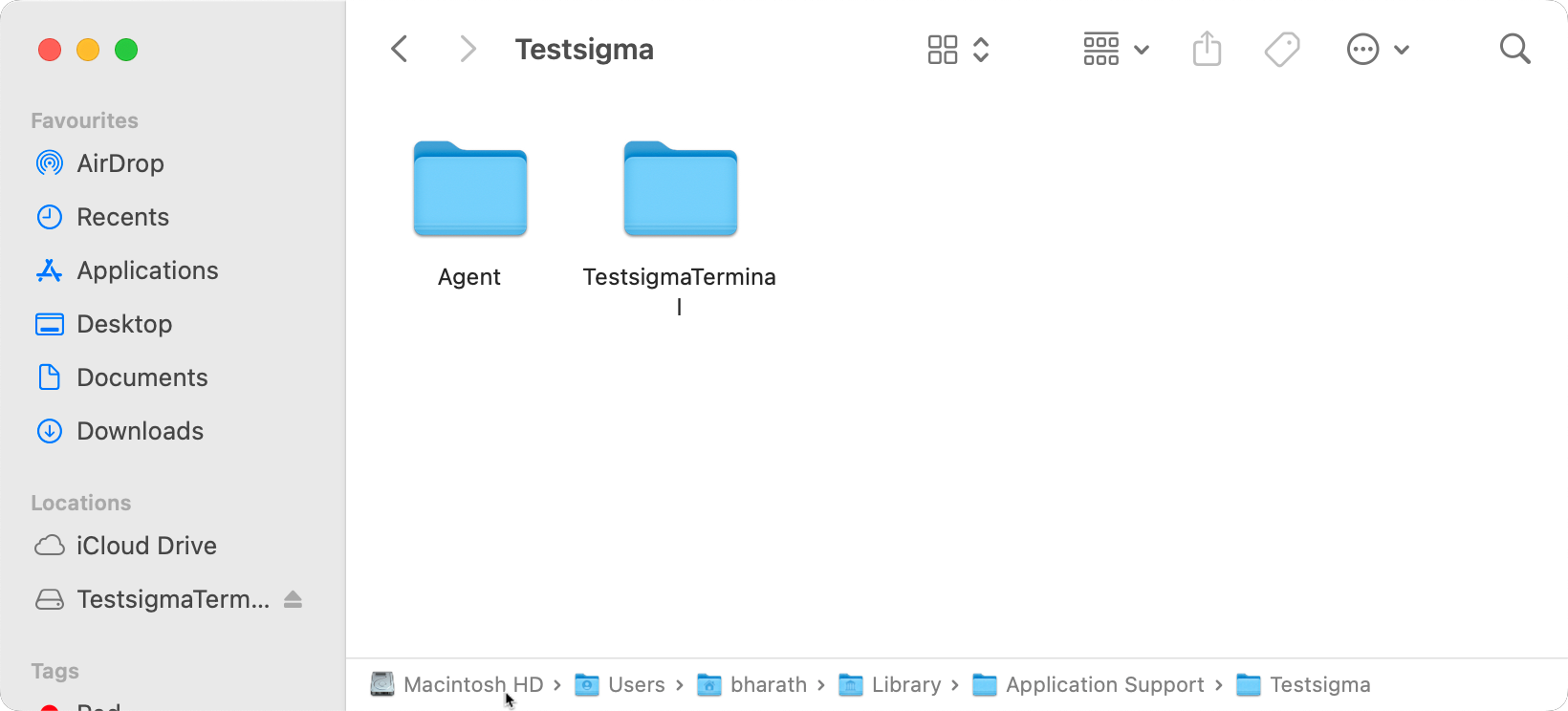
- Download and install the latest Testsigma Terminal from the Testsigma app.
You must remove all files from both .testsigma and Testsigma folders before reinstalling.
Steps to Resolve for Windows:
- Close the Copilot and any previously running agent.
-
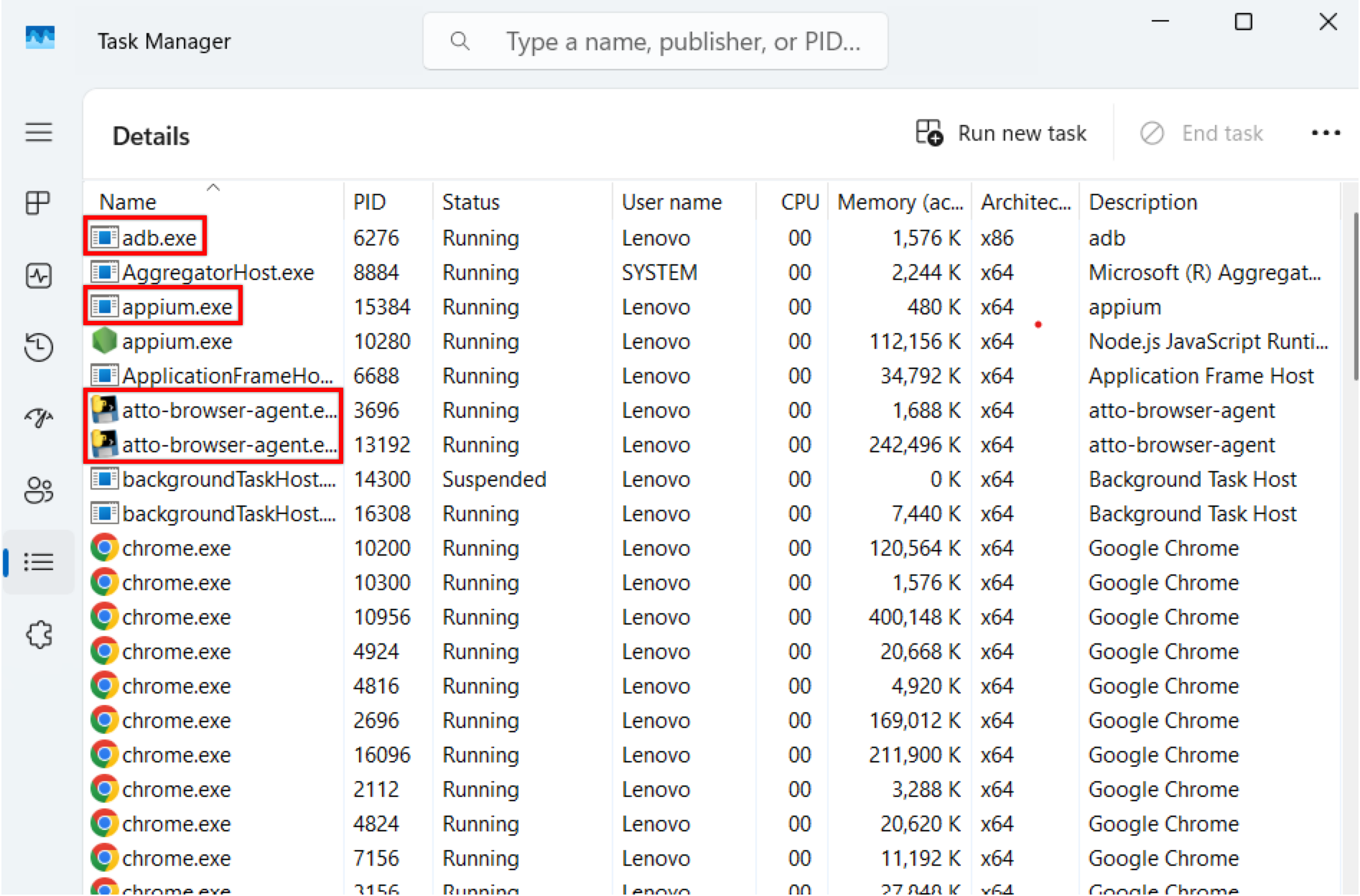
Open Task Manager and end the following processes, if they are running:
- abd
- WinTestAutomation
- appium
- ios
- atto-browser-agent
- chromeDriver
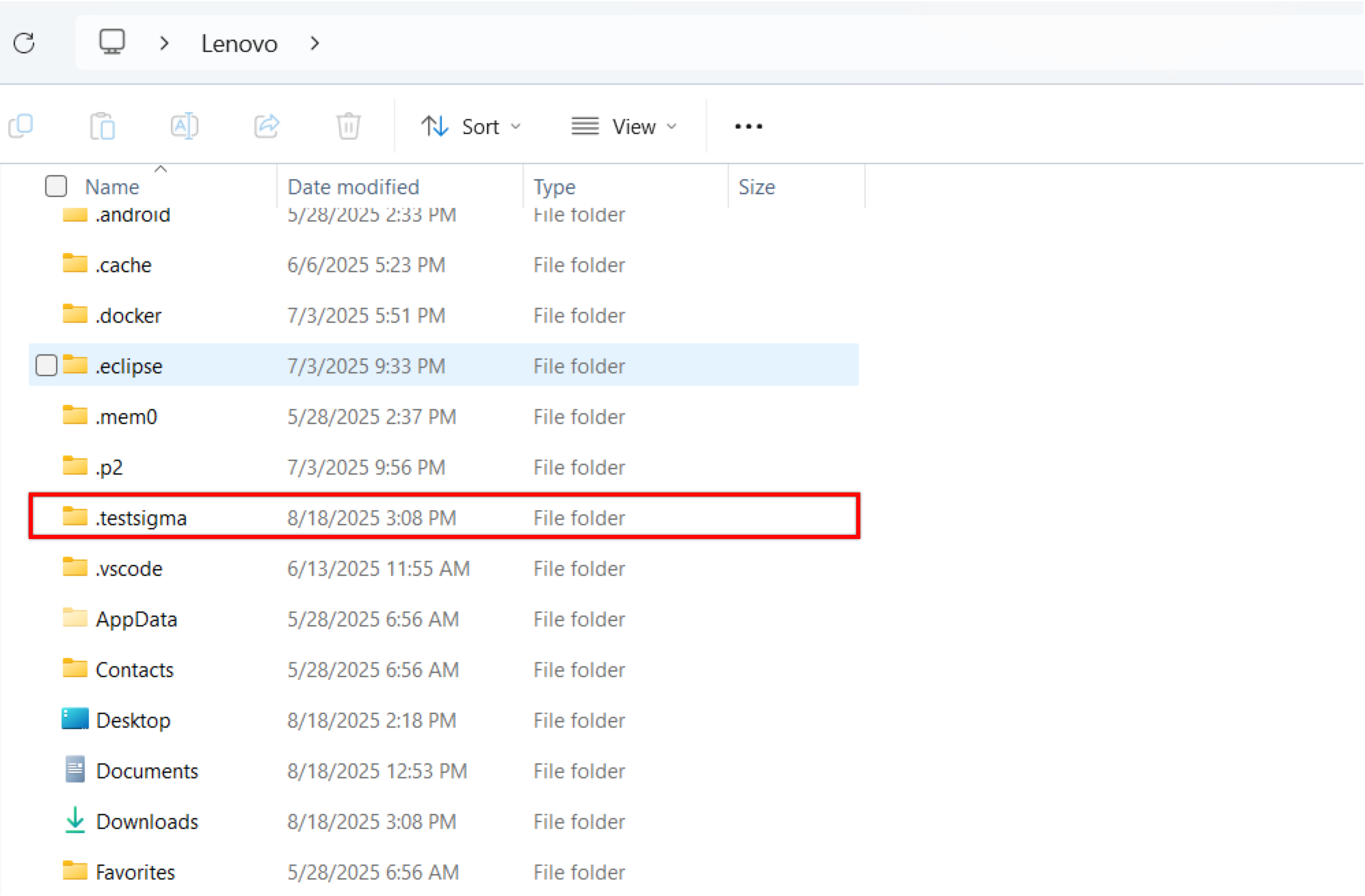
- Delete all subfolders inside %UserProfile%\.testsigma.
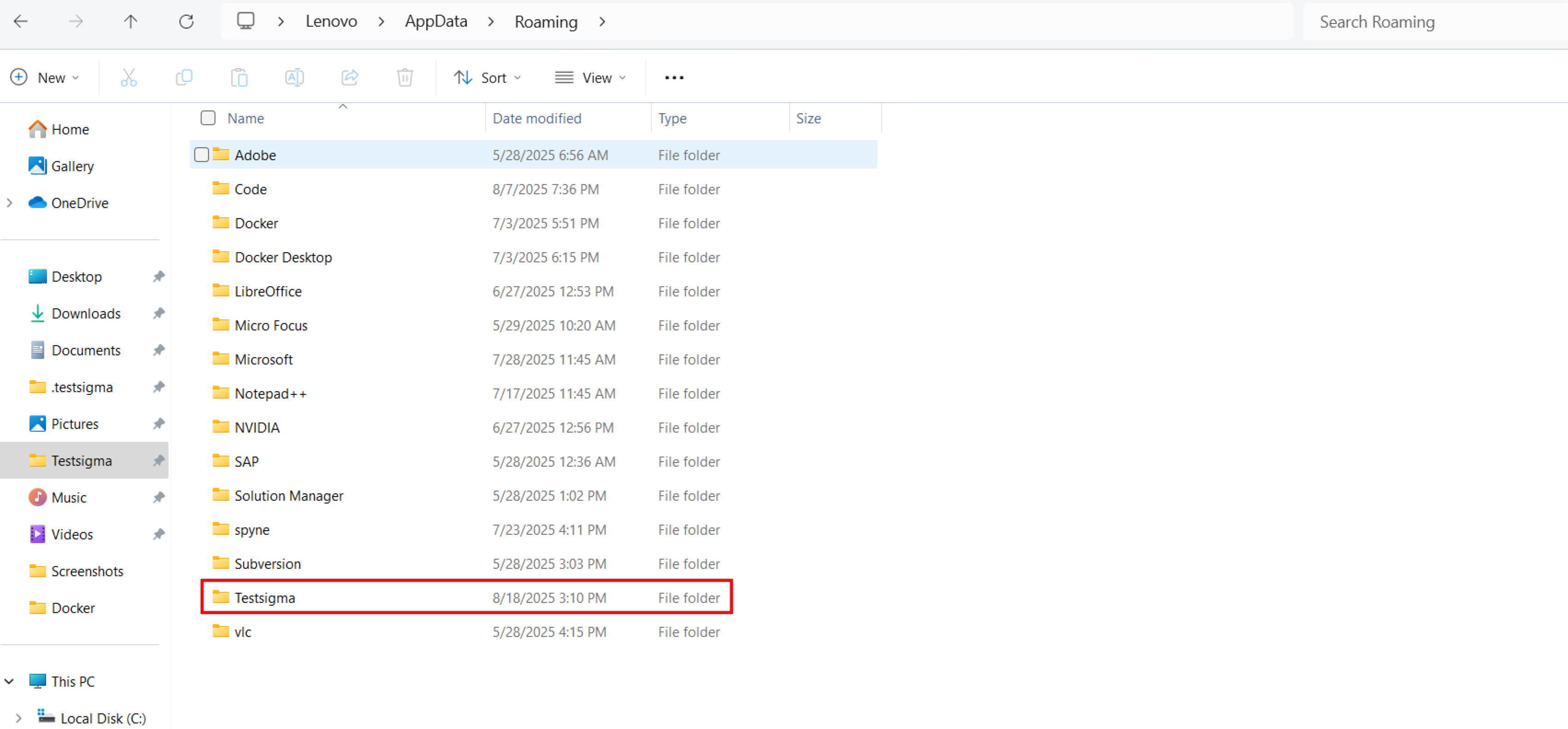
- Delete all subfolders inside %UserProfile%\AppData\Roaming\Testsigma.
- Download and install the latest Testsigma Terminal from the Testsigma app.
For instructions on installing the Testsigma Terminal, see:
16. What should I do if I see an authentication error while installing the Terminal?
Answer: Authentication errors during installation occur if the user switches accounts through the installation or if leftover processes or files from a previous installation remain. To resolve this, perform the common cleanup process as described in the port busy issue.
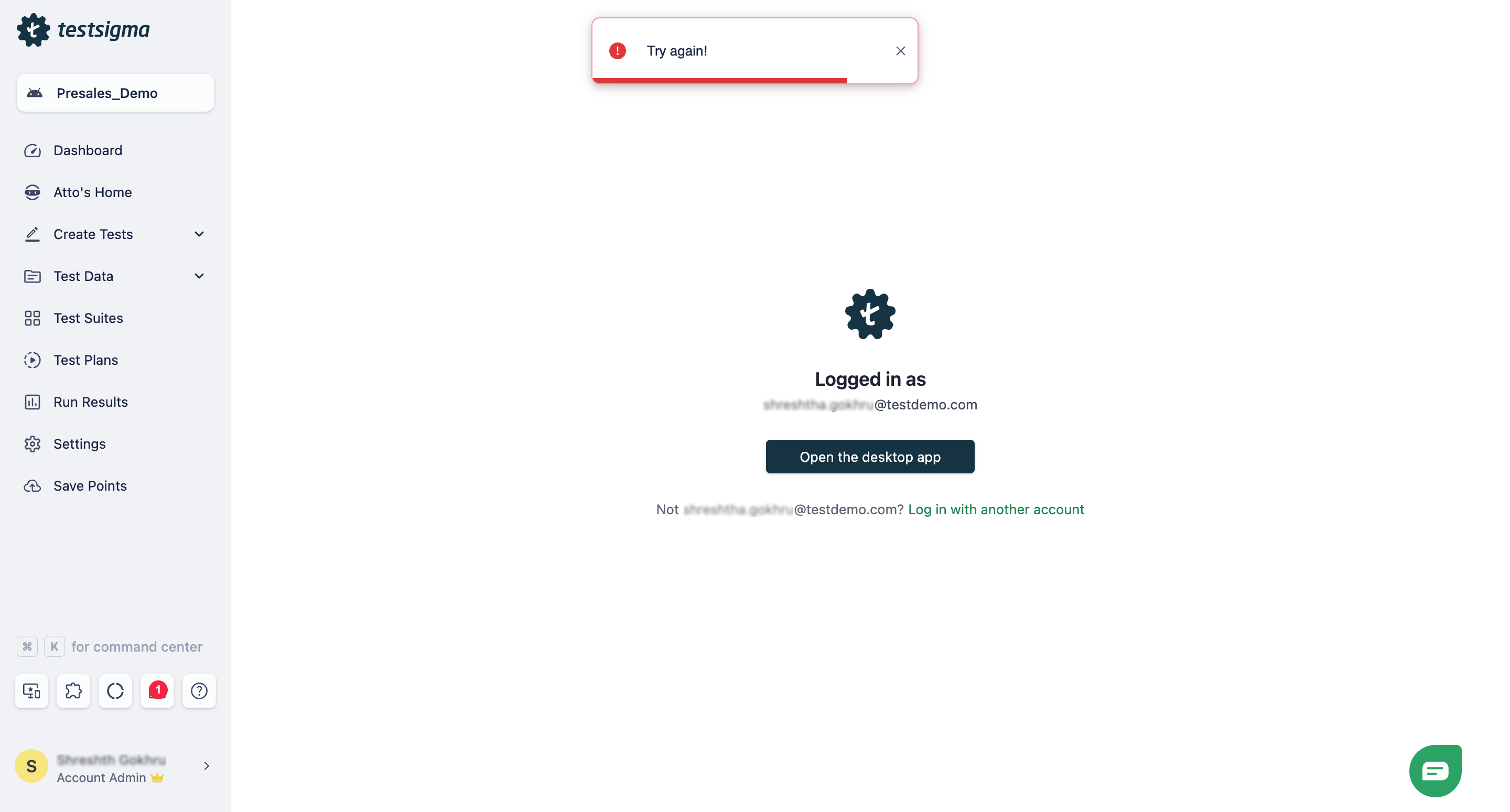
17. Why do test steps not update and features not work in the Copilot?
Answer: The Copilot may launch the local browser and execute test steps but fail to update results or allow recording additional steps due to agent incompatibility with Chrome version 139. To fix this issue, delete the entire .testsigma folder and restart the Terminal. This will trigger a new agent download and restore full Copilot functionality.

Want to contribute or report missing content?