- Testsigma REST APIs
 Manage Environments
- Elements
- Test Plans
- Upload Files
- Get Project Wide Information
- Upload & Update Test Data Profile
- Fetch Test Results (All Levels)
- Export Test Reports Using the API
- Trigger Multiple Test Plans
- Trigger Test Plans Remotely & Wait Until Completion
- Run the Same Test Plan Multiple Times in Parallel
- Schedule, Update & Delete a Test Plan Using API
- Update Test Case Results Using API
- Create and Update Values of Test Data Profile Using REST API
- Rerun Test Cases from Run Results using API
- Salesforce Metadata Refresh Using API
- Manage Test Steps Using API
Export Test Reports Using the API
To enable PDF report export, contact support@testsigma.com. This feature is available with Testsigma Enterprise.
Testsigma allows you to export test reports in XML, PDF, or Excel format at any result level using REST APIs. This article discusses generating and downloading reports using APIs in Testsigma.
Prerequisites
Before you begin, ensure that:
- An API key exists for your Testsigma account. Refer to the documentation on generating API keys.
- The test plan run is complete.
- The result ID for the level you want to export is available. Refer to Retrieve the Result IDs for test machine and test suite exports, or to the documentation on fetching test results at all levels.
- PDF report export is enabled for your account, if you export in PDF format.
Report Parameters
Before we check the actual requests, let's go through the parameters that you will find in the request and response.
- format: Format of the exported report. Either one of 'xml', 'pdf', or 'xlsx'. Defaults to 'pdf'.
- screenshot: Test step screenshots to include in a PDF report. Either one of 'ALL_TYPES', 'FAILED_STEPS', or 'NONE'.
- visualScreenshot: Visual testing screenshots to include in a PDF report. Either one of 'ALL_TYPES', 'FAILED_STEPS', or 'NONE'.
- resolution: Resolution of the screenshots in a PDF report. Either 'LOW' or 'HIGH'.
- status: Generation state of the report in the response. Either one of 'IN_PROGRESS', 'SUCCESS', or 'FAILED'.
- reportId: ID of the generated report, returned once generation succeeds.
- url: Download endpoint for the generated report.
The screenshot, visualScreenshot, and resolution parameters apply to 'pdf' only. The 'xml' and 'xlsx' formats accept them and ignore them, so the request does not fail.
Report Generation Flow
Report generation is asynchronous. The same endpoint both triggers the report and returns its progress.
- Send the export request for the level you want. Testsigma returns 202 and starts generating the report.
- Send the same request again until status changes from 'IN_PROGRESS' to 'SUCCESS'.
- Send a request to the url from the response to download the artifact.
A generation failure returns 200 with "status": "FAILED" rather than a server error. Check the status field in every response instead of relying on the HTTP status code alone.
Retrieve the Result IDs
The test machine and test suite result IDs are not exposed in the UI. Retrieve them from the network requests that the Run Results page sends, then use them in the export endpoint for that level.
The test plan run ID is available in the URL of the Run Results page. Refer to the documentation on obtaining the run ID.
Retrieve the Test Machine Result ID
- Open the completed test plan run on the Run Results page.
- From the view dropdown, select Test Machines.
- Select the test machine you want to export.
- Open the browser developer tools and go to the Network tab.
- Clear the network log.
- Reload the page.
- Select the Environments request in the network log.
- In the Preview panel, copy the machine result ID from the response.
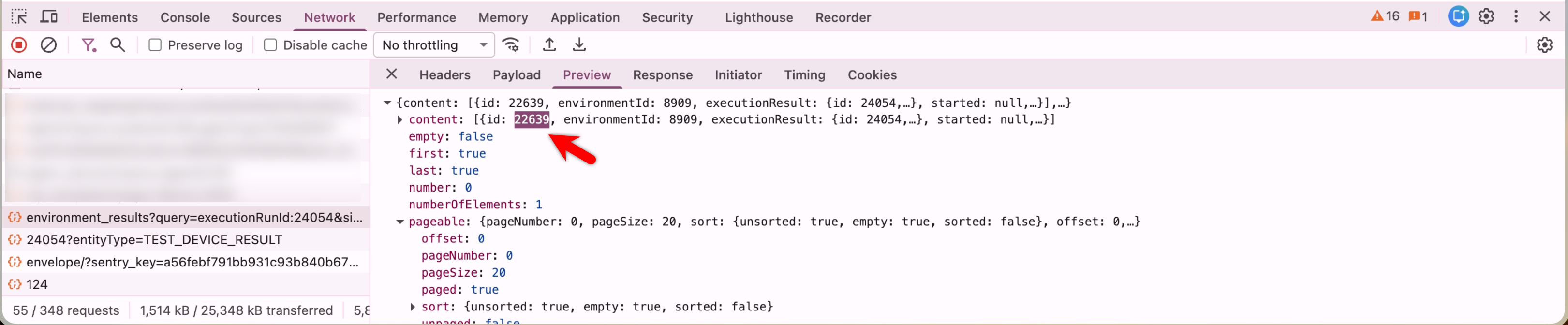
- Use the copied value as {MACHINE_RESULT_ID} in the export request.
Retrieve the Test Suite Result ID
- Open the completed test plan run on the Run Results page.
- From the view dropdown, select Test Suites.
- Select the test suite you want to export.
- Open the browser developer tools and go to the Network tab.
- Clear the network log.
- Reload the page.
- Select the Test Suite request in the network log.
- In the Preview panel, copy the test suite result ID from the response.
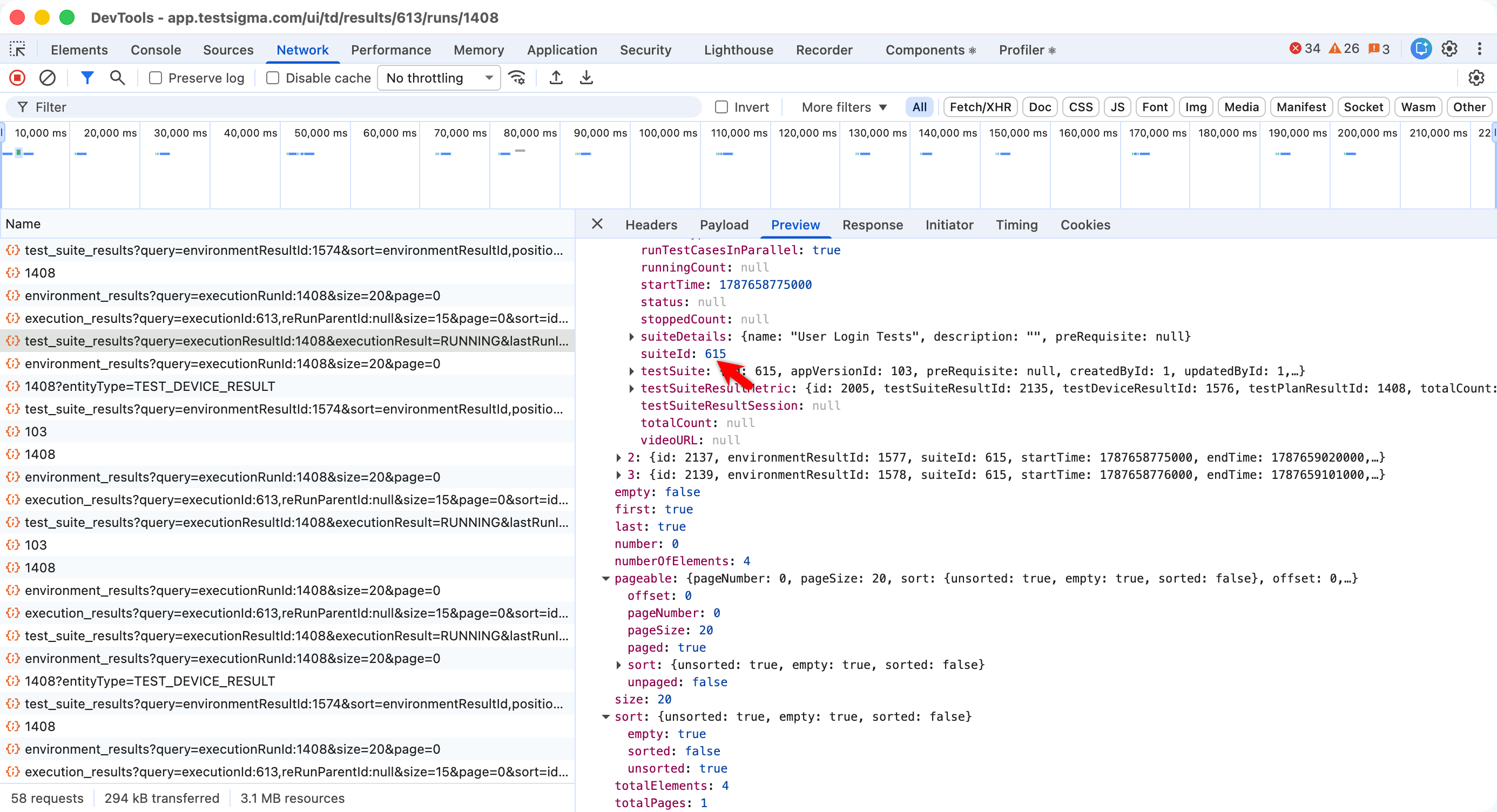
- Use the copied value as {SUITE_RESULT_ID} in the export request.
The test case result ID follows the same pattern at the test case level. Refer to the documentation on fetching test results at all levels for the response fields at each level.
API Specification
Export a Test Plan Run Report
This endpoint generates a report for an entire test plan run.
| Request Type | GET |
|---|---|
| Endpoint | https://app.testsigma.com/api/v1/reports/execution_result/{RUN_ID}?format=xlsx |
| Authorization | Bearer {API_Token} |
| Response Body | { "status": "IN_PROGRESS" } |
{RUN_ID} is the ID of the test plan run you want to export.
Export a Test Machine Report
This endpoint generates a report for a single test machine within a run.
| Request Type | GET |
|---|---|
| Endpoint | https://app.testsigma.com/api/v1/reports/environment_result/{MACHINE_RESULT_ID}?format=xlsx |
| Authorization | Bearer {API_Token} |
{MACHINE_RESULT_ID} is the ID of the test machine result you want to export.
Export a Test Suite Report
This endpoint generates a report for a single test suite within a run.
| Request Type | GET |
|---|---|
| Endpoint | https://app.testsigma.com/api/v1/reports/suite_result/{SUITE_RESULT_ID}?format=xlsx |
| Authorization | Bearer {API_Token} |
{SUITE_RESULT_ID} is the ID of the test suite result you want to export.
Export a Test Case Report
This endpoint generates a report for a single test case within a run.
| Request Type | GET |
|---|---|
| Endpoint | https://app.testsigma.com/api/v1/reports/case_result/{CASE_RESULT_ID}?format=xlsx |
| Authorization | Bearer {API_Token} |
{CASE_RESULT_ID} is the ID of the test case result you want to export.
Check Report Status
Send the original export request again to check progress. Once generation succeeds, the response carries the report ID and the download endpoint.
| Request Type | GET |
|---|---|
| Endpoint | https://app.testsigma.com/api/v1/reports/execution_result/{RUN_ID}?format=xlsx |
| Authorization | Bearer {API_Token} |
| Response Body | { "status": "SUCCESS", "reportId": 4821, "url": "https://app.testsigma.com/api/v1/reports/download/4821" } |
Send the status request with the same format and screenshot options as the original request. Changing them requests a different report.
Export a PDF Report with Screenshot Options
This endpoint generates a PDF report with the screenshots and resolution you specify.
| Request Type | GET |
|---|---|
| Endpoint | https://app.testsigma.com/api/v1/reports/execution_result/{RUN_ID}?format=pdf&screenshot=FAILED_STEPS&visualScreenshot=NONE&resolution=LOW |
| Authorization | Bearer {API_Token} |
Use 'LOW' resolution to shorten report generation time. Reports at 'HIGH' resolution take longer to generate and download.
Download the Report
This endpoint returns the generated report artifact. It redirects to a short-lived download link.
| Request Type | GET |
|---|---|
| Endpoint | https://app.testsigma.com/api/v1/reports/download/{REPORT_ID} |
| Authorization | Bearer {API_Token} |
{REPORT_ID} is the reportId returned in the status response.
The download link expires. Follow the redirect within the same request rather than storing the link for later use. Each call to this endpoint generates a fresh link, so the same {REPORT_ID} stays valid for repeat downloads.
Get JUnit Report (Deprecated)
This endpoint returns the JUnit XML report for a test plan run. It is deprecated and its responses carry Deprecation, Sunset, and Link headers.
| Request Type | GET |
|---|---|
| Endpoint | https://app.testsigma.com/api/v1/reports/junit/{RUN_ID} |
| Authorization | Bearer {API_Token} |
Report Structure in XML Format
The XML report nests results in execution order, from the test plan down to individual steps.
<testPlan>
  <testMachines>
    <testMachine>
      <testSuites>
        <testSuite>
          <testCase>
            <steps>
When you export below the plan level, the report starts at the level you requested. A test suite export returns a testSuite root with its test cases and steps.
For data-driven test cases, the testCase element carries the test data used for that iteration.
| Attribute | Description |
|---|---|
| testDataProfile | Name of the test data profile the test case ran against |
| testDataSet | Name of the data set within that profile |
Both attributes are omitted for test cases that don't use a test data profile, and for runs that executed before this release where the profile has since been deleted.
This is the Testsigma XML schema, not JUnit XML. Pipeline steps that parse JUnit output do not accept this file.
Response Codes
| Code | Description |
|---|---|
| 202 | Report generation started. Send the same request again to check progress. |
| 200 | Read the status field for 'IN_PROGRESS', 'SUCCESS', or 'FAILED'. |
| 400 | The format or an option value isn't recognized. |
| 401 | The API key is missing or invalid. |
| 403 | PDF report export isn't enabled for your account. |
| 404 | The result ID doesn't exist, or it belongs to another account. |
| 409 | The run isn't complete yet. |
Migrate from the JUnit Endpoint
Move pipelines from /api/v1/reports/junit/{RUN_ID} to /api/v1/reports/execution_result/{RUN_ID} before the sunset date in the response header. The JUnit output itself is unchanged until then.
The Testsigma XML report replaces the JUnit endpoint but uses a different schema. If your pipeline publishes results with a JUnit parser, such as the Publish Test Results task in Azure DevOps, keep using the JUnit endpoint until you update that step.

Want to contribute or report missing content?