- addons

Create an Addon for Post Plan Hook
Testsigma supports Post Plan Hooks, which are user-described actions via addons. These hooks run after a test plan execution is complete, irrespective of the success or failure of the test plan execution.
Users can customise the actions within these addons to fit their needs and link them through test plan settings.
To create addons, you should already know about Testsigma addons.
Refer to:
For information on how to create an addon, refer to the documentation on creating an addon.
Update the action code as required for the post plan hook
Unzip the downloaded zip file and open the extracted folder in your favourite IDE as a Java project (with Maven as the build tool). The downloaded folder is a Java Maven project folder consisting of a pom.xml file and an example template for a post plan hook in the com.testsigma.addons.hooks package.
Here's the sample code for a post-plan hook that sends an email containing the execution run result to three configured email addresses -
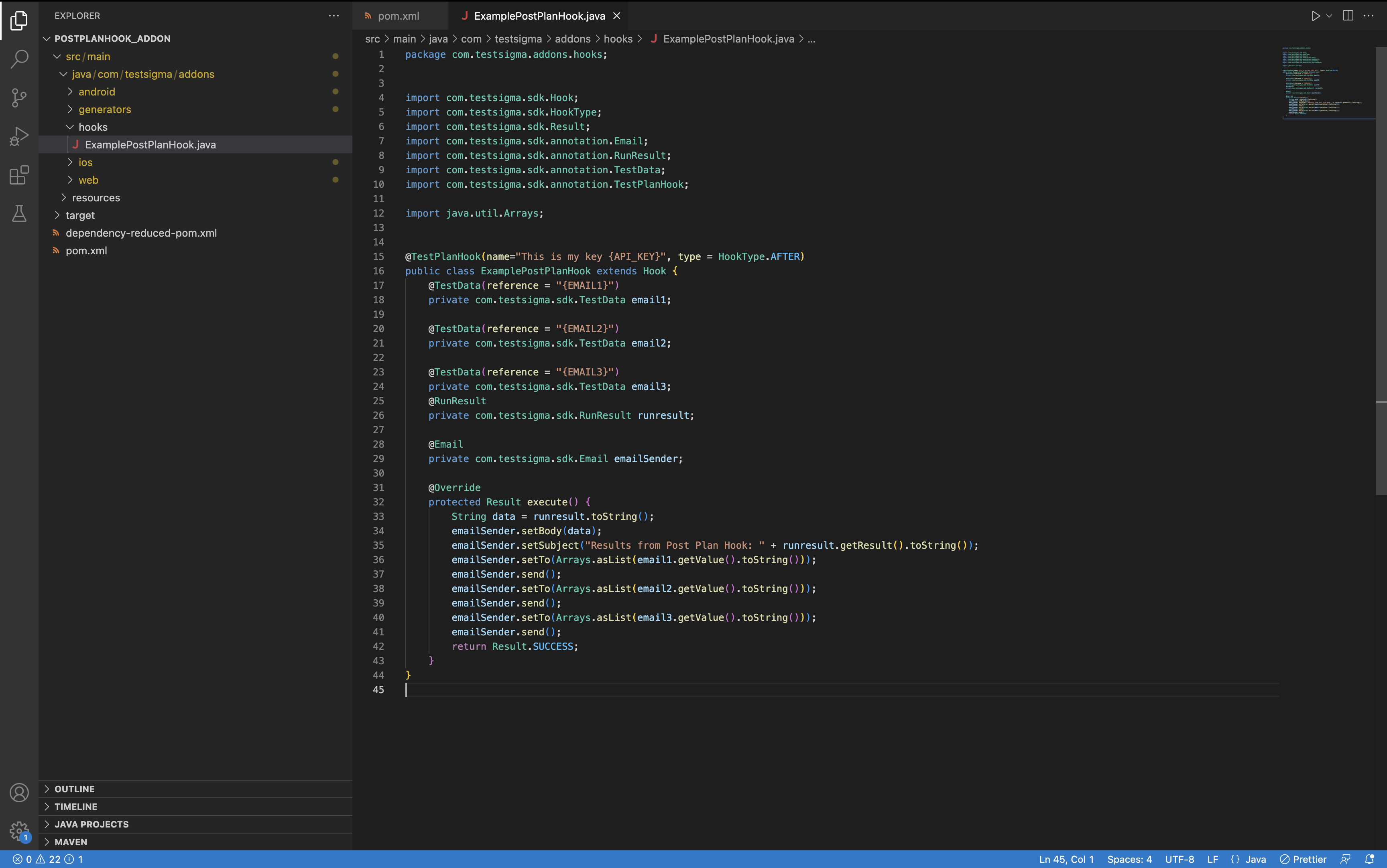
- The reference used for TestData must be surrounded by curly brackets to be recognised as a post-plan hook field.
- Currently, only one hook is allowed per addon.
Test the code
Test the code to verify the addon you have written. You can use either JUnit or TestNG as the test runner. Right-click on the Test class to run it as a TestNG or JUnit test and confirm if your code is performing as expected.
Upload the updated code to Testsigma
Once you have validated the code, save the changes you made and zip the project folder. You may use the below command on a bash shell:
zip -r addonName.zip . -x ".
Navigate to the addons page, select the dropdown for your addon, and click Upload Code option to upload the zipped file.
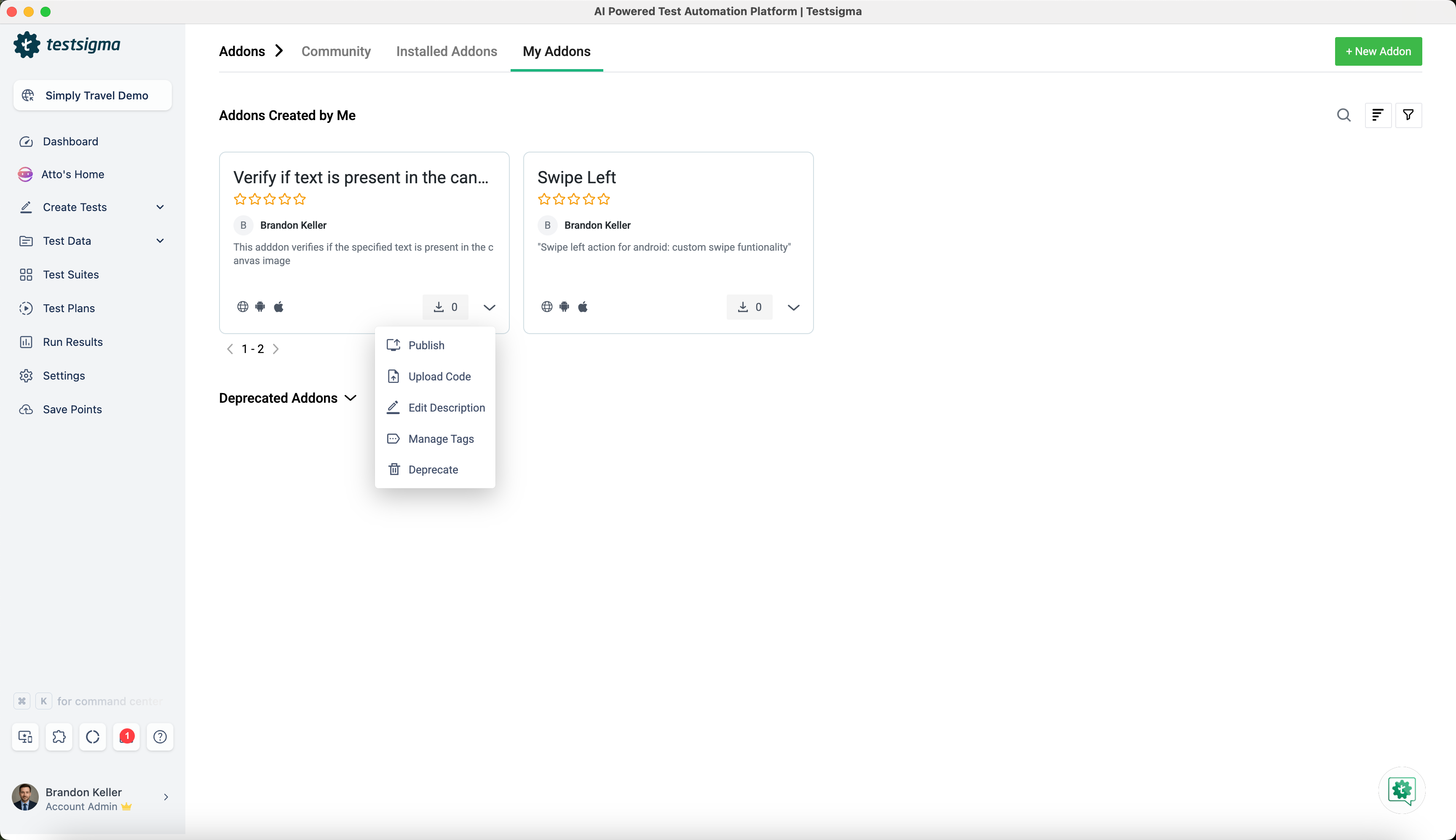
Other available options:
- Manage Tags: Add more tags and labels for categorising them. We can customise the action code.
- Delete: Delete the addon.
- Edit Description: Edit the description in the addon.
Publish the addon
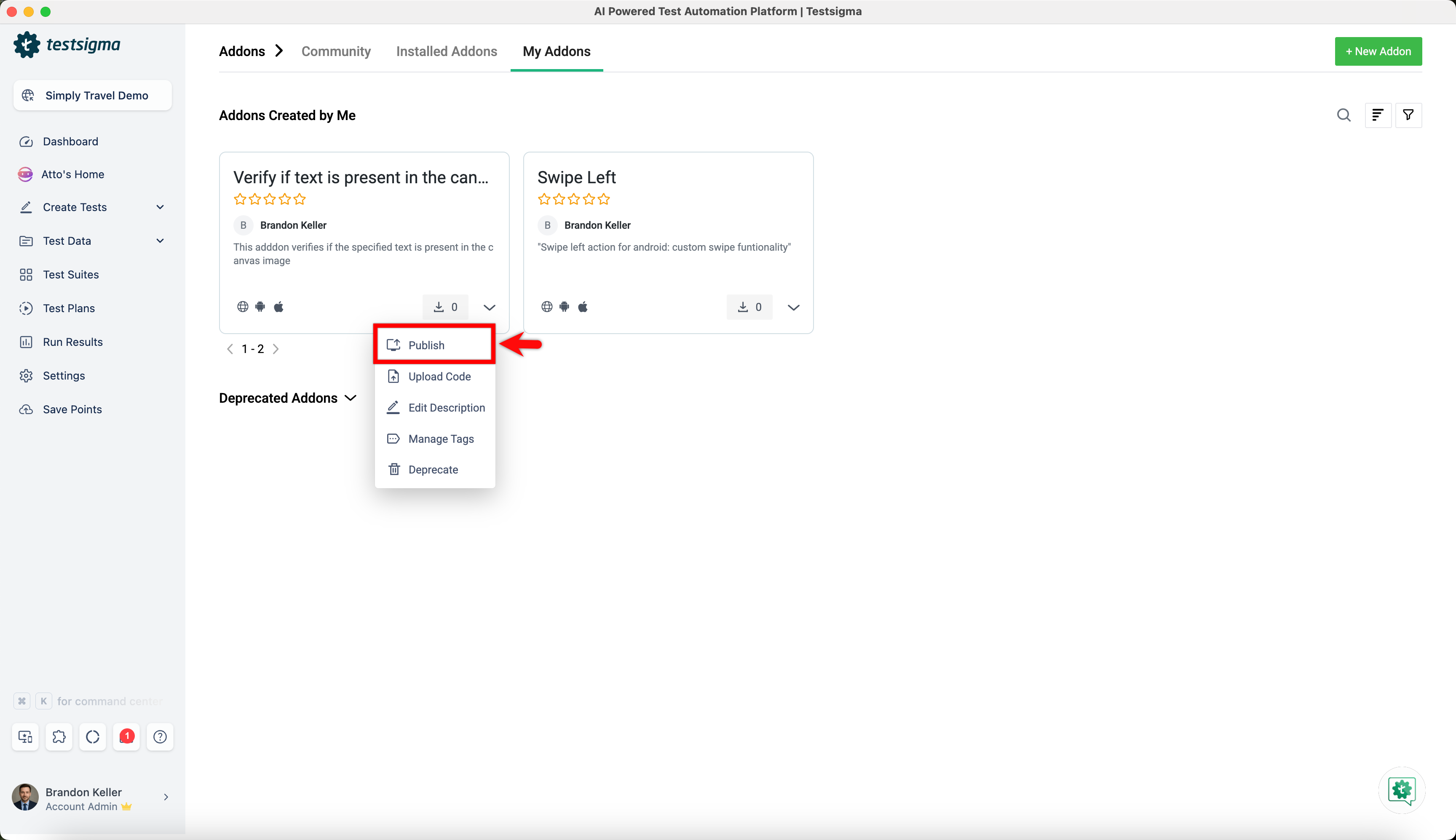
Once the code is uploaded, the addon options dropdown will show an additional option, Publish
If you select to publish your addon, select one of the following on the Publish Addon window: - Public: Choose this option if you want to make the addon available to the testsigma community. - Private: Choose this option if you want to make the addon available only to users in your organization.
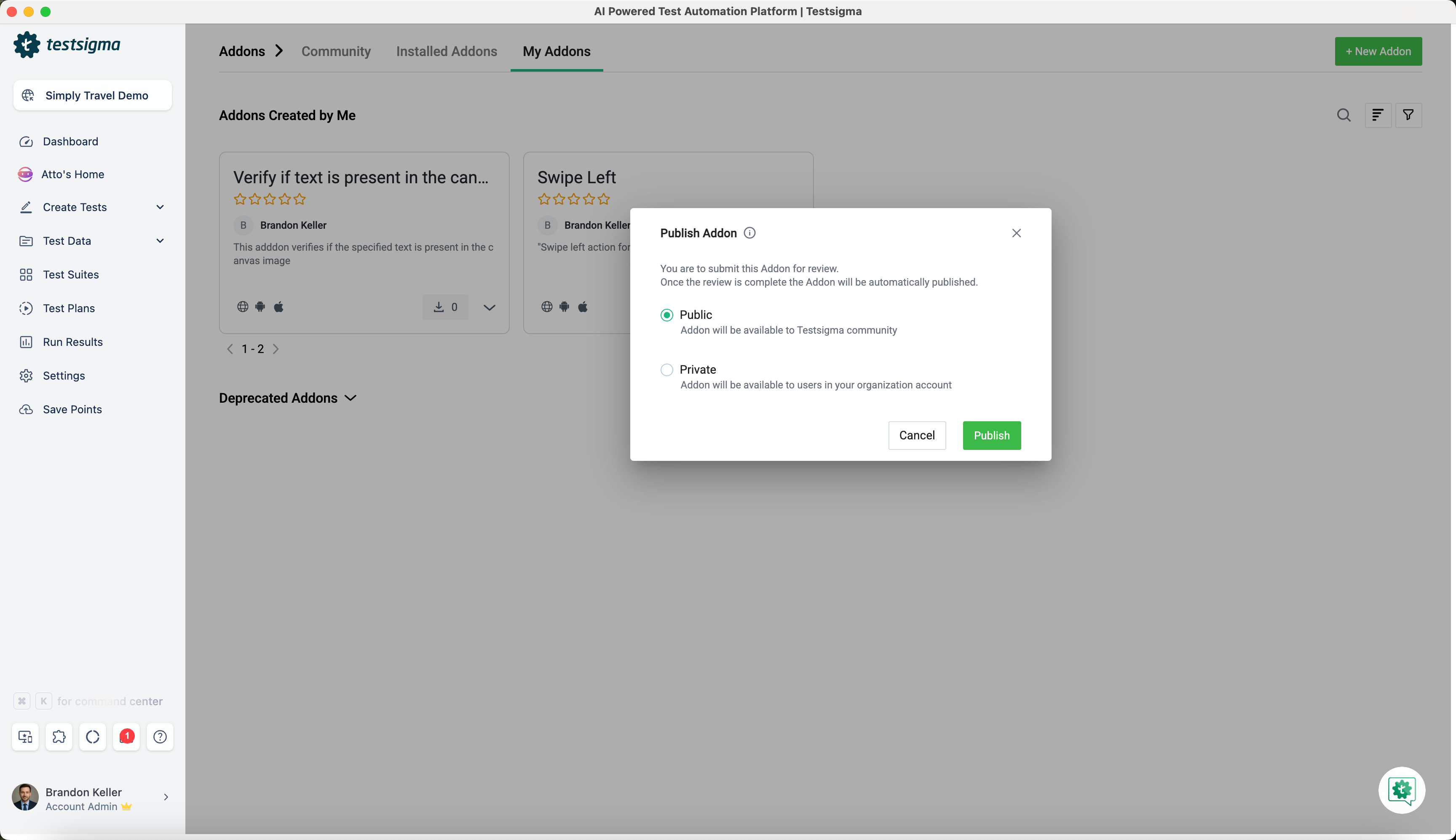
Once requested for publishing, an automatic security check is done internally. Upon the successful completion of the security check, the addon is published. In case of a security check failure, an email notification would be sent to the user.
For trial users, once the request to publish is sent, an email will be sent to the Testsigma team for review, and you will be notified via email once it is approved.
Try using the addon in a test plan settings
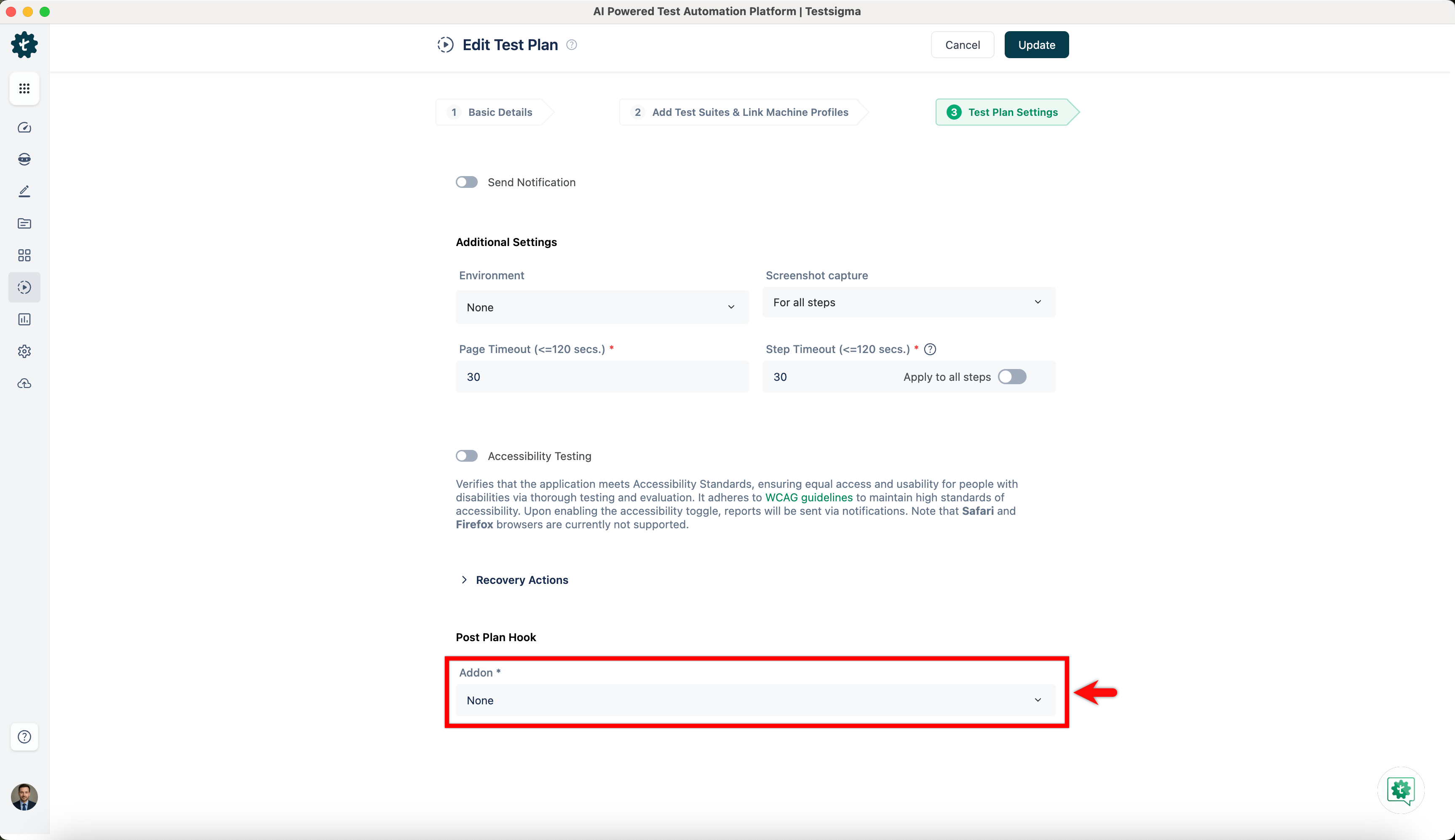
To try out the addon you just created, create a new or open an existing test plan and add a test suite and test machine. Navigate to the Test Plan Settings tab and click the right arrow before Hooks to unhide the feature. Select the addon and enter the inputs in the custom field.

Want to contribute or report missing content?