- test step recorder
 Install Chrome Extension
- Install Firefox Extension
- Install Edge Extension
- Exclude Attributes/Classes
- Freeze Elements and Add Verifications or Actions
Freeze Elements and Add Verifications or Actions
While recording test steps in Testsigma, you can freeze an element and then choose what to do with it. This allows you to add verifications (for example, checking if text, attributes, or values are correct) and other actions (such as clicking, typing, or selecting) directly on the element without having to repeat the workflow. This article explains how to freeze elements and add verifications or actions.
Steps to Freeze Elements and Add Verifications or Actions
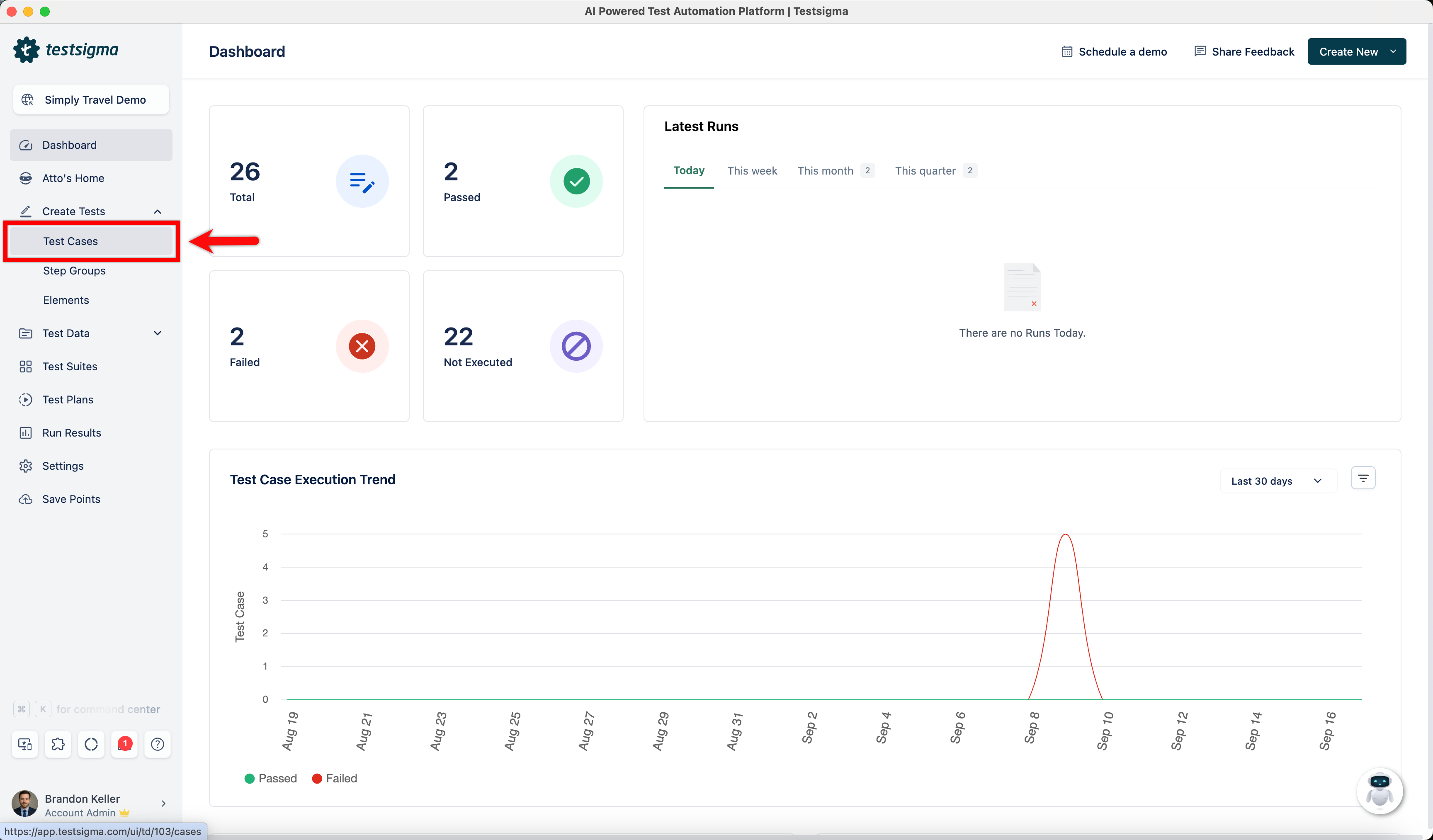
- From the left navigation bar, go to Create Tests > Test Cases.
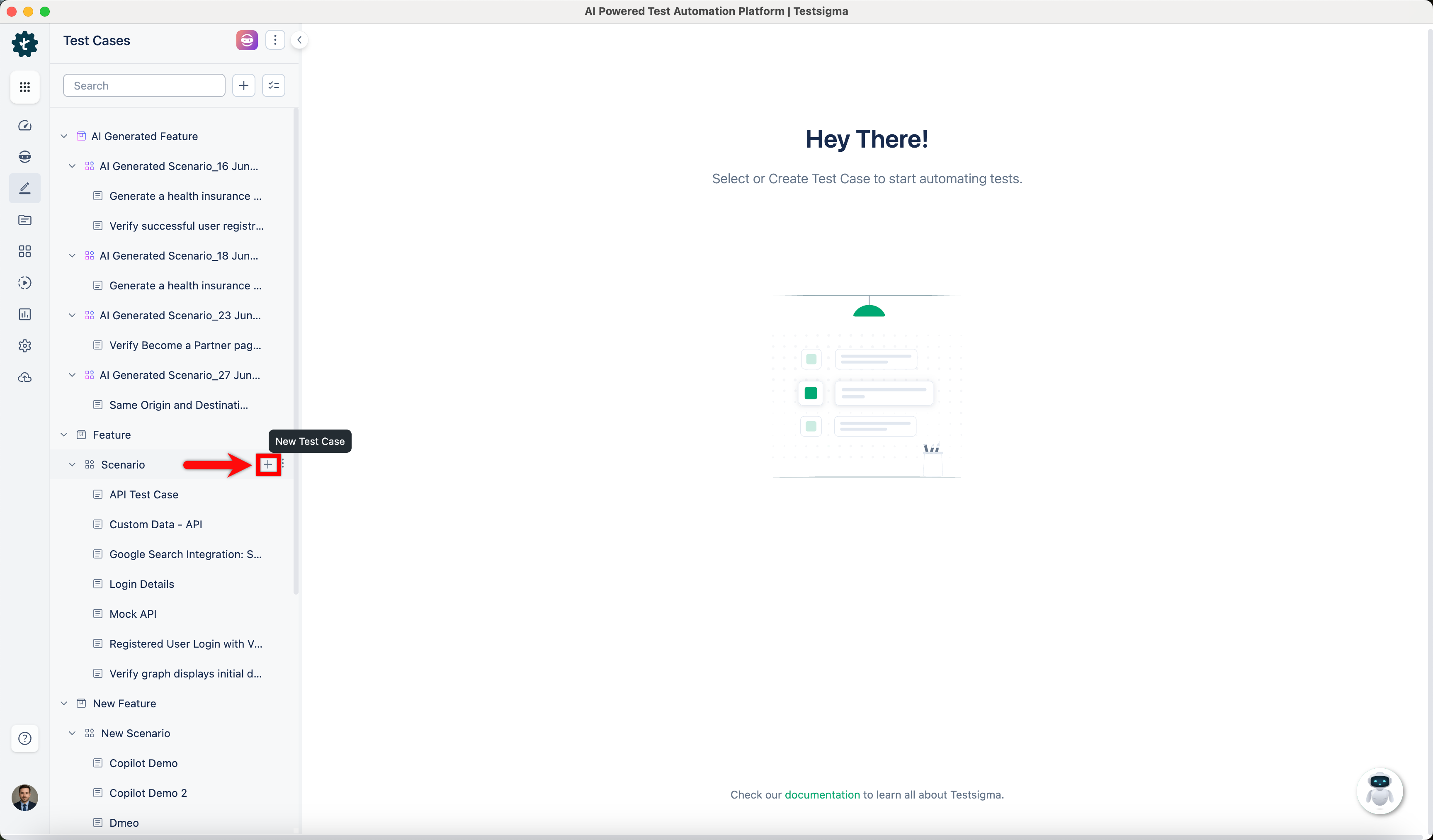
- In the Test Case Explorer section, expand the required Feature and select the + icon next to the scenario.
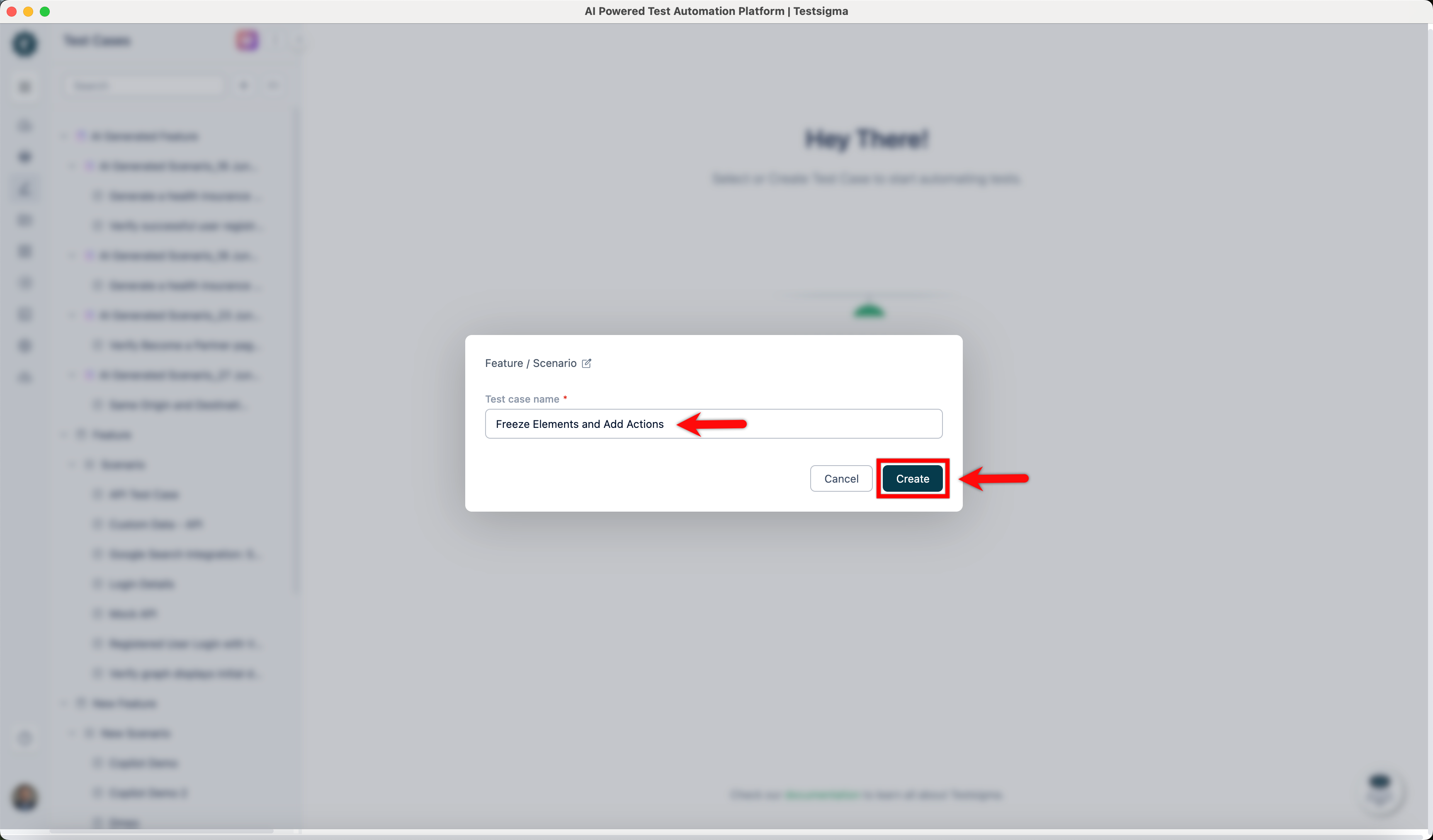
- In the dialog box, enter a name for the test case and select Create.
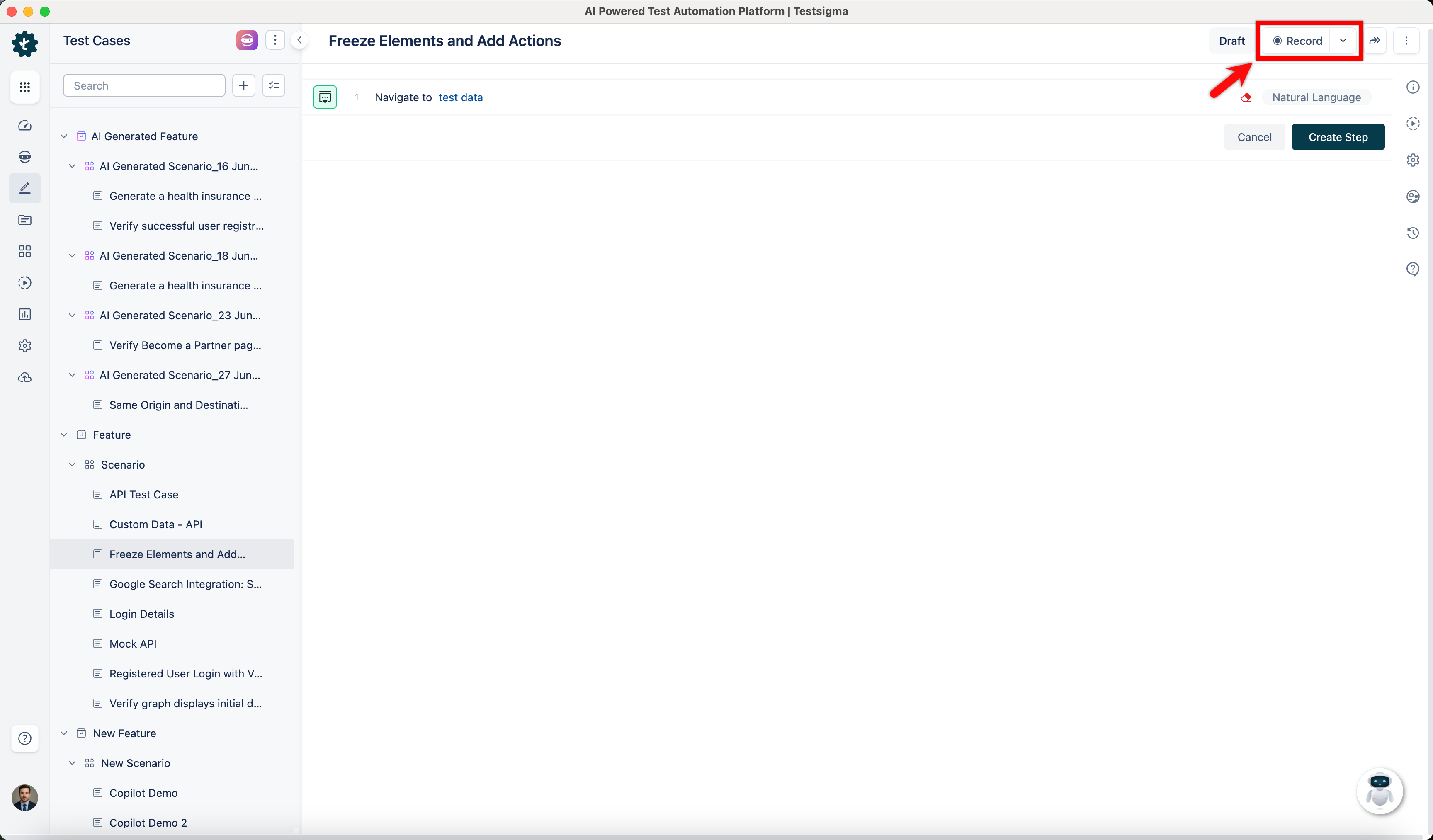
- On the Test Case Details page, select Record.
- In the new window, enter the URL of the website you want to record.
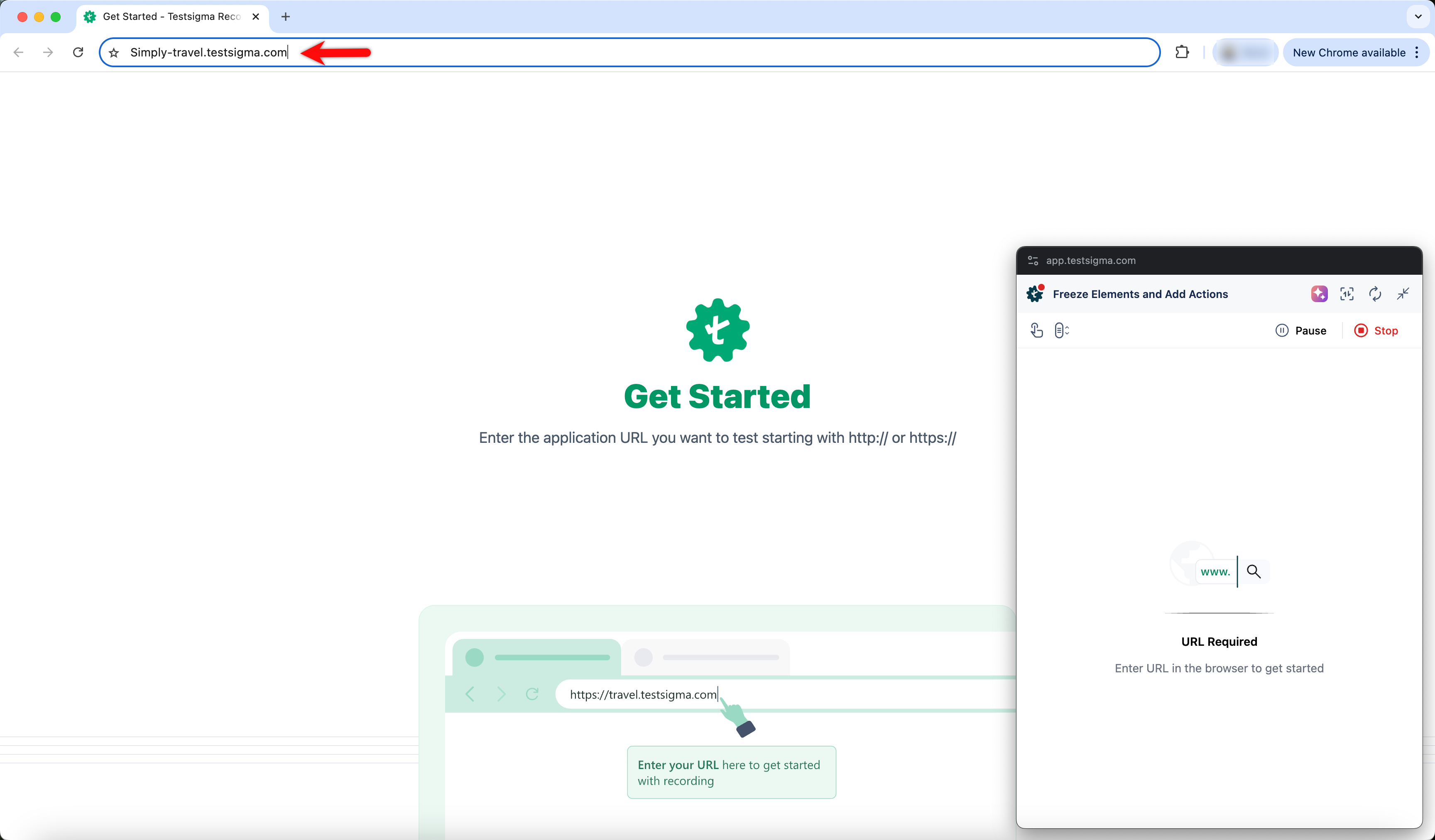
-
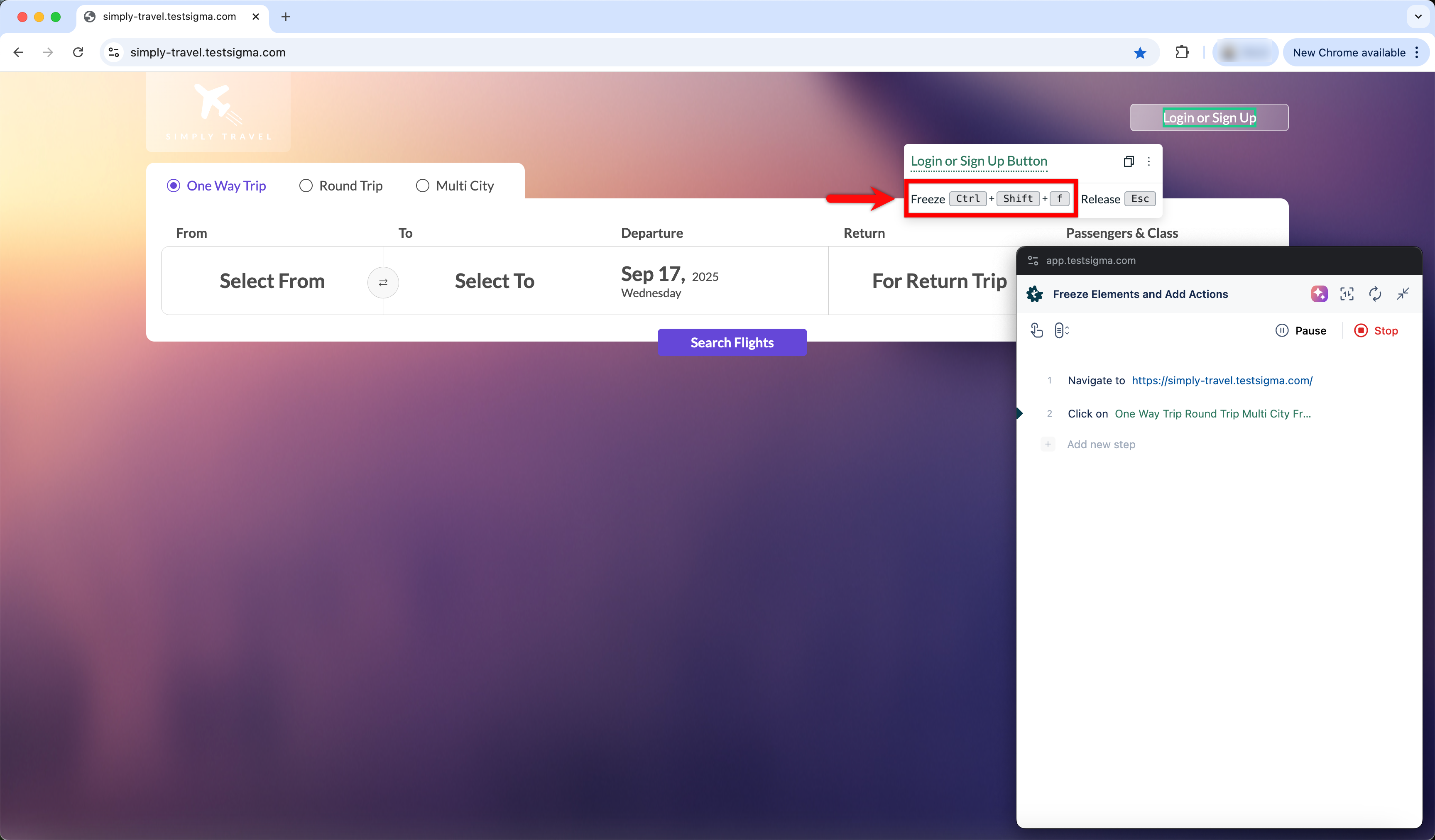
Hover over the element and press the keys to freeze it:
- For Windows: Ctrl + Shift + F
- For Mac: Command + Shift + F
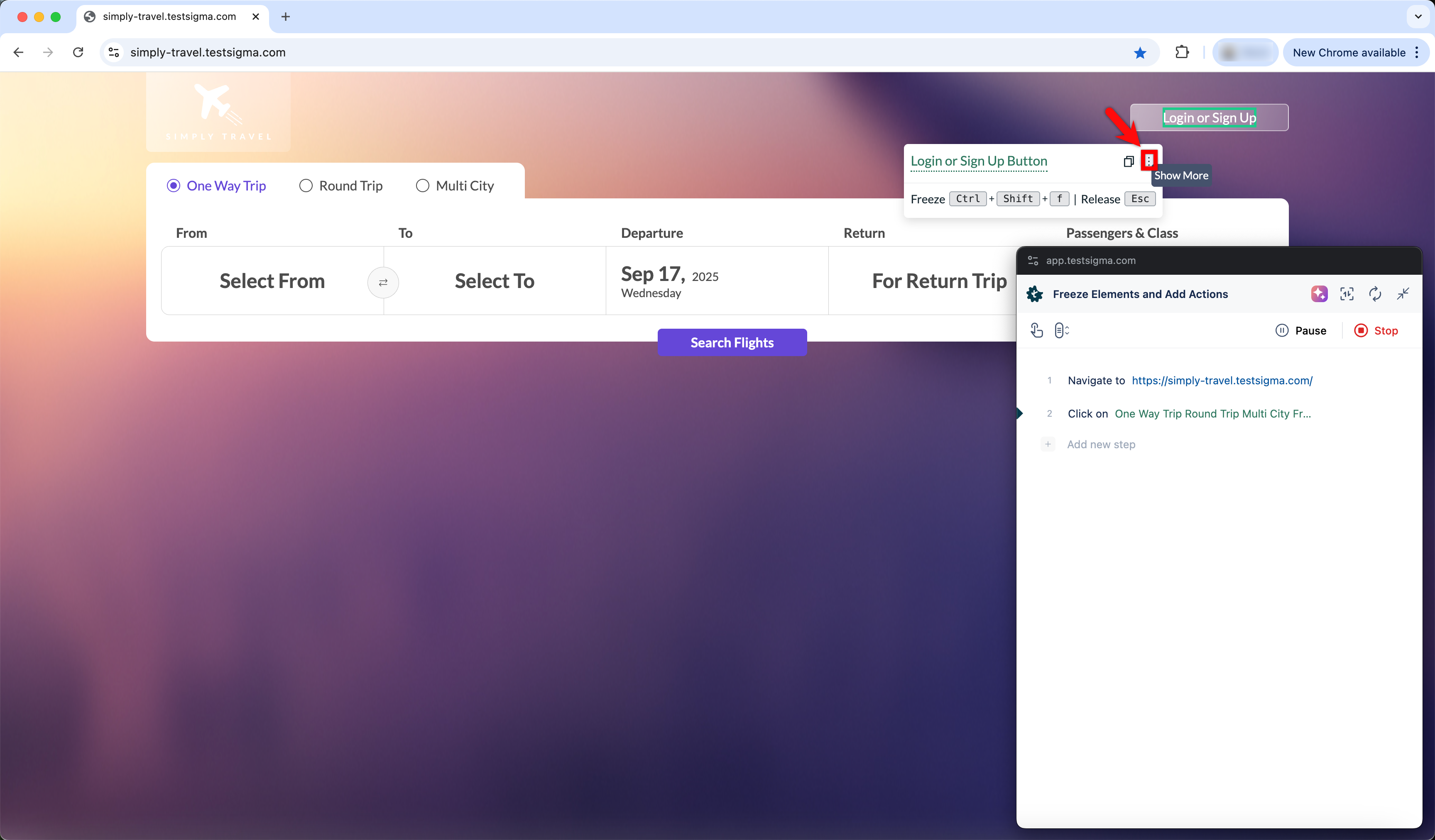
- Select the Show More icon.
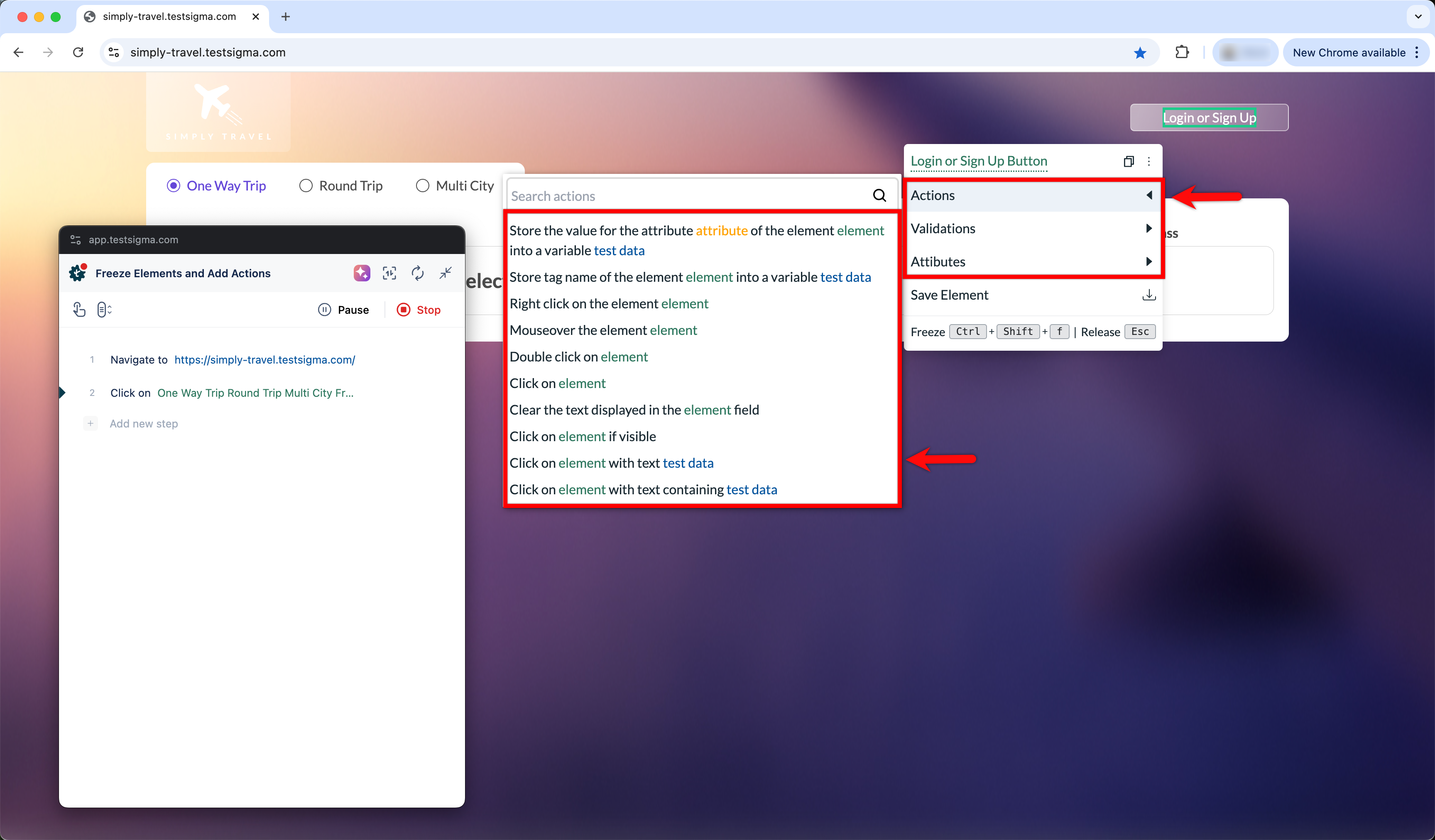
- Expand the menu and choose the required verification or action.
NOTE:
After selecting the action, provide the required test data value if prompted.
- Once you finish recording, select Stop.
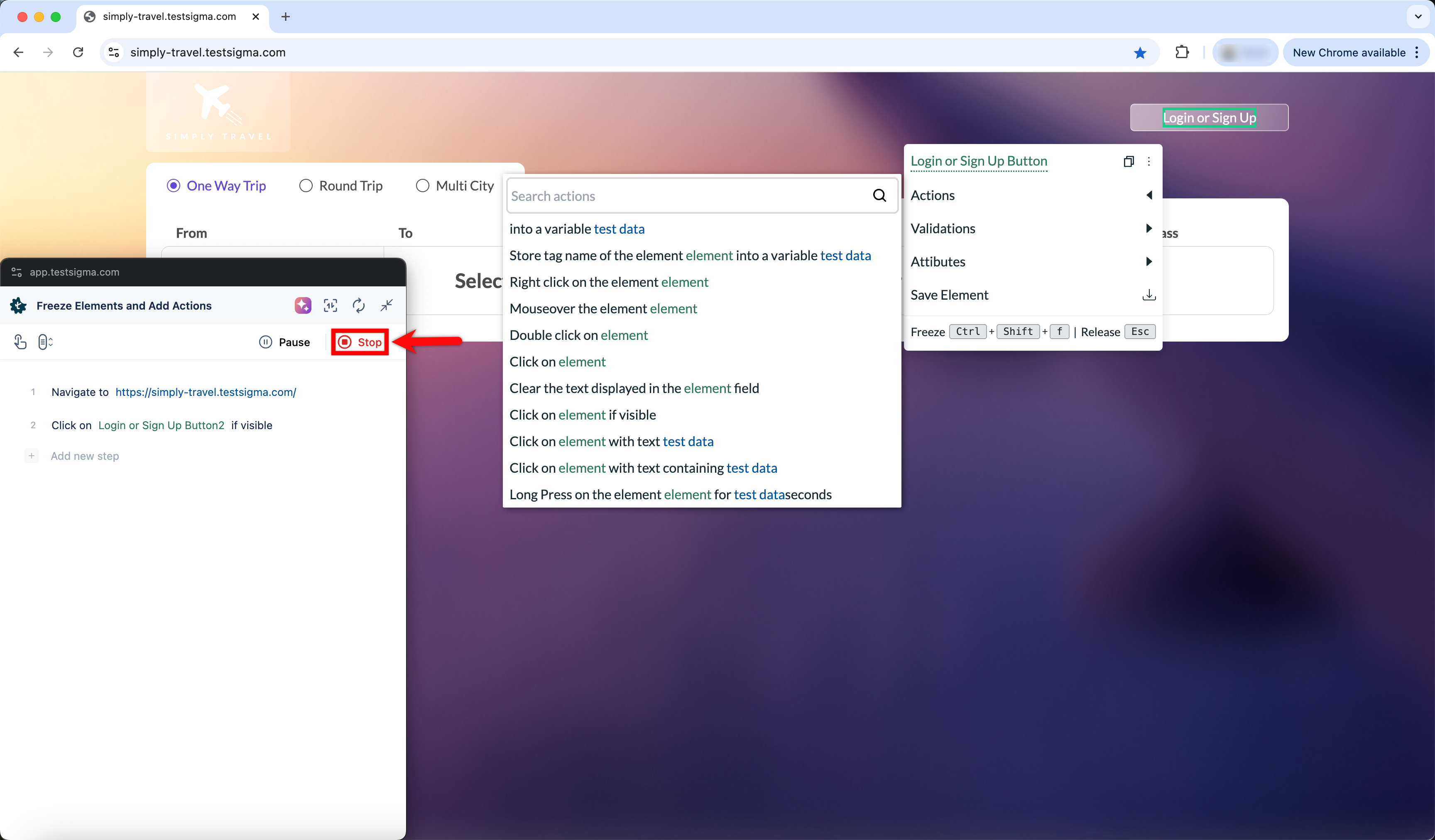
- You are redirected to the Test Case Details page, where all recorded steps are displayed.

Want to contribute or report missing content?