- Projects
- Test Cases
- Data Sets
- Imports and Exports
- Step Groups
- Test Runs
- Test Plans
- Integrations
- Testsigma Two-way Integration
- Settings
- Manage Users
- Reports & Analytics
- CI/CD Integrations
Capture Logs Using Test Capture
Test Capture lets you record execution logs during manual testing. You can update the execution status and add comments directly from the companion panel. It also captures video, console, and network logs for each test case. All logs are automatically linked to the test run and are available for review. This article discusses capturing and reviewing execution evidence using Test Capture during manual test runs.
Capture Logs During Test Execution
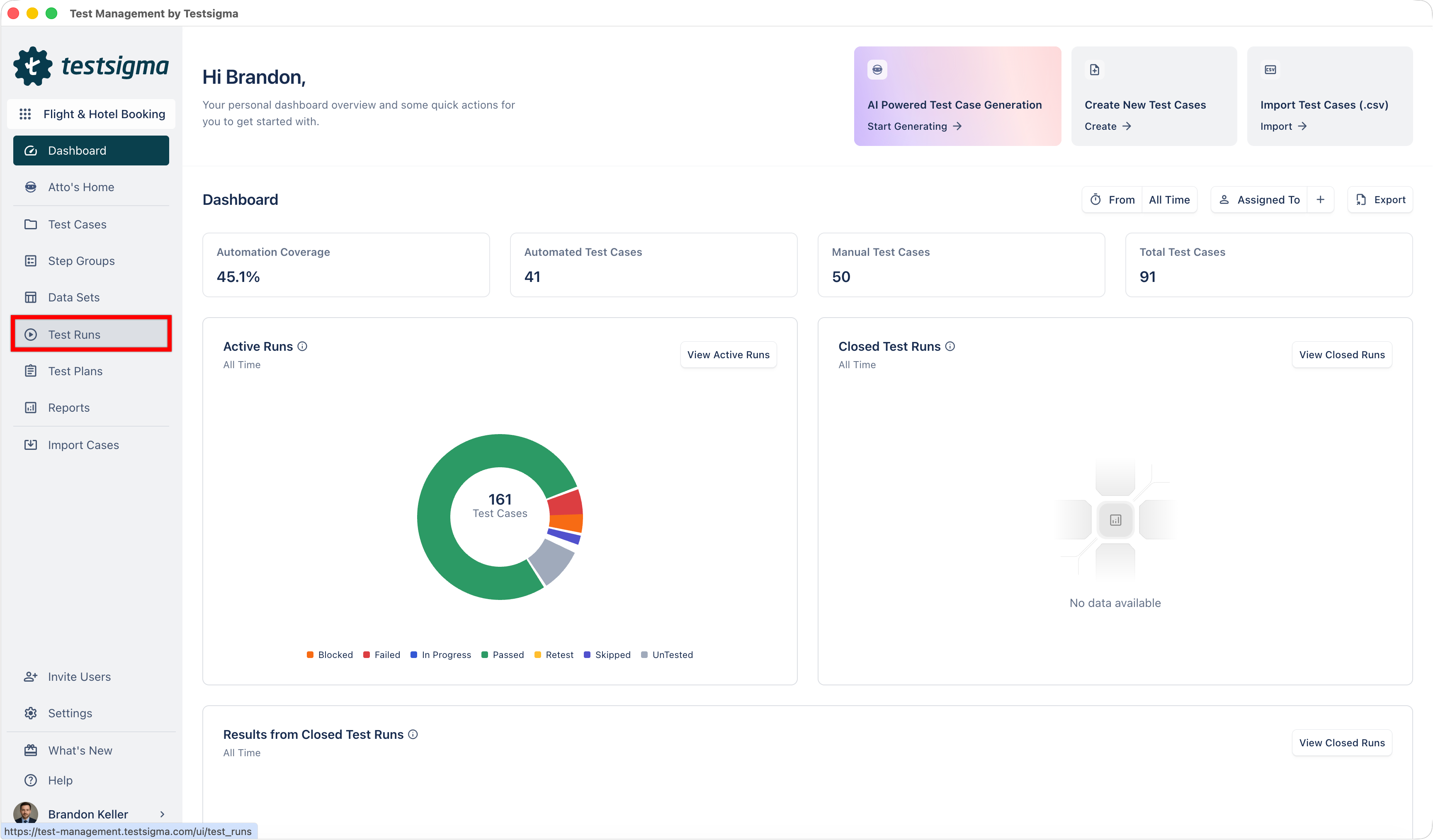
- From the left navigation bar, go to Test Runs.
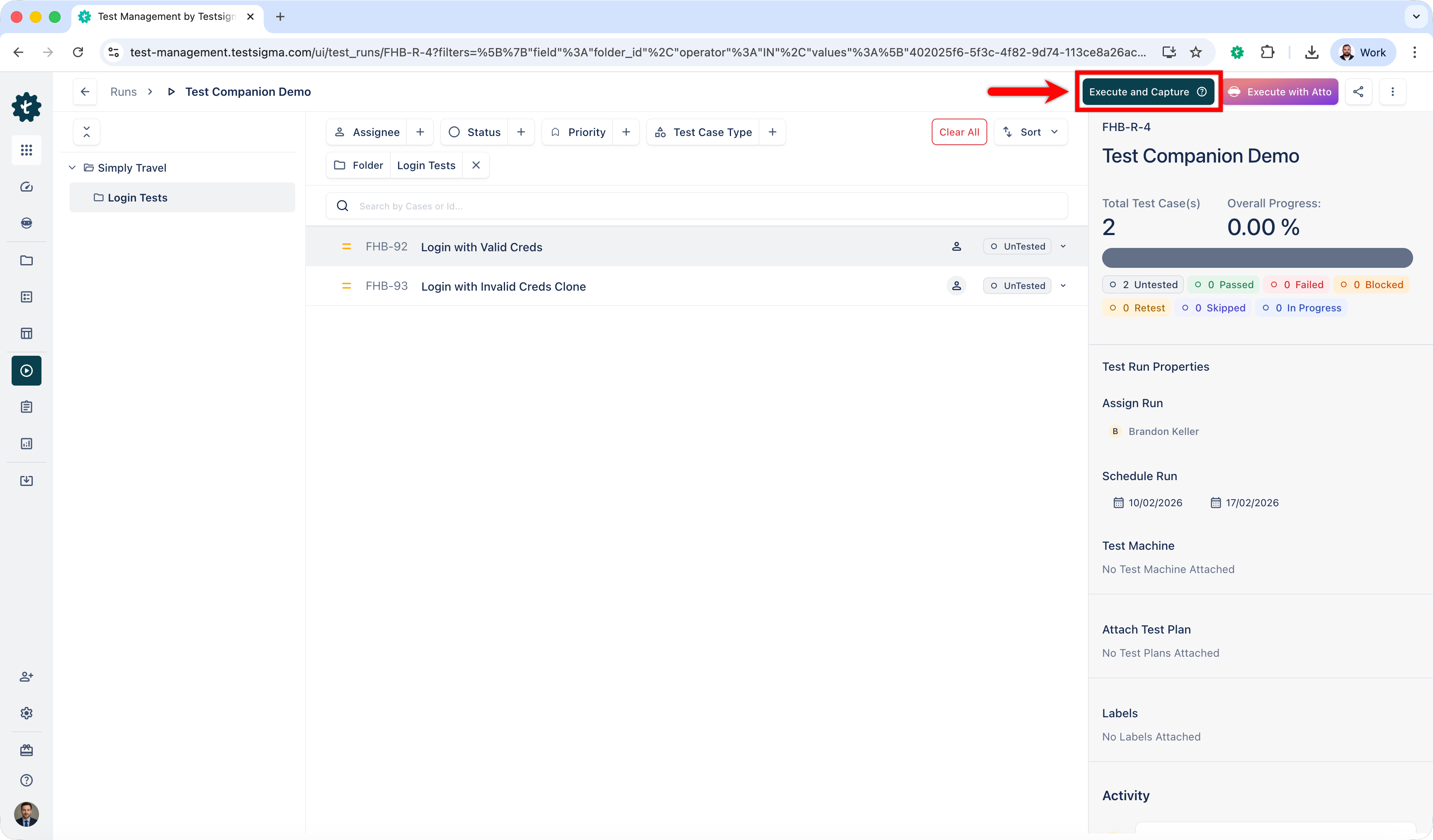
- Open a test run.
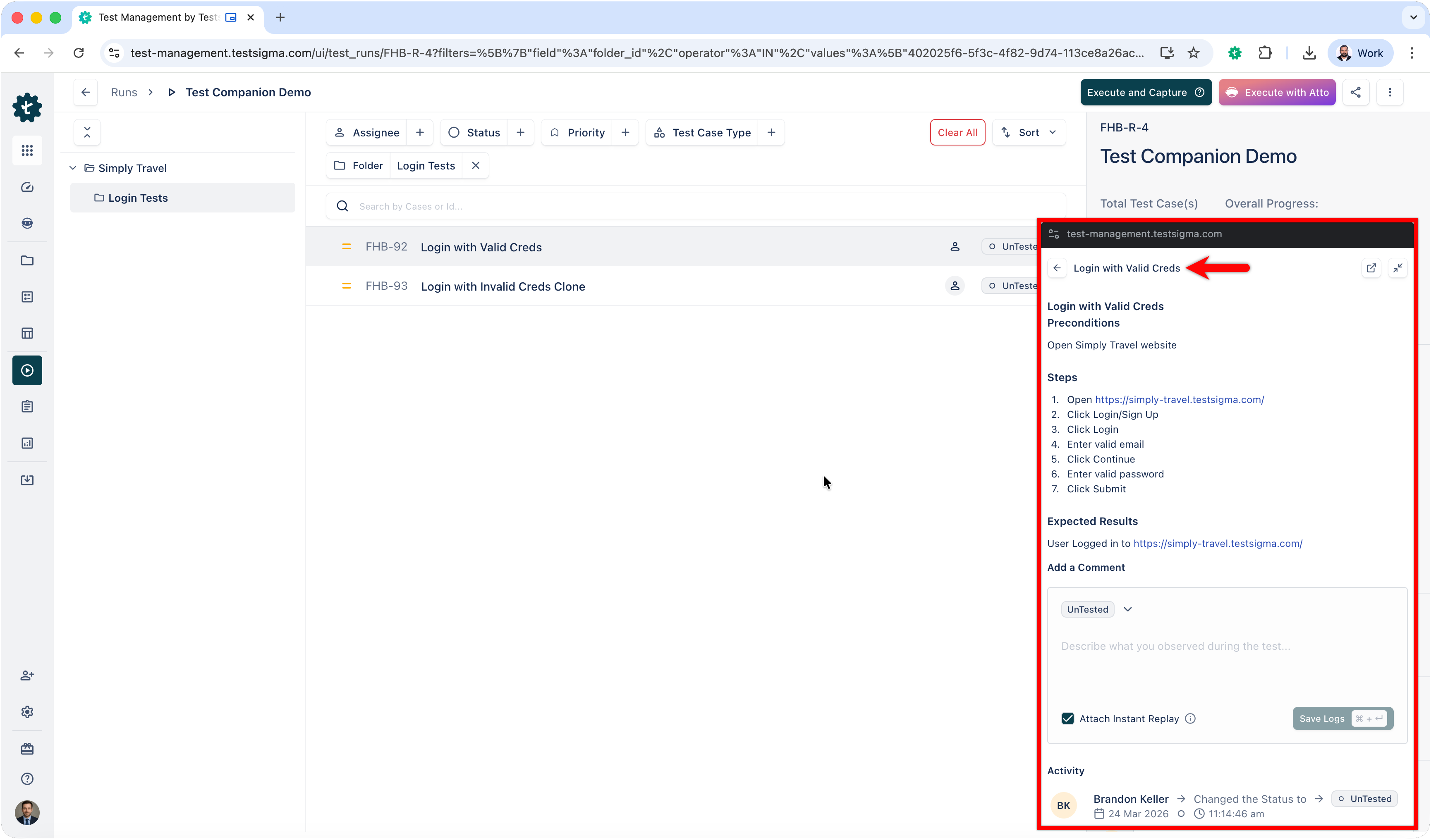
- On the Test Run details page, click Execute & Capture.
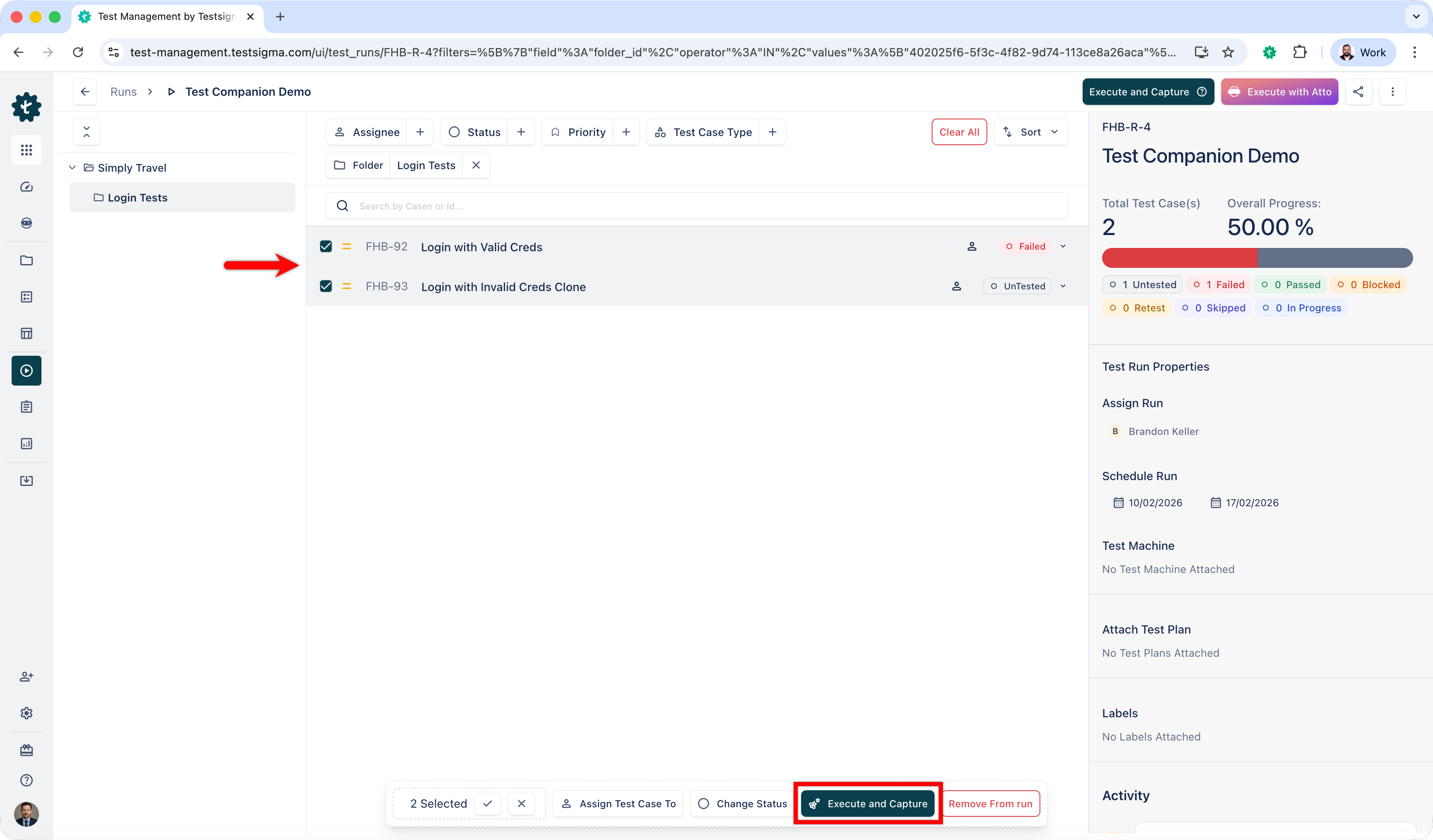
You can also select multiple test cases and click Execute & Capture.
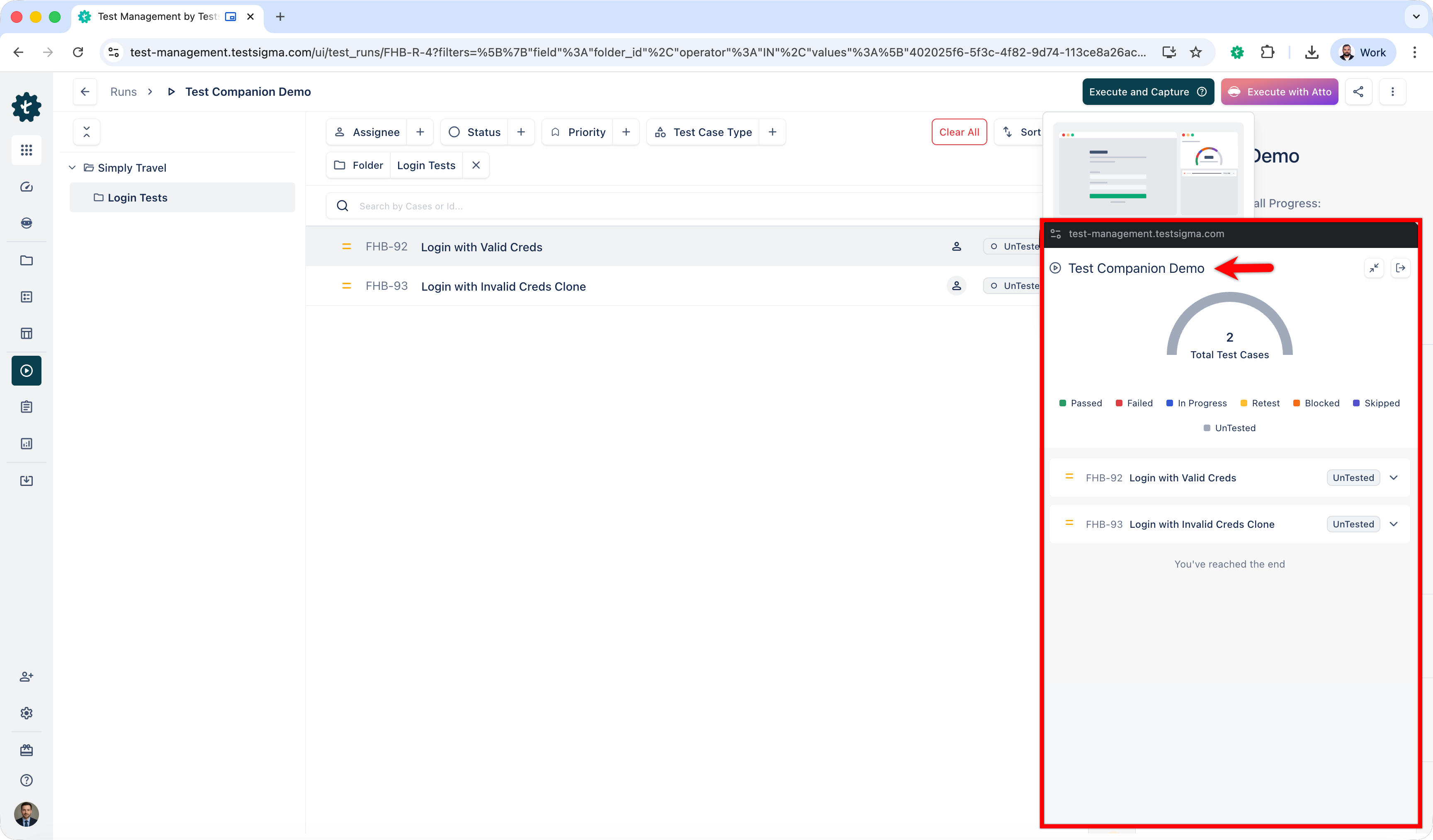
- The Test Capture panel opens with the test run details along with test cases.
- Open a test case and start manual execution.
-
When you see a bug or error:
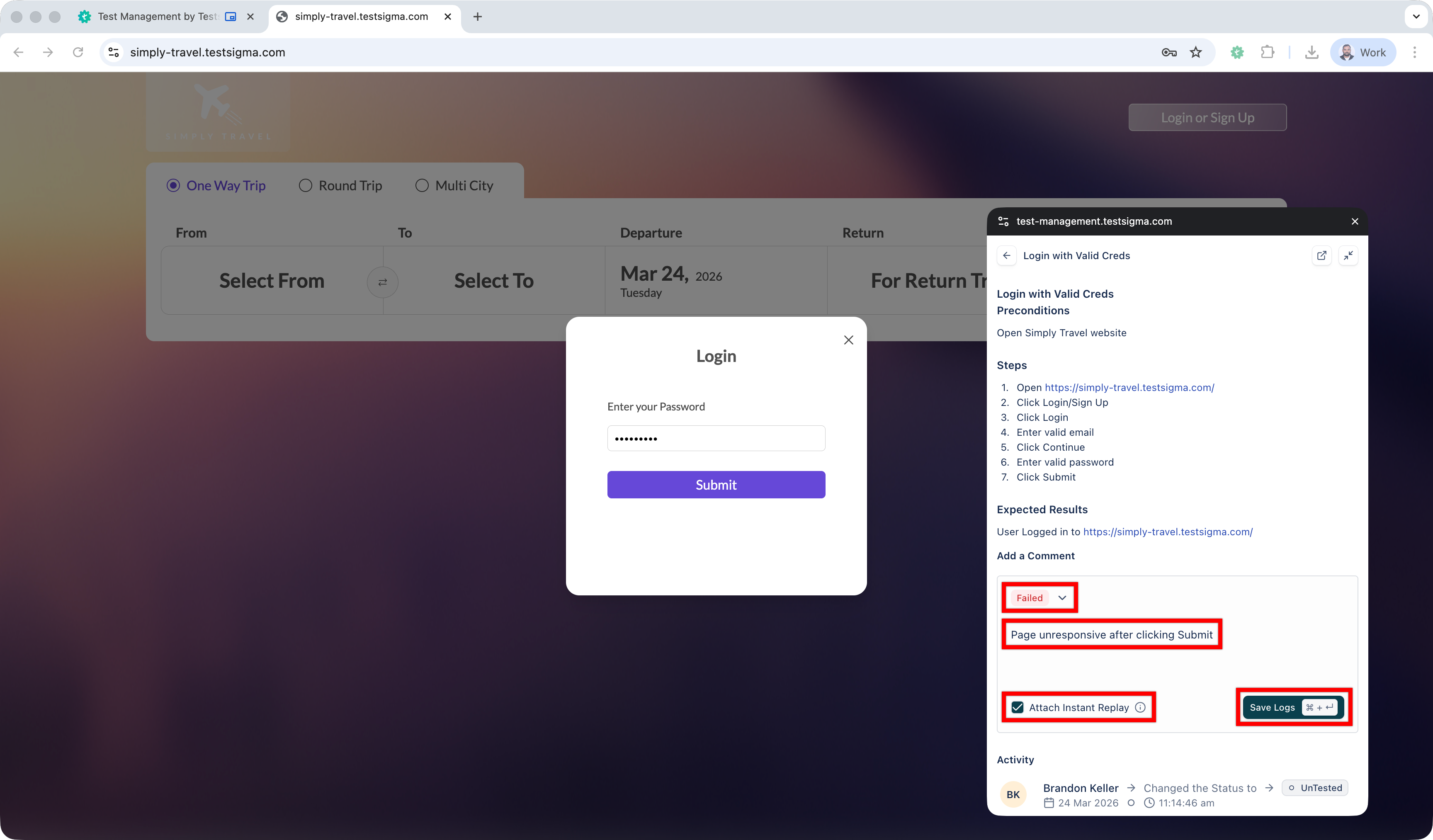
- Update the test execution status (Passed, In-Progress, Failed, Retest, Skipped or Blocked).
- Add a comment describing the observation.
- Select Attach Instant Replay to automatically attach video capture and technical logs from the last 2 minutes.
- Click Save Logs.
The log is captured and attached to the current test execution.
View Captured Logs in Test Runs
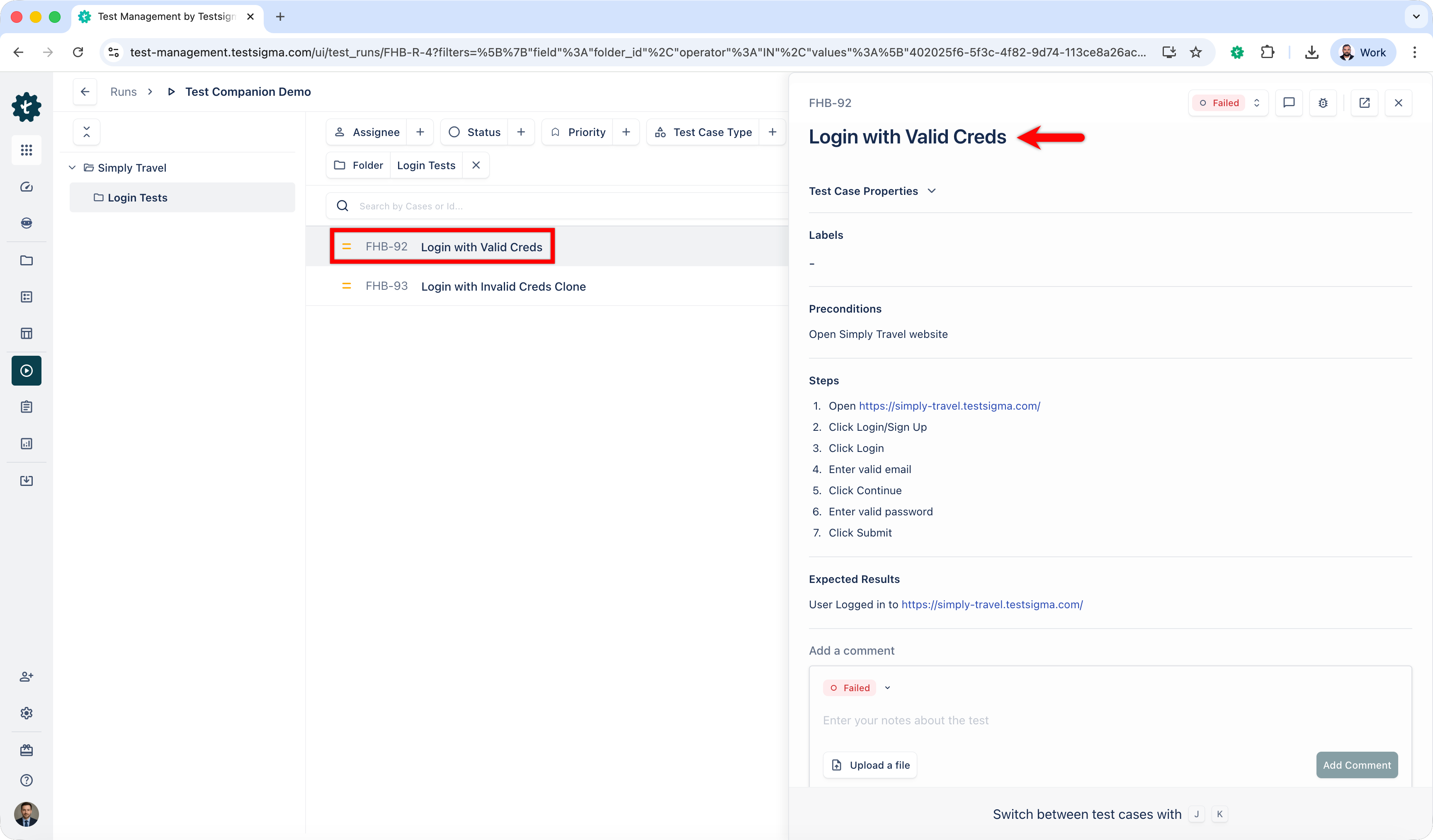
- From the left navigation bar, go to Test Runs.
- Open the test run executed using Test Capture.
- Open the test case.
-
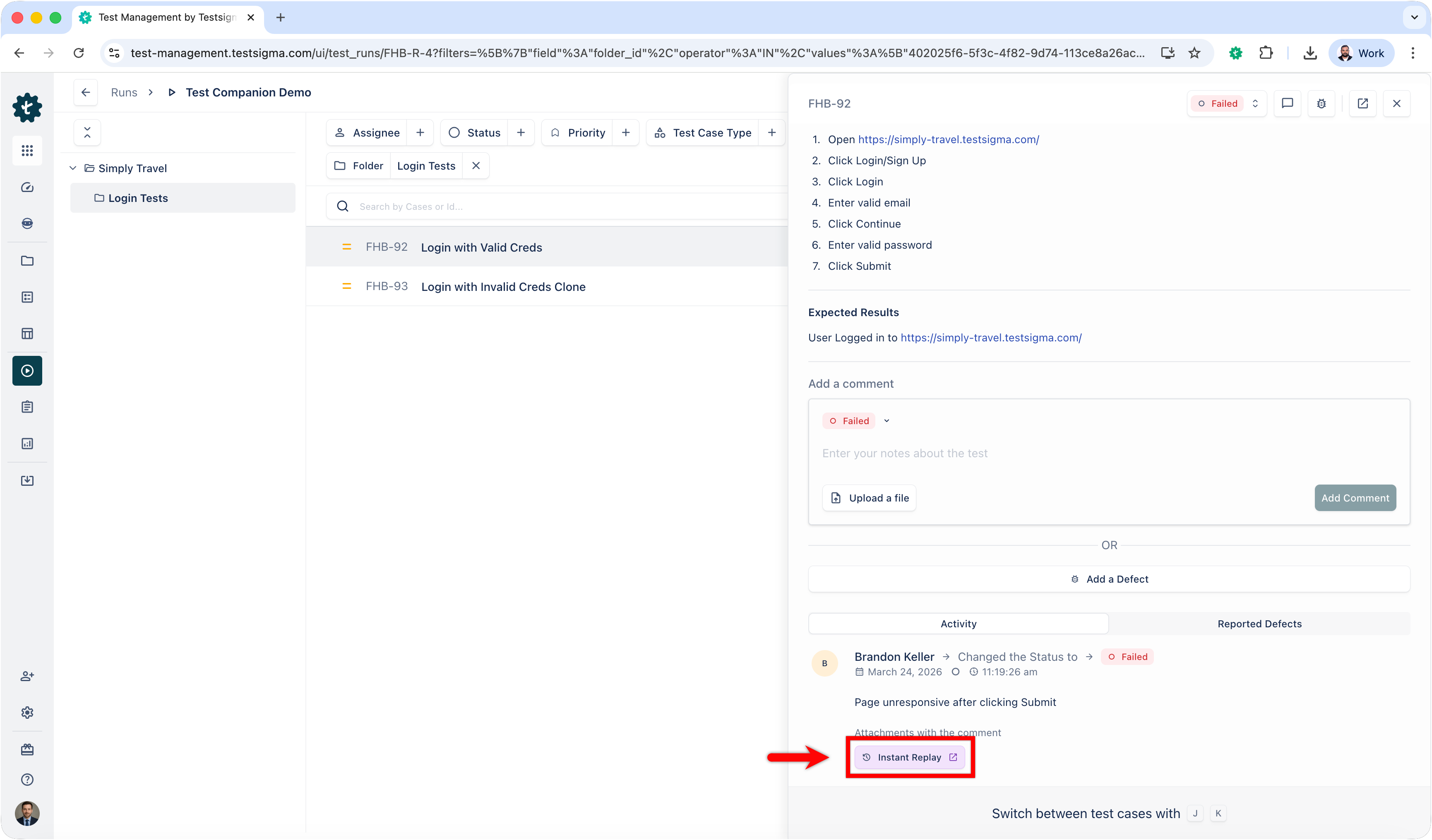
Scroll to the Activity section.
The Activity section displays for logs:
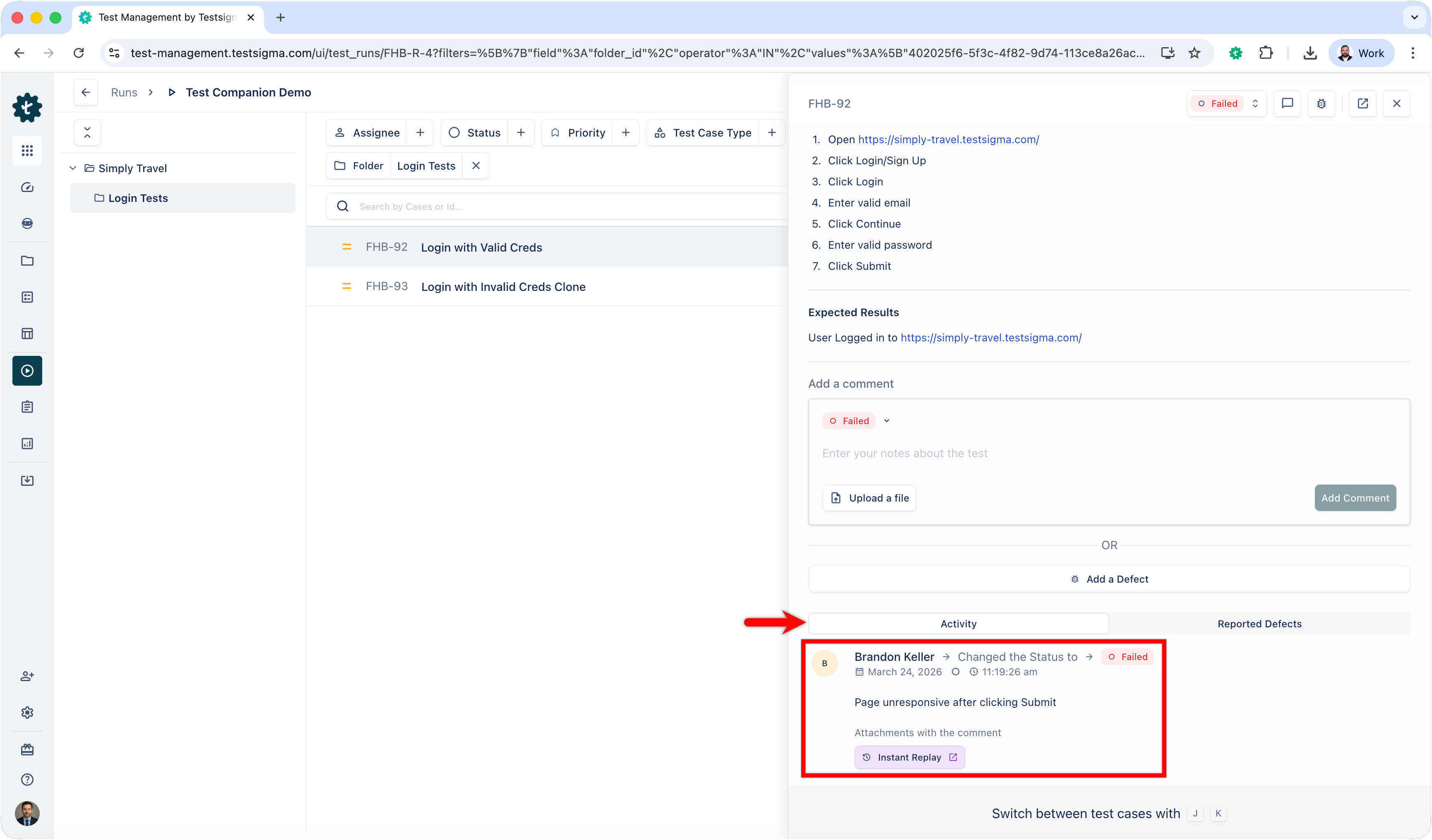
- Execution timestamps
- Status changes
- Tester comments
- Attached log
- Click Instant Replay.
-
This will open a new displaying the detailed evidence, including:
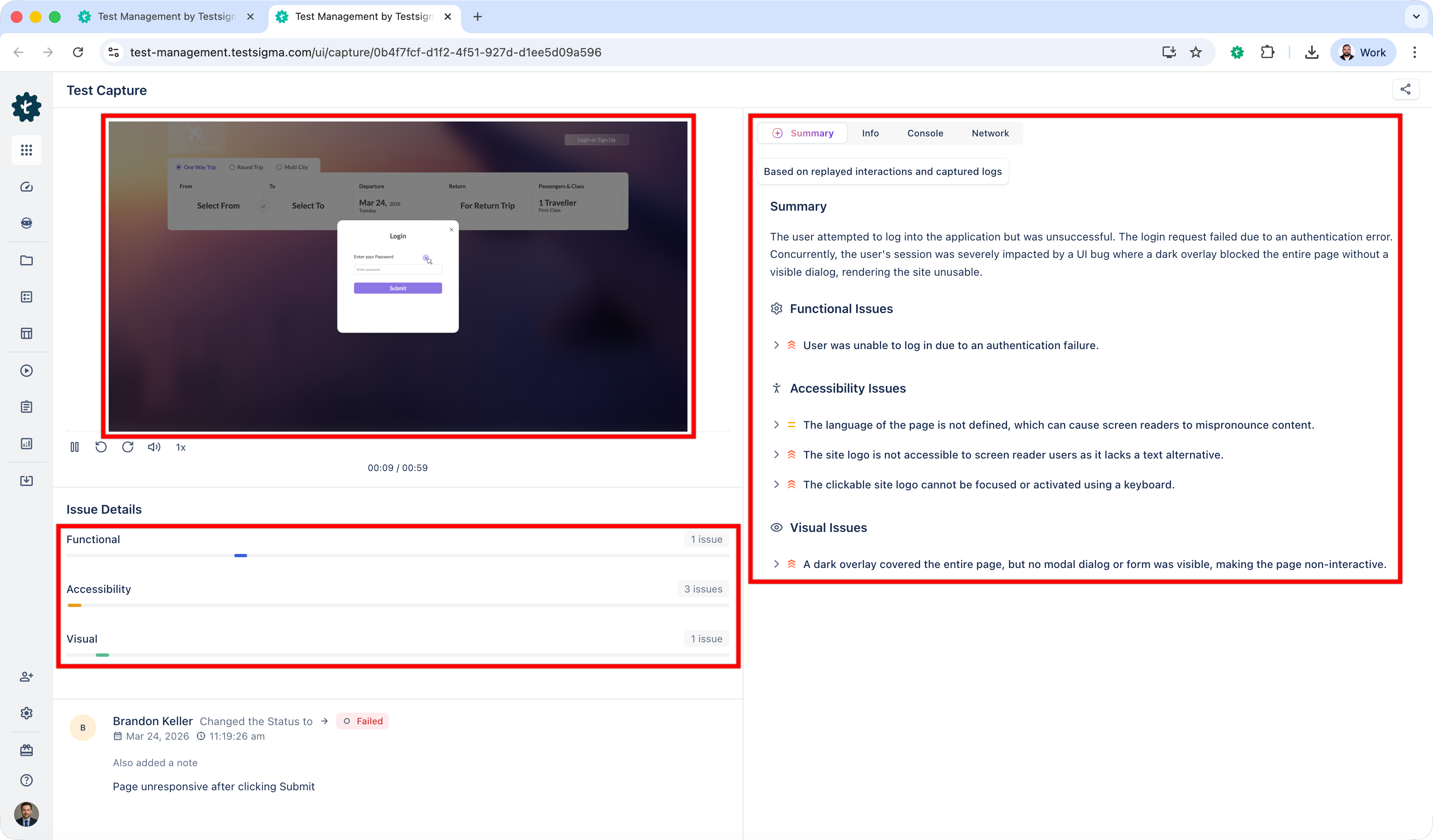
- Visual replay of the execution
- Execution information
- Console logs
- Network logs
- AI Summary
Capture Logs from a Directly Website
- Open the website you want to test.
- Perform testing actions on the website.
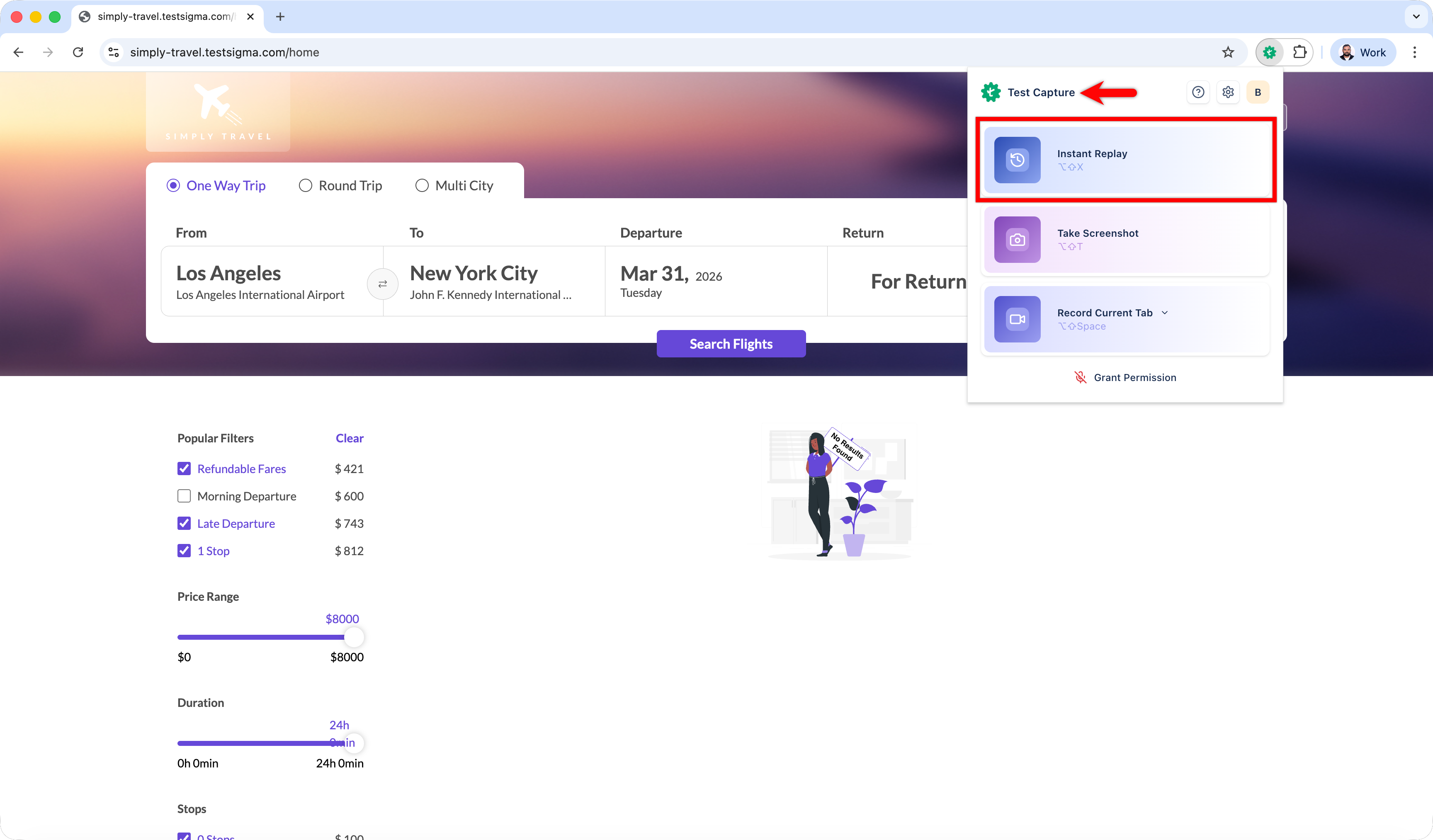
- When you see an issue/bug, click Extensions and select Test Capture.
- Select Instant Reply. This will open a new tab.
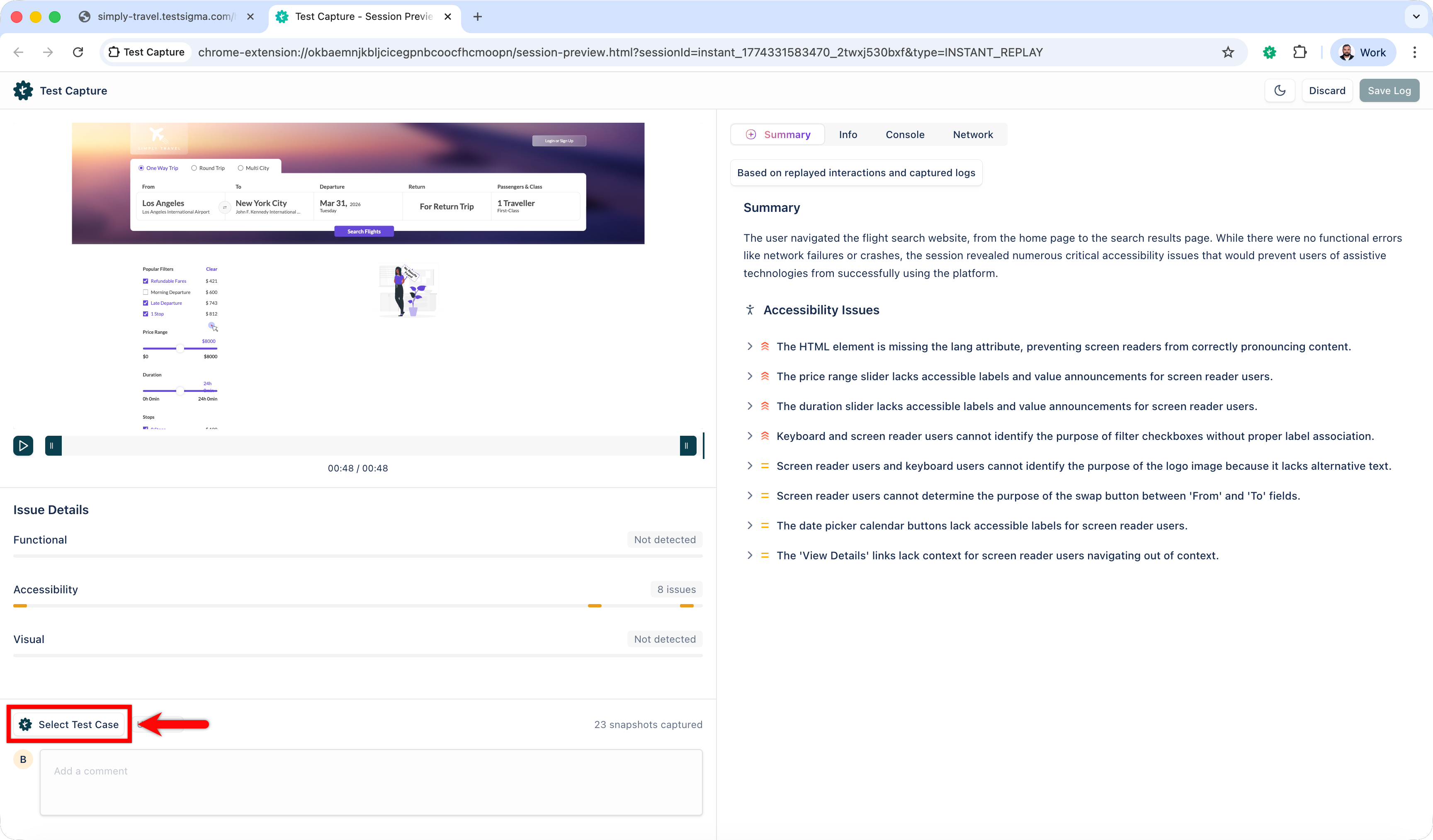
- Click Select Test Case.
-
In the Link to Test Management System dialog:
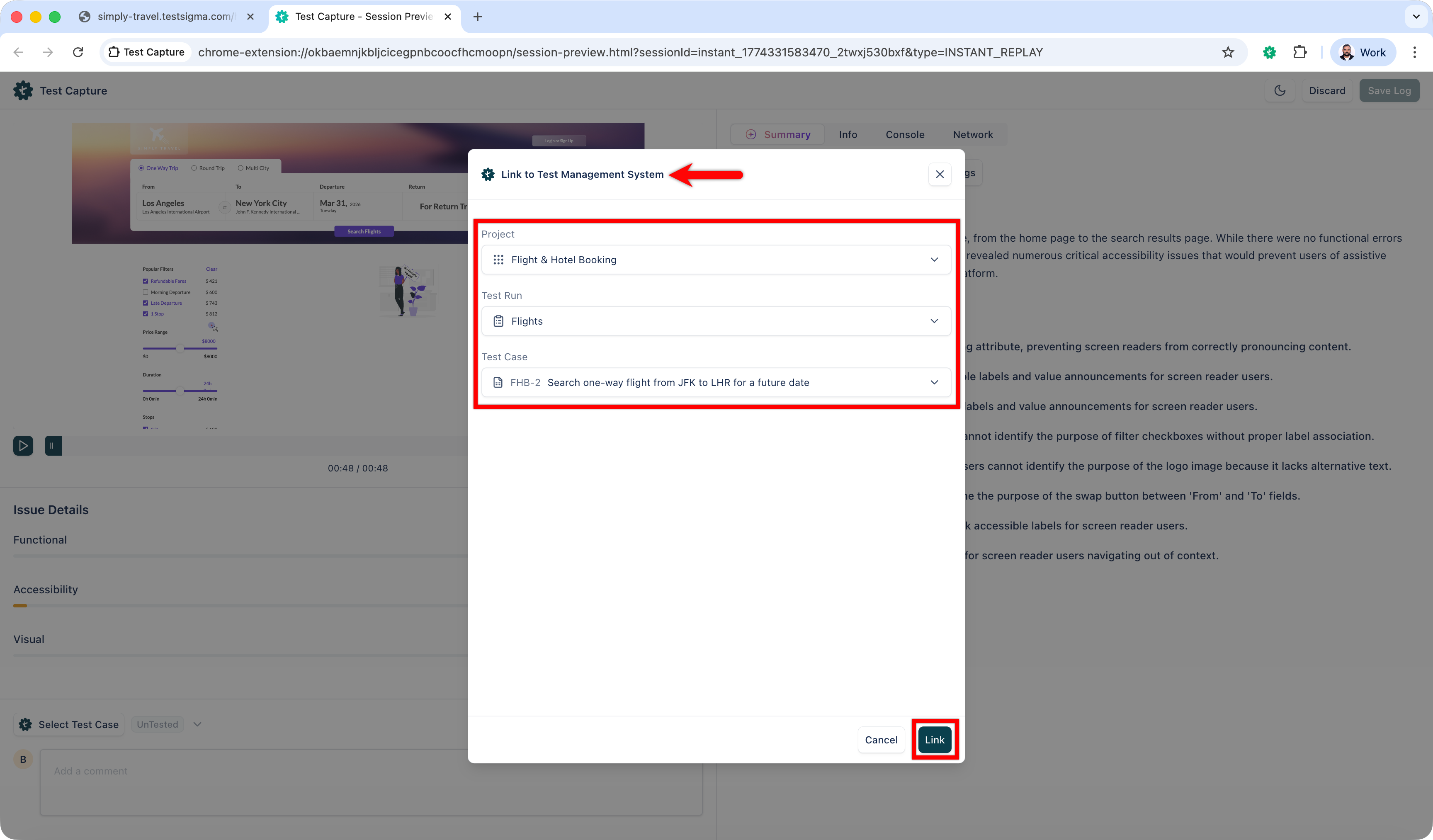
- Select a project, test run, and test case.
- Click Link.
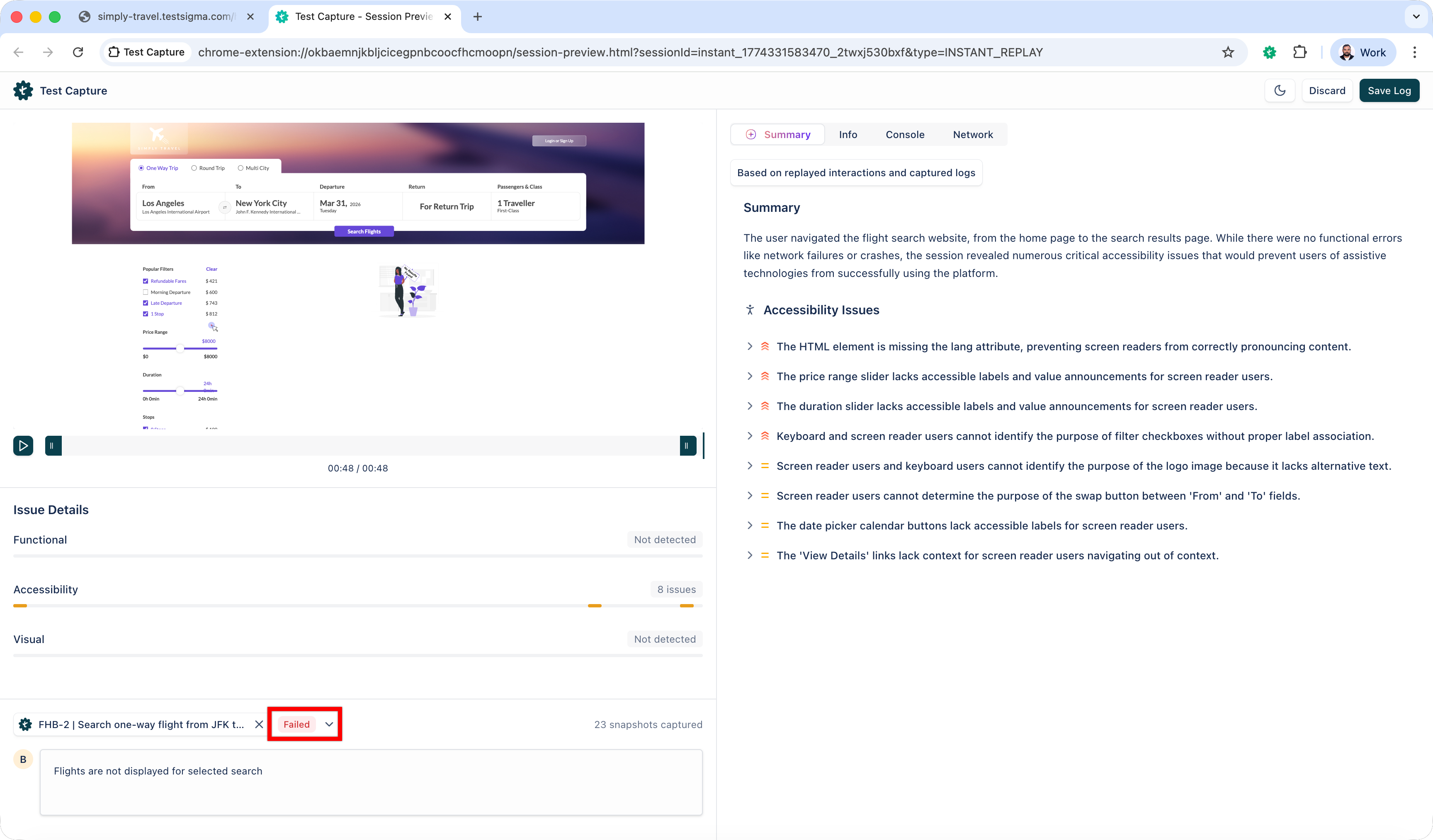
- Update the execution status (Passed, In Progress, Failed, Retest, Skipped, Blocked).
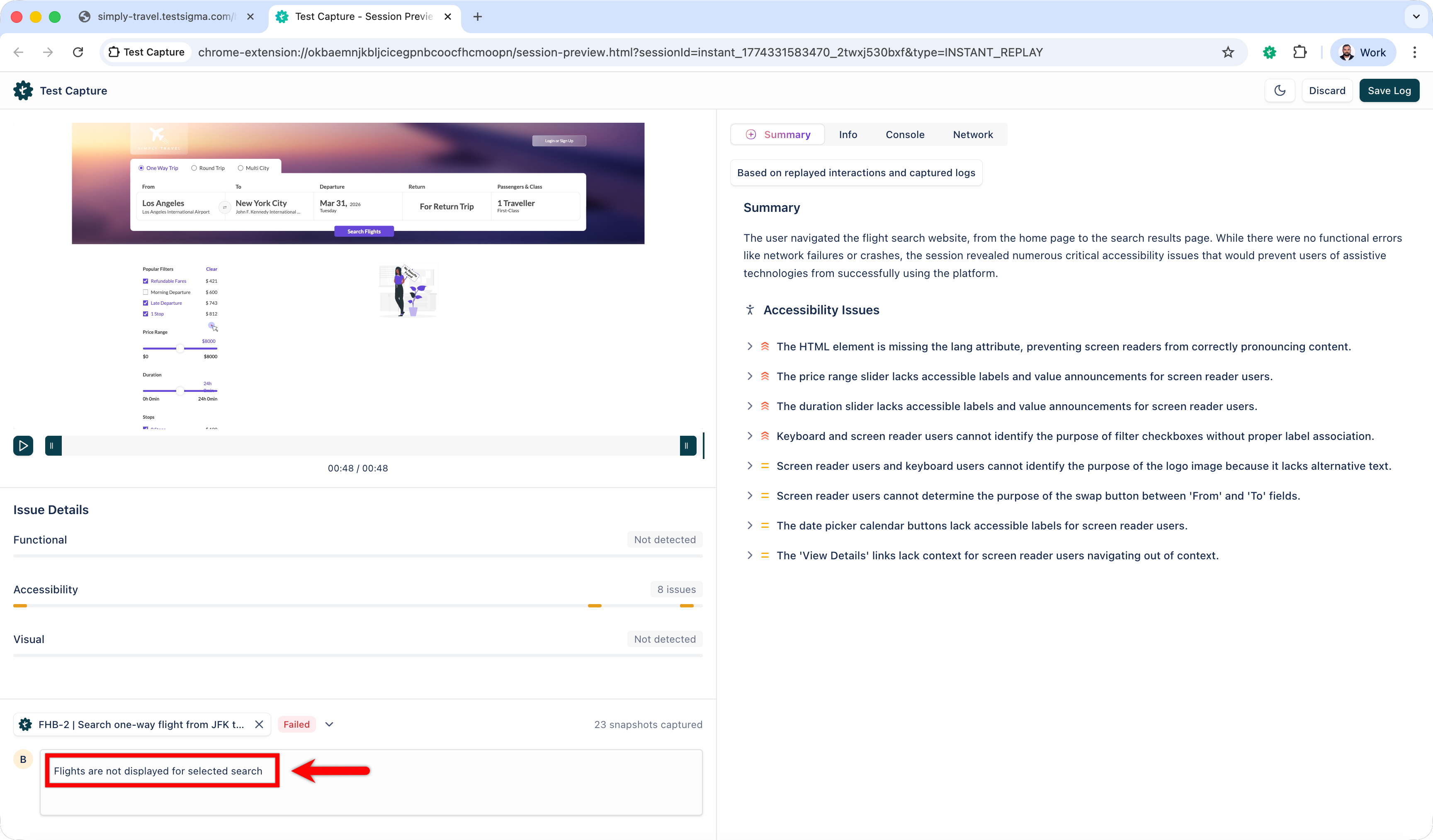
- Add a Comment describing the observation.
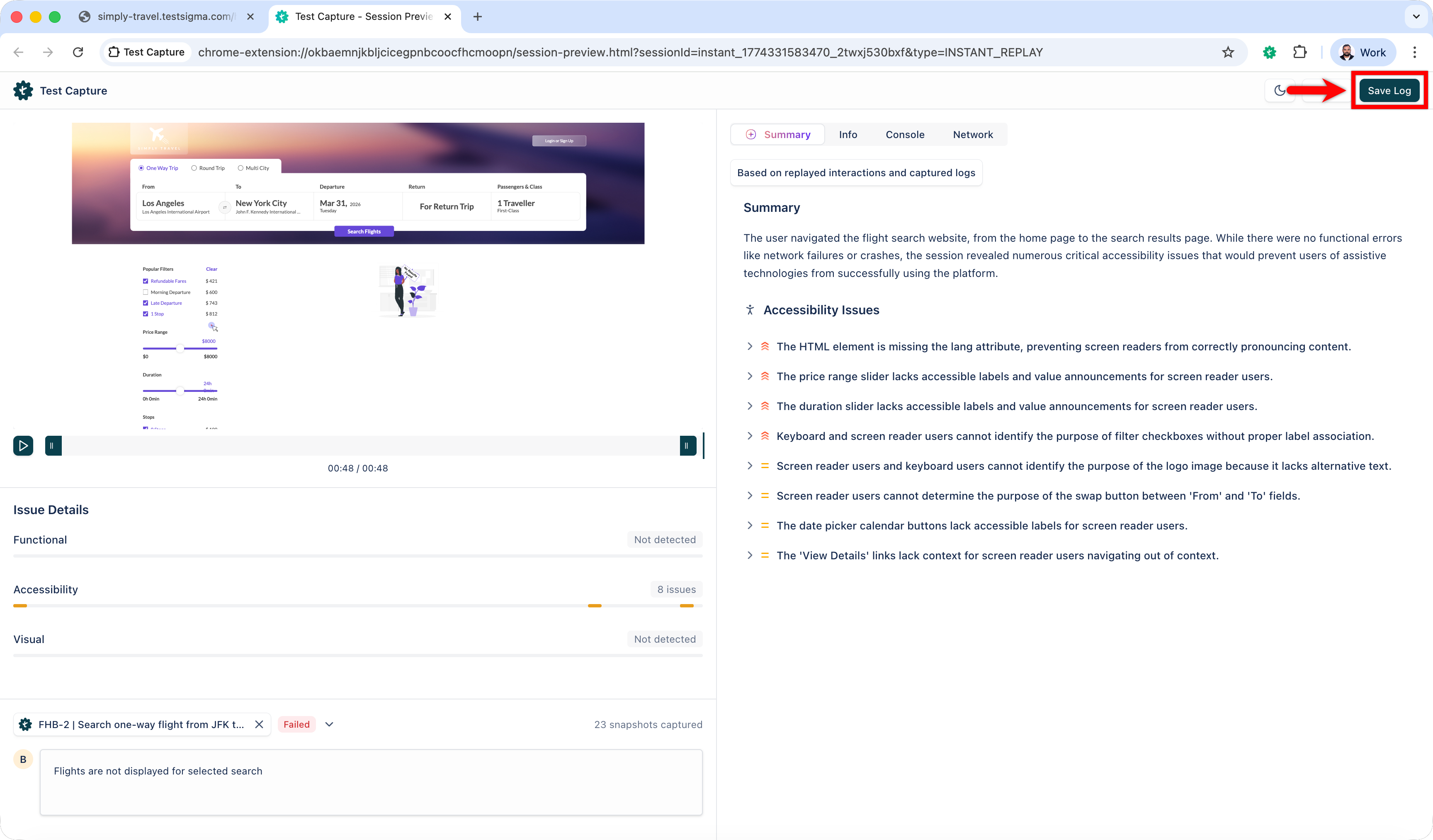
- Click Save Log.

Want to contribute or report missing content?