- Projects
- Test Cases
- Data Sets
- Imports and Exports
- Step Groups
- Test Runs
- Test Plans
- Integrations
- Testsigma Two-way Integration
- Settings
- Manage Users
- Reports & Analytics
- CI/CD Integrations
Install & Configure Test Capture
Installing, authorizing, and configuring the Test Capture Chrome extension is required before you can execute tests and capture logs during manual execution. This article discusses setting up the extension so it works correctly with Arcus by Testsigma.
Install Test Capture Extension
You can install the extension directly from Arcus by Testsigma or from the Chrome Web Store.
Install from Arcus by Testsigma
- From the left navigation bar, go to Test Runs.
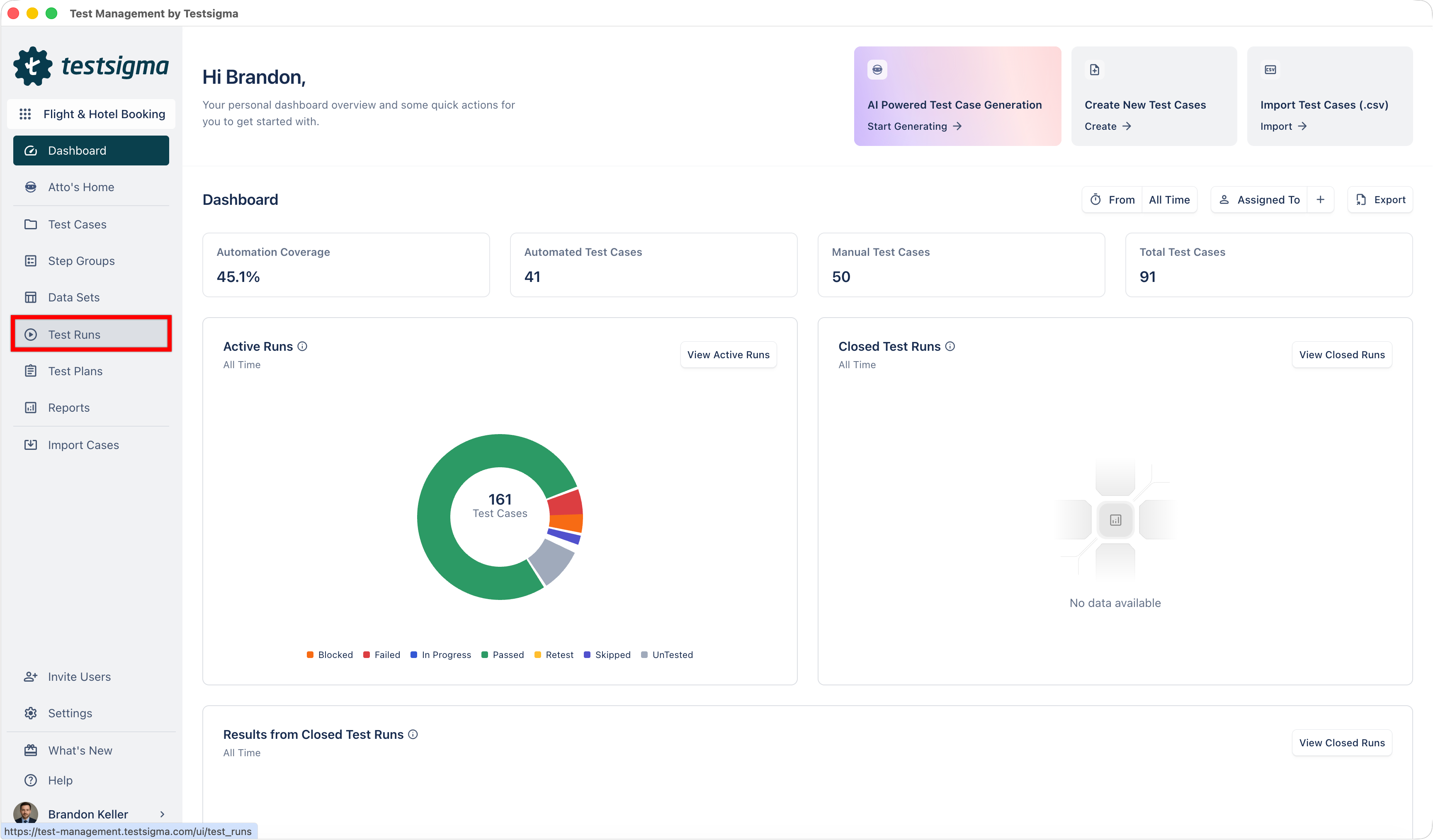
- Open a test run.
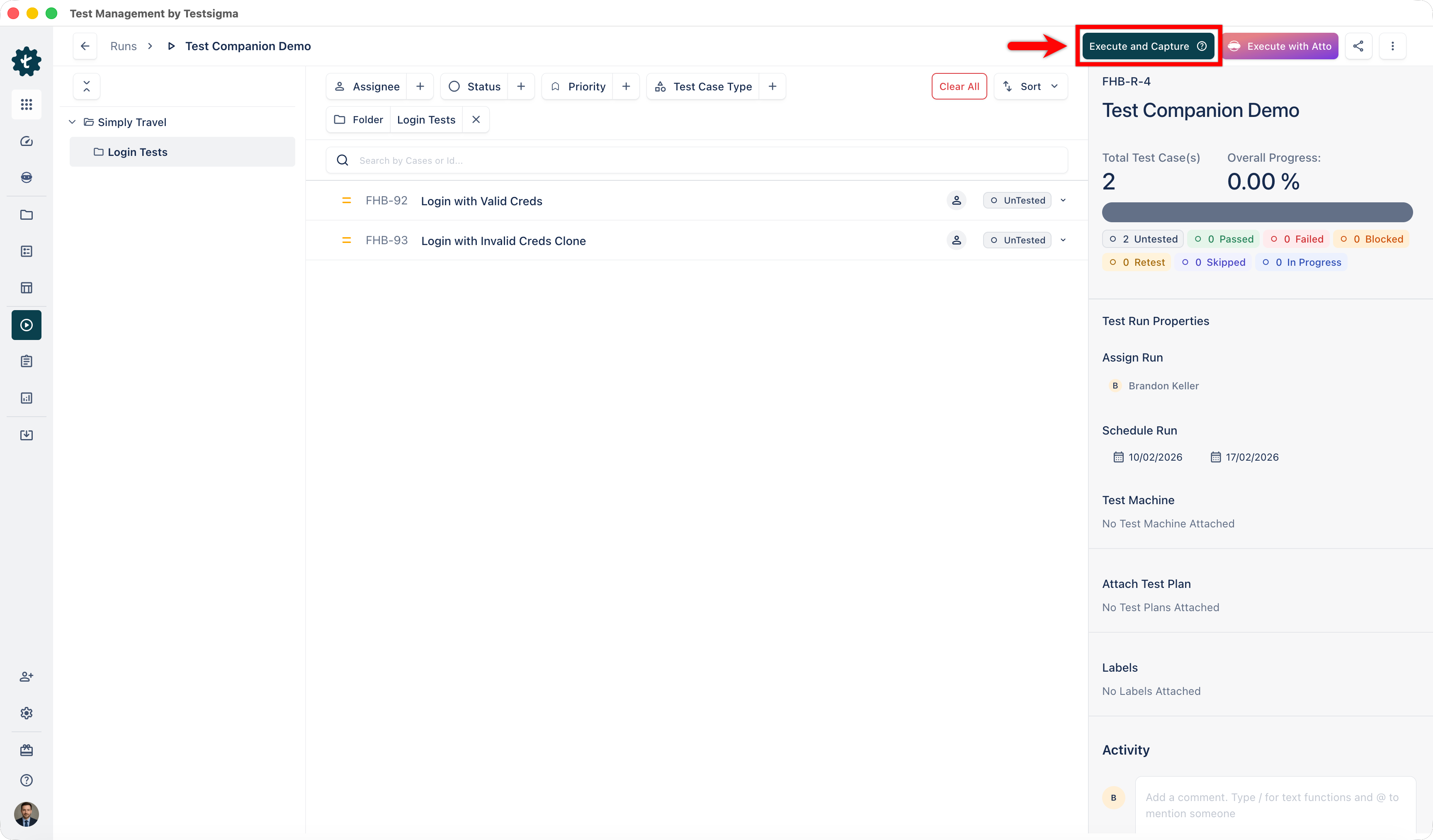
- On the Test Run Details page, click Execute & Capture.
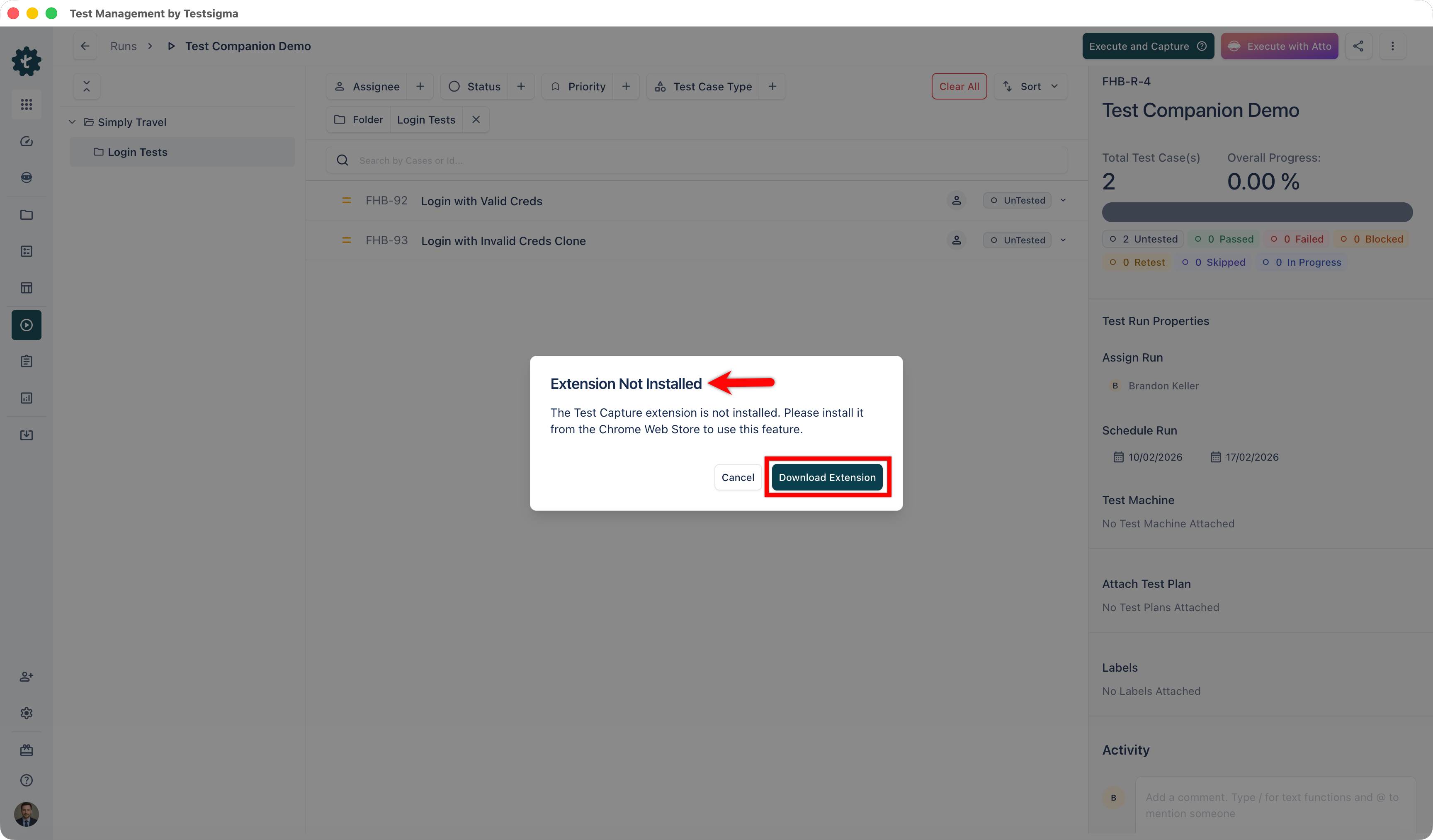
- In the Extension Not Installed dialog, click Download Extension.
- You are redirected to the Test Capture Chrome extension page.
-
Click Add to Chrome and confirm the installation.
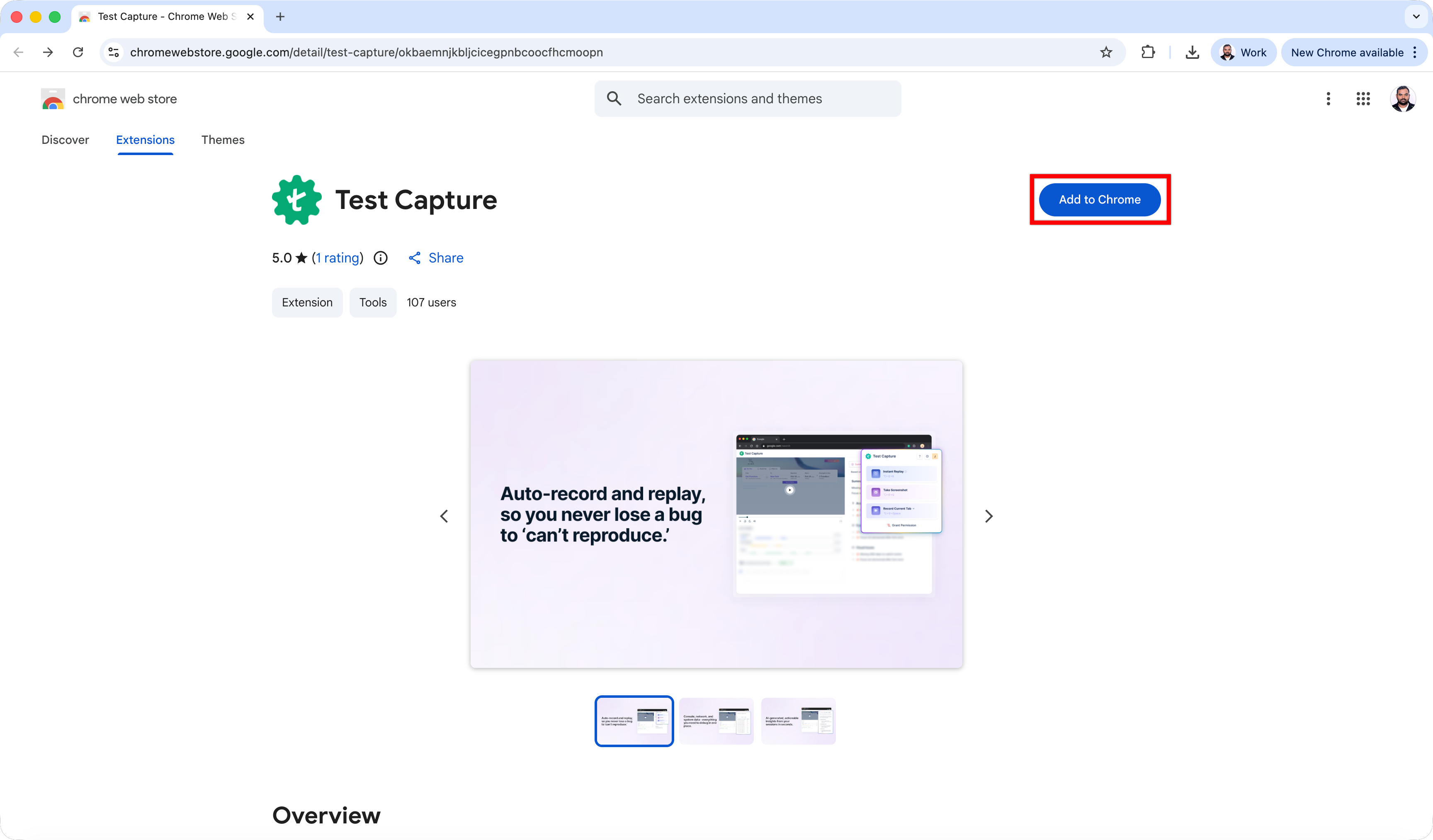
The extension is added to your browser.
Install from Chrome Web Store
- Open the Chrome Web Store.
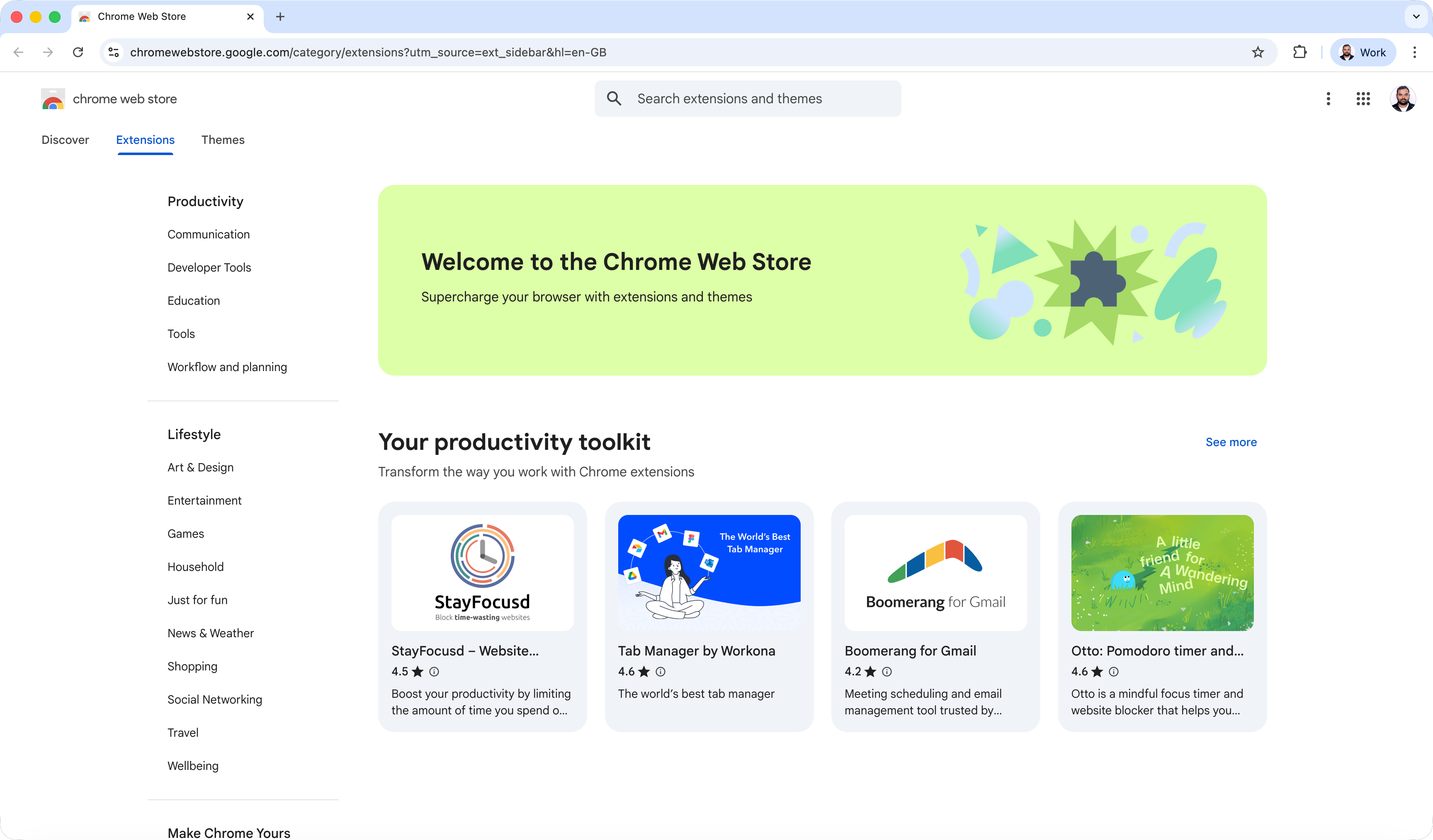
- Search for Test Capture.
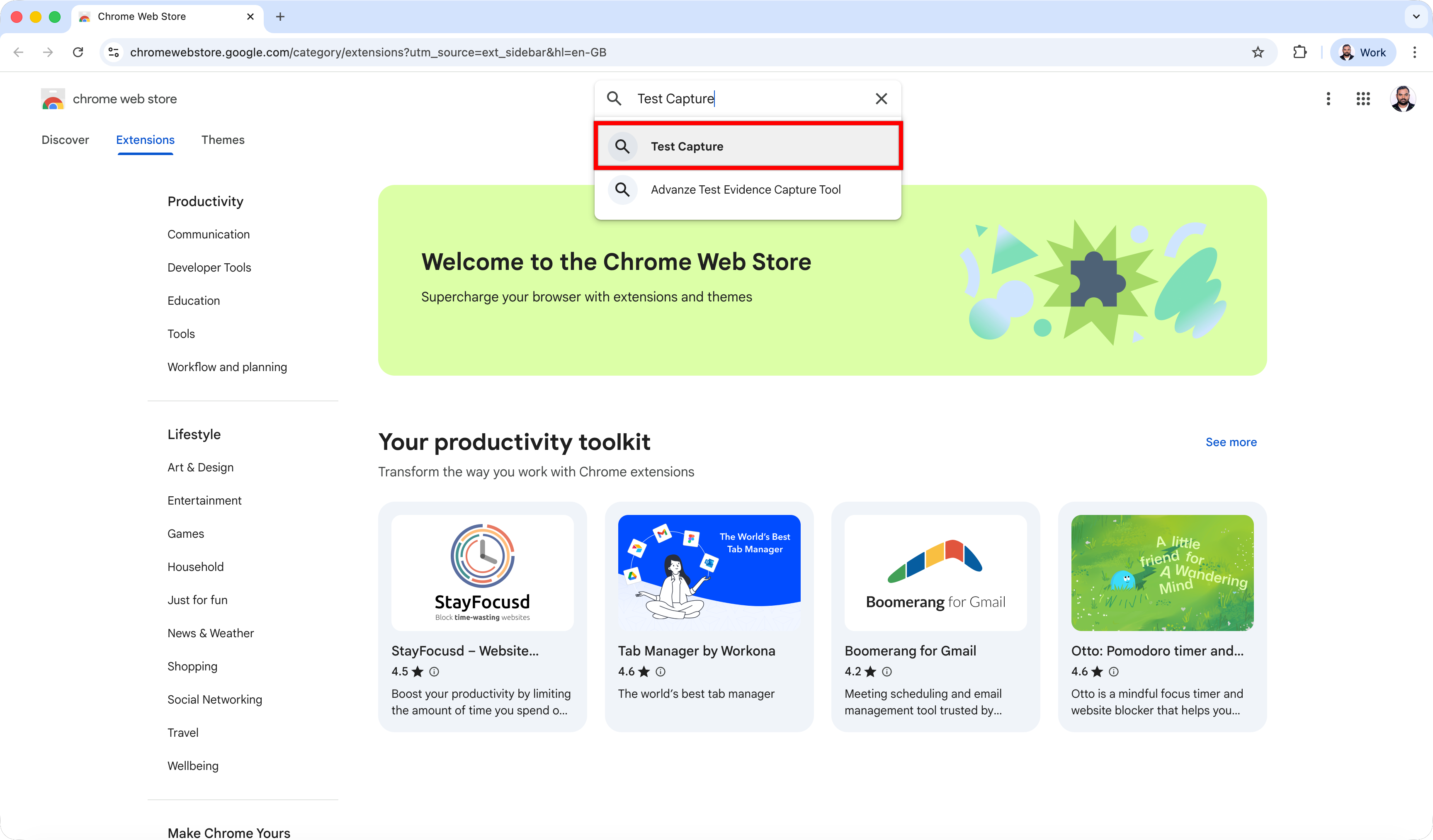
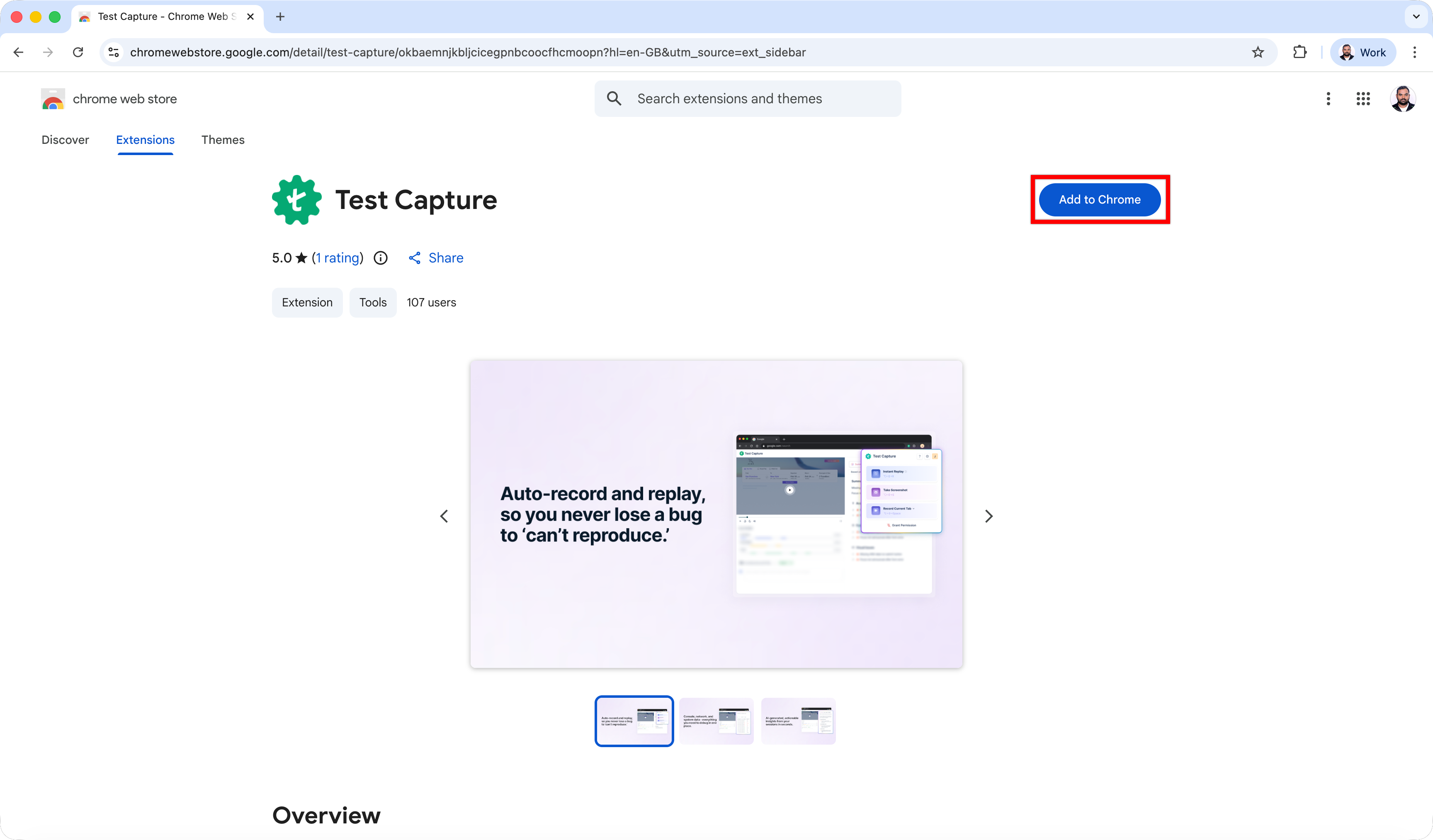
- Open the extension page.
- Click Add to Chrome and confirm the installation.
Authorize the Extension
After installation, the extension must be authorized to connect with Arcus by Testsigma.
- Open a test run.
- Click Execute & Capture.
- In the Test Capture dialog, click Login to Test Capture.
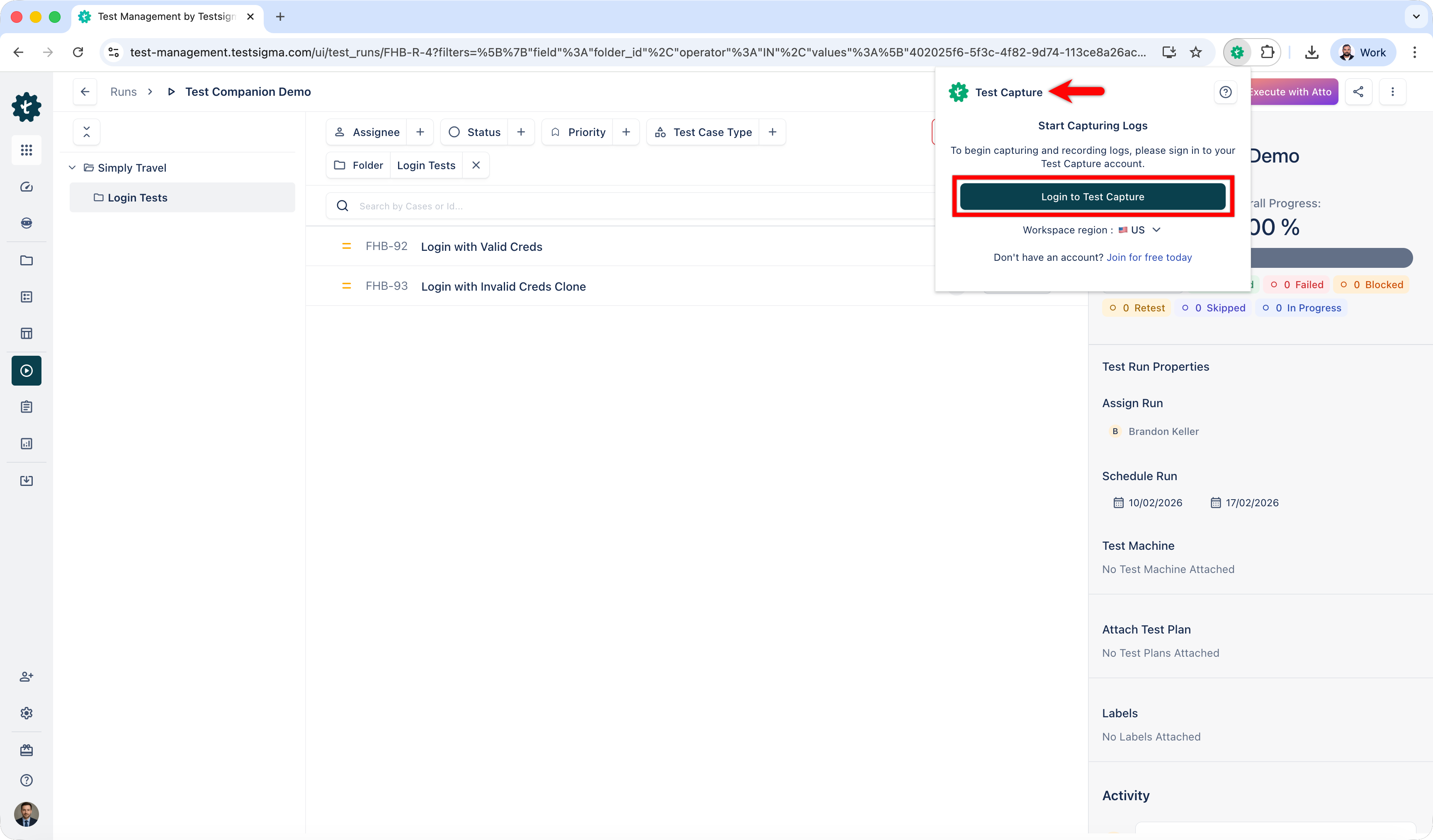
- You are redirected to the Arcus by Testsigma authorization page.
-
Click Authorize Extension.
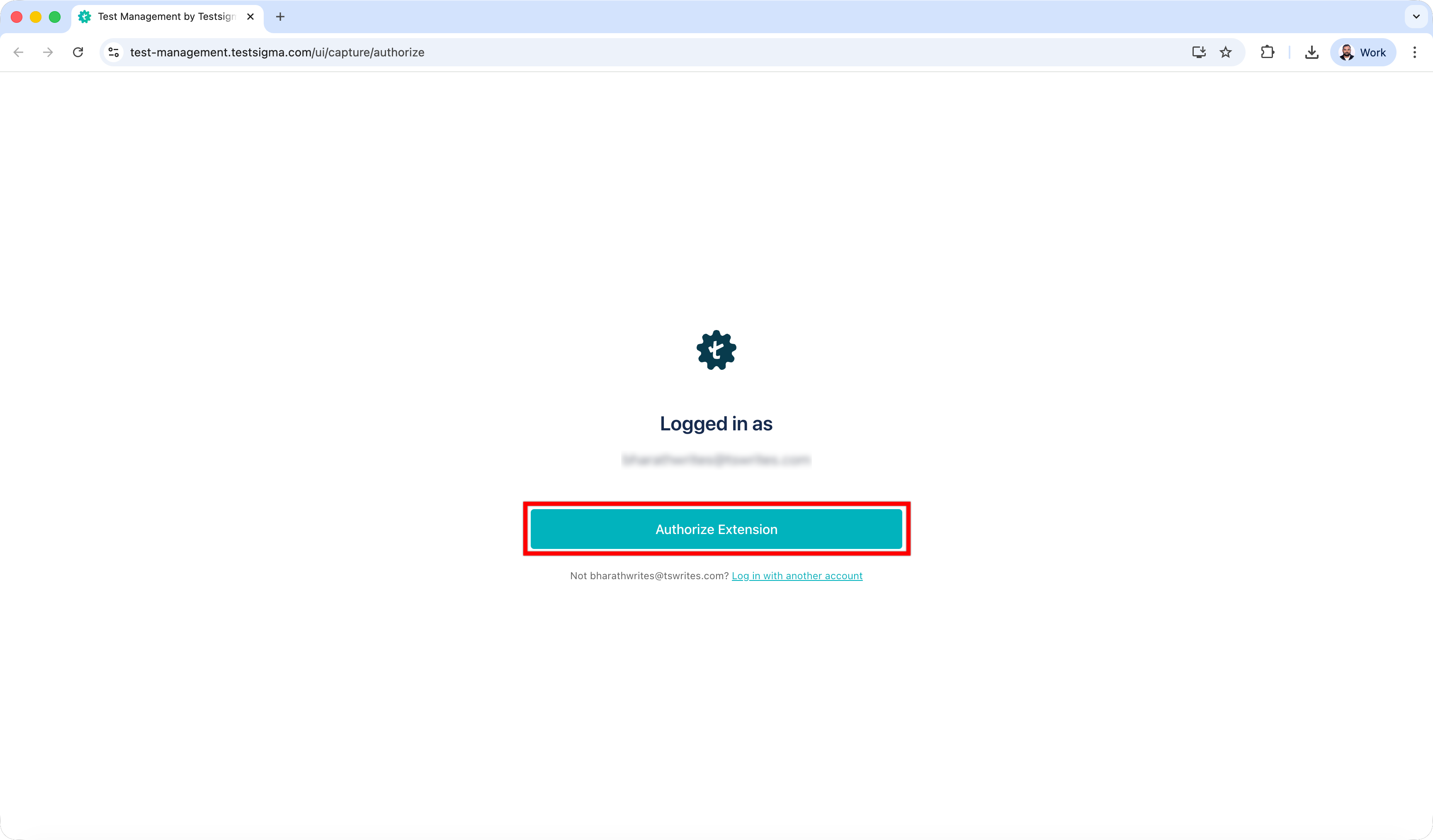
The extension is now authorized and ready for use.
Configure the Extension
You can configure evidence capture options and shortcuts from the extension settings.
- Click the Extensions icon in the Chrome toolbar.
- Select Test Capture.
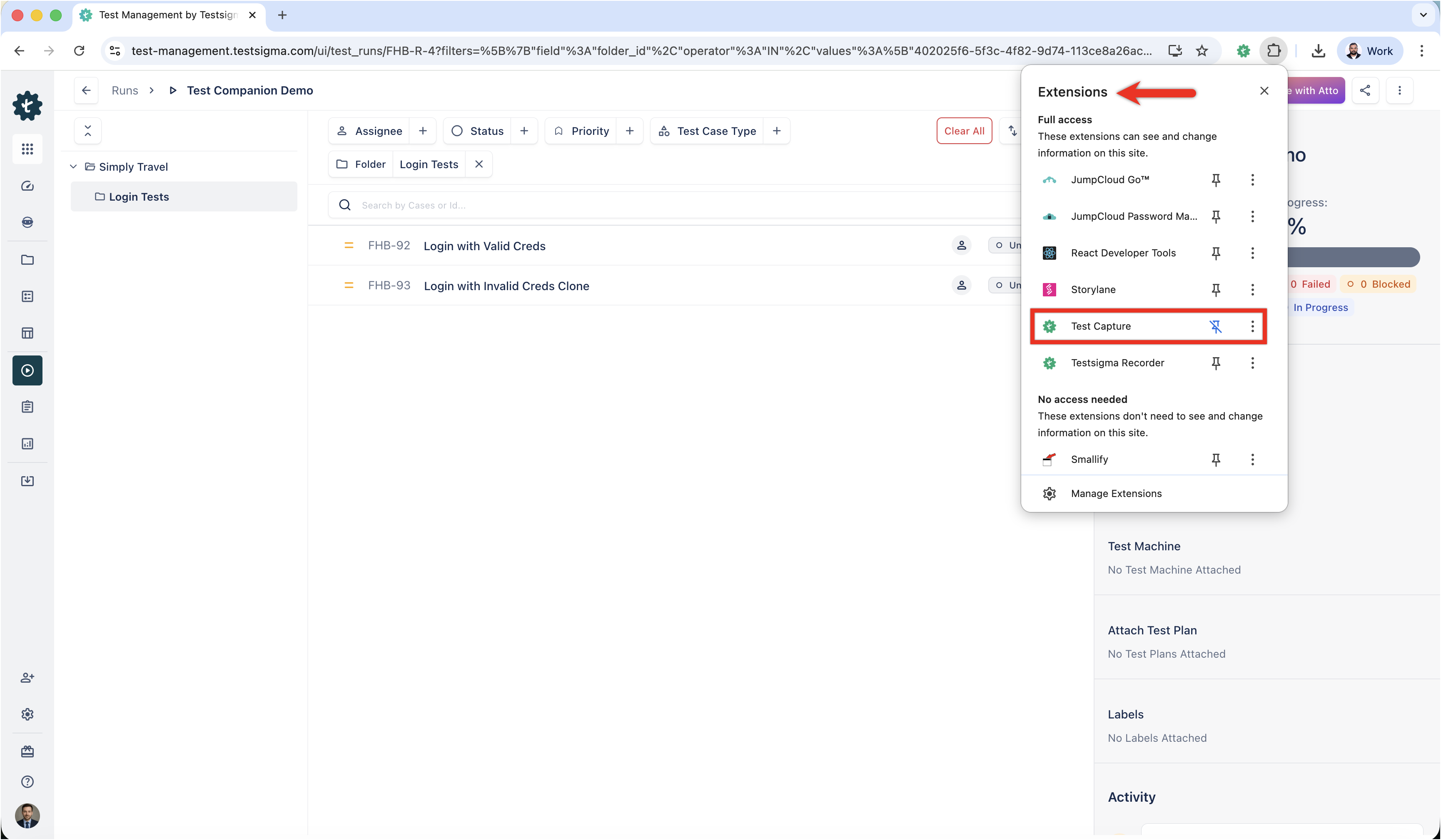
-
Enable the required options:
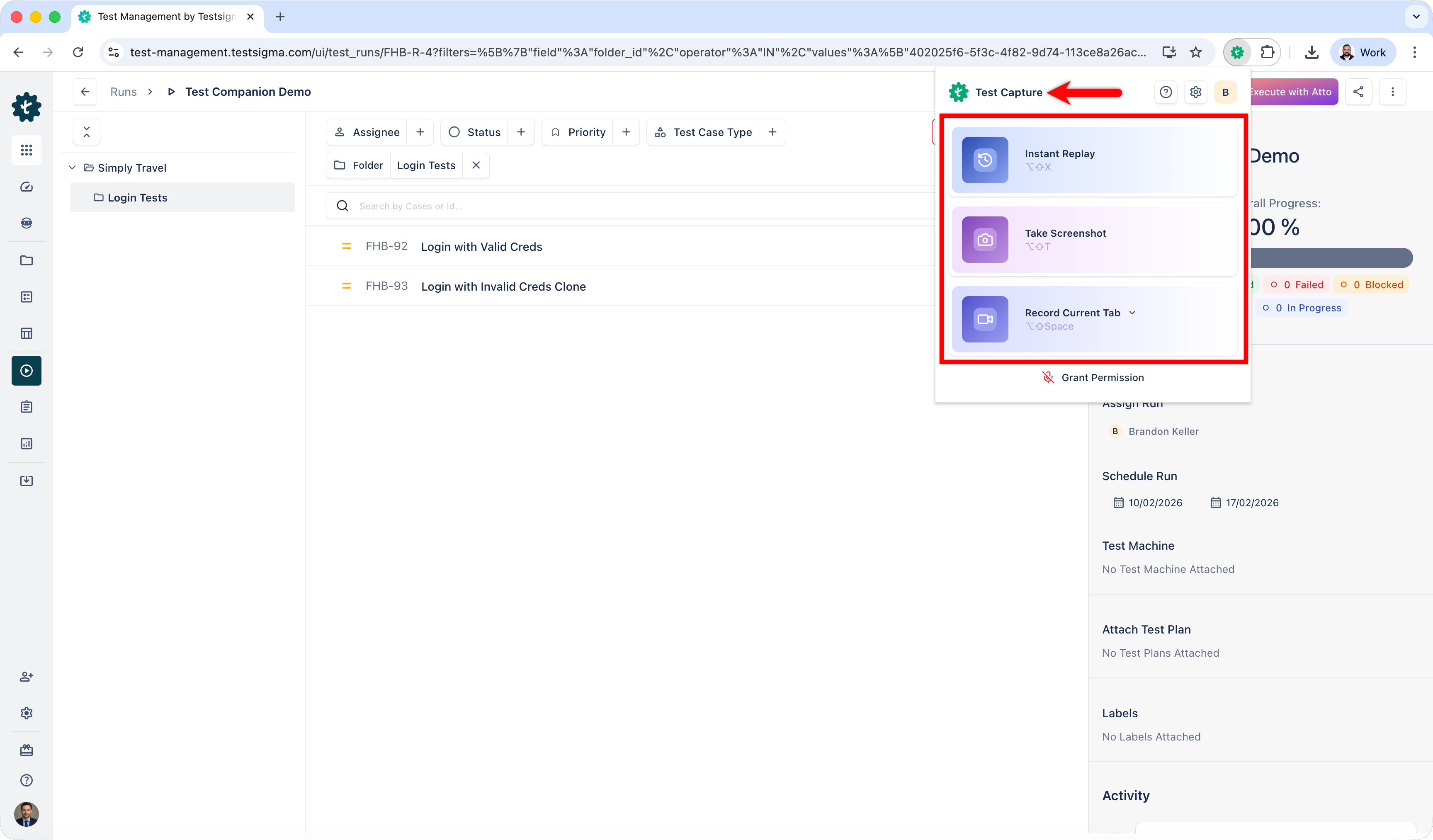
- Instant Replay
- Take Screenshot
- Record Current Tab/Current Tab
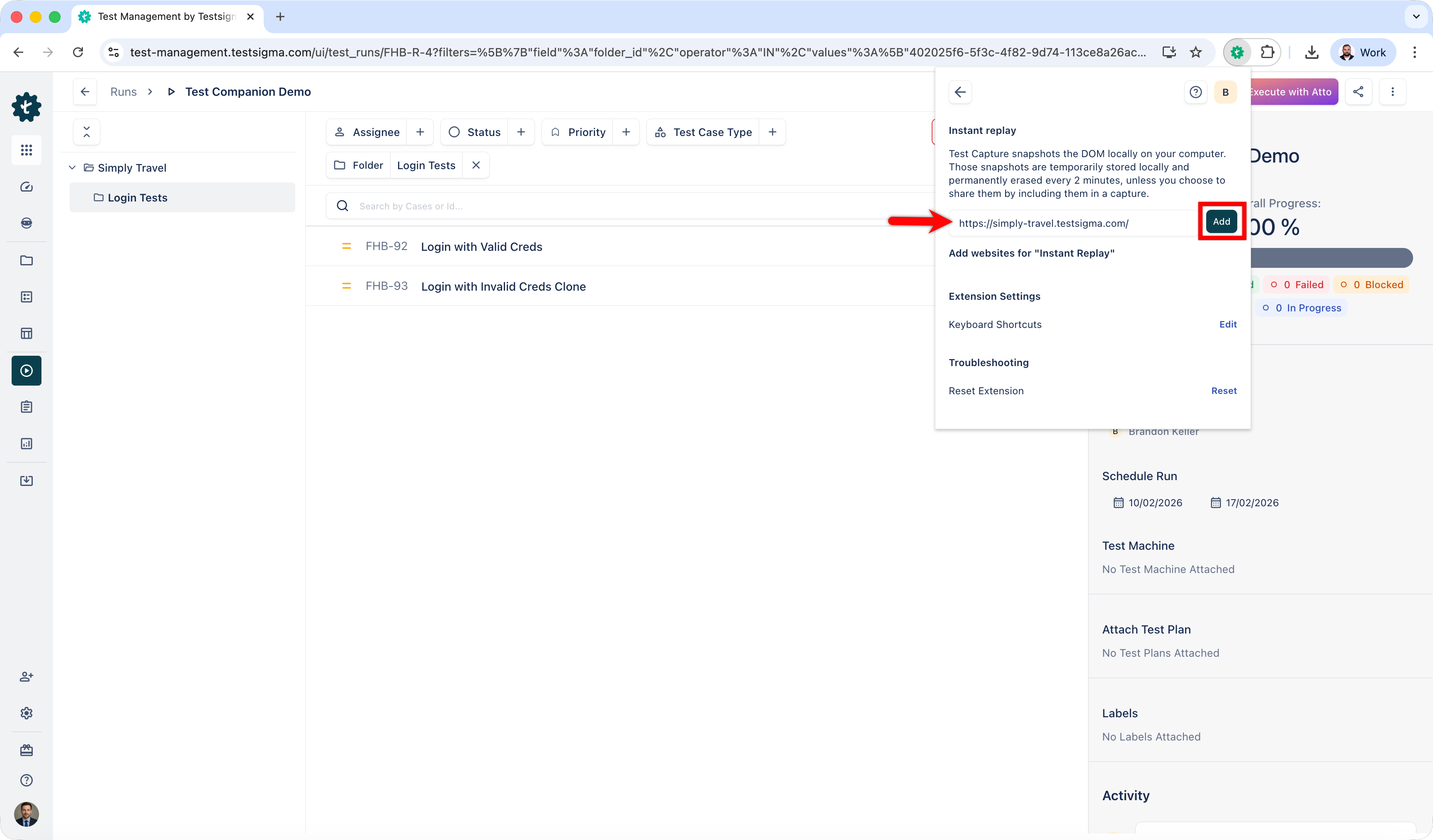
- Click Settings.
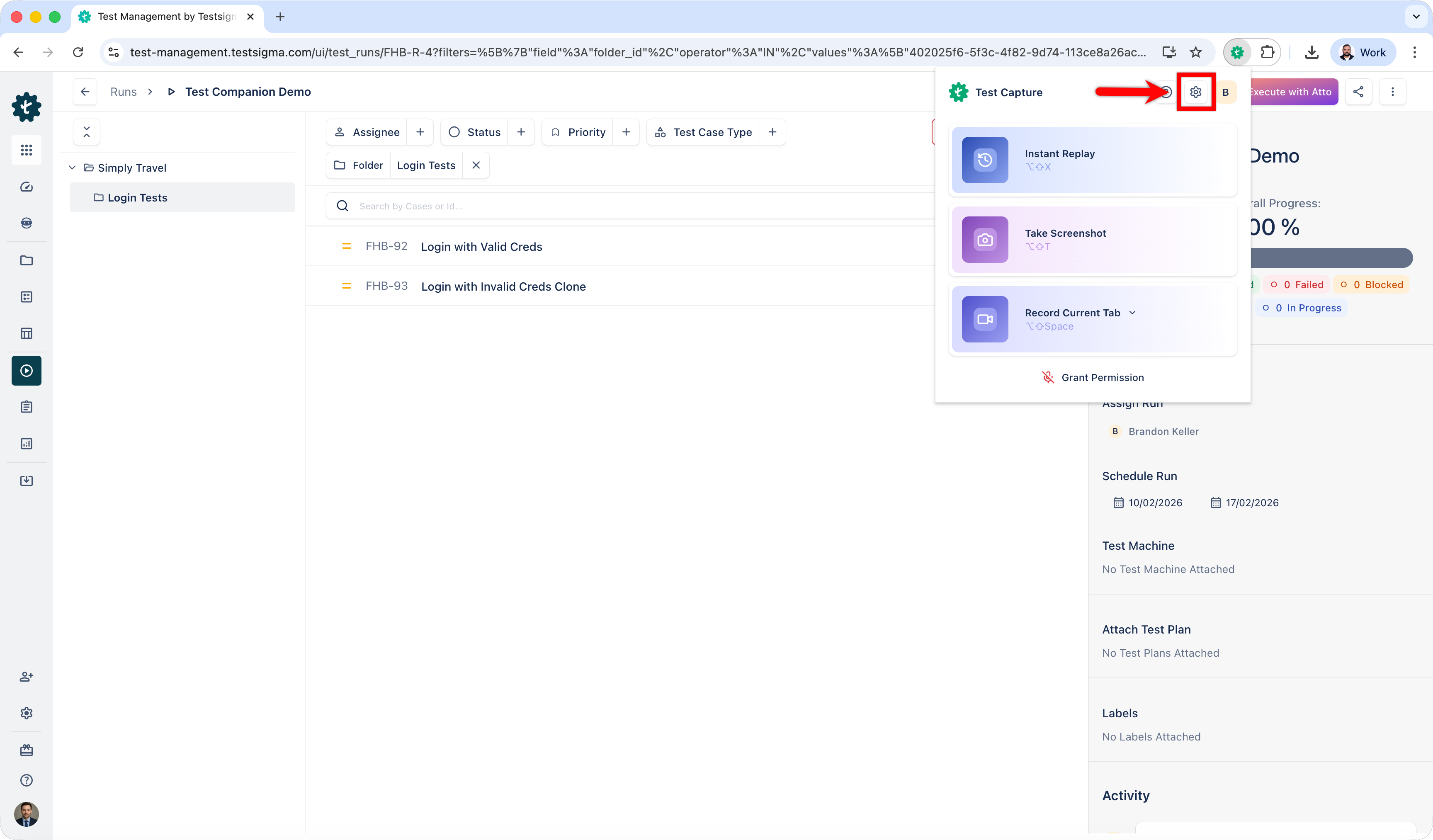
- Enter the application URL used for testing and click Add.
Configure Keyboard Shortcuts
You can customize keyboard shortcuts for faster access to extension actions.
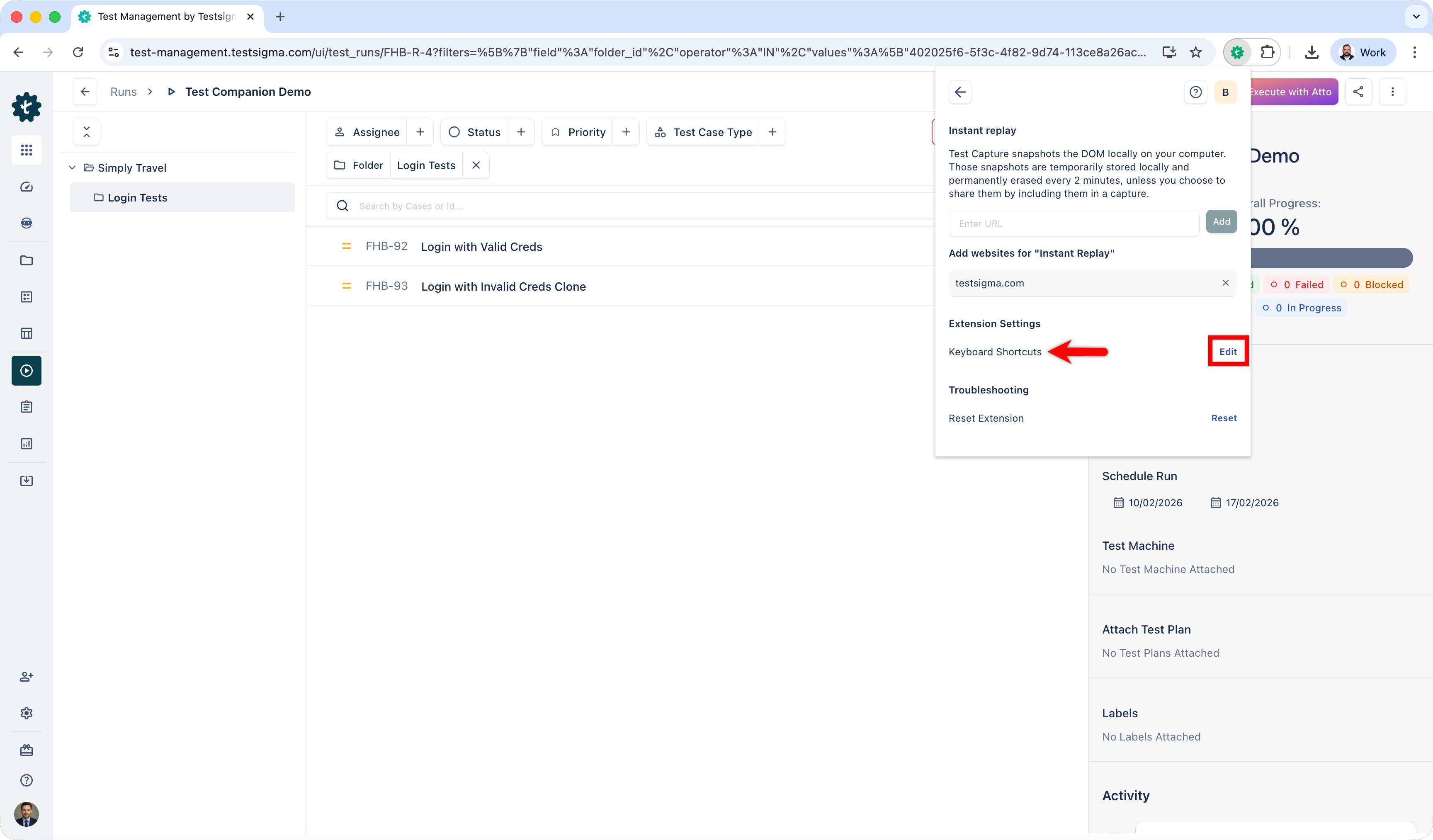
- Open Extension Settings.
- Click the Edit icon next to Keyboard Shortcuts.
-
Configure shortcuts for the following actions:
- Activate the extension
- Instant Replay
- Record Entire Screen
- Record Current Tab
- Take Screenshot
Reset Extension Settings (Optional)
- Open Extension Settings.
-
Click Reset next to Reset Extension.
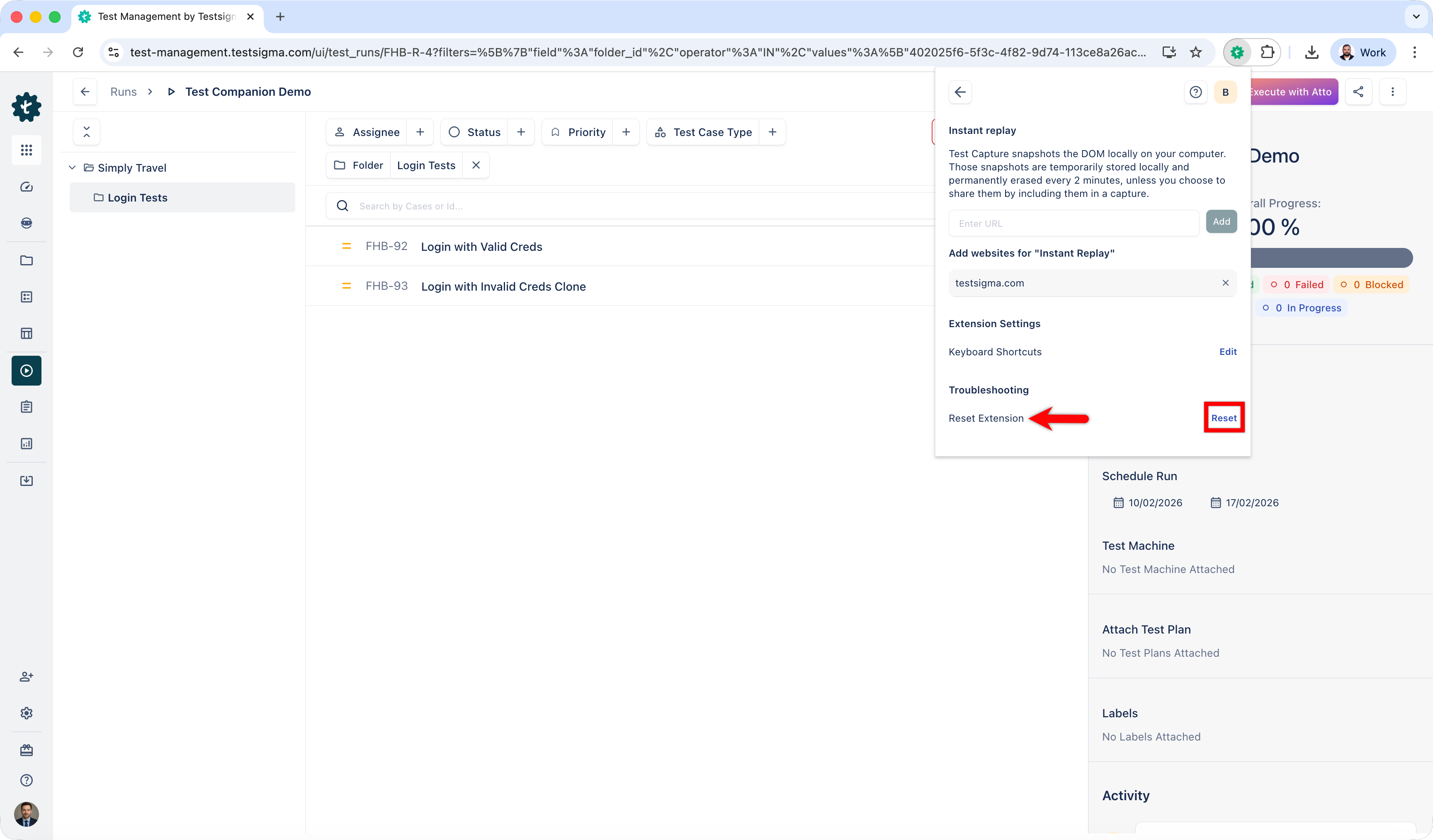
All extension settings are reset to their default values.

Want to contribute or report missing content?