


Jira started out as an issue-tracking and project-management tool in 2002. Companies initially used Jira for bug tracking. But over the years, it has become a ubiquitous platform for businesses to manage projects and ensure collaboration. Yet one issue has remained constant since the beginning: Jira does not have an in-built testing infrastructure. So, you can feed the defect information but cannot reuse it for further testing processes in the tool. But the good part is Jira allows integrations with some of the top-rated test automation tools, including Testsigma, for complete test case management.
Let’s look at how you can write and manage test cases for Jira.

Table Of Contents
- 0.1 What is Jira?
- 0.2 What are Jira test cases?
- 0.3 How to set up Jira for case testing?
- 0.4 What steps should you follow to write test cases in Jira?
- 1 What is Jira?
- 2 What are Jira Test Cases?
- 3 How to Setup Jira for Case Testing?
- 4 How to Create Test Cases in Jira?
- 5 Steps for Writing Test Cases in Jira
- 6 Problems with Writing Test Cases in Jira
- 7 Conclusion
- 8 Frequently Asked Questions
What is JIRA?
Jira is a project management and issue-tracking tool developed by Atlassian.
What Are JIRA Test Cases?
Jira test cases refer to test cases that are created, managed, or tracked within the Jira platform.
How to Set up JIRA for Case Testing?
While Jira does not have an inherent test case feature, you can create new custom issues by using the Issue Type feature that is specifically built for case testing.
What Steps Should You Follow to Write Test Cases in JIRA?
- Integrate Testsigma with Jira
- Create a test case in Testsigma
- Add test steps
- Link the test case to a Jira issue
- Manage test case execution and reporting
What is JIRA?
Jira is a project management and issue-tracking tool developed by Atlassian. It’s widely used by software teams to plan, track, and release projects, especially in Agile environments. While Jira isn’t specifically designed for test case management, it can effectively manage testing workflows when integrated with the right plugins or tools.
What Are JIRA Test Cases?
Jira test cases refer to test cases that are created, managed, or tracked within the Jira platform.
While Jira doesn’t have built-in test case management features, teams can still manage test cases using custom issue types or by integrating Jira with test management tools like Test Management by Testsigma. These tools add test-specific features to Jira, making it easier to organize, execute, and track your testing process directly within the platform.
How to Setup JIRA for Case Testing?
Jira does not have an inherent test case feature, but it has innumerable customization options. For case testing setup, we will use the Issue Type feature by creating a new custom issue that is specifically for case testing. Additionally, you will need to set up custom subtasks that testers can use to feed the test case results directly into Jira.
It is ideal to have your custom ‘Test Case’ issue type to have a summary, test case steps, and the expected results.
Once you have the vital information in place, let’s start with creating our custom issue type for case testing:
- Go to Jira Settings by clicking on the gear icon in the top-right corner and selecting Issues. You will require admin access for this.
- Under the Issues section, select Issue Types and click on the Add Issue Type button to create a Test Case issue.
- Provide details for the new issue type, including description and icon.
- Associate the new issue type with an issue type scheme. This determines which projects will use the new issue type. Go to Issue type schemes settings and click Edit on the Jira project you want to associate the issue type with.
- Assign a field configuration to the issue type, specifying which fields will be available and required. Don’t forget to add a summary, test case steps, and the expected results. You will find it under Screen Settings to Add Screens.
- After adding screens, go to Screen Schemes to add a screen scheme. This step is to add the screen scheme to the custom screen you created in the previous step.
- Next, go to Issue type screen schemes. Look for the Jira project in which you want to use the new Issue type. Then, select Associate an issue type with a screen scheme, and select the new issue type (e.g. Test Case) and its Screen scheme. Lastly, click on Add.
- And voila! You have successfully created a custom issue type for case testing with the necessary fields within the choice of your Jira project.
- Verify by creating a test issue of the new type to check if it behaves as expected.
Next up, you have to create a custom subtask, Test Case Results, that QAs can use to log the test results directly.
Here are the steps to follow:
- Follow the same first step to add the issue type. But this time, select Sub-Task Issue Type.
- Re-trace the same steps. Add screens, select the fields for the subtask, add screen schemes, and select the previously created screen as default.
- In the last step, when you are in the Issue type screen scheme, there is no need to create a new screen scheme. Look for the test case screen scheme set up prior and select Configure under Actions to Associate an issue type with a screen scheme.
How to Create Test Cases in JIRA?
Creating test cases in Jira is easy now that you have an issue type and the necessary fields to describe and log your tests. It is similar to creating a new task.
Go to your Jira account and click on Create. Pick the issue type as Test Case and enter the details in the available fields. Remember to provide the steps to recreate the defect and the expected results for the developers to fully understand the issue.
Steps for Writing Test Cases in JIRA
Step 1: Integrate Testsigma with JIRA
To integrate Testsigma with Jira, navigate to the Integrations tab and select ‘Issue Tracker’. Following this, you can choose Jira Cloud/Jira Server. Then, enter your Jira URL, email, and API token for Jira Cloud, and click Save to connect Testsigma with Jira. Once integrated, you can link Testsigma test cases to Jira issues, create and push defects directly to Jira from Testsigma, and view linked issues inside Jira.
Step 2: Create a Test Case in Testsigma
Navigate to the Test Cases under the Test Development tab, and click Create Test Case, following which you can fill in the test case details as follows:
- Title: A concise title of what you’re looking to test
- Description: A brief description of the objective or scope of the test.
- Tags or Priority: This is optional, but you can add tags to organize your test cases better.
Step 3: Add Test Steps
You can write test steps in plain English using Testsigma’s natural language format. For example, here are the steps you can follow:
- Navigate to the login page of a website you want to test.
- Enter an email address in the Username field.
- Enter the password in the Password field.
- Click the login button.
- Finally, verify that the user is redirected to the dashboard.
Testsigma automatically converts these steps into automation-ready actions.
Step 4: Link the Test Case to a JIRA Issue
Once your test case is saved, open it and click Link Issue -> Jira. You can either link an existing issue by searching for the Jira ID or create a new Jira issue directly from Testsigma. Your test case is now connected to the intended Jira story or bug, allowing you to trace test coverage directly in Jira.
Step 5: Manage Test Case Execution and Reporting
Once the Jira issue is linked, you can execute the test case directly from Testsigma, which automatically logs all executed test cases. If a test fails, you can raise a Jira defect directly from the failed step, and the issue will include failure logs, screenshots, and the link to the test case. You can then view all linked Testsigma runs or the details of the test case.
The best part? Testsigma’s two-way integration with Jira enables you to view linked test cases, the latest run status, and historical results directly within Jira. You can also log results directly in Jira, which syncs right back with Testsigma. This works the other way around as well, as the updates made in Testsigma are reflected in Jira, providing more traceability.
Agentic AI Capabilities in Test Management by Testsigma
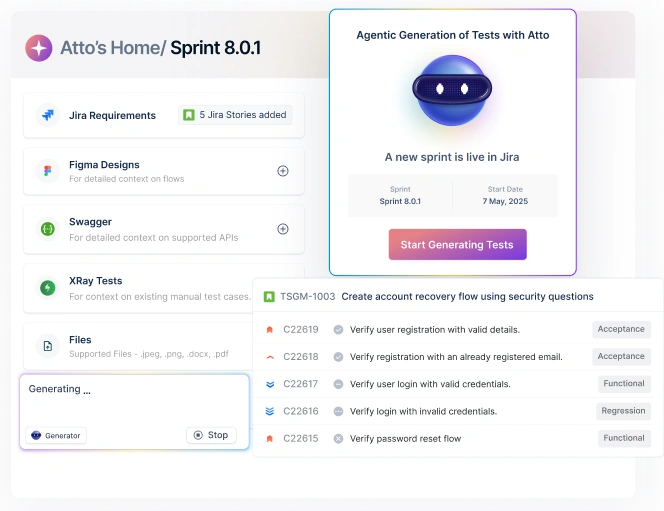
Atto is the Agentic AI coworker that deploys a crew of specialized agents to automate key testing tasks like generating test cases and reporting bugs, so teams can save time and focus on improving software quality.
Generator Agent is an AI agent for test case generation powered by Atto. It can create test cases from various sources like Jira, Figma, Xray, images, videos, documents, and more. It even suggests edge cases to help you get closer to 100% test coverage.
Executor Agent is an AI agent that helps execute tests within the browser.
Bug Reporter Agent is a smart agent that automatically generates detailed bug reports with logs, screenshots, and reproduction steps, and sends them directly to your bug tracking tools.
Problems with Writing Test Cases in JIRA
Every step we discussed that pertains to writing test cases in Jira has encountered a problem. It is a highly manual process, does not support re-running of test cases, and requires time and skill to create a single test case.
Jira is a dedicated project management tool, and even though there are ways you can make writing test cases possible within Jira, it is not good practice to do so.
Conclusion
The Jira project management tool can serve as a test case management and bug-tracking tool. But when the stakes are high, it is not always the right way to go. There are multiple ways you can use Jira for your testing purposes, and the majority of them include improving collaboration and focusing on getting the right information across to the developers.
If you wish to use Jira as a case management tool, this blog can help you get a hold of the tool’s capability in every way. Alternatively, multiple integration possibilities exist as well. But no matter your choice, remember to focus on creating a clear and concise test case report that captures as much information as possible.
Frequently Asked Questions
Some of the best practices you must keep in mind when writing Jira test cases are to keep your test cases clear and simple, use descriptive and consistent names for your test cases, follow a structured format, make test cases reusable, maintain traceability with Jira issues, prioritize and categorize tests, keep tests up to date, and document expected results clearly.
To create and manage Jira test cases, you must first integrate Testsigma with Jira. Then, write a clear title, description, and detailed steps in plain language before saving it. Following this, link the test case to a Jira story or issue using the Link Issue option for traceability. Once connected, you can run tests in Testsigma and automatically log defects back to Jira with screenshots and logs. Make sure to regularly update test cases when requirements change, categorize them by feature or priority, and track execution progress through Jira dashboards or reports.