




Table Of Contents
- 1 Key Takeaways
- 2 What is Cursor AI and Why Testers are Switching to It
- 3 Setting Up Cursor AI for Your Test Environment
- 4 Generating Test Cases with Cursor’s Composer Feature
- 5 Writing Automation Scripts Using Cursor AI Chat
- 6 Cursor AI for Debugging Failing Tests
- 7 How Testsigma Pairs With Cursor for End-to-End AI Testing
- 8 Cursor AI vs GitHub Copilot for Testing: Key Differences
- 9 3 Limitations of Cursor AI in QA Workflows
- 10 From Fast Test Creation to Scalable AI Testing (Conclusion)
- 11 FAQ’s
Key Takeaways
- Cursor AI is an AI-powered code editor built with AI at its core — it understands your full codebase and helps write, update, and debug tests.
- Use Composer (Cmd/Ctrl + I) to generate and update multiple test files at once, including page objects and configurations.
- Cursor AI’s Debug Mode follows a structured approach: generating hypotheses, adding temporary logs, reproducing bugs, and suggesting targeted fixes.
- Pairing Cursor AI with Testsigma gives you fast local test authoring plus cloud-based execution, self-healing, and reporting at scale.
- Cursor AI differs from GitHub Copilot by offering multi-file editing, full repository indexing, and support for multiple AI models.
What is Cursor AI and Why Testers Are Switching to it
Most AI tools you’ve used before are probably just plugins. They try to predict what you’ll type next, but they don’t really understand why you’re writing a test.
Cursor is different because the AI is built directly into the editor. It works as part of your workflow.
Testers are moving, because it:
- Understands how your test files, page objects, and utilities relate to each other
- Updates multiple files together when a feature changes
- Keeps your test logic aligned with your application behavior
- Reduces repetitive edits that usually slow down automation work
- Helps you build a more reliable AI test automation strategy.
A big challenge in traditional workflows is the constant switching between tools. Cursor removes that friction, and the results are measurable; teams at Money Forward reported achieving 70% faster test creation by converting manual notes into scripts using Cursor AI test automation.
Setting up Cursor AI for Your Test Environment
Setting up this AI IDE for QA is straightforward because it is based on the editor you likely already use.
However, to get the most out of it, you need to show Cursor AI how your specific project works.
Give it a few minutes to set up correctly, and the AI will write better code that matches your team’s style. Here’s how to get started with your test environment:
- Download and import: Install the standalone editor and import your existing settings. It will look and feel just like your old setup, but with more power under the hood.
- Index your files: This is the most important step for cursor IDE testing. Let the editor scan your folder. This creates a map so the AI knows where your page objects, help files, and configurations are placed.
- Create a .cursorrules file: Think of this as a set of instructions for your AI helper. You can tell it to “always use TypeScript” or “never use hardcoded waits.” This keeps the AI from making common mistakes.
- Connect your tools: You can link the editor to your browser or database. This allows the AI to see what is happening on your website in real-time, which makes it much better at picking the right buttons to click in your scripts.
By indexing your codebase context, you ensure the AI doesn’t just guess what to do.
It will look at your existing Playwright or Selenium tests to see how you like to name things and follow those same patterns.
Testers on Reddit have shared that adding a .cursorrules file is the secret to getting high-quality results. Without these rules, the AI might suggest generic code that doesn’t work with your specific framework.
Once you have these boundaries in place, the tool becomes a much more reliable partner for Cursor AI test automation.
Generating Test Cases with Cursor’s Composer Feature
While a regular chat window gives you snippets of code, the Composer feature can actually go into your files and make changes for you.
For example, you could say, “Create a new Playwright test for the checkout flow and update the checkout page object with any new buttons you find.”
How to Use Composer for Your Testing Tasks:
- Open the Composer window: Use the Cmd + I (or Ctrl + I) shortcut to start a new session.
- Give it a clear goal: Instead of just asking for a script, give it context. You can say, “Write unit tests for the payment service and make sure to include a test for an expired credit card.”
- Review the changes: The AI will show you exactly which files it wants to change. You can look through them and click “Accept” to save the work.
- The “Run and Fix” loop: One of the best parts is that you can ask the AI to run the tests it just wrote. If they fail, the AI will read the error and try to fix the code automatically until it works perfectly.
This is a huge time-saver because you don’t have to manually “wire” your files together. If you are converting a manual test plan into code, you can even point the AI to a text file or a Jira ticket.
It will read those notes and turn them into an automated script that follows your team’s specific style.
Testers on LinkedIn have shared that this “multi-file” approach is what makes Cursor Composer test cases so much better than standard AI tools.
It turns a high-level idea into a working suite in minutes, providing a high-speed AI test generation experience.
Writing Automation Scripts Using Cursor AI Chat
While Composer handles big changes across your project, the Chat feature (Cmd + L) is built for fixing or writing a specific script.
The key to achieving high-quality AI test script generation in an IDE is providing the right context.
This allows the AI to see your existing page objects and follow your team’s specific coding style.
How to Use Cursor Chat for Your Automation Scripts:
- Pick your context: Open the chat with Cmd/CTRL + L and use the @ symbol to reference files like @LoginPage.ts. This stops the AI from guessing and keeps your cursor AI Playwright or Selenium code consistent with the rest of your project.
- Describe the change: Ask for specific updates, such as “add a test case for an incorrect password” or “refactor this block to be more readable.”
- Apply the update: Review the code block provided by the AI and click the apply button to instantly update your file.
Multiple teams have shared that they can now build a full test suite in under an hour, whereas it used to take them half a day.
It also helps reduce “flaky” tests because the AI can suggest more stable ways to wait for elements on a page.
Cursor AI for Debugging Failing Tests
Debugging is probably the most frustrating part. You have to trace errors, understand the context, and test different theories until you find the root cause.
In 2026, Cursor AI features testing includes a dedicated “Debug Mode” that automates this entire cycle.
Instead of just guessing what went wrong, Cursor AI follows a scientific approach. When a test fails, you can trigger Debug Mode, and the AI will first generate several hypotheses about why the error is happening.
It tries to understand the “why” first before suggesting a fix.
The Debug Mode Workflow:
- Generate hypotheses: The AI analyzes your code and the error message to identify likely causes, such as a race condition or a missing element.
- Instrument the code: Cursor automatically adds temporary logging statements to your scripts. These logs are designed to capture the exact state of your variables and the timing of your execution.
- Reproduce the bug: The AI will ask you to run the test or reproduce the bug. As you do this, the AI “listens” to the log stream in real-time.
- Analyze and fix: Once it has the data, the AI pinpoints the exact line where the logic breaks and offers a targeted fix that you can apply with one click.
One of the most impressive updates in 2026 is the integrated browser. For frontend testing, the AI has direct access to the website’s DOM, console logs, and network requests.
It can even take screenshots to “see” what the page looks like when it fails. This means you no longer have to copy-paste error messages from your browser into your IDE.
How Testsigma Pairs with Cursor for End-to-end AI Testing
Cursor AI is excellent for writing and fixing code in your editor, but professional testing needs scale and tracking.
While Cursor helps you build scripts faster, Testsigma handles the heavy lifting of cloud execution, cross-browser support, and detailed reporting. Start Testing.
The Difference between Building and Scaling
Think of Cursor as your local engine for creating tests and Testsigma as the professional infrastructure for running them. One is for authoring; the other is for execution and management.
| Feature | Cursor AI (Editor) | Testsigma (Cloud) |
| Primary Job | Writing and local debugging. | Cloud execution and management. |
| Devices | Your local machine. | 3,000+ real browsers/devices. |
| Speed | Sequential local runs. | Massive parallel cloud runs. |
| Maintenance | Manual AI-assisted fixing. | AI-powered self-healing. |
| Reporting | Basic terminal logs. | Visual dashboards and videos. |
Saving Time with Automated Maintenance
Most software updates are frequent, and if a developer updates a button ID, your tests would most likely break.
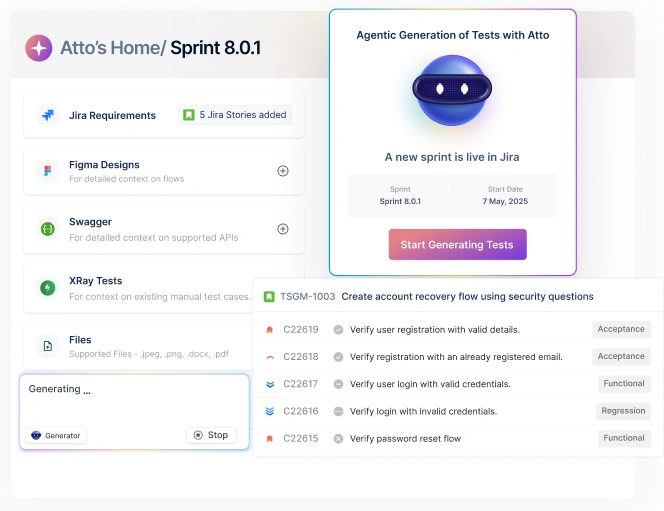
While you could use Cursor to find and fix that manually, Testsigma’s AI assistant, Atto, fixes these tests automatically in the cloud.
This means you spend less time on maintenance and more time using Cursor to build new features.
Cursor AI Vs GitHub Copilot for Testing: Key Differences
The choice between these tools comes down to how deep you want the AI integration to be. You can go deeper with AI testing tools comparison, but here are the basics:
Because Cursor owns the whole environment, it can perform tasks Copilot can’t, like editing multiple files simultaneously in Composer mode.
Cursor also handles project context better. It indexes your entire folder to understand how your page objects and test files connect.
While Copilot focuses mostly on the file you have open, Cursor can access the whole environment.
While Copilot is accurate for small tasks, Cursor is faster at finishing complex, multi-file engineering tasks like Cursor AI vs Copilot testing.
| Feature | Cursor AI | GitHub Copilot |
| Philosophy | Standalone AI editor. | AI extension. |
| Editing | Multi-file (Composer). | One file at a time. |
| Context | Full repository indexing. | Active workspace focus. |
| Model Choice | GPT-4/5, Claude, Gemini. | Primarily OpenAI. |
| Price | $20/month. | $10/month. |
3 Limitations of Cursor AI in QA Workflows
For professional teams, there are a few things to watch out for:
Hallucinations and the Lazy AI Problem
Sometimes the AI gets lazy and leaves a comment like // ... rest of code instead of finishing the script. It might also suggest a command that doesn’t exist. Always run your tests right away to make sure they are real and complete.
Issues with Very Large Projects
In projects with over 100,000 lines, the AI can fail to navigate itself. It might update 20 files correctly, but forget the 21st one that links them together. For massive suites, you still need a human to check the overall architecture.
Security and Privacy Risks
Using AI means sharing parts of your code. While there is a Privacy Mode, you must be careful that the AI doesn’t suggest insecure software packages or leak your private API keys.
Because an editor cannot handle global security at scale, many teams use it with Testsigma. While you use Cursor to write scripts, Testsigma provides a secure, cloud-based space to run them safely.
From Fast Test Creation to Scalable AI Testing (Conclusion)
Using cursor AI for testing transforms automation by turning complex coding into a fast, guided experience. You’ve seen how it excels at authoring and debugging scripts with full codebase context.
However, local success is just the start. To achieve enterprise scale, you need Testsigma’s cloud infrastructure and AI-driven self-healing to handle execution across thousands of devices. Start a free trial with Testsigma today to move to continuous delivery.
FAQ’s
Cursor AI is a code editor that uses artificial intelligence to help you write and fix test scripts. It looks at your entire project to suggest accurate unit and integration tests based on your specific code.
Cursor is an independent editor that can change multiple files at once, which is better for building complex test suites. GitHub Copilot is a simpler plugin that works best for finishing short lines of code within a single file.
Yes, it can build complete scripts for frameworks like Playwright, Selenium, and Cypress. You just describe the test flow in the chat, and the AI writes the file using your existing project style.
There is a free version with a limited number of AI requests each month for small tasks. For professional teams doing heavy automation and debugging, the Pro plan is usually required.
Cursor helps you write code, but it cannot run tests or manage your cloud execution and reporting. To handle cross-browser testing and CI/CD integration, you should pair it with a platform like Testsigma.
Cursor is strong for code-level testing: its Composer and chat features can generate unit tests, integration tests, and Playwright or Selenium scripts inside your repo, and help debug failing tests. It does not maintain end-to-end suites across browsers and devices on its own. The best setup for most teams is Cursor for developer-owned tests plus an AI test automation platform like Testsigma for end-to-end, regression, and cross-browser coverage, where AI agents generate plain-English tests, run them on 3000+ real browsers and devices, and self-heal them as the UI changes.