- Projects
- Test Cases
- Data Sets
- Imports and Exports
- Step Groups
- Test Runs
- Test Plans
- Integrations
- Testsigma Two-way Integration
- Settings
- Manage Users
- Reports & Analytics
- CI/CD Integrations
Projects: Top-Level of Test Management
Learn how to create, edit, or delete projects in Arcus by Testsigma with ease.
In Arcus by Testsigma, the projects come at the top level of the hierarchy. Each project contains test cases, runs, and plans for a specific application. With everything in one place, tracking progress is more manageable, and you can focus on delivering high-quality testing confidently. This article discusses managing projects in Arcus by Testsigma.
Prerequisites
Before you begin, make sure you have an active Testsigma account. If you don’t have one, go to the Testsigma signup page to create an account.
Interactive Demo
Creating a Project
- On the Dashboard, click the Candy Box icon and select + New Project.
- In the Create a New Project dialog, enter the Project Name, Description, and Project Key.
- Click + Create Project.
Testsigma adds a default Project Key when you create a project. This key creates a unique ID for each test case. You can change the key during project creation, but you can't edit it after you create the project.
Editing a Project
- On the Dashboard, click the Candy Box icon and select Project Settings.
- Click Edit to open the Edit Project overlay.
- Update the Project Name and Description.
- Click Update Details to save your changes.
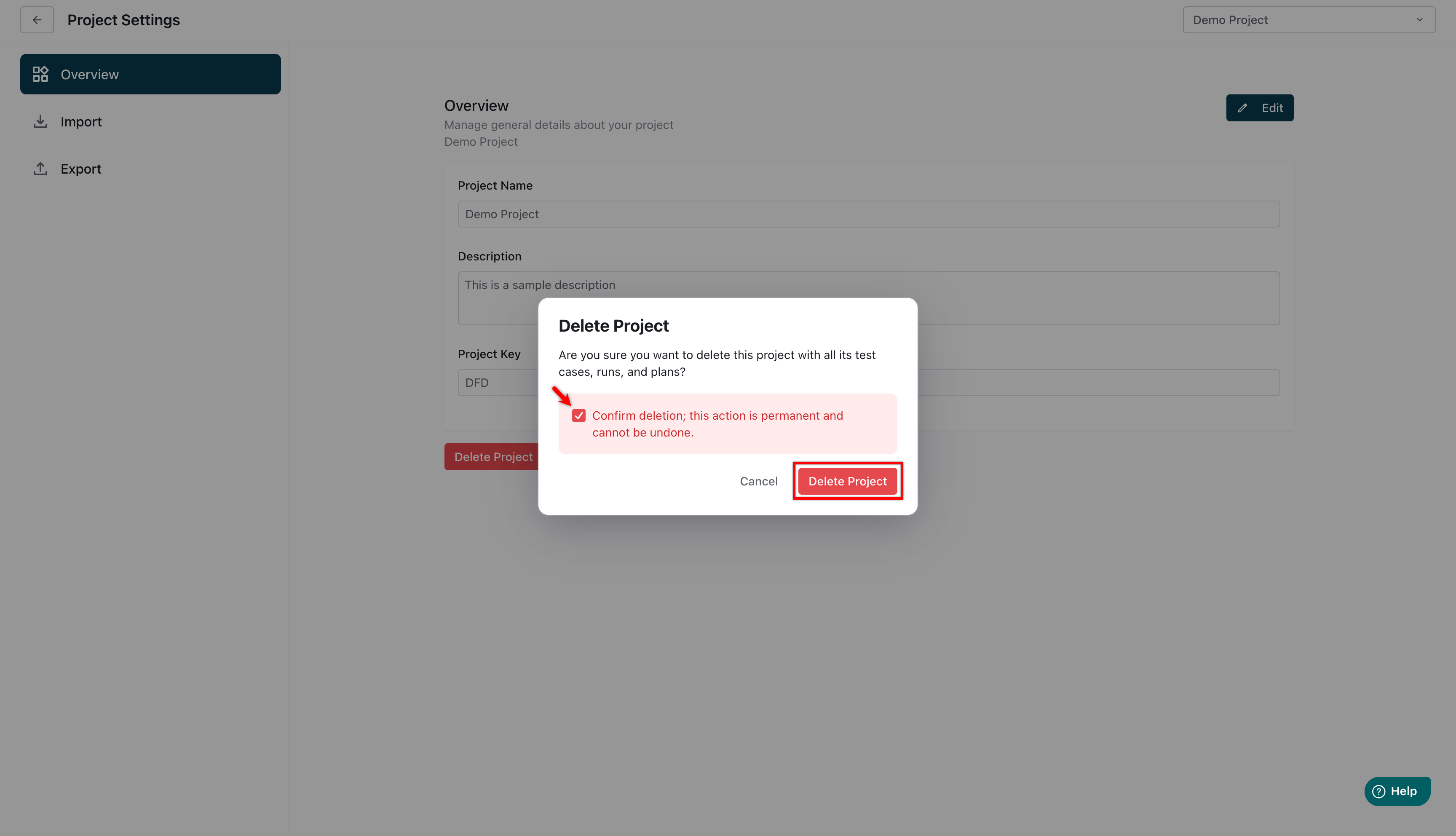
You can also delete the project from the same page. Click Delete Project, and confirm the action in the warning dialog. This action is permanent and can't be undone.
Switching Betweeen Projects
- On the Dashboard, click the Candy Box icon and select Project from the dropdown menu to switch.

Want to contribute or report missing content?