- Projects
- Test Cases
- Data Sets
- Imports and Exports
- Step Groups
- Test Runs
- Test Plans
- Integrations
- Testsigma Two-way Integration
- Settings
- Manage Users
- Reports & Analytics
- CI/CD Integrations
Execute Test Plans from Arcus by Testsigma
This integration lets you execute test plans in Testsigma from Arcus by Testsigma & automatically retrieves machine-level reports for each run.
You can execute test plans in Testsigma directly from Arcus by Testsigma. When you trigger an execution, Arcus by Testsigma creates a separate test run for each machine and imports machine-level reports, including the link to the result page. This article discusses executing Test Plans from Arcus by Testsigma.
Prerequisites
Before you begin, ensure that the test plans are linked between Arcus by Testsigma and Testsigma.
Interactive Demo
Execute a Linked Test Plan in Arcus by Testsigma
- Create or open the test plan you want to execute in Arcus by Testsigma.
- In the test plan details page, under Testsigma Automated Test Plan, click Link a Test Plan if the plan is not yet linked.
-
In the Link Testsigma Automated Test Plan dialog:
- Select the Testsigma's Project, Application, and Version.
- Select a Test Plan.
- Click Link.
- After linking, click the Play icon next to the linked Testsigma Automated Test Plan to trigger execution.
- After execution completes in Testsigma, Arcus by Testsigma automatically creates a test run for each machine with the associated test cases.
- Open the test run in the test plan to view execution details. The run includes links to the individual test case results pages for each executed test case.
NOTE:
Each trigger creates a new test run for every machine in the linked test plan.
View Automated Reports in Arcus by Testsigma
- From the left navigation bar, go to Test Plans.
- Open the test run in the test plan to view execution details.
- The right panel displays a concise summary of the test run.
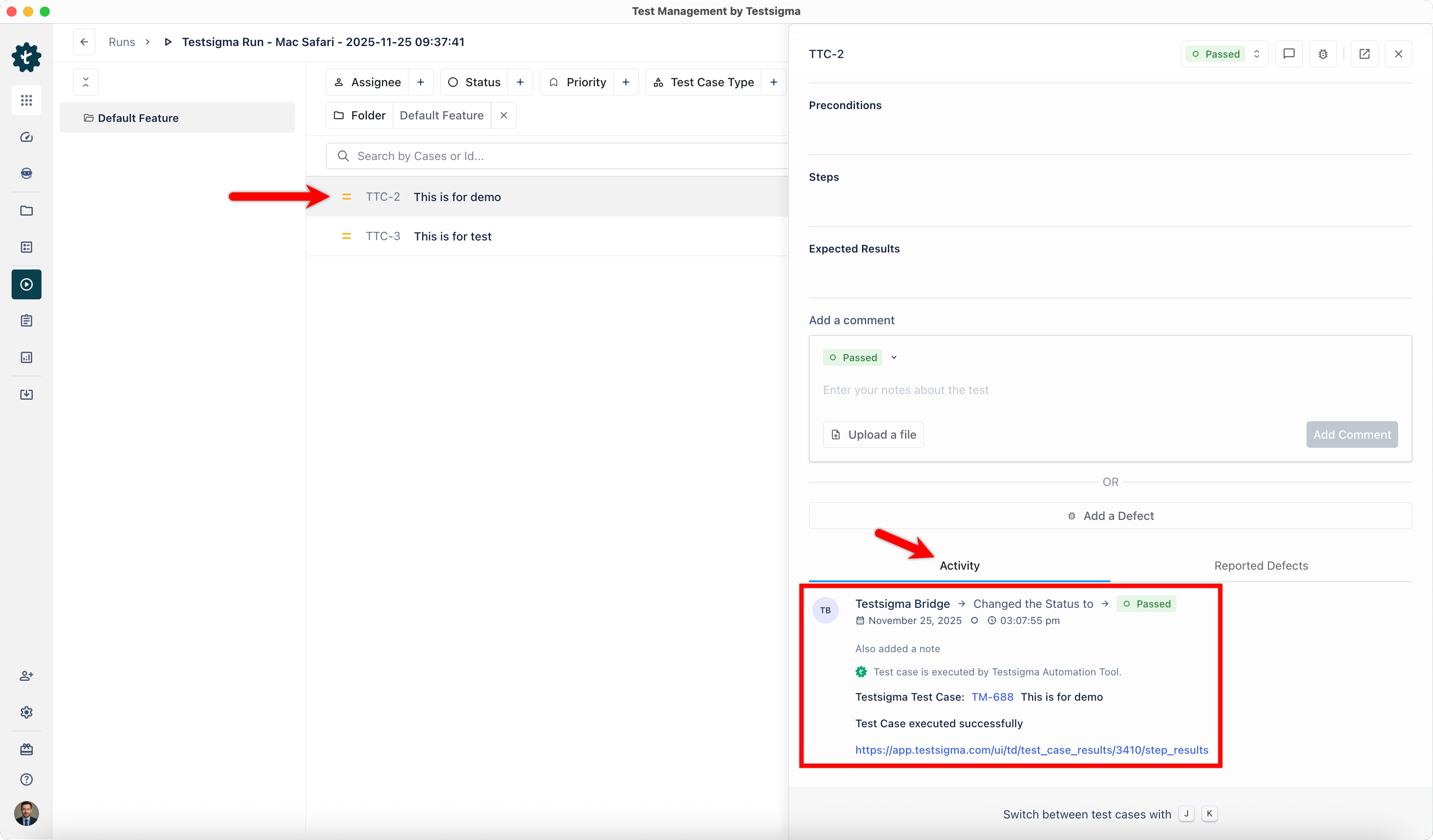
- Click any test case in the test run to open an overlay showing test case details and activity.
- Scroll to the Activity section to view detailed execution information, including a link to the Testsigma results page for the automated execution.

Want to contribute or report missing content?