- Projects
- Test Cases
- Data Sets
- Imports and Exports
- Step Groups
- Test Runs
- Test Plans
- Integrations
- Testsigma Two-way Integration
- Settings
- Manage Users
- Reports & Analytics
- CI/CD Integrations
Set Up MS Teams Notifications
Configure custom MS Teams notifications to keep your team updated on important changes across your test assets.
Arcus by Testsigma allows you to configure Microsoft Teams notifications for various test entities. These notifications help teams stay aligned with testing activities by delivering real-time updates within Teams channels. This article discusses setting up and customizing Microsoft Teams notifications in Arcus by Testsigma.
Authorize the integration using a separate Microsoft account designated only for setup. The account used for authorization will not receive notifications due to a limitation in Microsoft Teams.
Prerequisites
Before you begin, ensure that you have access to a MS Teams workspace.
Interactive Demo
Entities Available for MS Teams Notifications
1. Test Run Assigned
Send notification when a test run is assigned to a user
2. Test Case Waiting on Review
Send notification when a test case is submitted for review
3. Test Case Approved
Send notification when a test case is approved
4. Comments Mentioned
Send notification when a user is mentioned in a comment
5. Test Run Completed
Send notification when a test run status changes or is completed
6. Test Case Assigned
Send notification when a test case is assigned to a user
7. Test Case Rework Requested
Send notification when a test case requires rework
8. Test Run Added to Test Plan
Send notification when a test run is added to a test plan
9. Test Plan Completed
Send notification when a test plan is completed
10. Test Plan Daily Summary
Send daily summary notification for active test plans
You can enable or disable notifications for each test entity. Toggle notifications on for events you want to receive and off for those you do not need.
Customize MS Teams Notifications
- From the left navigation bar, go to Settings > Notifications.
- Expand Notifications, and click MS Teams. This will open the Customise MS Teams Notifications section.
- In the Customise MS Teams Notifications section, hover over the entity you want to edit and click the Edit icon.
- Update the Notification Template as needed.
Click Send Test Notification to send a test notification.
- Click Save to apply the changes.
Add MS Teams Notifications in a Test Plan
- From the left navigation bar, go to Test Plans.
- Create a new test plan or open an existing one.
- In the Notifications section, select the MS Teams channel from the dropdown menu.
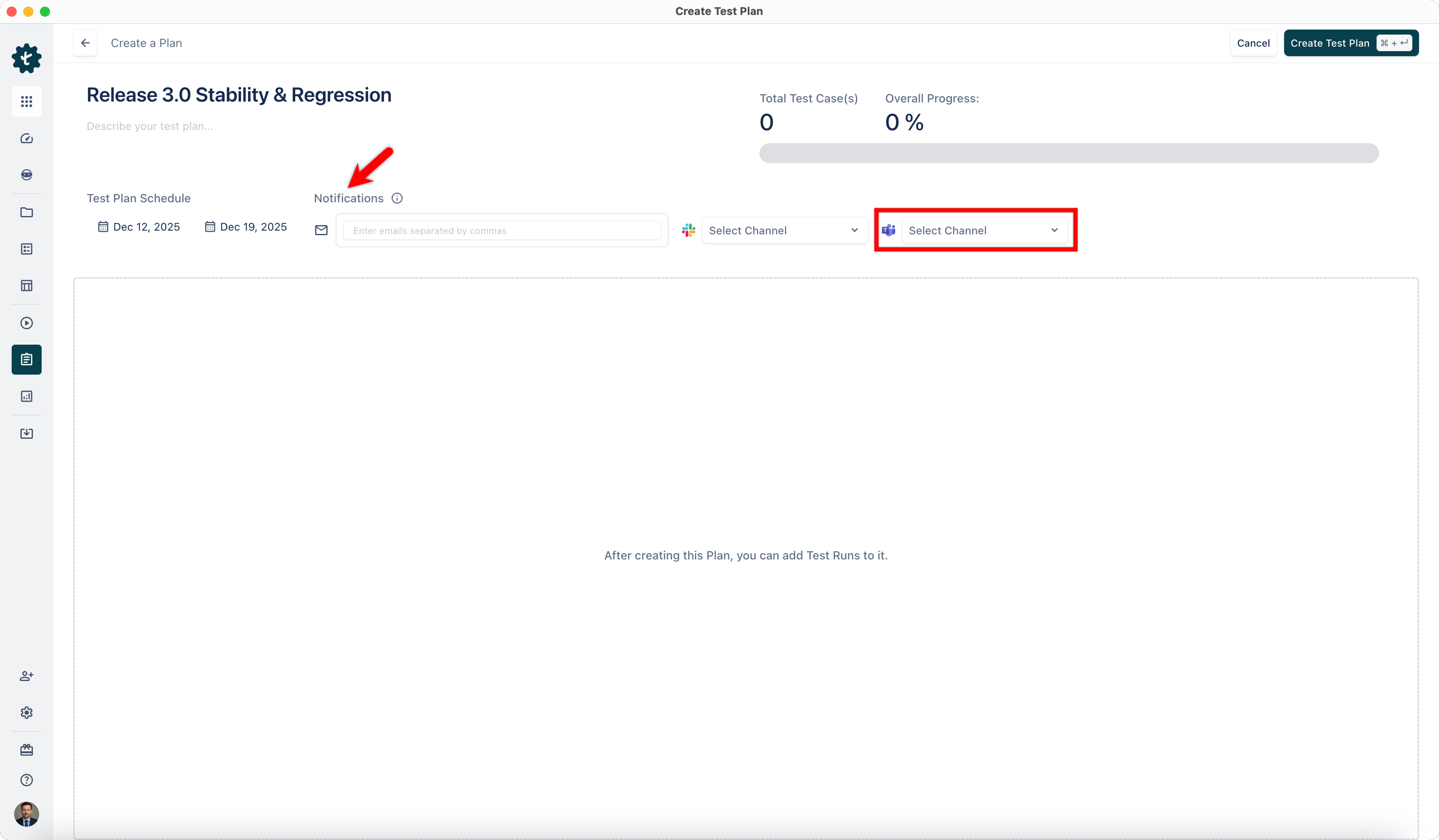
- Notifications will be sent when the test plan is created or updated.

Want to contribute or report missing content?